This article will assist administrators with creating and finding sibling reservations in Facilitron S&R.
What Is a Sibling Reservation?
A sibling reservation is a reservation request placed at another site within your district or organization. For example, if Campus A needs to reserve a facility at Campus B, the reservation should be submitted as a sibling reservation.
How to Submit a Sibling Reservation
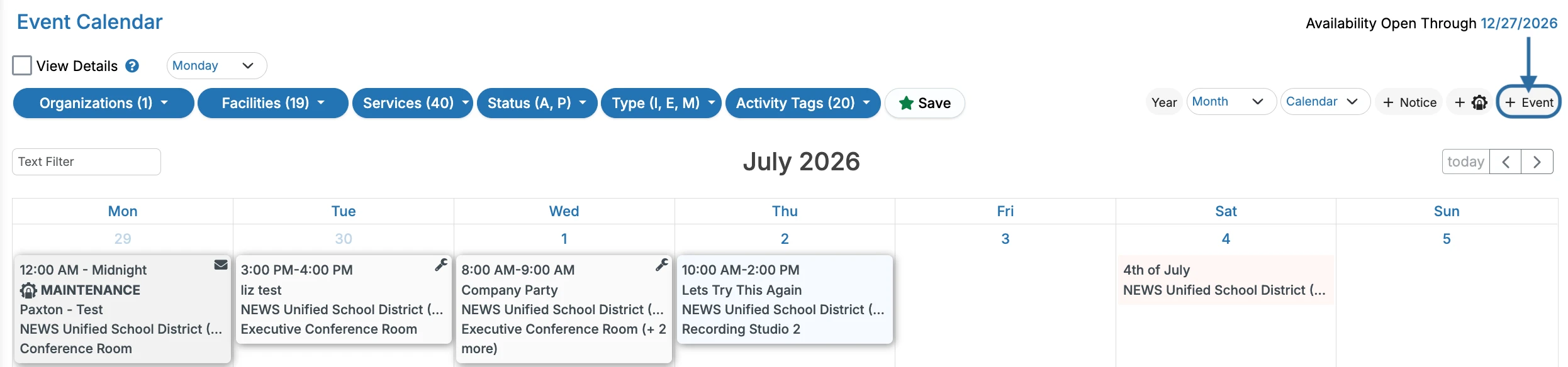
After logging into Facilitron, go to the calendar and click + Event. For assistance with finding the calendar, please see Finding My School Or District's Calendar.
Open the Organization dropdown in the + Event panel.
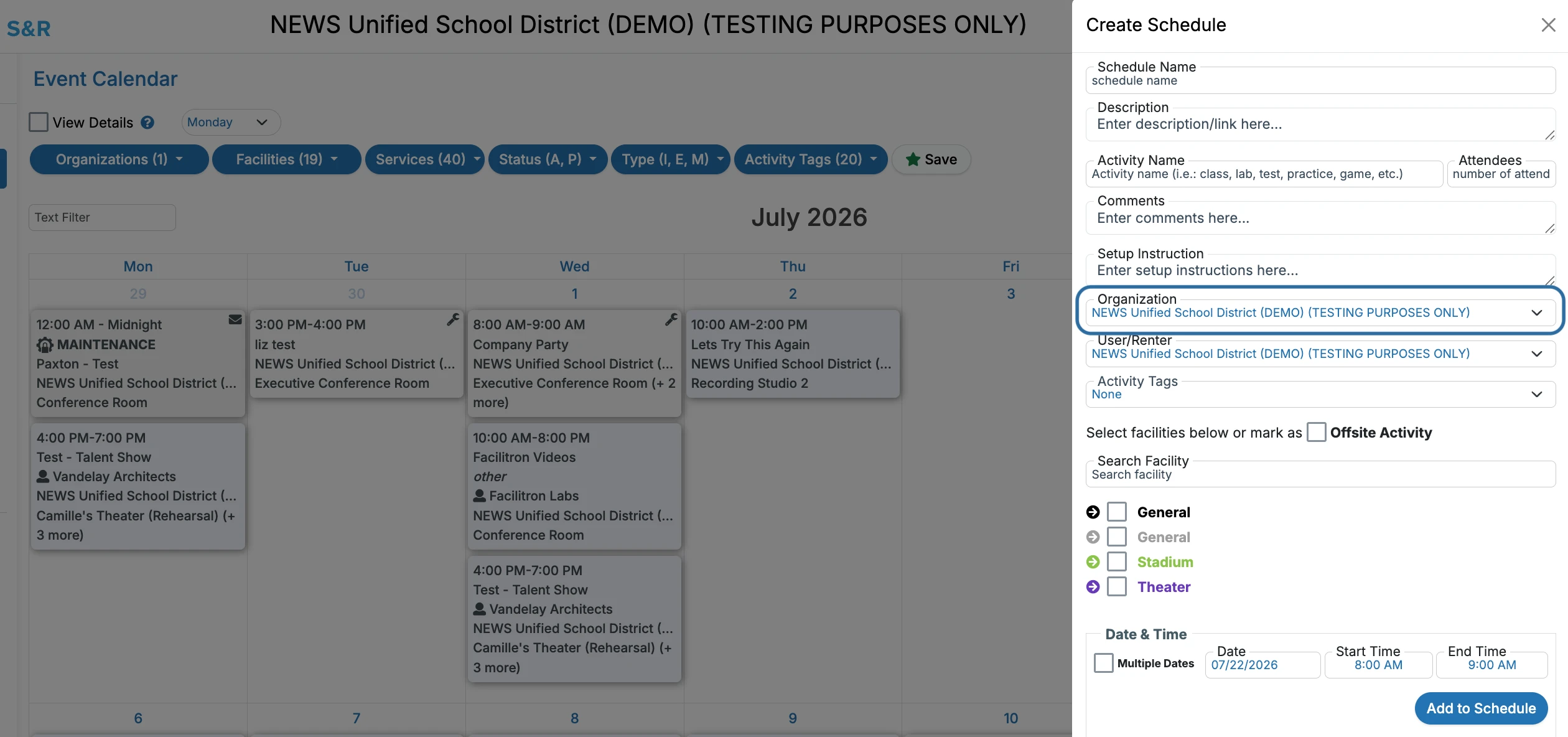 Select the campus where the event will take place. Fill out the event details as you normally would, and click Add to Schedule. Review the event schedule and make any changes if needed before pressing Submit Schedule and continuing through the remaining steps.
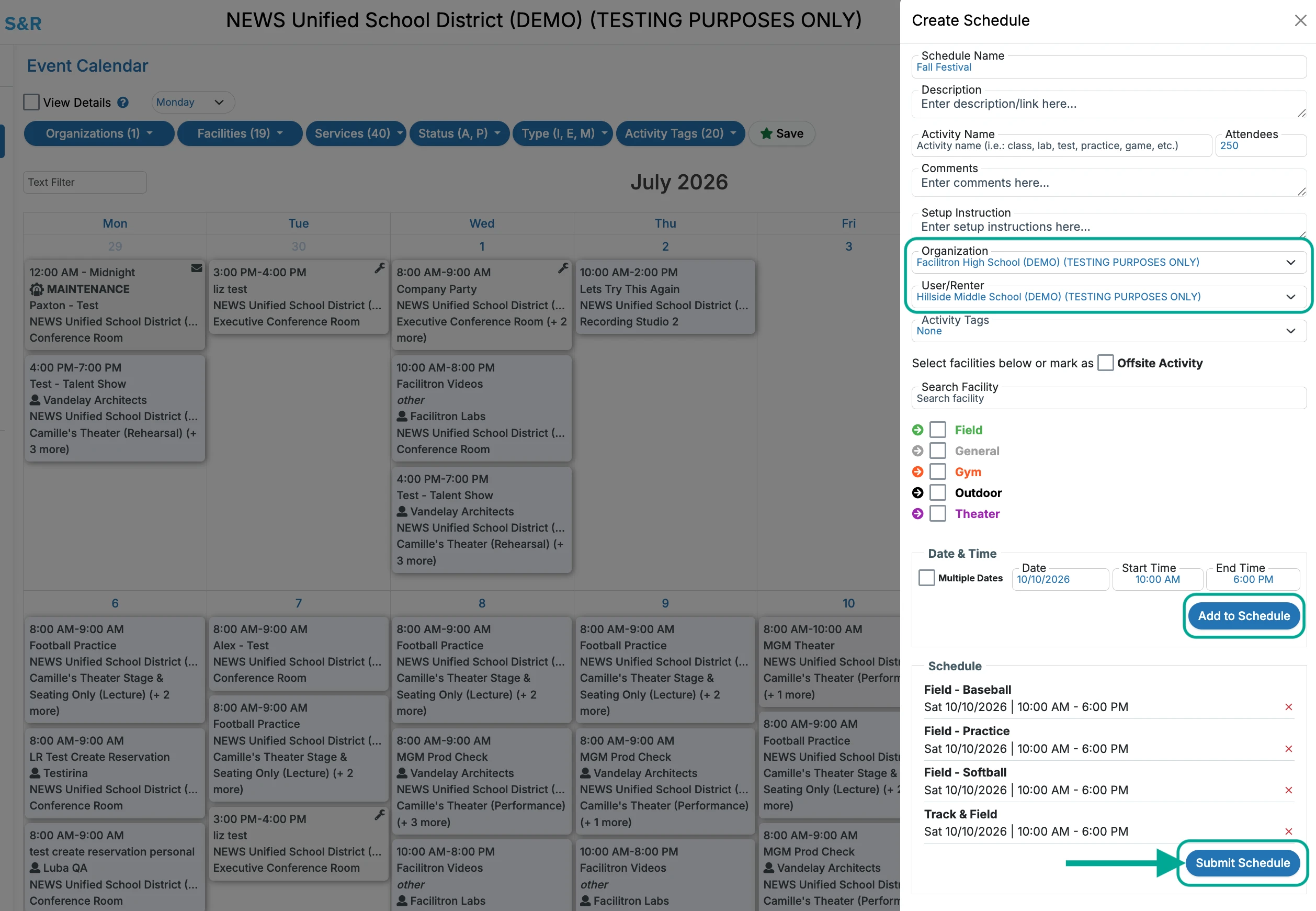
For additional support with creating an event schedule, please see Creating An Internal Reservation or Creating an Internal Schedule with Multiple Dates.
How to See Incoming and Outgoing Sibling Reservations
You can view sibling reservations from the Active Reservations page, where you can track both reservations your campus has submitted to other district sites and requests awaiting action at your site. Simply go to Reservations > Active and use the Incoming and Outgoing dropdown to switch between reservation types. Press Retrieve after selecting the type of sibling reservations you wish to see.
- Incoming displays reservation requests submitted by other campuses to your site.
- Outgoing displays reservation requests your campus has submitted to other campuses within the district.
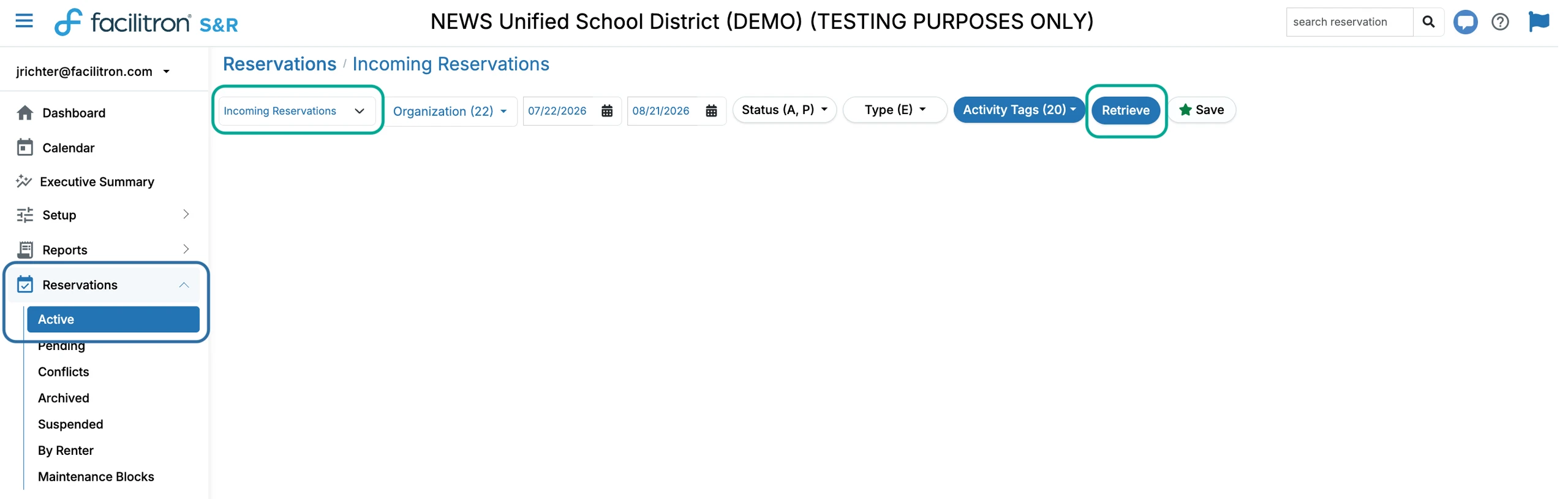
You can use the filters at the top of the screen to narrow your search if needed.
- The Organization dropdown allows you to filter your reservations by school or site within your district.
- The Calendar tool allows you to adjust the date range of your reservation search request.
- The Status dropdown allows you to filter by your approved, pending, cancelled, and/or declined reservations.
- The Type dropdown allows you to filter by external and/or internal reservations.
- The Activity Tags dropdown allows you to filter by activity. This option appears if activity tags are enabled for your organization.
For additional assistance, please reach out to Facilitron Support at (800) 272-2962, or email us at support@facilitron.com.
Was this article helpful?
That’s Great!
Thank you for your feedback
Sorry! We couldn't be helpful
Thank you for your feedback
Feedback sent
We appreciate your effort and will try to fix the article