This article explains how support service work orders are automatically created from approved reservations in Facilitron S&R and managed in Facilitron Works. These reservation-driven work orders can be used to coordinate services such as HVAC, custodial support, grounds, security, and other operational needs for an event.
Note: This process only applies to work orders automatically generated from reservations. It does not apply to work orders manually created in Facilitron Works.
Before You Begin
For a reservation-driven work order to generate, the following criteria must be met:
- The reservation must be in Approved status in Facilitron S&R.
- The service must have a work order rule configured.
- The work order rule must reach its configured lead time before the event.
- You must have access to Facilitron Works to receive and manage the work order.
Work order rules determine when a work order generates for a particular service. For help creating or updating work order rules, or if a service is not generating a work order as expected, contact your Facilitron account manager.
1. Locate the Work Order
Locating a Work Order in S&R
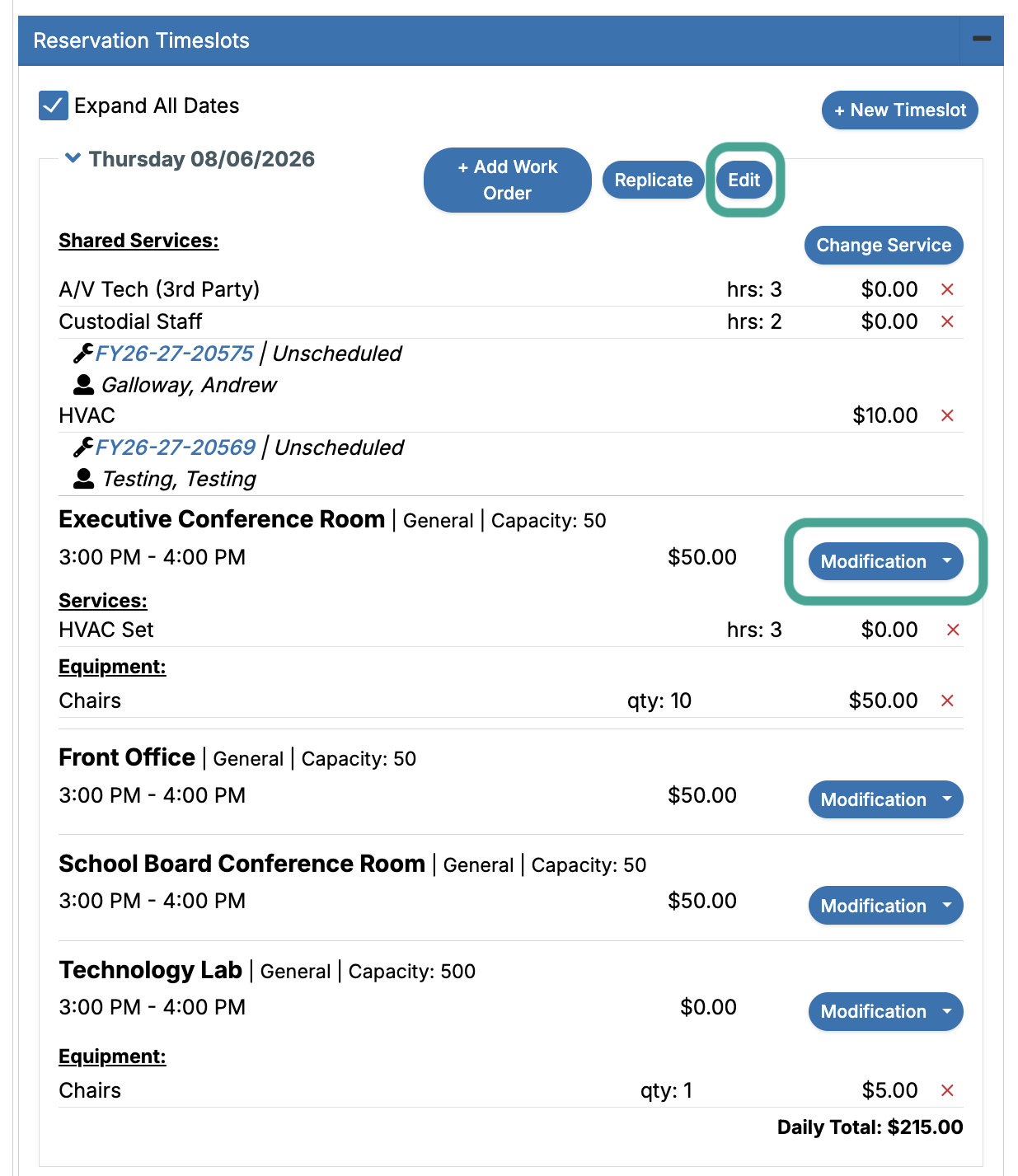
Open the reservation associated with the service request in Facilitron S&R. In the Reservation Timeslots section, expand the applicable date.
Under Services, locate the service associated with the work order. Services with a configured work order rule display the associated work order number and current status (Scheduled or Unscheduled).
An Unscheduled status means the work order has been generated but the service has not yet been confirmed with a worker. A Scheduled status means the worker and requested date and time have been confirmed.
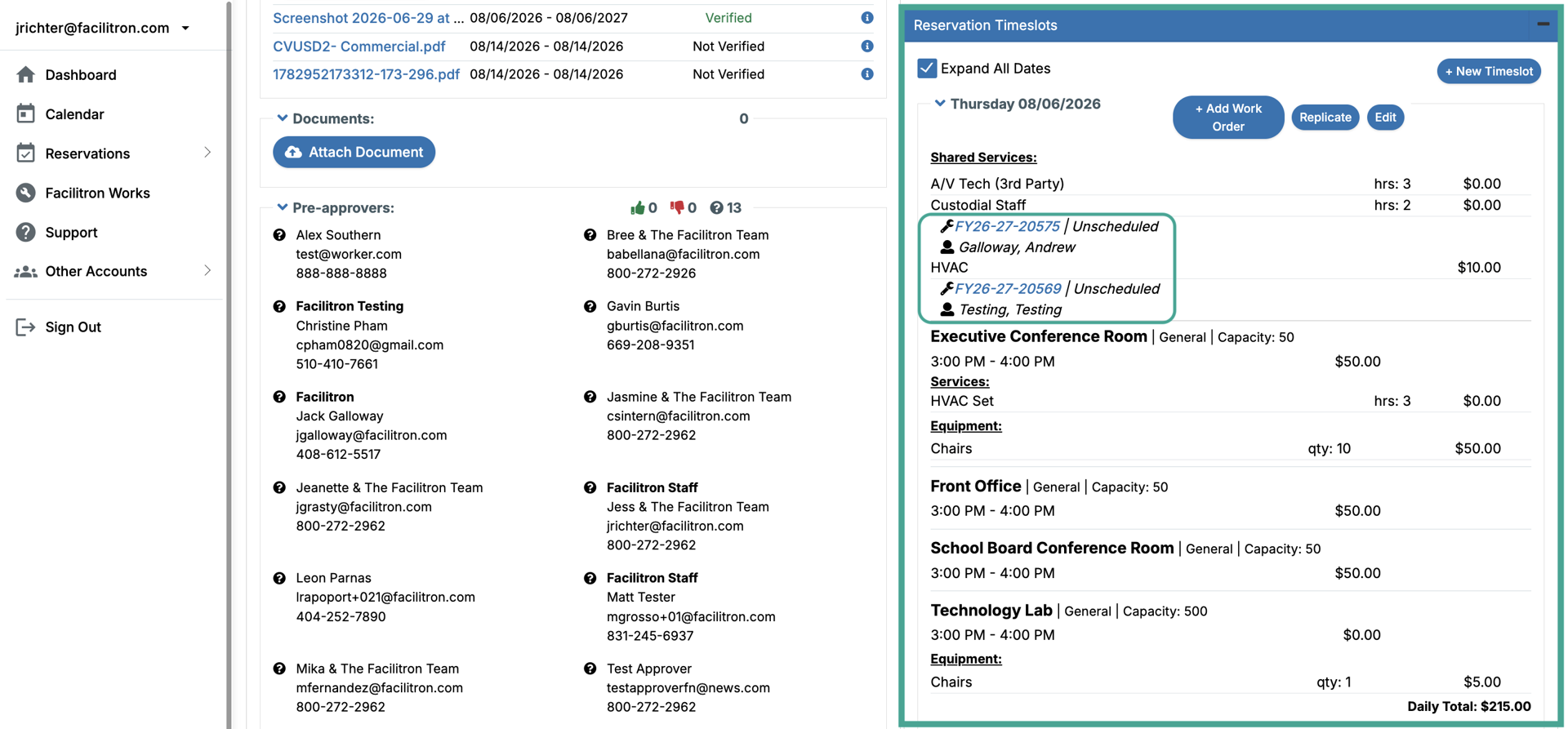
Click the work order number to open the work order in Facilitron Works. You can also open Facilitron Works from the navigation menu and locate the work order there.
Note: For multi-day reservations, each applicable date or time slot generates its own work order.
Locating a Work Order in Works
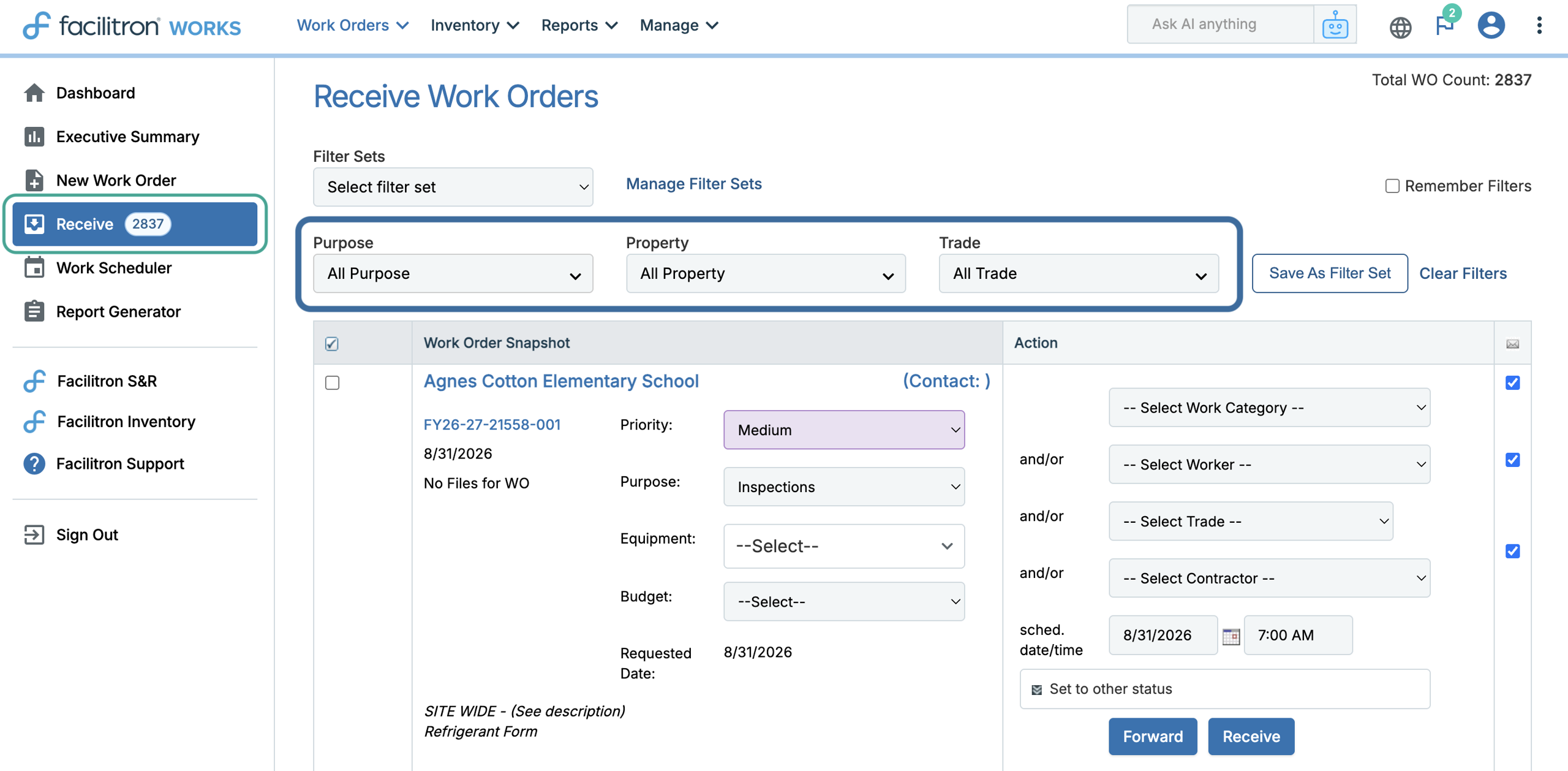
If you’re locating the work order in Facilitron Works instead of Facilitron S&R, click Receive in the navigation menu at the right of your screen.
The Receive screen displays work orders that have not yet been received or assigned. Use the filters at the top of the page, such as Purpose, Property, or Trade, to narrow the list if needed. Select Facilities Use Support in the Purpose dropdown to see only support service tickets.
Note: The purpose and trade are automatically populated based on the service associated with the reservation. All reservation-driven work orders list Facilities Use Support as their purpose by default.
2. Receive and Assign the Work Order
Once you’ve located the work order that needs to be scheduled, the next step is to assign a worker. In the Action column on the left, open the Select Worker dropdown to choose the worker who should receive the work order. After selecting a worker, press Receive to accept the ticket.
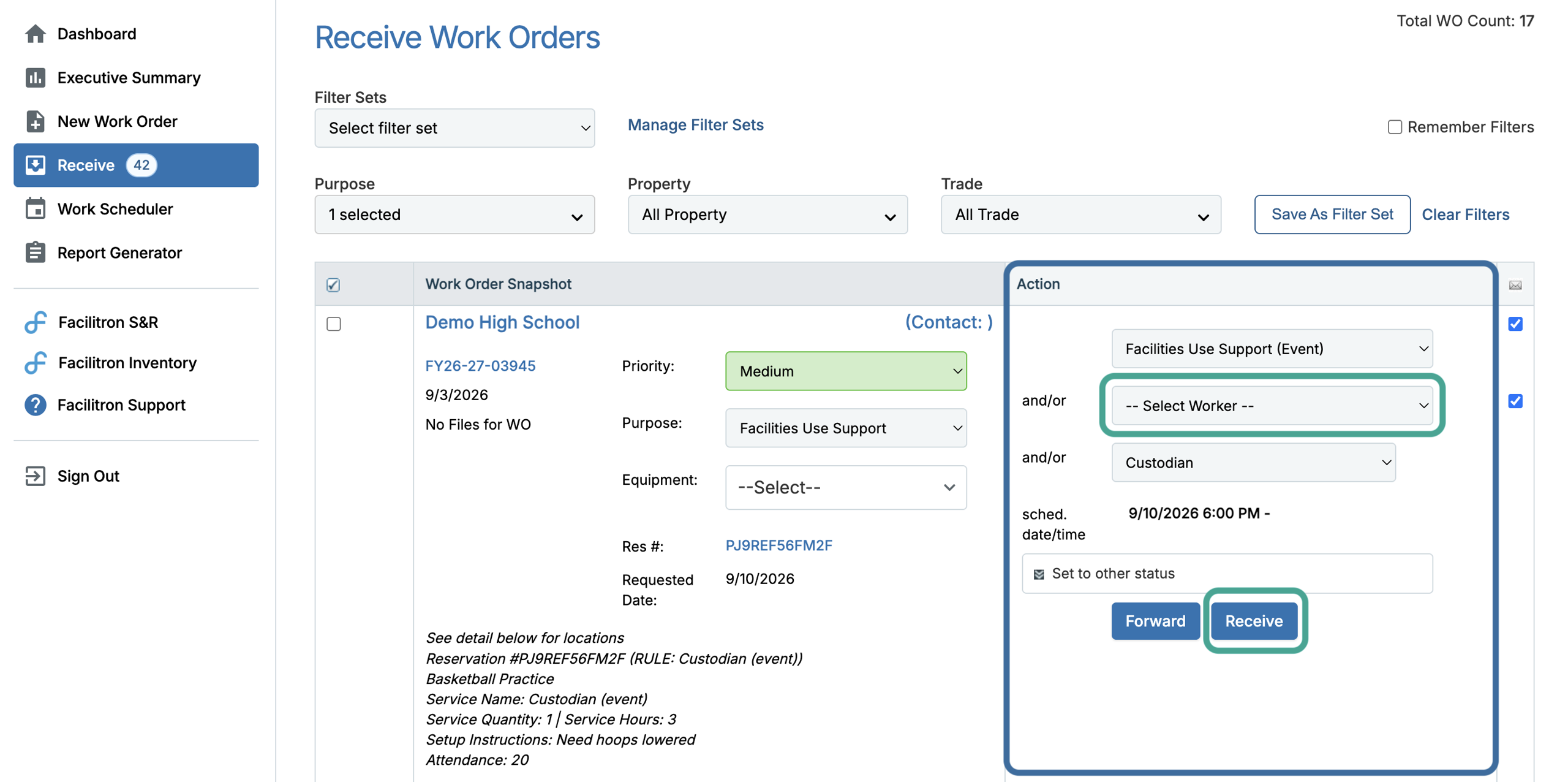 Note: The worker list is filtered based on the applicable trade and worker configuration.
Once received, the work order is removed from the Receive screen and moved to the assigned worker’s Incoming queue. To return to the work order, go to Work Orders > Active or Work Orders > Search. You can filter by Facilities Use Support under Purpose to find work orders for support services.
For more information about using the Receive screen, please see The Receive Screen for Administrators.
3. Review the Work Order and Mark the Event as Scheduled
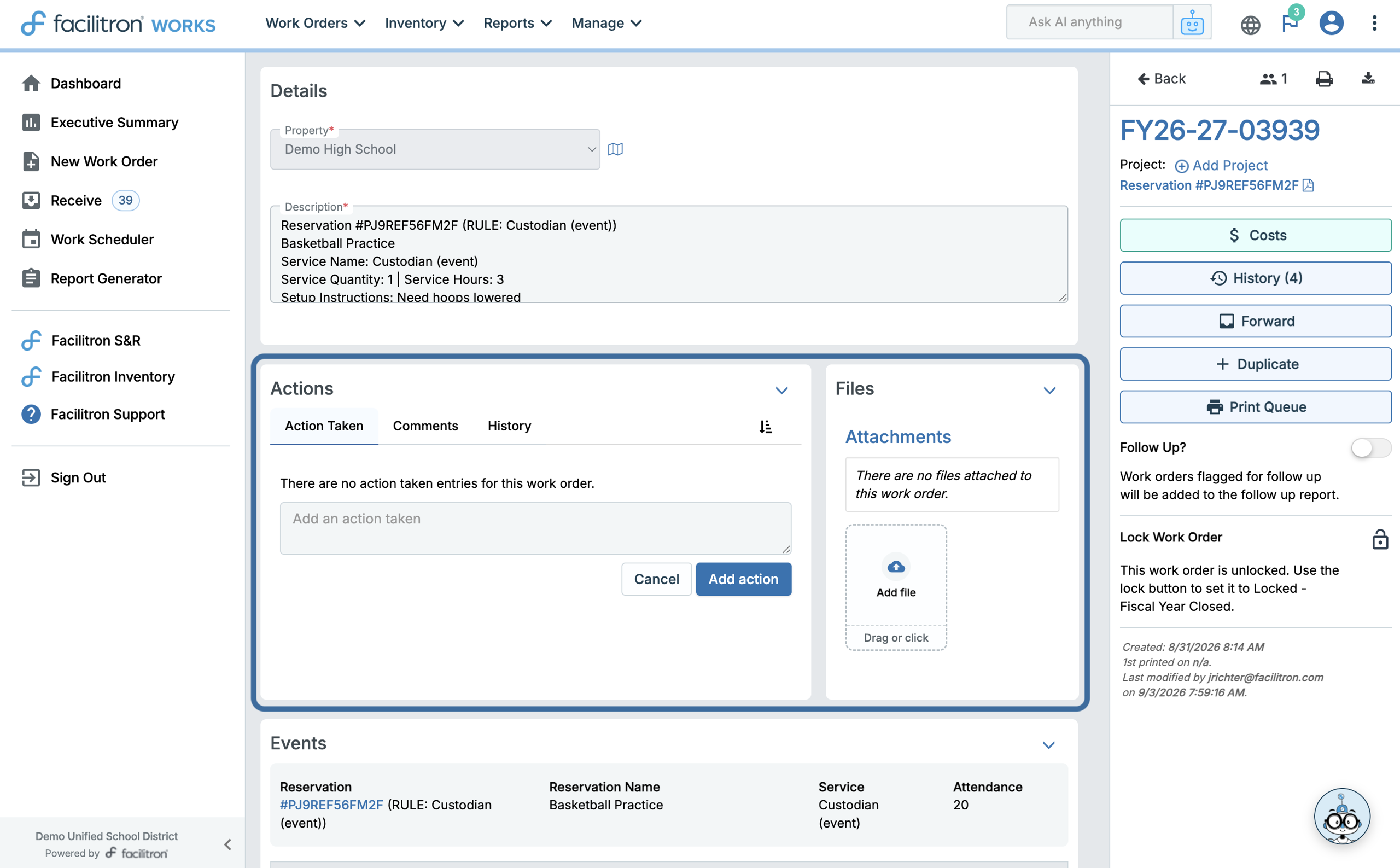
Click into the work order to open its Details page. This page includes information from the reservation, including the requested service and event details. To review the event information and services requested, scroll to the Events section. The Events table displays the reservation dates and times, including information such as:
- Date and time
- Building or location
- Quantity
- Hours
- Setup instructions
- Status
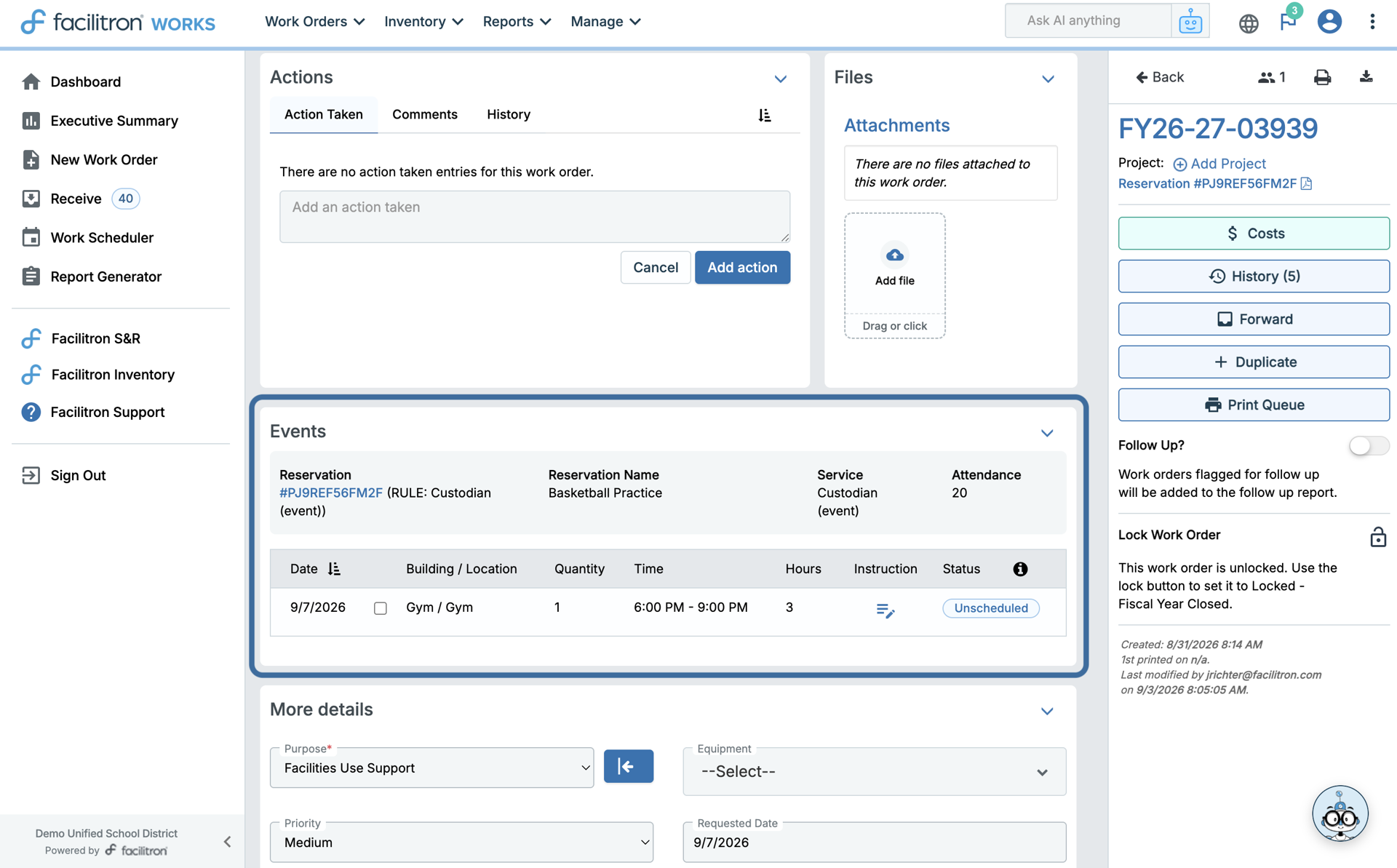
You can use the Actions and Files sections to add notes, record actions taken, review history, or upload attachments.
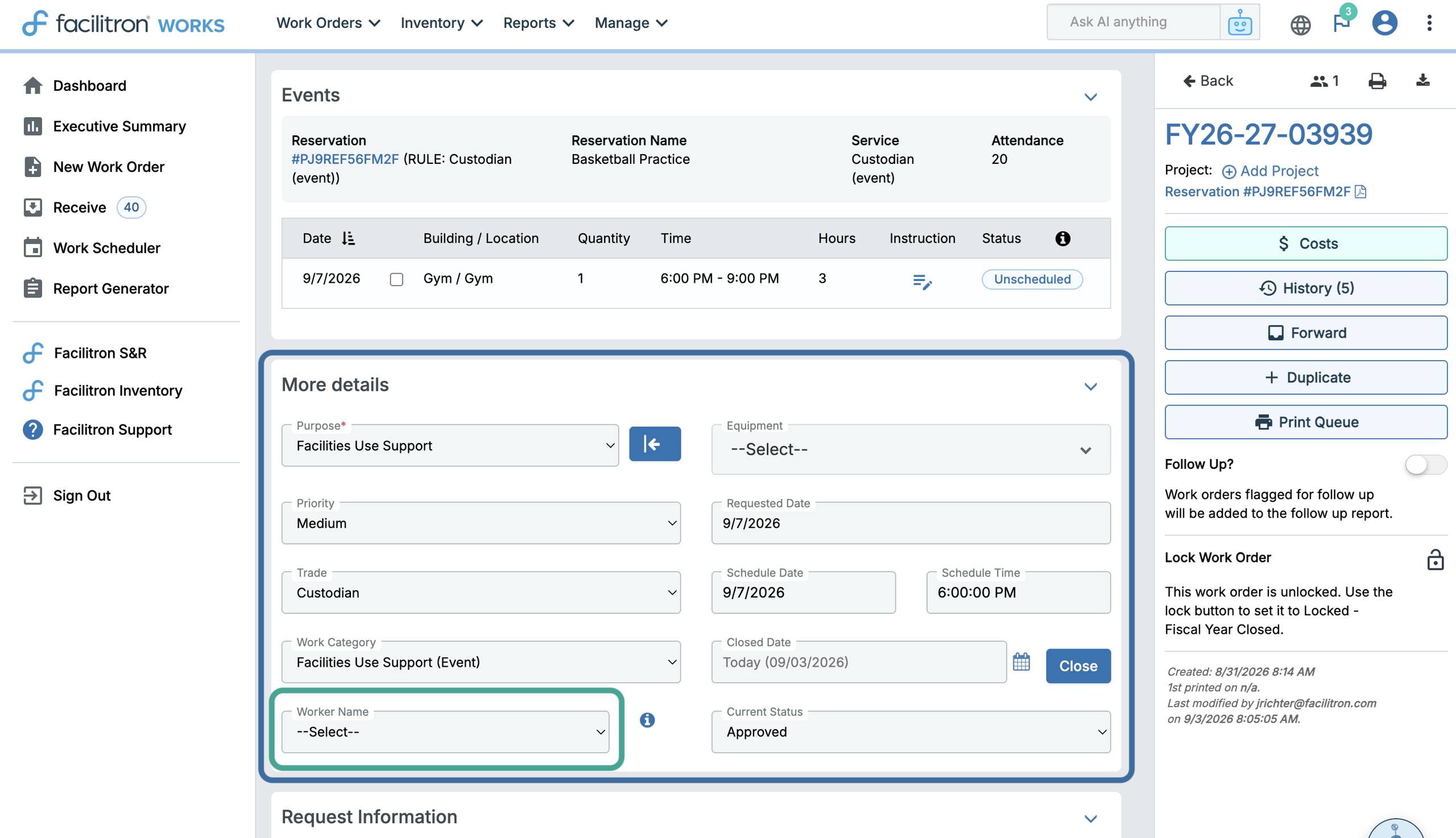
To assign a worker from this page, scroll to the More details section and choose a worker from the Worker Name dropdown. You can also review the schedule date, schedule time, and other information about the requested service in this section.
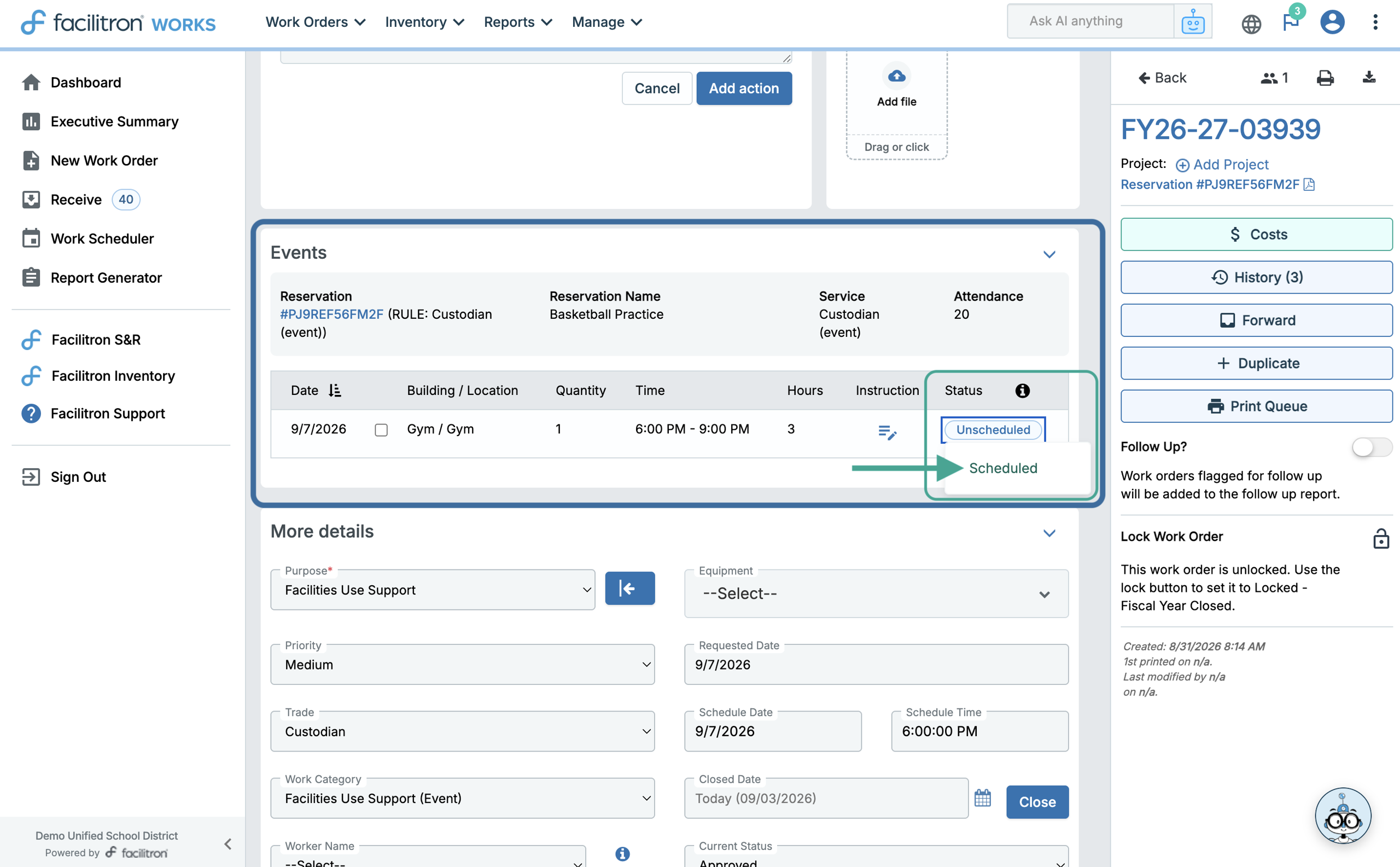
 New support service work orders are in Unscheduled status by default. After assigning a worker and confirming the service time, change the status in the Events section by clicking Unscheduled and selecting Scheduled.
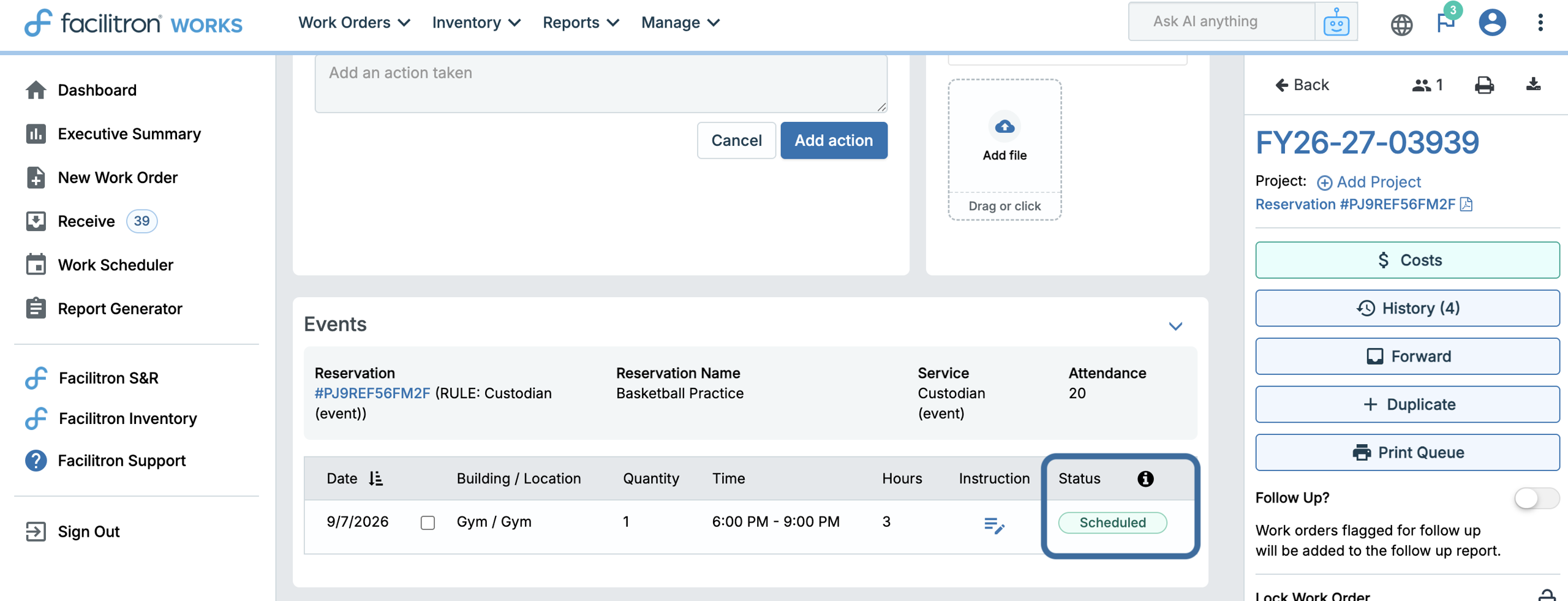
The status color will change from blue to green.
When you return to the reservation in Facilitron S&R, the work order status also displays as Scheduled, allowing reservation users to see that the service has been assigned and confirmed.
Managing Changes to a Scheduled Reservation
If the reservation changes after the associated work order has been scheduled, make the change directly on the reservation in Facilitron S&R.
For example, to update an event time:
- Open the reservation and find the time slot that needs to be changed.
- Press Edit, then choose Modification to the right of the facility you want to update.
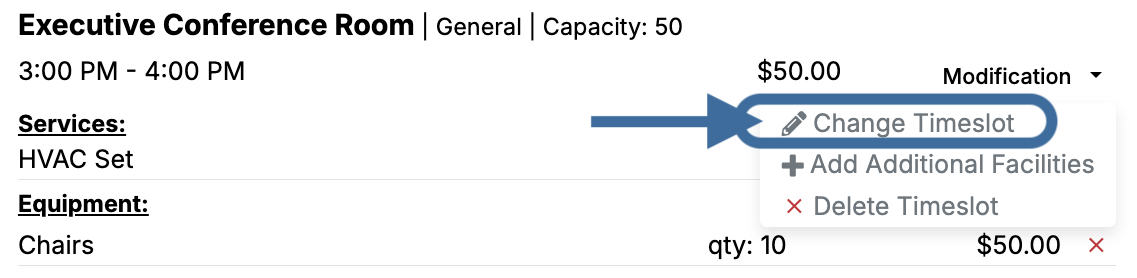
- Select Change Timeslot to update the start or end time.
- Update the start/end time and press Apply Time & Update Fees.
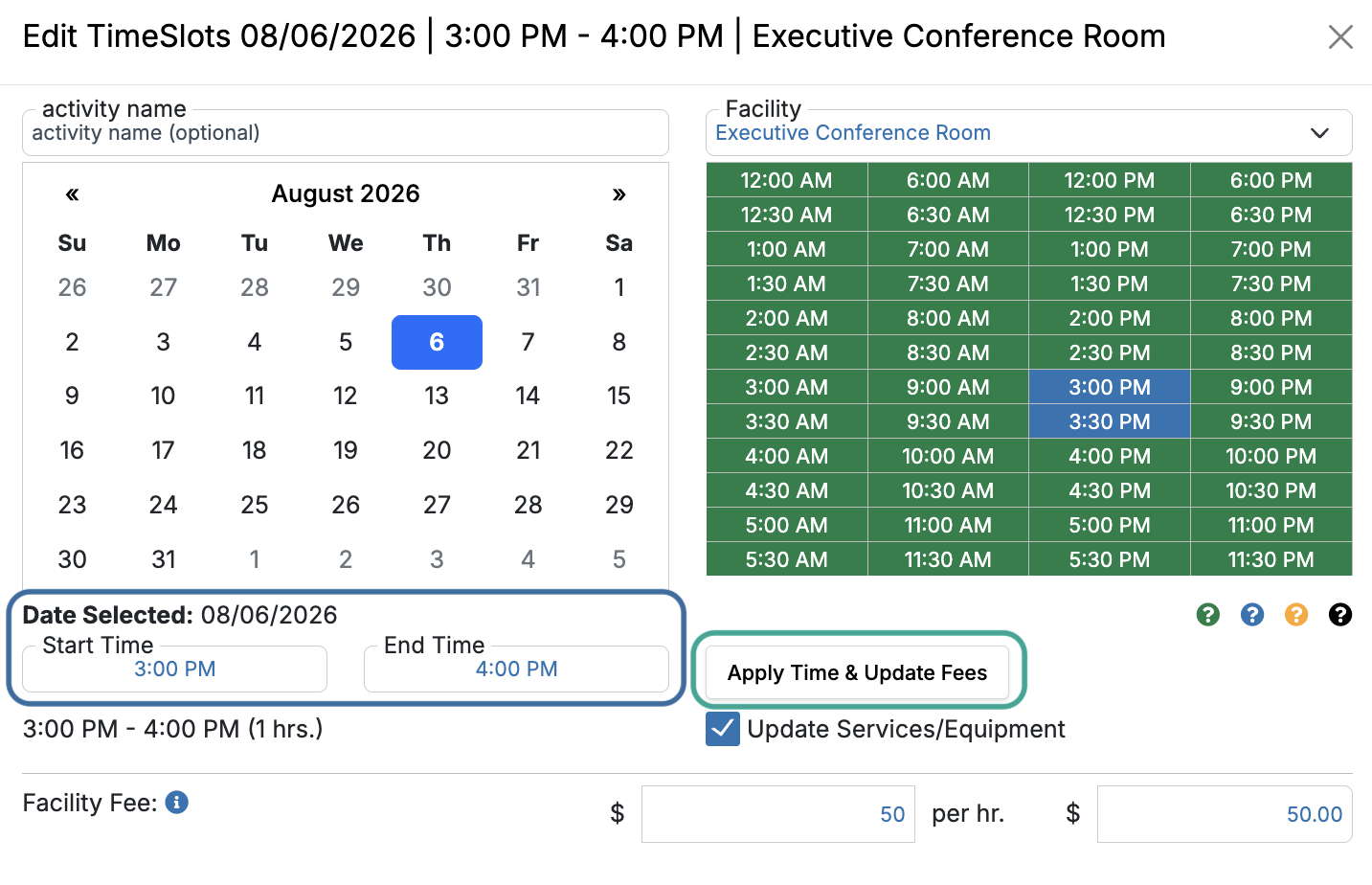
The reservation will update with the new information, and the linked work order will update automatically. If the associated work order was already scheduled, its status automatically changes to Changed. A Changed status indicates that reservation information previously provided to the assigned worker has been modified.
For additional assistance with making changes to a reservation, please see Editing Time, Location, or Equipment (and Applying to Multiple Dates) and/or Adding or Changing Services and Equipment.
Closing a Work Order
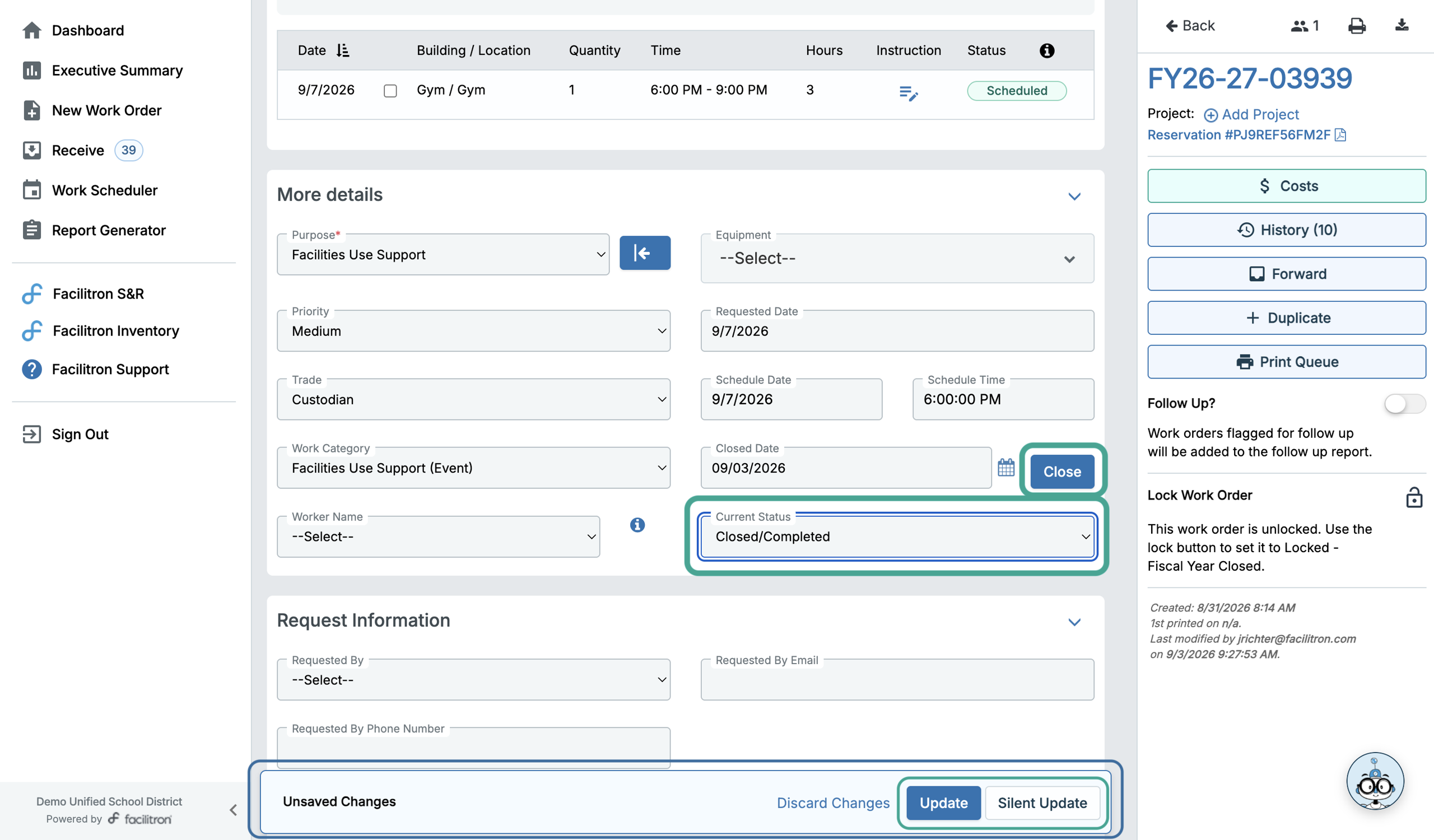
After the work has been completed, open the work order in Facilitron Works. Go to the More details section and review the work order information to ensure everything is correct before closing. Confirm or enter the applicable information for the following:
- Trade
- Work Category
- Worker Name
- Schedule Date
- Schedule Time
- Closed Date
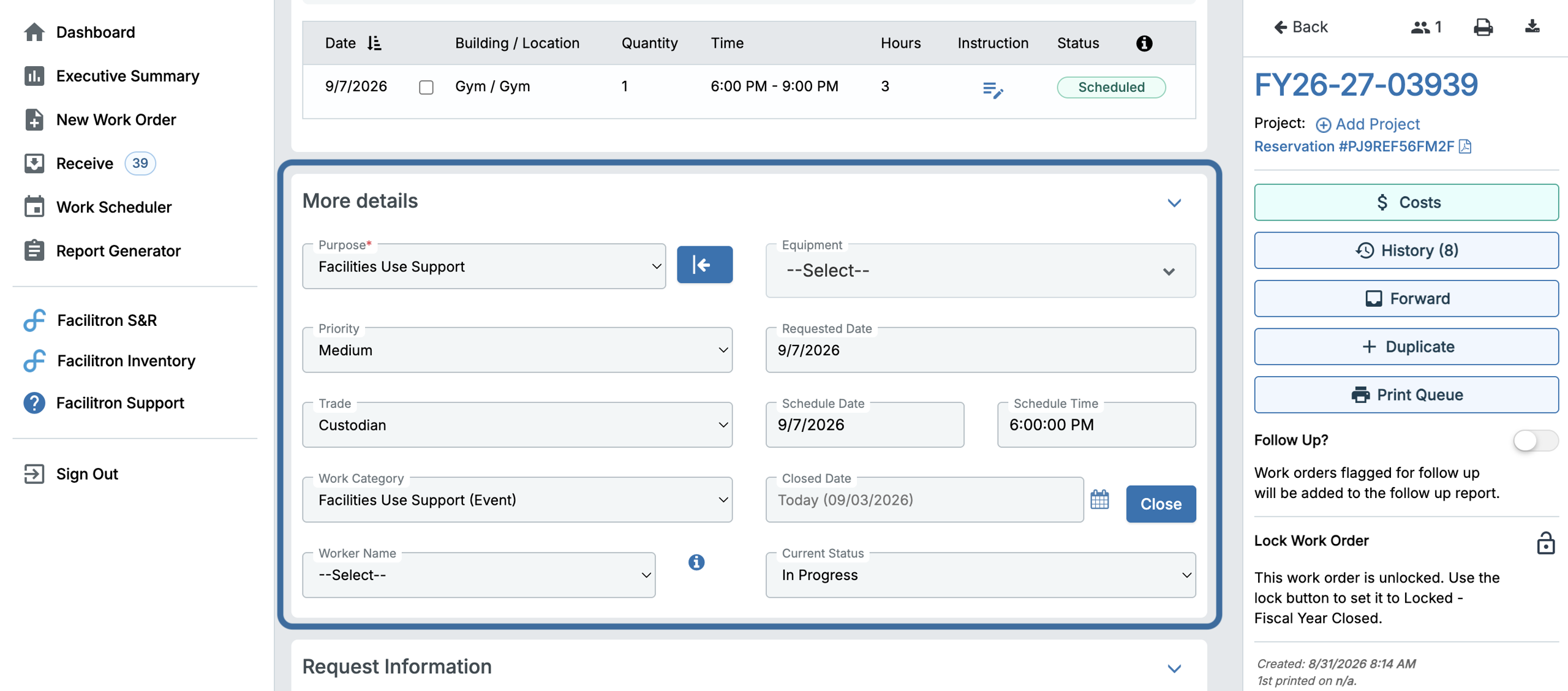
Before closing the work order, you can return to the Details tab to record a final Action Taken note or upload files as needed. When the work is complete, press Close or change Current Status to Closed/Completed. If you’re changing the status, a banner will appear at the bottom of the screen prompting you to save your changes. Select Update to save your changes and send any applicable notifications, or Silent Update to save without sending notifications.
Work Order Statuses
| Status | Meaning |
| Unscheduled | The work order has been generated but the service has not yet been confirmed with a worker. |
| Scheduled | The worker and requested date or time have been confirmed. |
| Changed | The linked reservation was modified after the work order was scheduled. |
| Closed/Completed | The requested work has been completed and the work order has been closed. |
Troubleshooting
A service on the reservation is not generating a work order
Confirm the reservation is in Approved status in Facilitron S&R and that the service has a work order rule with a configured lead time. If it doesn't, contact your Facilitron implementation guide or account manager to have it set up.
The work order still shows the previous reservation information
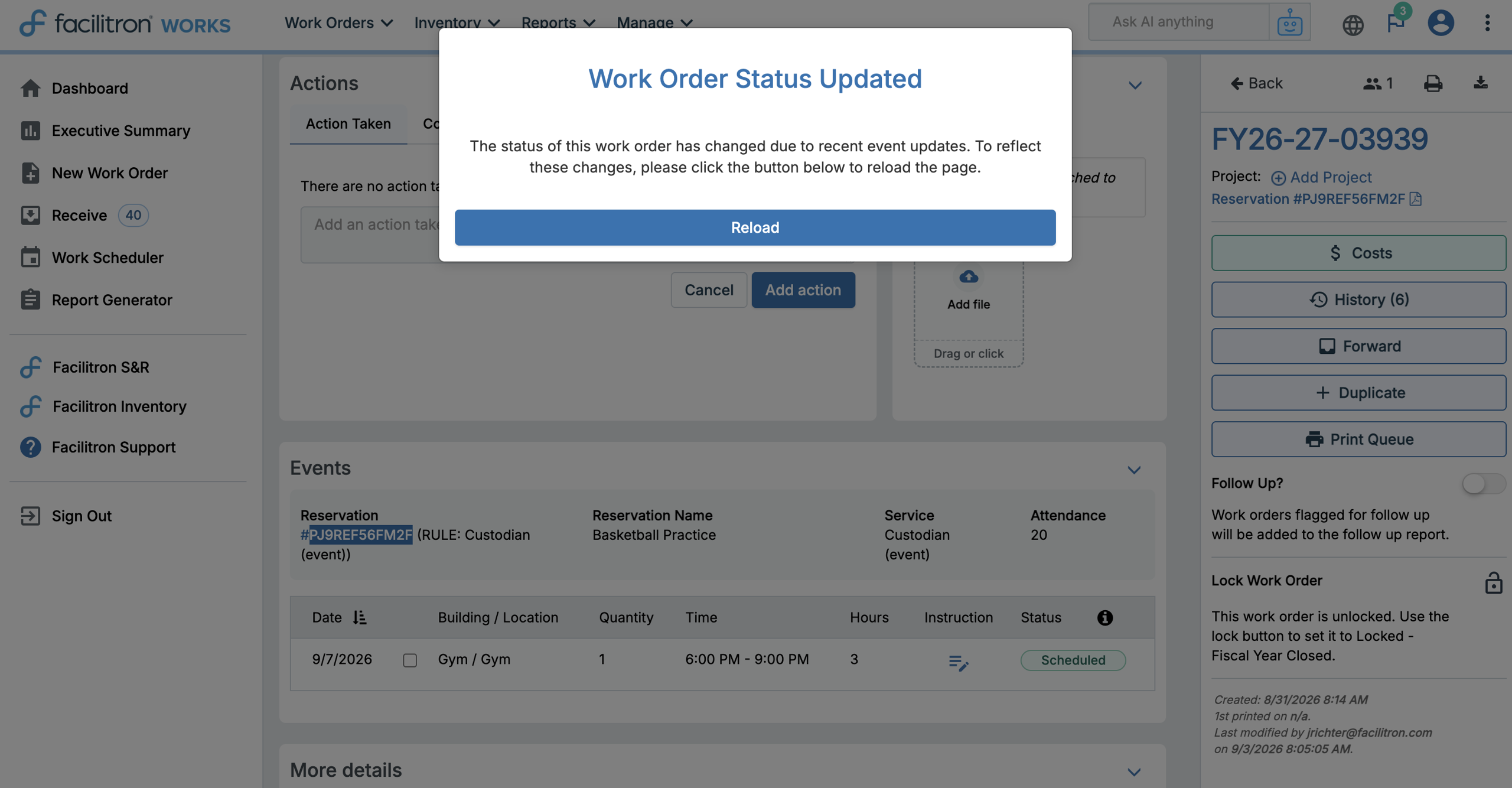
Reload the work order in Facilitron Works. If a Work Order Status Updated notification appears, press Reload to retrieve the latest reservation information.
How do I reach out for help from Facilitron?
You can leave a Facilitron Alert in the Comments section of the reservation or contact Facilitron Support at (800) 272-2962 or email support@facilitron.com. For instructions on leaving an alert, see How to "Alert Facilitron" via Comments.
Was this article helpful?
That’s Great!
Thank you for your feedback
Sorry! We couldn't be helpful
Thank you for your feedback
Feedback sent
We appreciate your effort and will try to fix the article