This article shows Order Administrators how to add and manage users in Facilitron WORKS. Use the links below to jump to a specific section.
- Searching for an Existing User
- Creating an Account for a New User
- Updating a User who is Already in the System:
- Inactivating a User
Searching for an Existing User
After logging in, go to Manage > People > Users.

A search page and list of your organizations WORKS users will appear. You can use the Filter Criteria section to narrow down your results by username (email address), first and last name, or property. Be sure you have both Show All Users and Show Inactive Users selected to show any potentially inactive or archived user profiles.

Please note that if you attempt to create a user profile for an email that is already associated with an existing user, you will be unable to proceed. To activate an inactive user, instead of creating a new profile, please see the section Updating a User who is Already in the System below.
Creating an Account for a New User
Before adding a new user, first make sure that a profile hasn’t already been created for them by running a quick search using the steps in the previous section.
Once you’ve established that your user does not already exist, click the Add New User button in the top right corner, seen in the screenshot above. Enter the users information. Required fields are:
- First & Last Name
- Property
- State
You can enter additional information as you prefer, but the user may also do this later on their user profile.

If this user is a worker (i.e., you need to assign work orders to them), please make sure to check the Also Add as a Worker check box. Enter in their hourly rates (or enter $0 if you do not have the information, as this can be changed later). For more information about adding someone as a worker, please see How Do I Set Up a Maintenance Technician? or Creating a User's Worker Profile for more information.
Once you’ve filled out the user's information, click Next. On the following page, you will be asked a few profile setup questions to create the account.

- User Name: The user's school email address or Lawson ID
- Password: Add a temporary password like 12345678. The new user will be sent a link to create/reset their own password once the account has been created.
- Confirm Password: Retype the password
- Email: Retype your school email address or Lawson ID
- Security Question: What color is grass?
- Security Answer: Green
- Role: The role chosen reflects the type of access the user will have in the system. Below is a quick summary of all the role options in the system:
• Order Administrator: Full system administrator with access to all work orders and the ability to manage users, locations, assignments, and statuses.
• Order Processor: Receives approved work orders, assigns staff, and closes work orders once work is completed.
• Order Approver: Approves work orders for their site and assigns workers; any work orders they submit are auto-approved for that site.
• Order Approver All Sites: Approver with authority across all sites, whose submitted work orders are automatically approved everywhere.
• Order Approver Multiple Sites: Approver responsible for approving work orders at selected sites, requiring an Approval Grouping.
• Order Originator: Base-level user who can submit work orders and view only their own, which typically require approval before processing.
• Maintenance Technician: Worker who completes assigned work orders, records actions and costs, and submits them for review.
The default role for most new WORKS users that only submit requests is typically Order Approver or Order Approver All Sites. Order Originator is also common, but only if your organization has approval workflow at the site level. For more information about the roles in WORKS, please see What Roles Are There on Facilitron Works, and What Do They Do?.
Click Create User. The new user’s next step will be to go to maintenance.facilitron.com to log in for the first time.
Updating a User who is Already in the System:
- Go to Manage > People > Users.
- Type the username or email in the search function and select Apply Filter.
- From there, click on the user’s email to to open the user profile for that user.
- At the bottom of the page, click Edit. From here, you will be able to change their role, site, name, etc. If the user has been inactivated, and still needs to access the system, you may re-activate them by unchecking the Inactive box, and checking the Approved box.

5. Click Update to update the users profile.
Inactivating a User
If you are inactivating a user that had auto assignments or email alerts configured, remove all auto assignments and email alerts before making them inactive. System errors can occur if these settings are not disabled prior to making a user inactive.
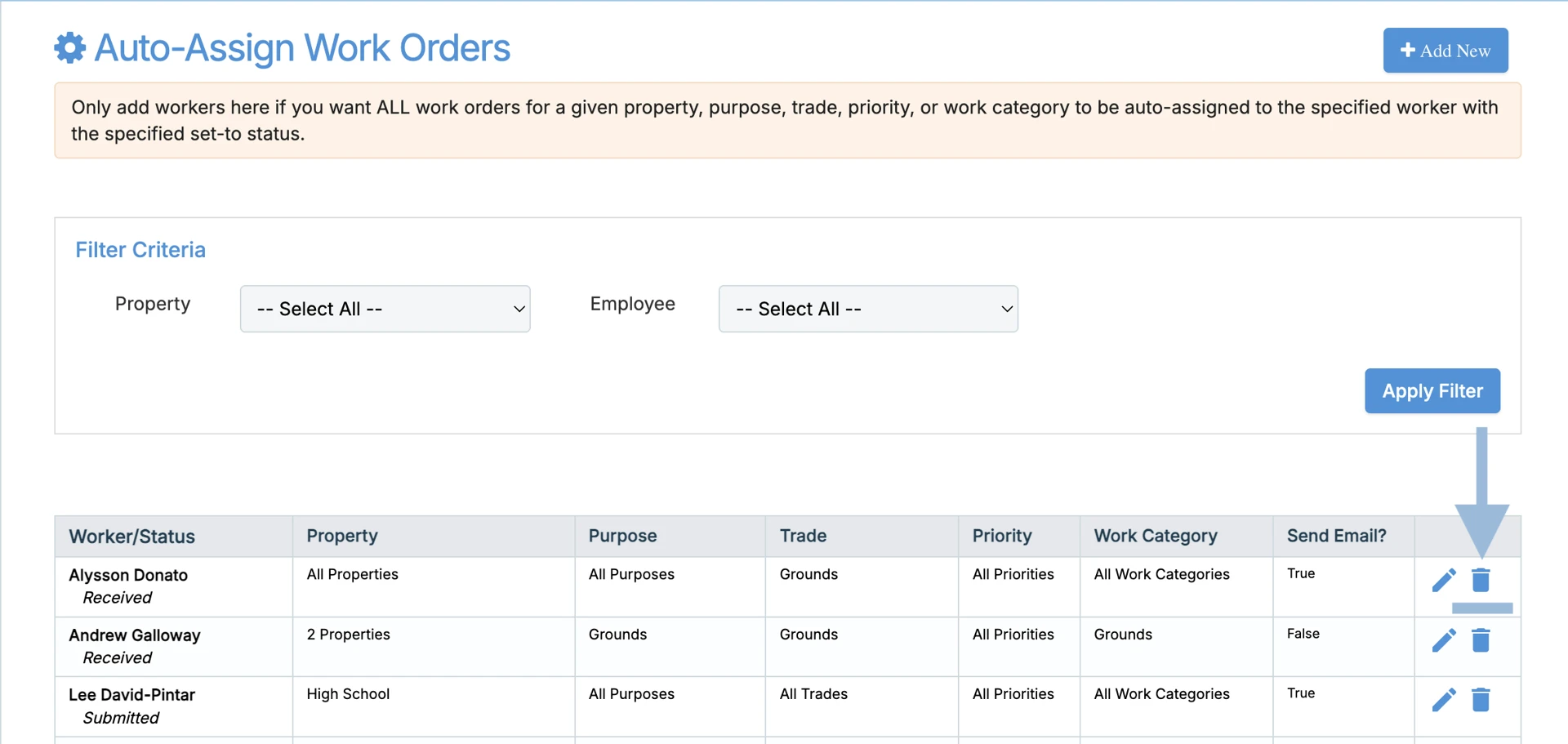
To disable auto assignments, go to Manage > People > Auto-Assign Work Orders. You can filter for the employee using the property or employee filter if helpful. To remove the auto-assignment, simply click the bin icon.
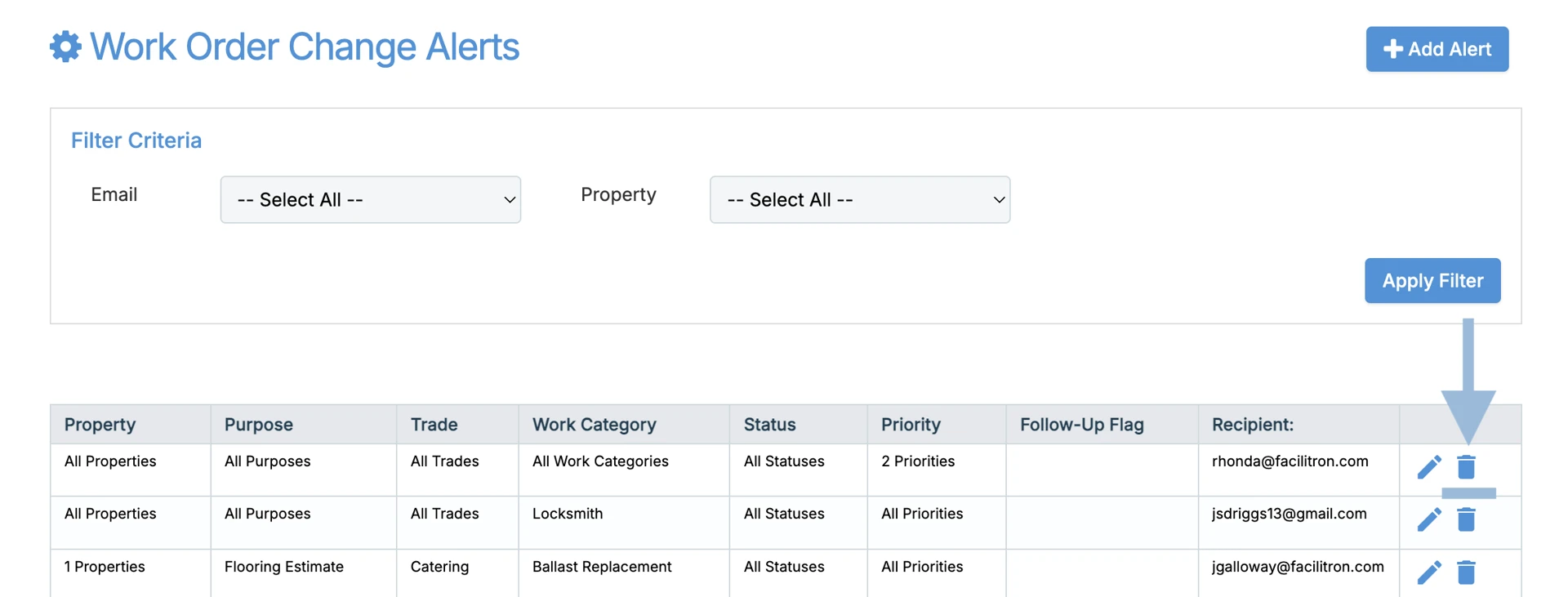
To disable email alerts, go to Manage > Manage Alerts and select the alert that the user should be unsubscribed from. The most common email alerts used are Work Order Origination Alerts and Work Order Change Alerts.
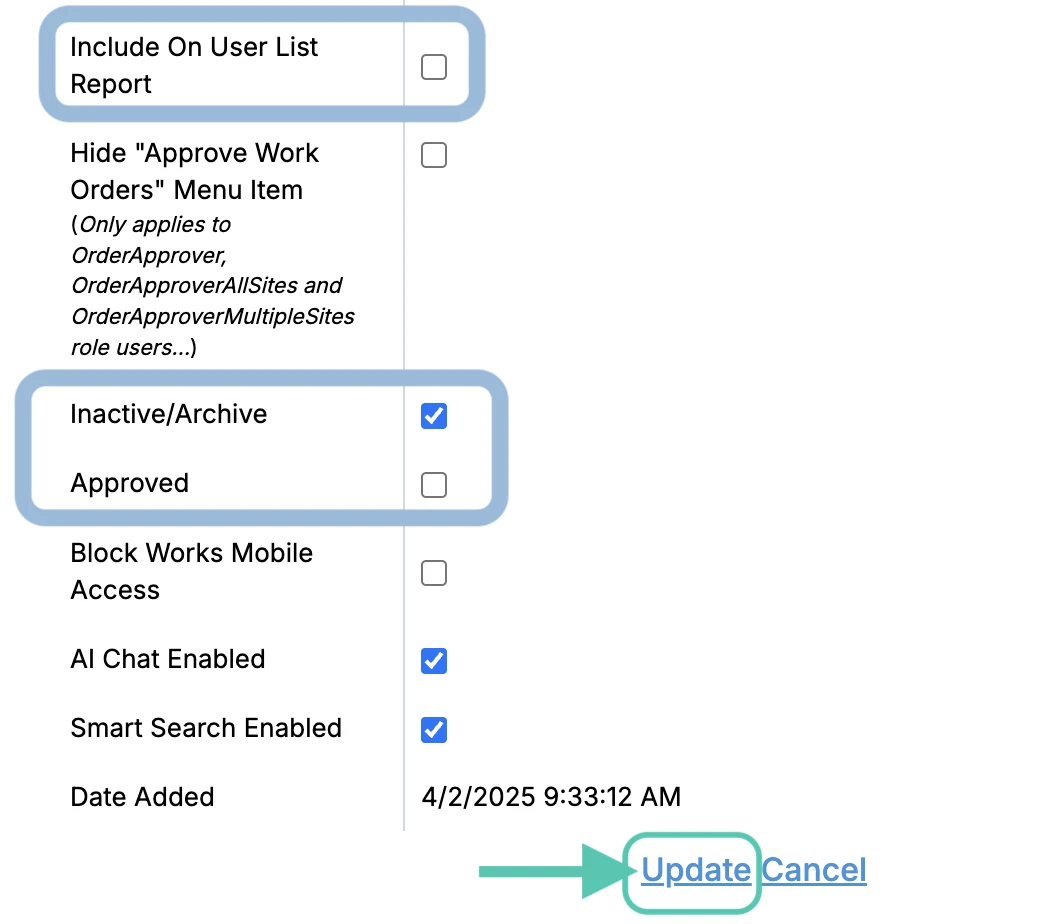
To inactivate the user, open the user profile by going to Manage > People > Users. Click Edit, then check the box next to Inactive/Archive. This is located towards the bottom of the page. Next, you’ll want to uncheck Approved and Include On User List Report.
Here’s an example of what the profile should look like before clicking Update to save the change:
Please note: Users are never fully deleted from the system because they have work orders and historical records that must be maintained.
For additional assistance, please reach out to Facilitron Support at (800) 272-2962, or email us at support@facilitron.com.
Was this article helpful?
That’s Great!
Thank you for your feedback
Sorry! We couldn't be helpful
Thank you for your feedback
Feedback sent
We appreciate your effort and will try to fix the article