This article assists Order Administrators with managing AI settings for Facilitron Works users.
Note: AI-related settings may be enabled or disabled by default depending on your account configuration. Only users with the Order Administrator role have access to the User Settings page, where they can manage these settings for themselves as well as other users within their account.
What Is the User Settings Page?
The User Settings page shows which AI features are turned on for each user. Here, you can turn specific AI features on/off for one or more users at a time. To access this page, go to Manage > People > Users AI Settings.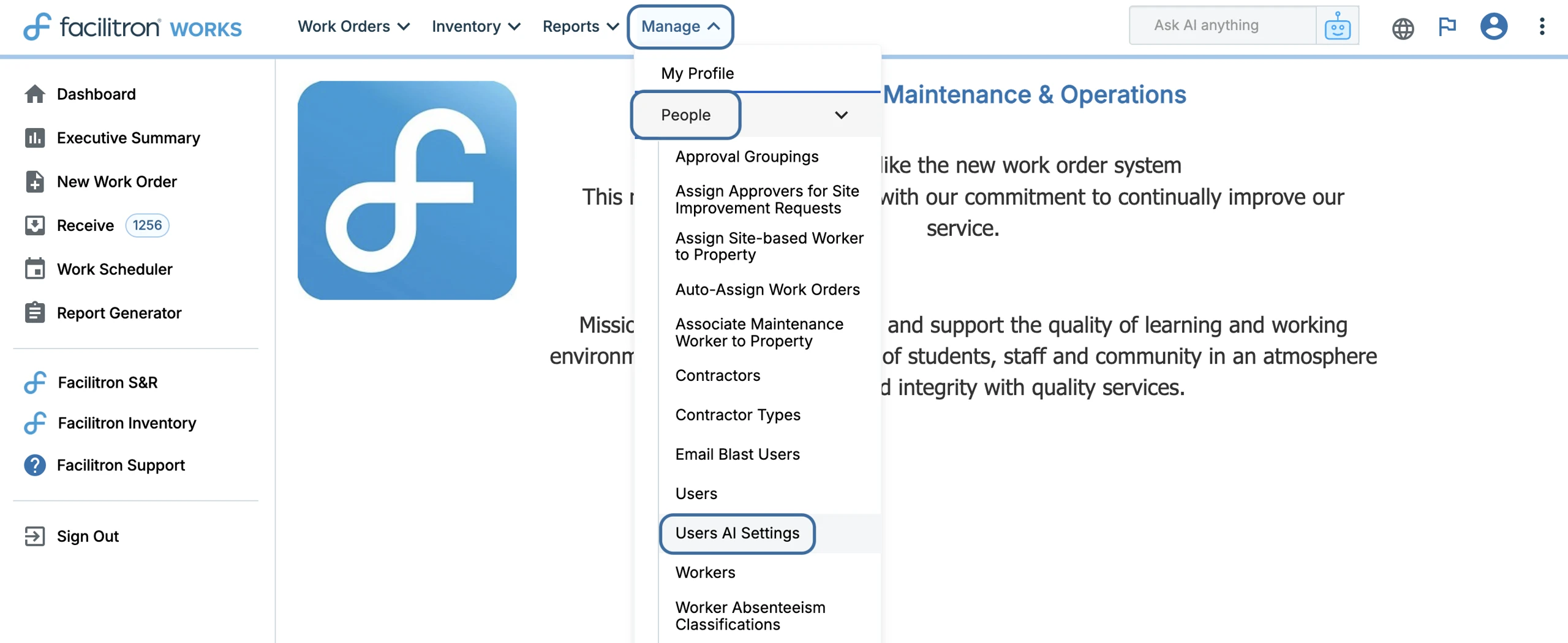
At the top of the page, you’ll see a row of filter options. You can use these to help you narrow down the list of users according to specific AI features, property, region, and division.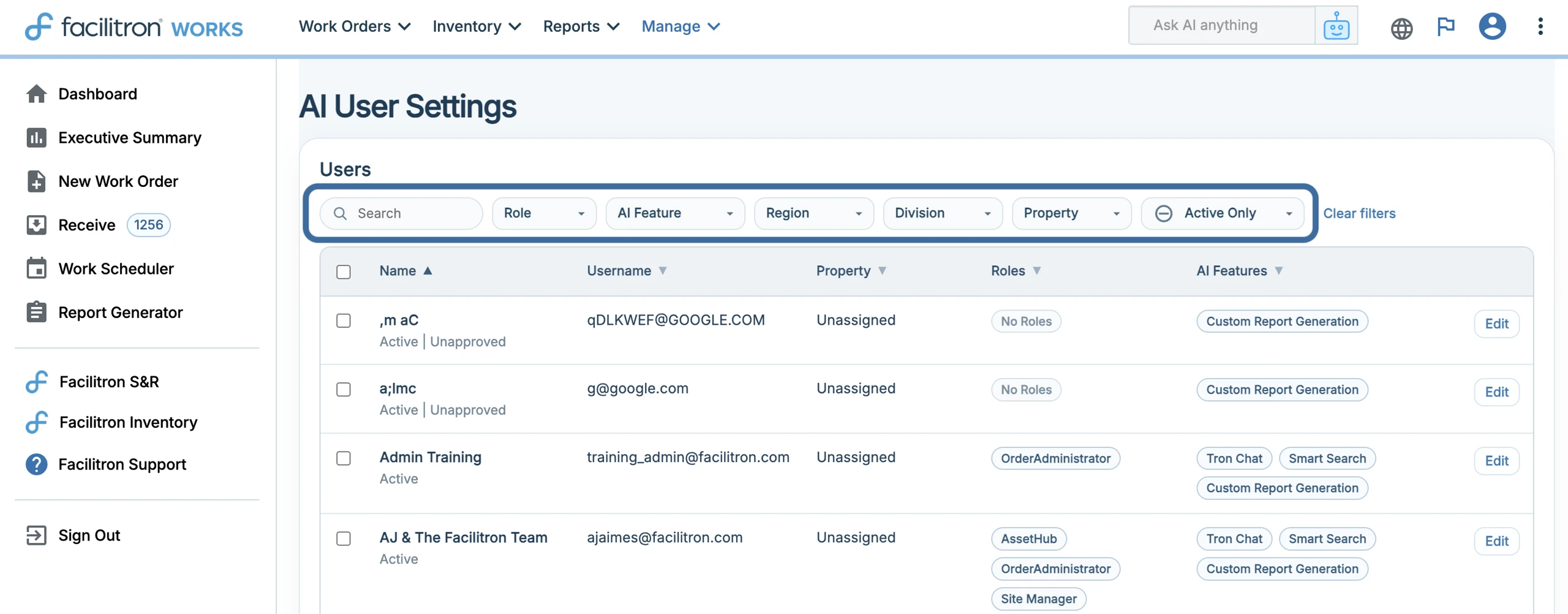
Bulk Editing Multiple Users
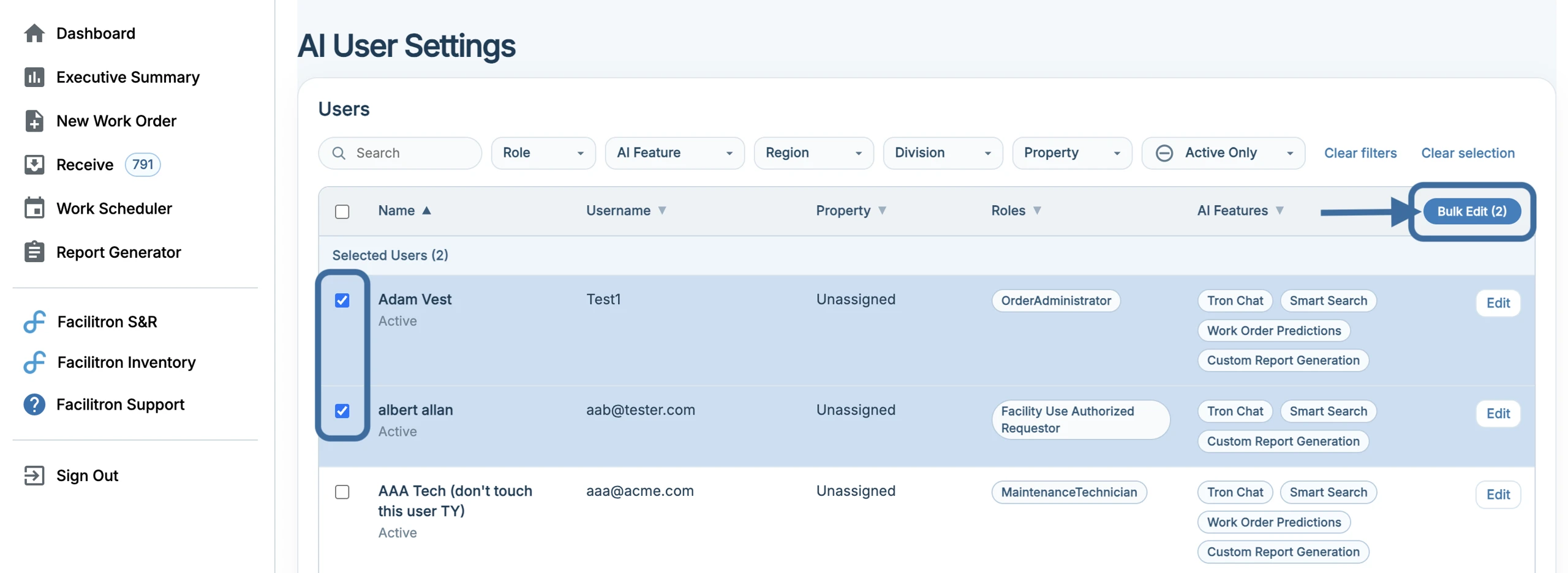
Select the checkboxes next to the users you want to update settings for and click Bulk Edit. This button will populate after you’ve selected at least one user.
You can use filters at the top of the page as needed to find the right group.
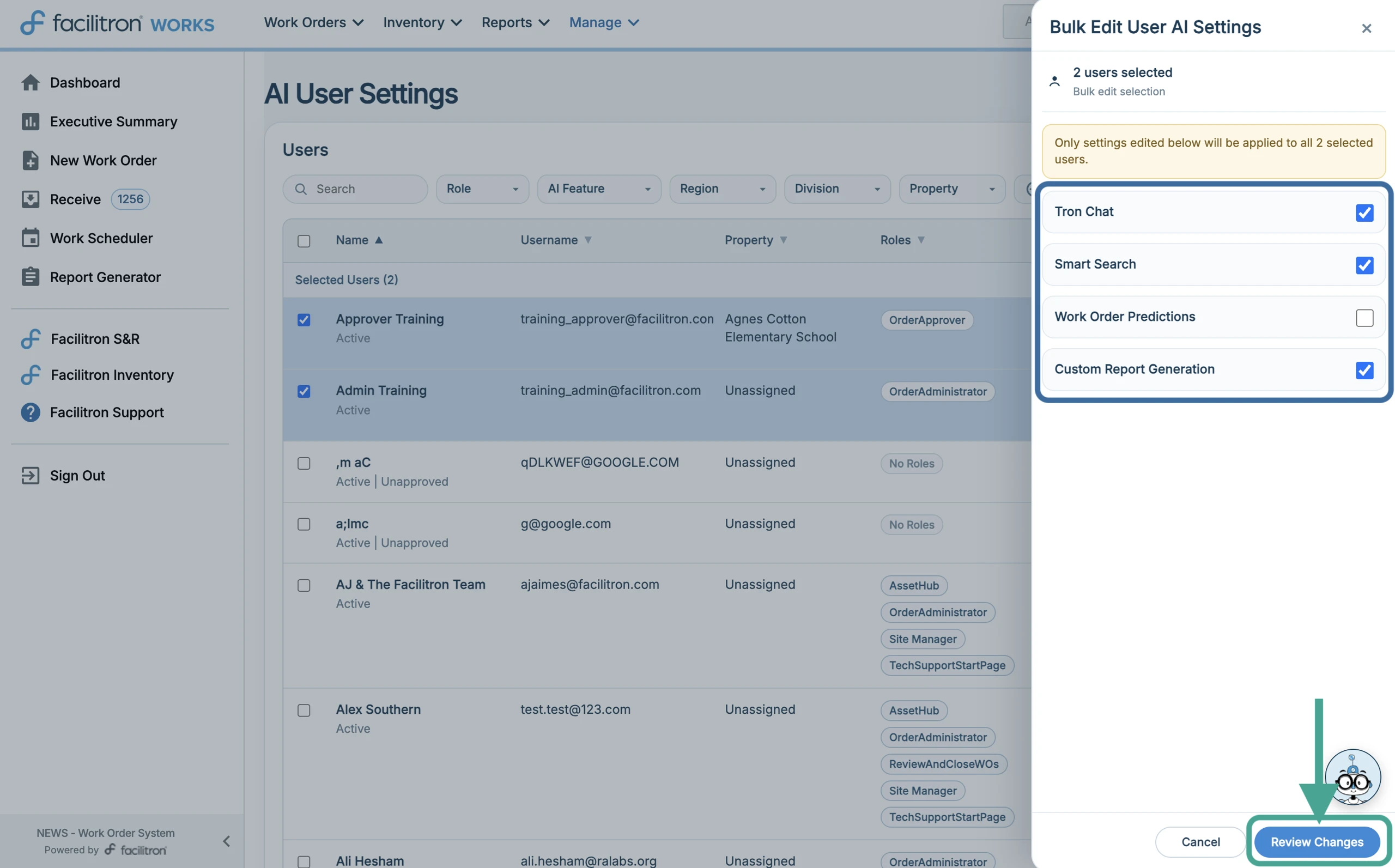
Choose which features you want to turn on/off for the selected users. After selecting/deselecting features, press Review Changes at the bottom right of the screen.
 A review screen will appear, summarizing what will change for each selected user. Only features that are being updated will show. Click Save Changes at the bottom right of your screen to apply the updates.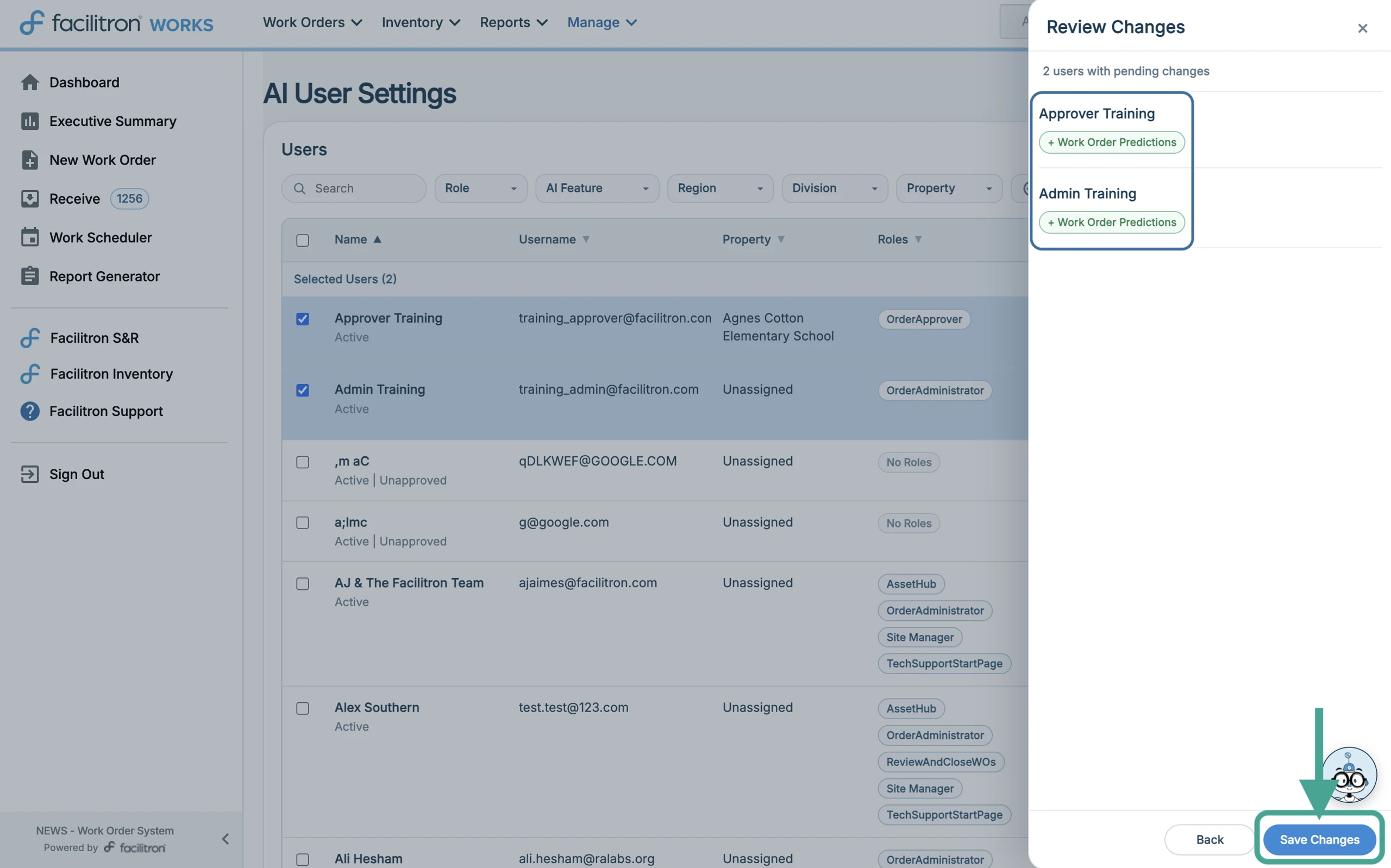
Making Changes for Only One User
To turn AI features on/off for one person, click Edit to the far right of the user’s name.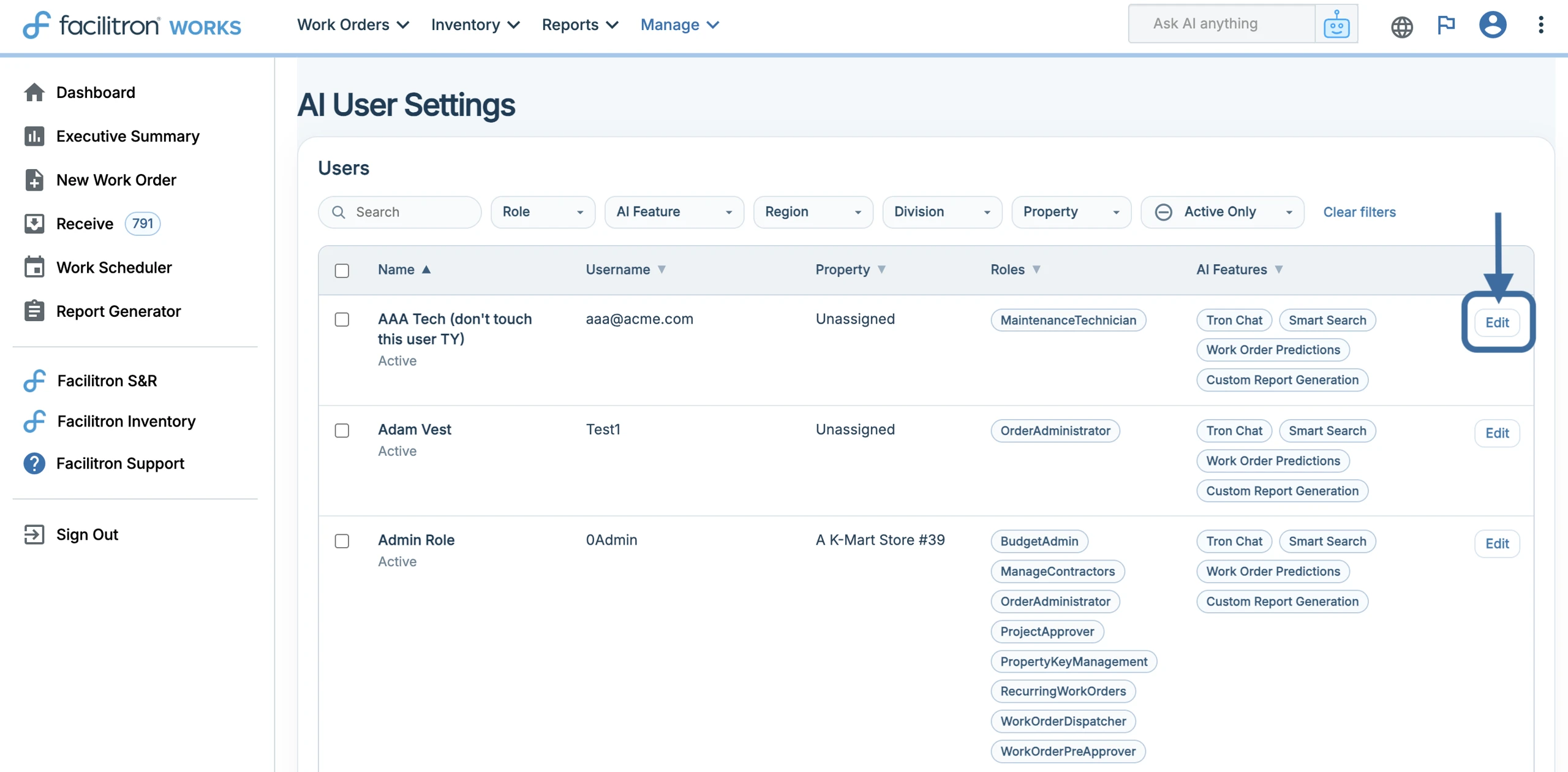
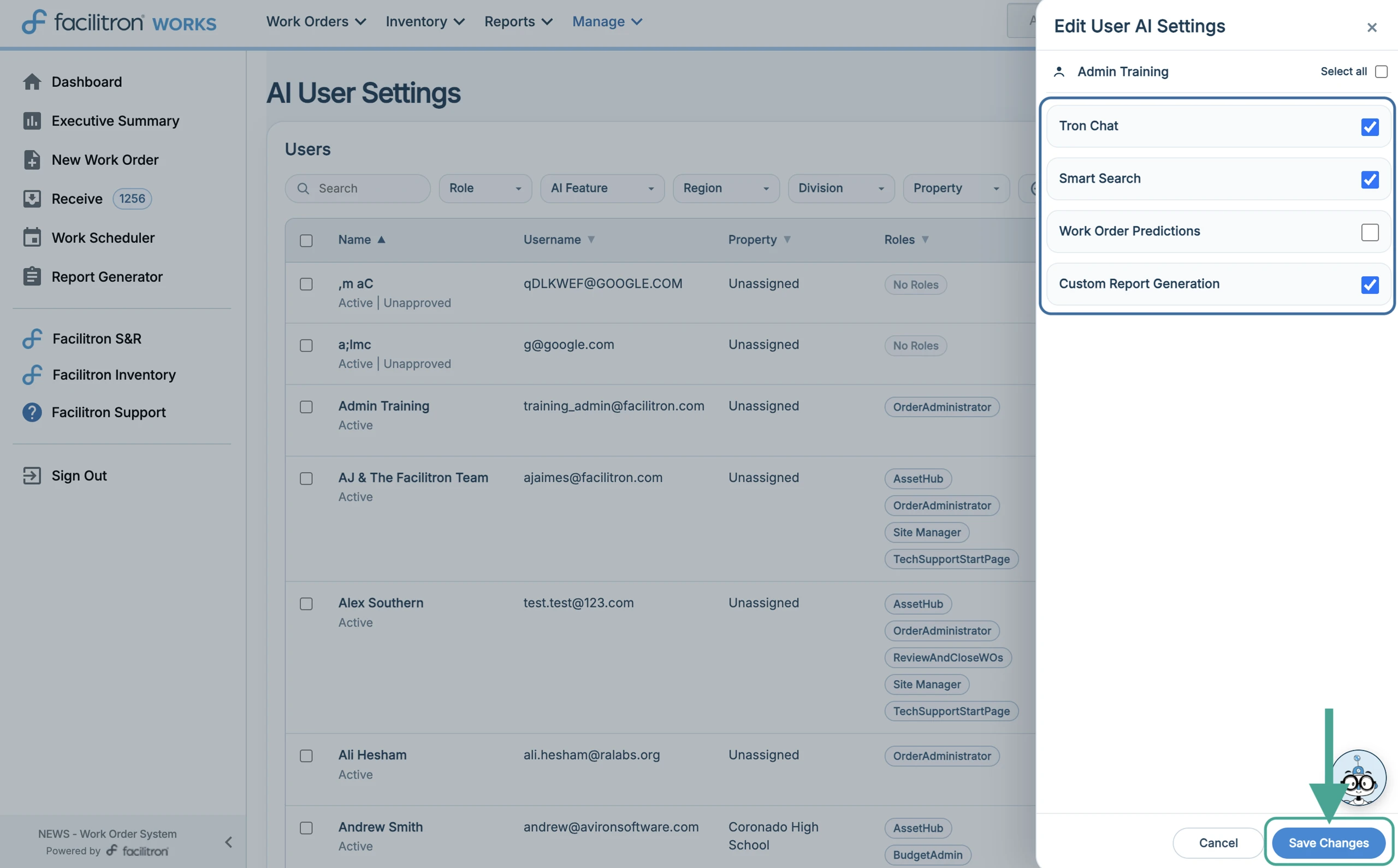
Select/deselect the features you want to turn on/off for the user. Press Save Changes at the bottom right of the screen to apply the updates.
For additional assistance, please reach out to Facilitron Support at (800) 272-2962, or email us at support@facilitron.com.
Was this article helpful?
That’s Great!
Thank you for your feedback
Sorry! We couldn't be helpful
Thank you for your feedback
Feedback sent
We appreciate your effort and will try to fix the article