Facilitron WORKS is a maintenance management system that helps staff create, track, update, and close work orders seamlessly. This guide provides an overview of the key features needed for Maintenance Technicians to manage work orders from start to finish.
To jump to a specific section, click the corresponding link below.
- Logging In
- Navigating Work Order Shortcuts
- The Incoming Screen
- The Work Order Details Page
- Update vs. Quiet Update
- Actions Section & File Uploads
- Comments Section
- History Section
- Followers
- Logging Costs
- Closing from the Work Order Detail Page
- Accessing Tron AI
Logging In
To log in to WORKS, go to maintenance.facilitron.com. Enter your school email address and the temporary password provided to you. Once you've logged in for the first time, reset the password to your own secure, unique password. For assistance with logging in, please see Logging In - Maintenance.
Note: This article is for users who have already been to their organization’s account in WORKS. If you have not been added or are unsure, please reach out to your site or district, or to Facilitron Support.
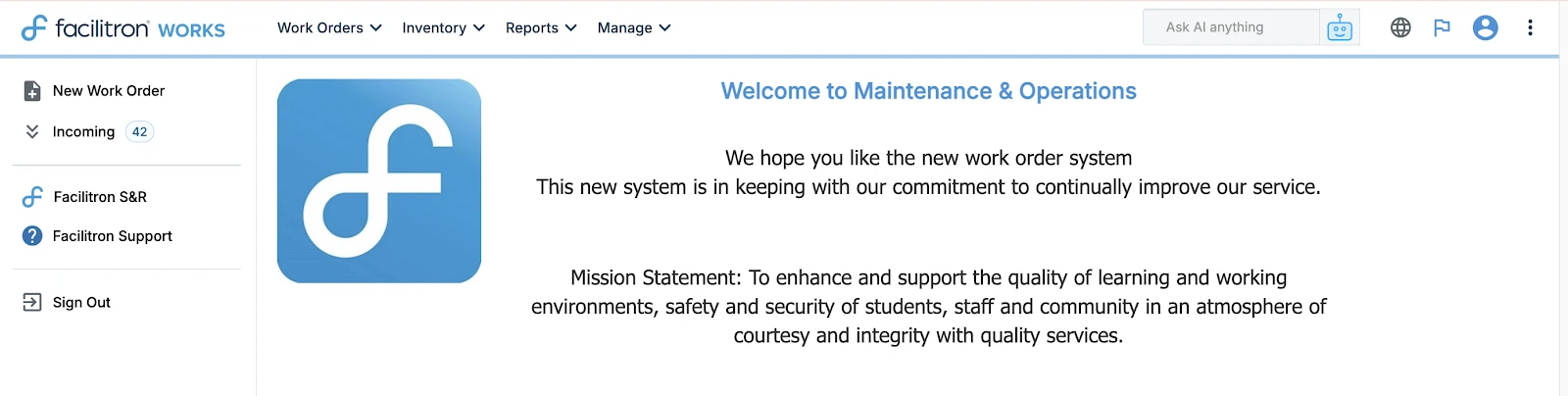
Once logged in, you’ll see your WORKS dashboard. From here, you’ll be able to create new work orders and review incoming work orders.
Navigating Work Order Shortcuts
The New and Incoming shortcuts are located on the left-hand side of the screen for quick access. You can also access these shortcuts, along with additional options, from the Work Orders menu bar.

Work Orders Menu Options
- New: Create a new work order.
- Incoming / Open Work Orders: View all open work orders currently assigned to you.
- Calendar: Access a calendar view of work orders assigned to you and see scheduled tasks by date.
- Search: Search for work orders assigned to you, including completed requests.
- Quick Update List: Update multiple open work orders at once. This feature allows you to make bulk updates efficiently without opening each work order individually.
The Incoming Screen
The Incoming screen allows you to see open work orders assigned to you.
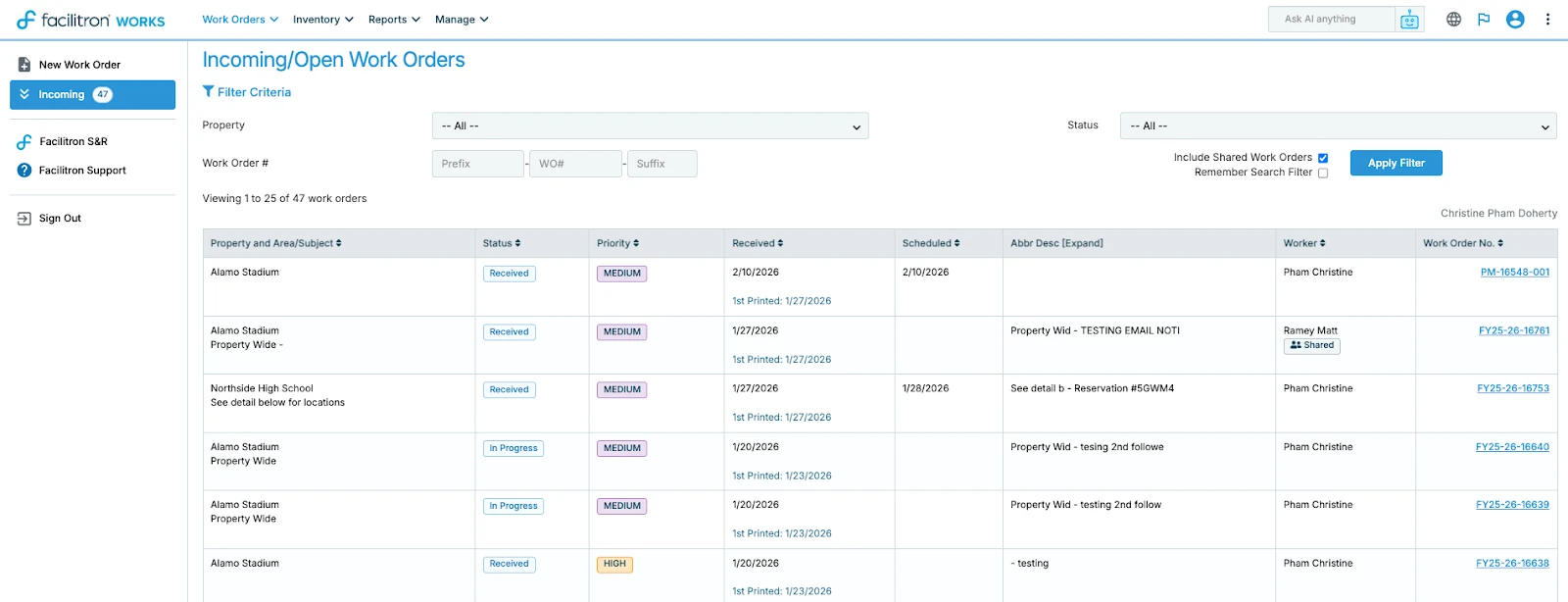
Use the available filter criteria to narrow your results by Property and/or Status.
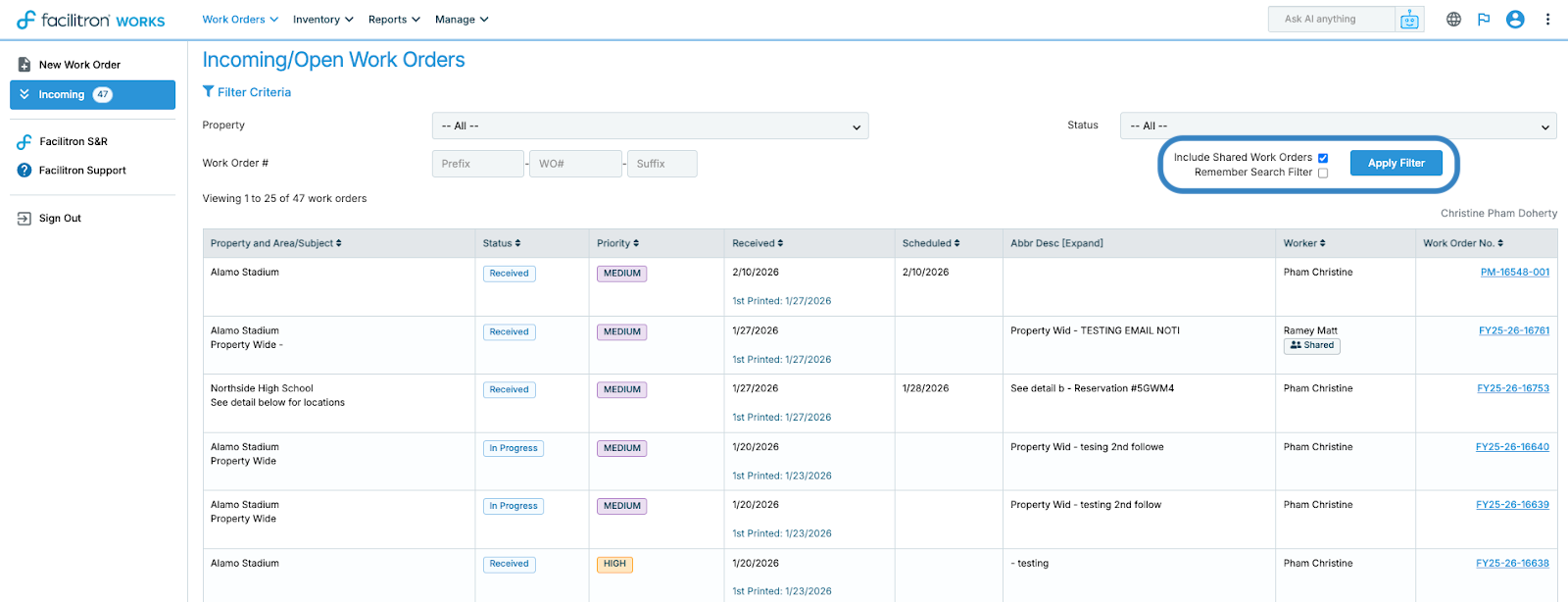
The Shared Work Orders option provides visibility into shared responsibilities and team workload. Check the box next to Include Shared Work Orders to view work orders assigned to other staff members within your trade or crew (if applicable).
Select Remember Search Filter to save your current filter settings. When enabled, your selected filters will remain applied the next time you leave and return to the Incoming screen. Click Apply Filter to search.
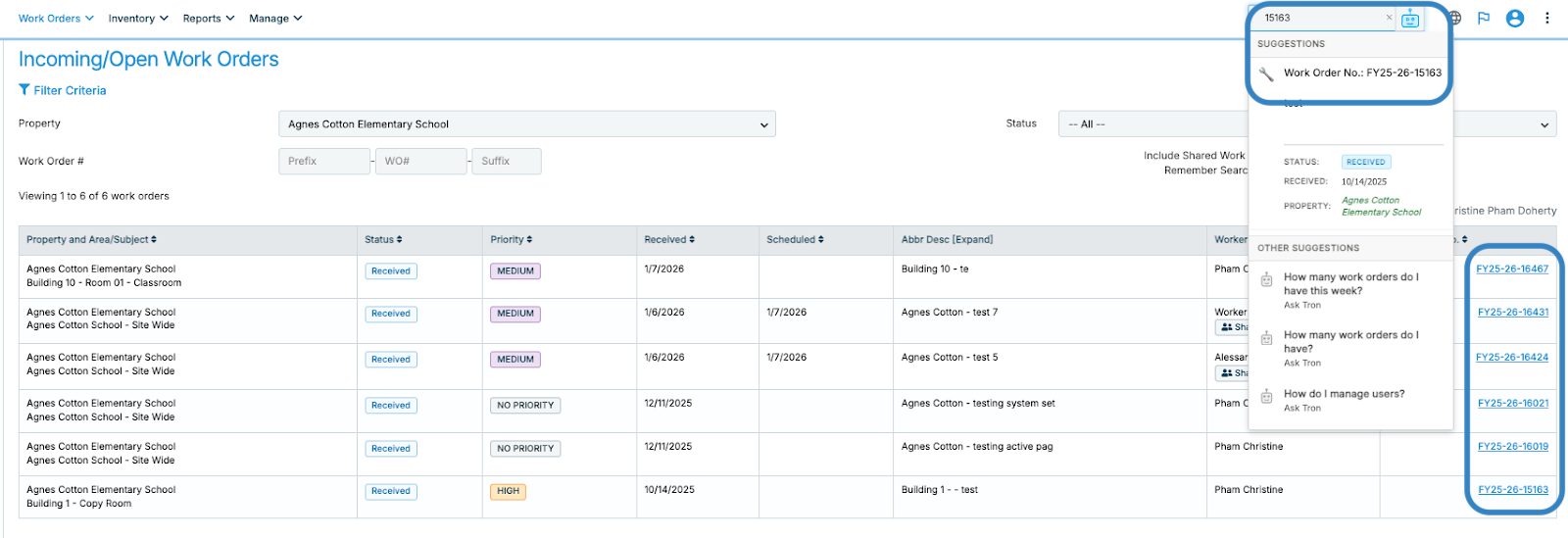
You can also use Smart Search to locate a specific work order.
To locate a specific work order, enter the work order number (for example, 15163) in the Search field at the top right of your screen. Once selected, the work order will open in a pop-up window displaying key details.
If the work order is currently open and assigned to you, it will also appear on your Incoming screen. To view the full record, click the blue link for the work order number. This will open the complete work order details page, where you can review and update information as needed.
The Work Order Details Page
You can review important information related to the request on the work order details page, including Property, Building Location, and Description. These fields provide context about where the work is needed and what issue or task has been reported.
As progress is made, update the status of the work order when applicable. To change the status, open the work order from the Incoming screen or search results. Locate the Status field, and select the appropriate status from the dropdown menu.
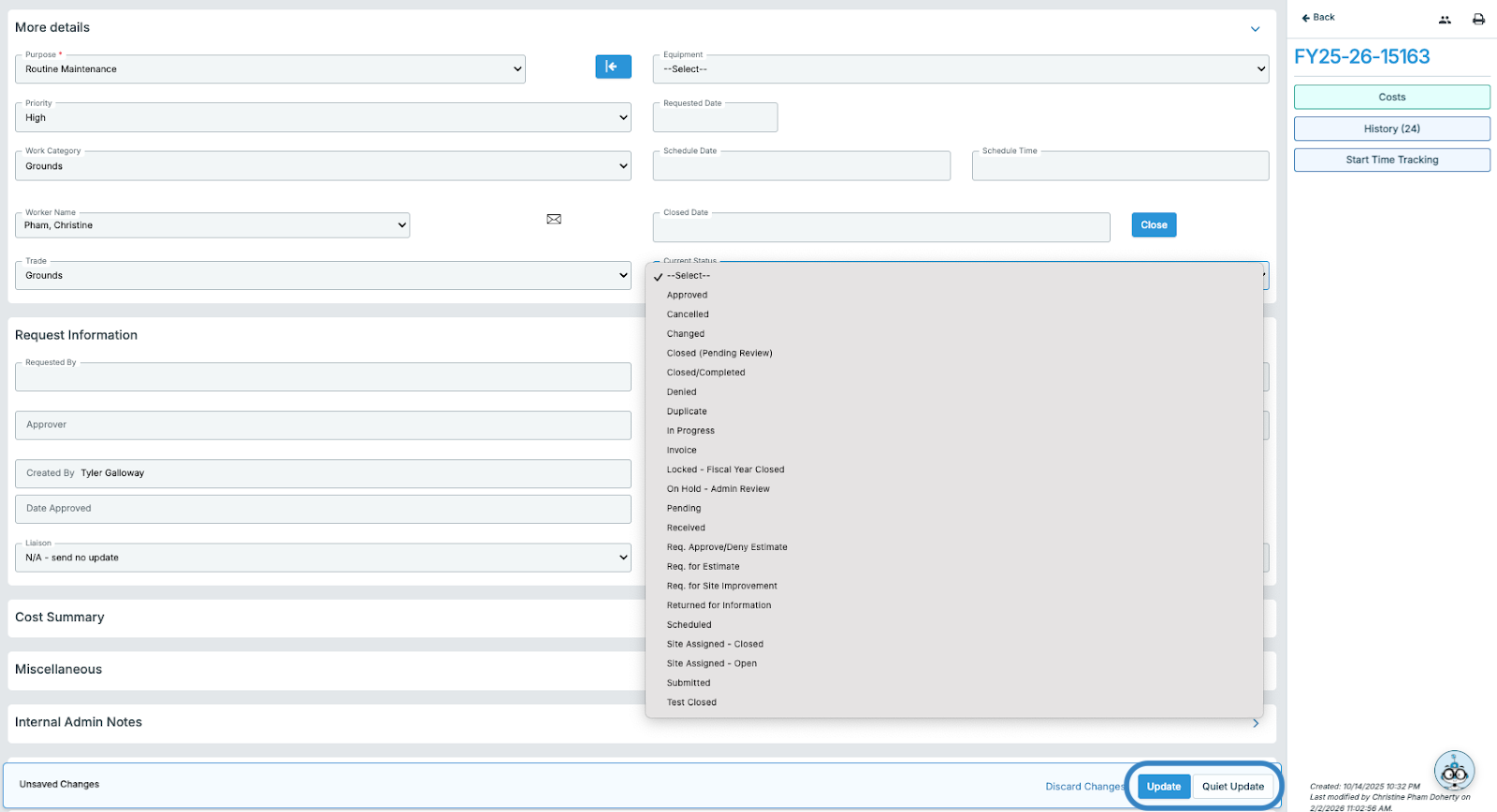
Click Update or Quiet Update to save the change.
Update vs. Quiet Update
Update
- Saves the changes to the Work Order.
- Sends email notifications to users who are following the Work Order or are set to receive updates.
Use this option when the changes should be communicated to stakeholders.
Silent Update
- Saves the changes to the Work Order.
- Does not send any email notifications.
Use this option when you need to make edits without notifying followers.
Actions Section & File Uploads
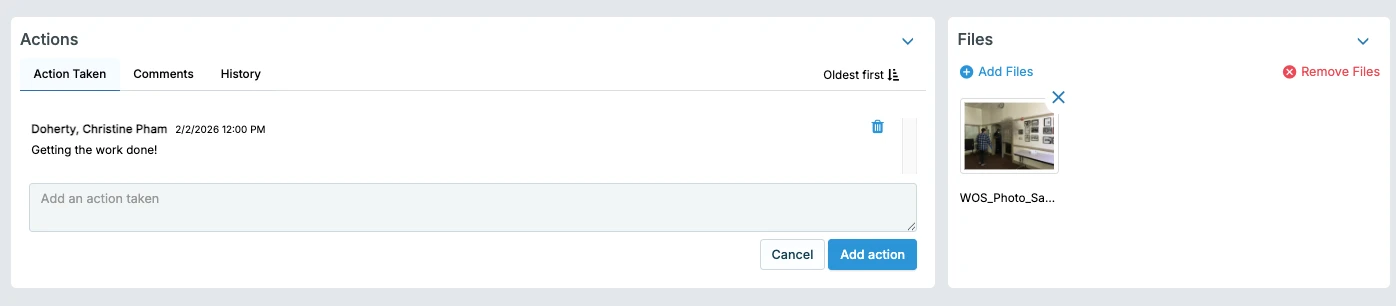
The Actions Taken tab is where any work performed for the work order is documented. At least 1 action taken should be logged before closing a work order. If the Actions section is not populated and no files have been uploaded yet, you may see limited activity displayed on the work order.
Documents related to the work order can be uploaded in the Files section. Up to 5 images can be uploaded at a time.
- Supported File Types: JPEG, PDF, XLSX, DOCX, PPTX
- Maximum File Size: 28.6 MB

Once actions have been added and/or a file has been uploaded to the work order, the Actions section will display activity and available controls. Occasionally, the layout of action buttons may shift to accommodate the populated content.
Action items and files can be removed if needed. Select the X or bin icon next to the item you wish to remove, and confirm the removal, if prompted.
Note: Removing an item will permanently delete it from the work order.
Comments Section
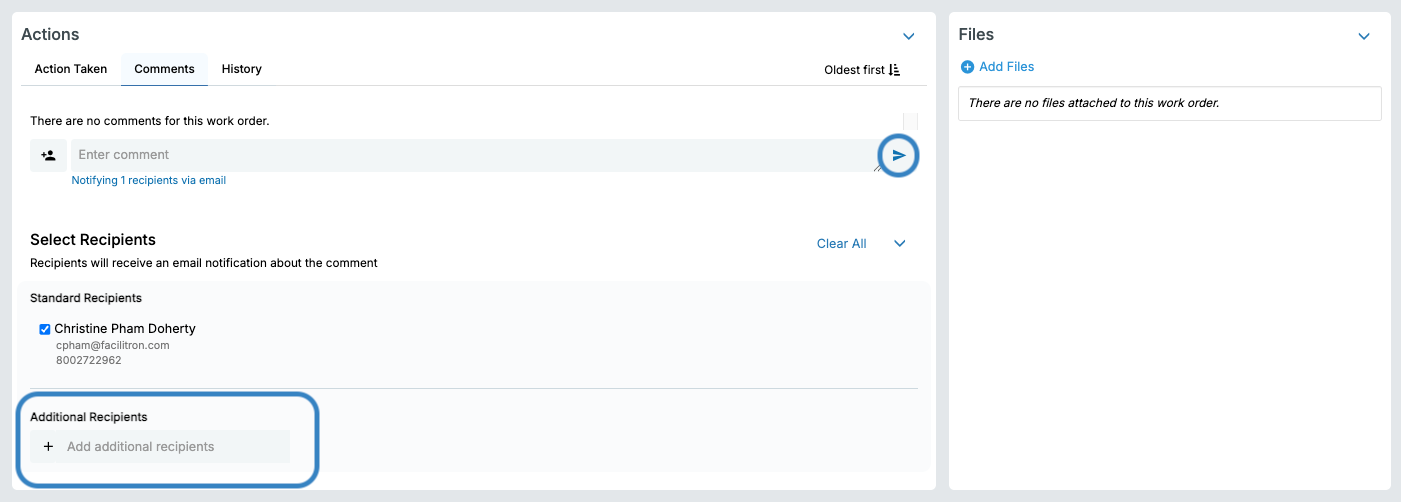
The Comments section allows you to communicate directly within the work order. You can notify select recipients with an email notification by checking the box next to their name, or by typing in the name of the recipients in the Additional Recipients field. After selecting recipients, press the blue arrow to leave the comment and notify the recipients that a comment has been left. The email notification will include a link to the work order, where the recipients can review and respond.
If no recipients are selected, no notifications about the new comment will go out. In order for notifications to be sent, recipients must be selected.
History Section
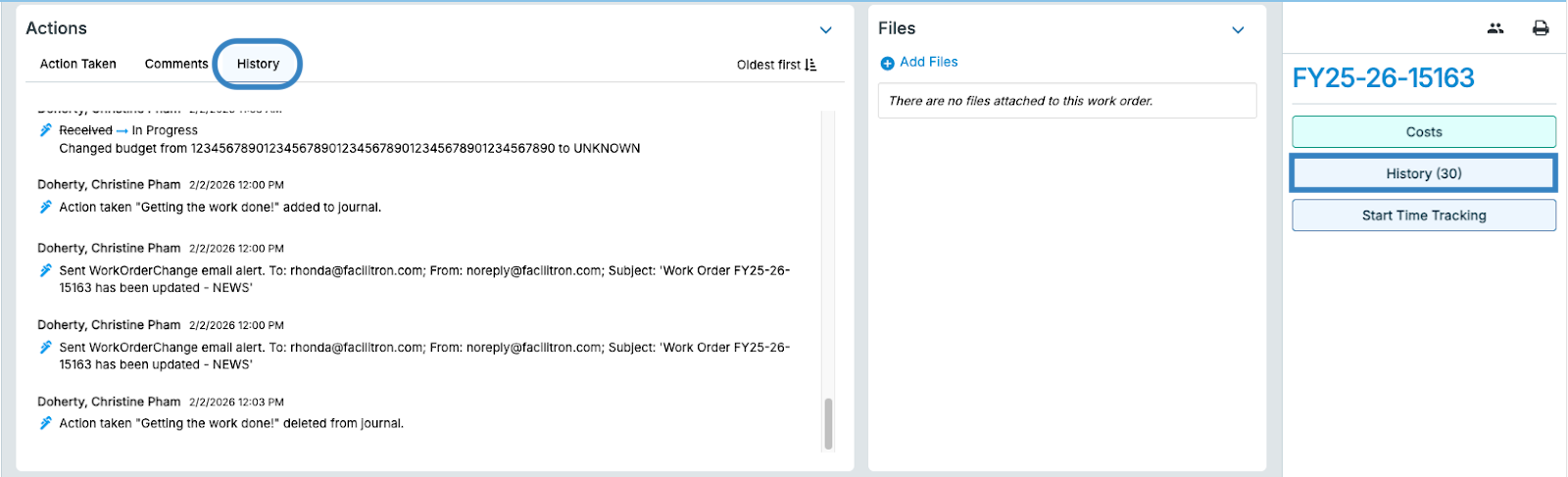
The History section provides a complete log of all status changes, comments, file uploads, and other updates made to the work order. You’ll also find a confirmation of which users were notified by email for each update.
You can access the History section by selecting the History tab within the work order, or clicking the History button located on the right-hand side of the page.
Followers
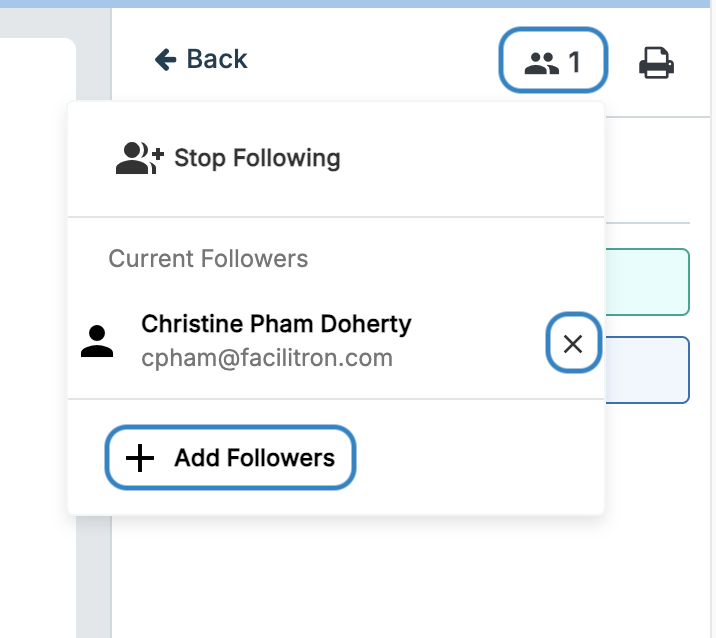
The Followers option allows you to manage who receives email notifications about updates to the work order.
To add followers:
- Select the Followers icon.
- Search for and select the user(s) you would like to add
To remove followers:
- Select the Followers icon.
- Click the X next to the user you would like to remove
Logging Costs
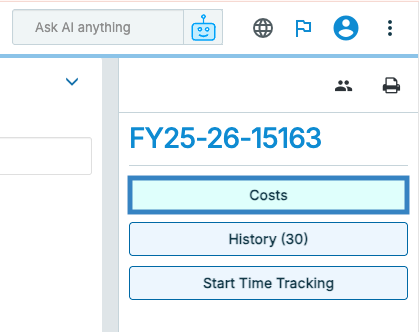
The Costs section allows you to track expenses associated with the work order. To access, click the Costs button, located on the right-hand side of the work order. Once selected, you can add and review the work order costs.
A Costs pop-up will appear. You will see multiple tabs that allow you to log costs based on category. Select the appropriate tab to enter the relevant cost information.
Fields marked with a red asterisk (*) are required and must be completed before the cost entry can be saved. Be sure to review all required fields carefully to ensure the cost is logged successfully.
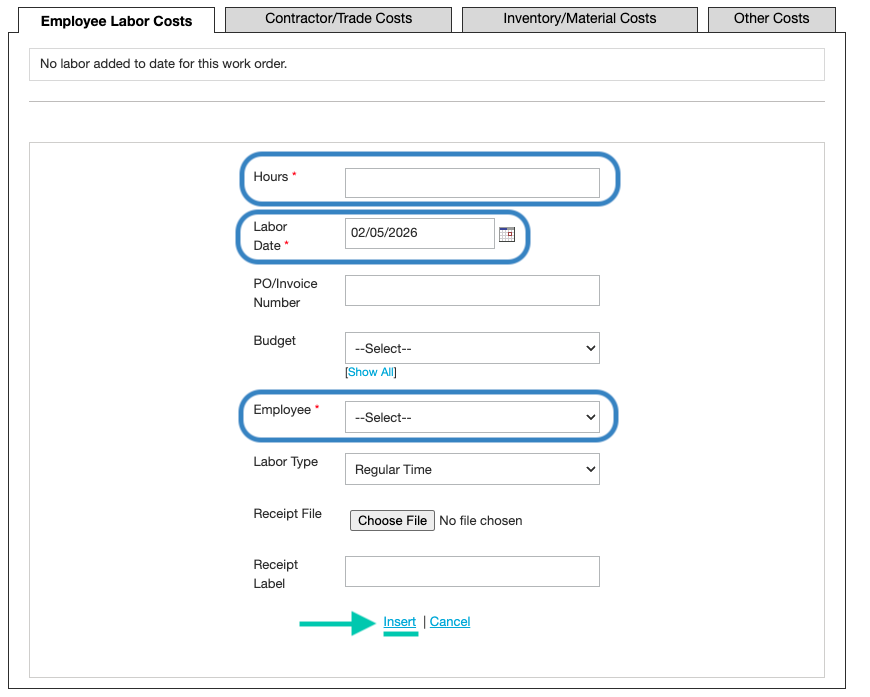
To record labor costs, complete the required fields in the Labor tab.
Required Fields:
- Hours
Enter the total number of hours worked. Decimal values are allowed (e.g., 1.5). - Labor Date
Defaults to today’s date. Adjust the date if the labor was performed on a different day. - Employee
Defaults to the assigned worker. Use the drop-down menu to select a different employee if you need to log hours for another worker.
After completing the required fields, click Insert to save.
If you want to go back to the work order details page, click the grey X in the upper right corner to close the cost window.
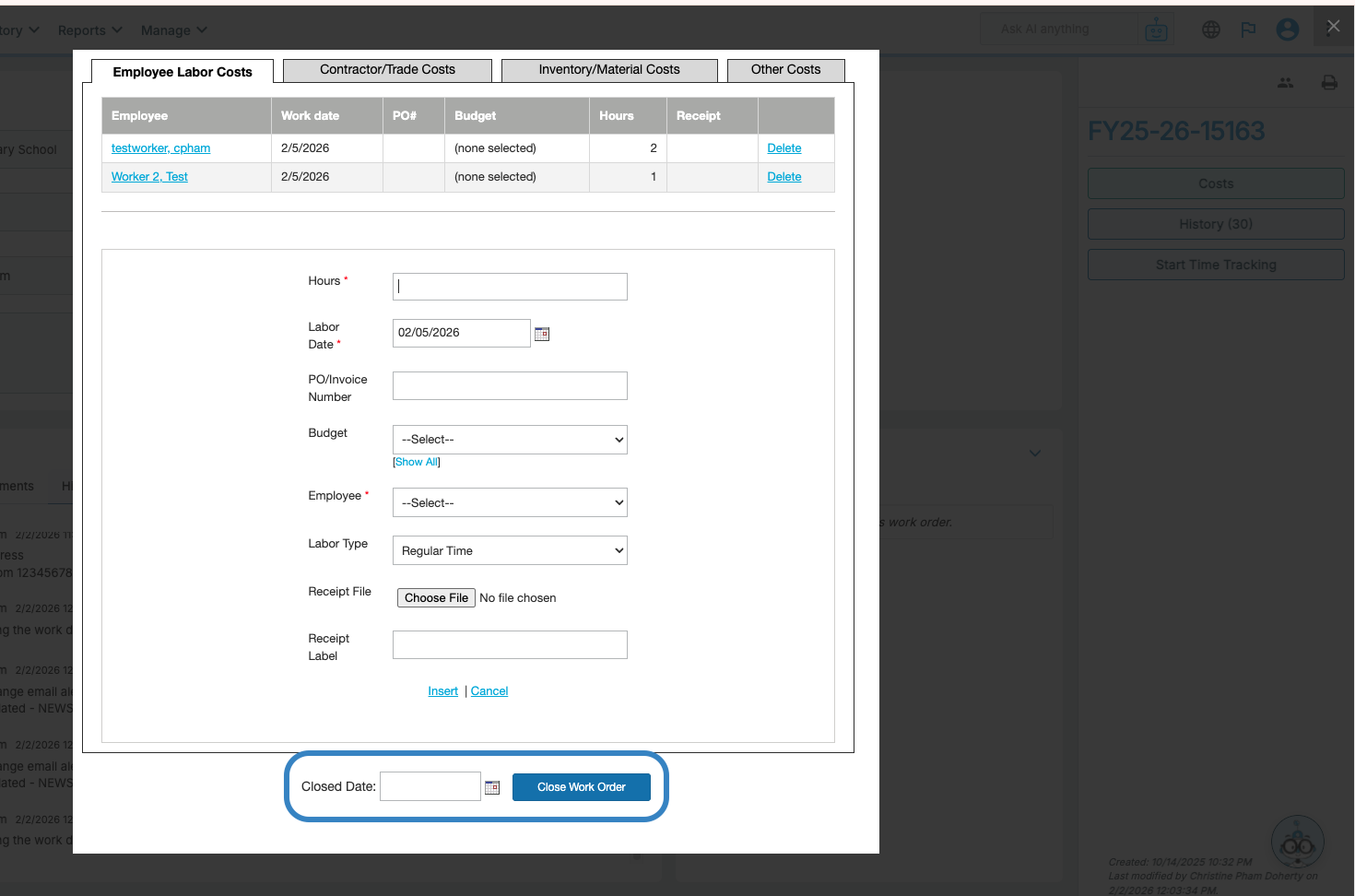
If the work order is complete, you can close the work order directly from the Costs screen. Select Close Work Order. Before closing, be sure the close date is accurate. The close date will default to today’s date. If needed, use the calendar tool to adjust to a different date.
Closing from the Work Order Detail Page
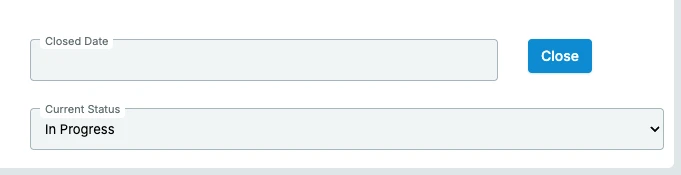
You can also close a work order directly from the work order detail page by clicking the blue Close button. The close date will automatically populate with today’s date. If you need to adjust the date, click inside the Close Date field and select the appropriate date from the calendar.
Accessing Tron AI
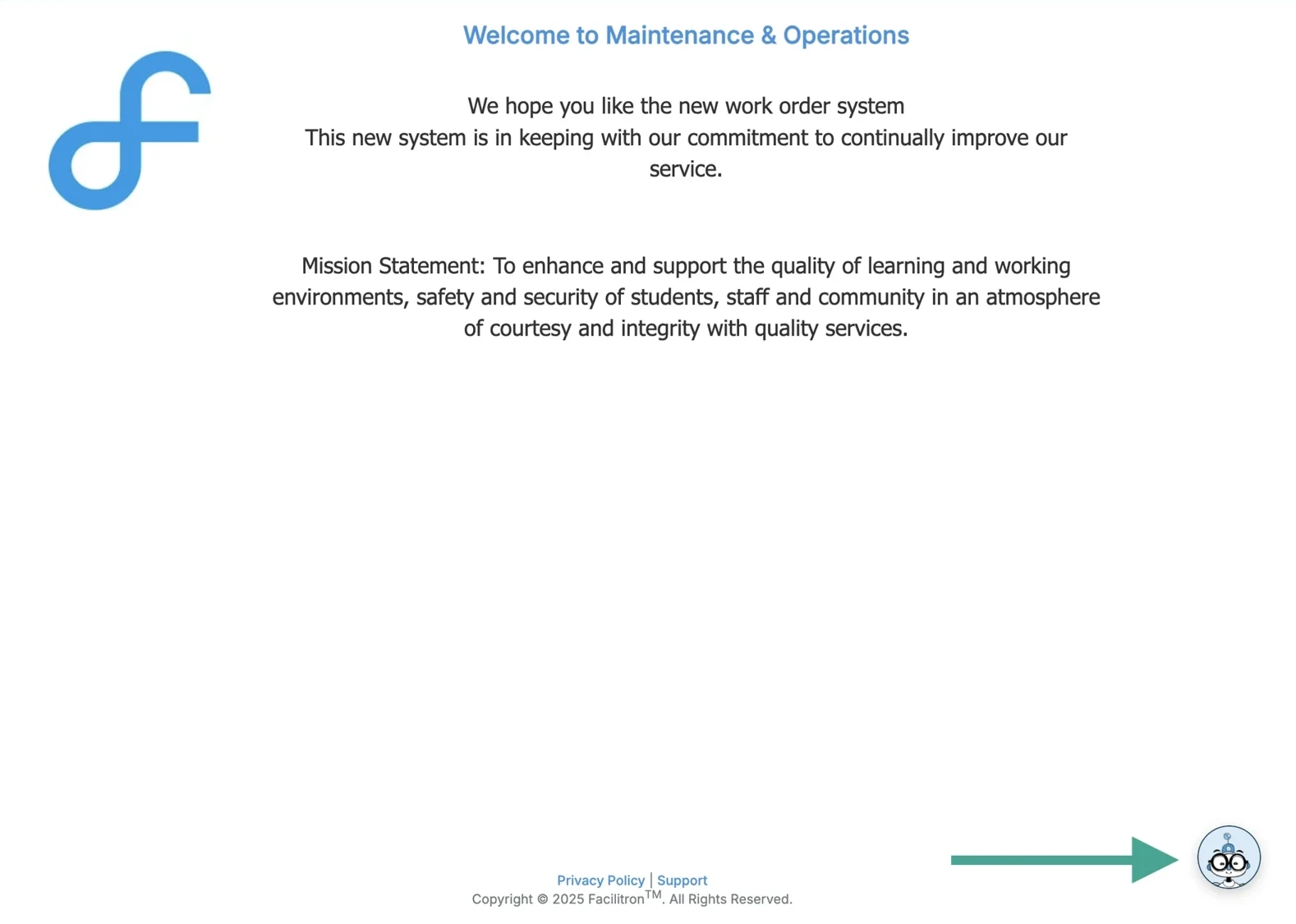
Tron AI, located in the bottom-right corner of your WORKS screen, is a built-in chatbot that provides step-by-step guidance for common questions about creating, updating, tracking, and closing work orders. Simply click the Tron AI icon to start a new chat.
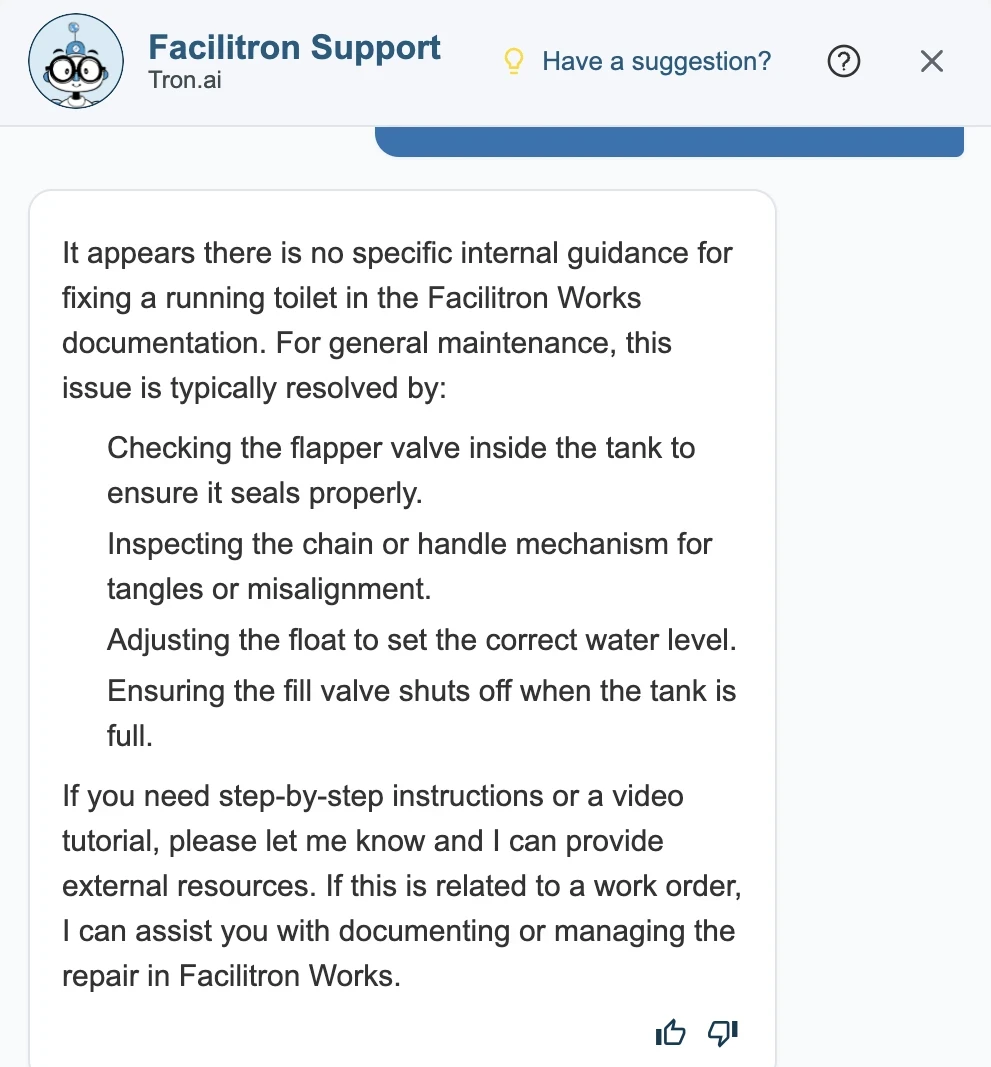
Note: Tron AI offers instructions and helpful resources, but it does not perform actions within the system or make changes to work orders.
By following the steps outlined above, you can confidently navigate, update, and close work orders in Facilitron WORKS. For additional assistance, please reach out to Facilitron Support at (800) 272-2962, or email us at support@facilitron.com.
Was this article helpful?
That’s Great!
Thank you for your feedback
Sorry! We couldn't be helpful
Thank you for your feedback
Feedback sent
We appreciate your effort and will try to fix the article