This article walks through how to disable Smart Search for an individual user in Facilitron WORKS. You’ll see how to find the user profile, update the Smart Search preference, and how to re-enable this feature later if needed.
To disable Smart Search, go to Manage > People > Users. You will land on the following page.
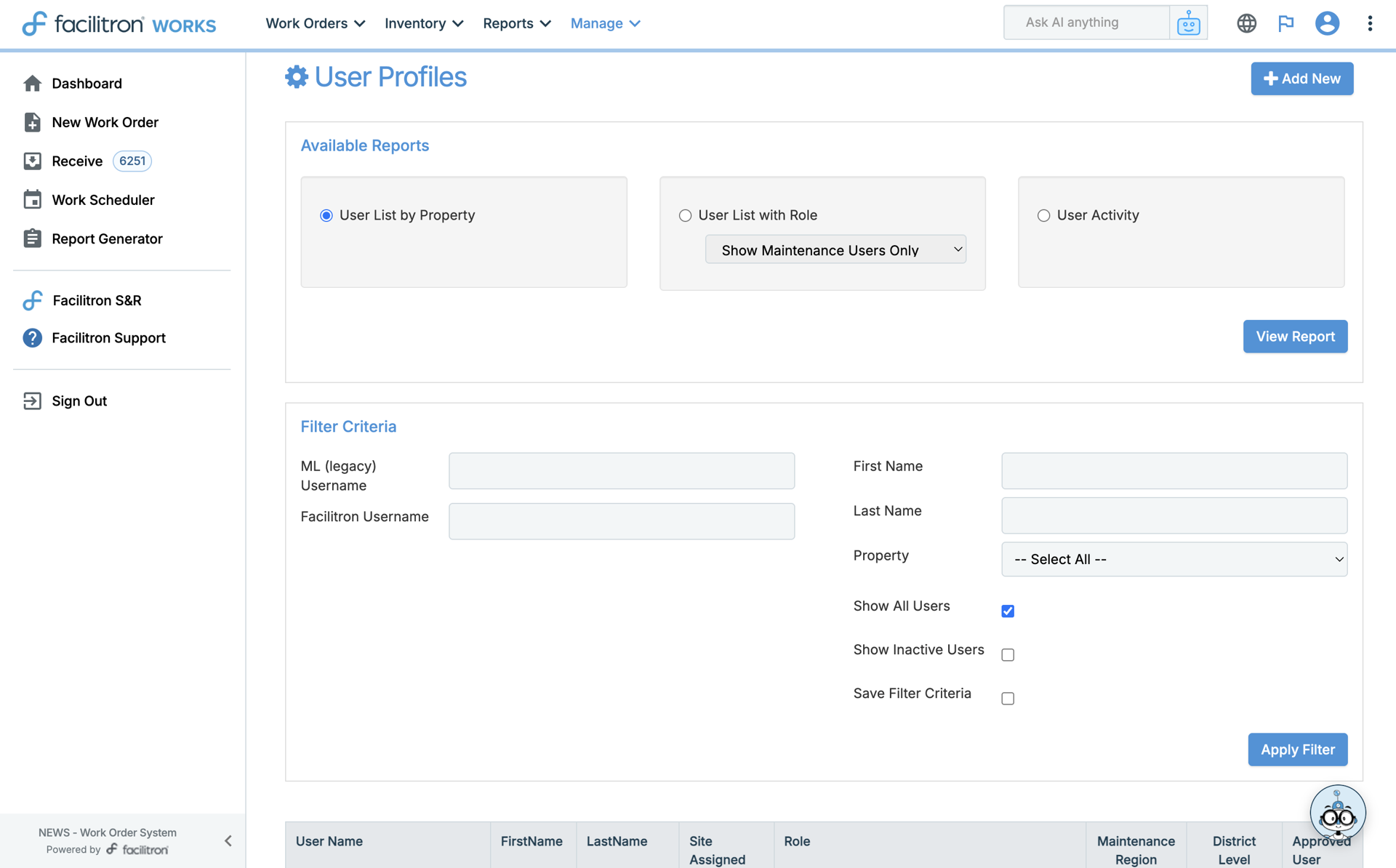
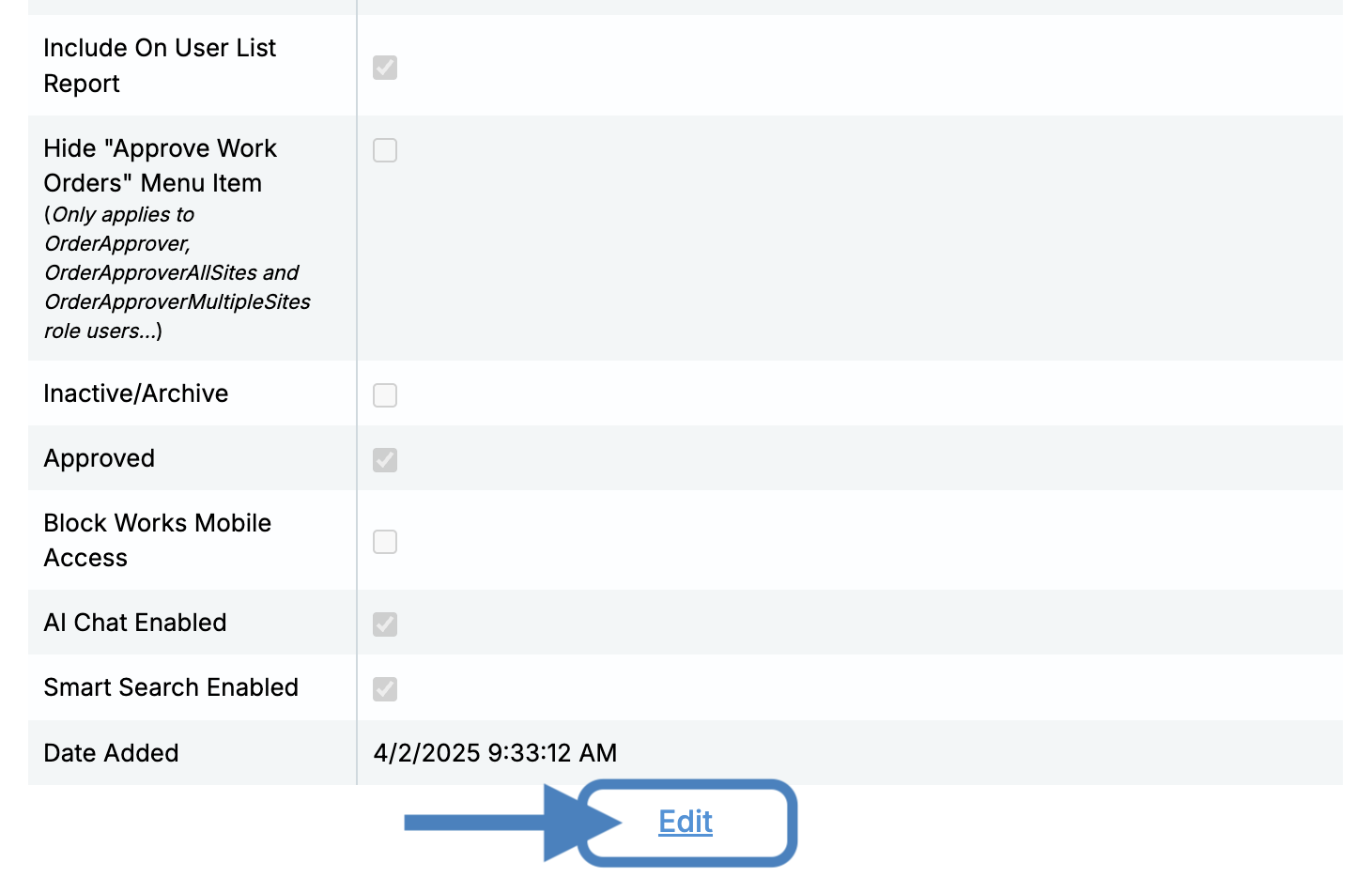
Search for the user that you are disabling Smart Search for. Click on their name to access their user profile. Once you’re in the profile, scroll towards the bottom and click Edit.
Uncheck the box next to Smart Search Enabled. Click Update to save.
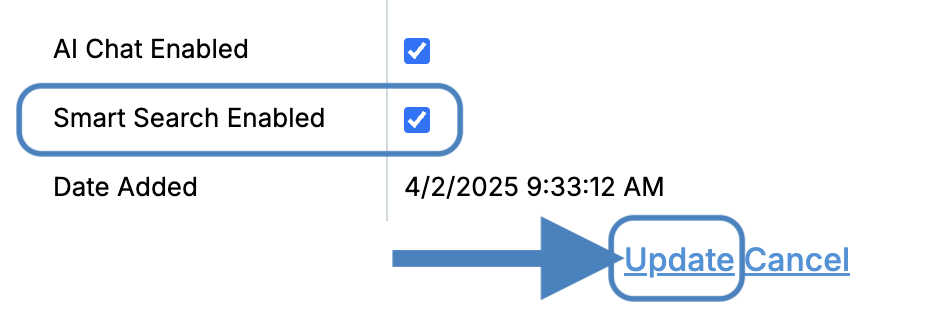
If you need to turn Smart Search back on later, follow the same steps above and check the Smart Search box instead of unchecking it.
For additional assistance, please reach out to Facilitron Support at (800) 272-2962, or email us at support@facilitron.com.
Was this article helpful?
That’s Great!
Thank you for your feedback
Sorry! We couldn't be helpful
Thank you for your feedback
Feedback sent
We appreciate your effort and will try to fix the article