This article shows Works users with an Order Administrator or Order Processor role how to review and manage work orders generated from a Recurring Work Order (RWO) profile, including how to view existing work orders, skip an occurrence, and create replacement work orders when needed.
Viewing and Managing Existing Work Orders
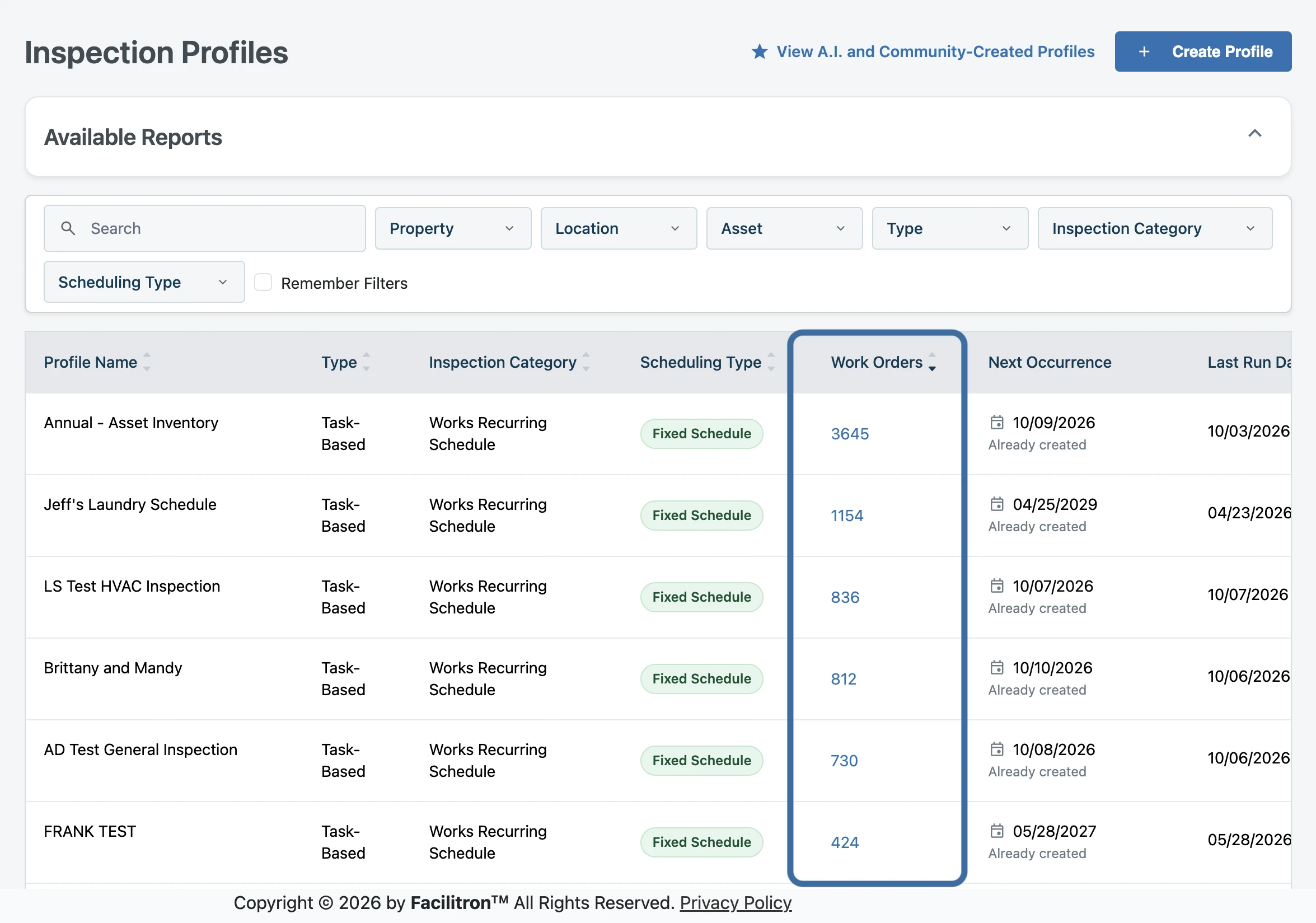
To review or make changes to existing work orders, go to Work Orders > Recurring Profiles. You will land on the Inspection Profiles page. To access the list of work orders, click the number of work orders in the Work Orders section of the page.
At the top of the page, you’ll see:
- The profile name
- The generation mode (Fixed Schedule or Closure-Based)
- Confirmation if Auto Generation is on or off
- The next scheduled occurrence
- The creation status of the next RWO
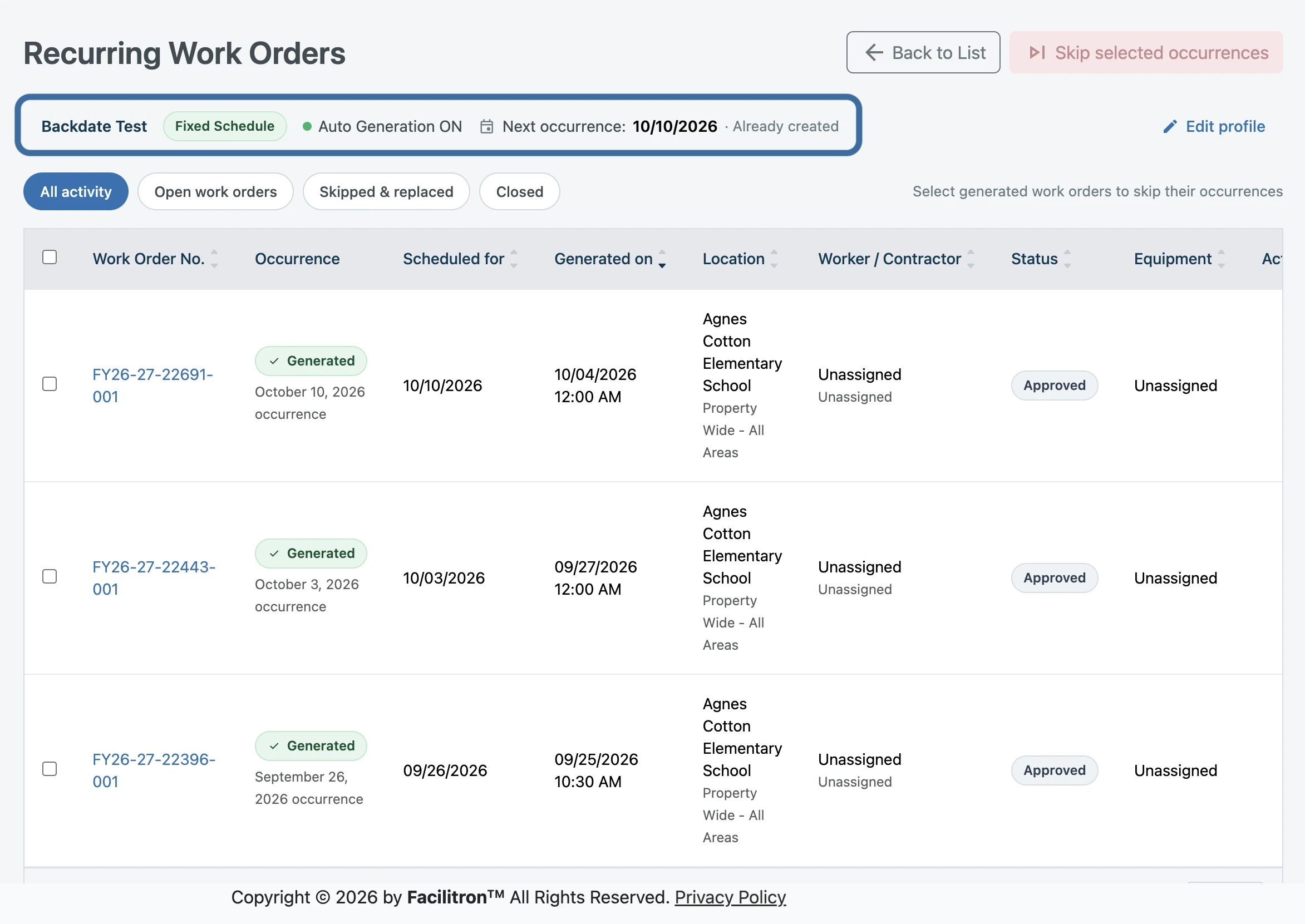
To make changes to the inspection profile details (profile name, scheduling details, etc.), select Edit Profile in the top left corner of the page. For assistance with making changes to profile details or setting up an inspection profile, see Creating Recurring Work Orders (RWO's) in Facilitron Works.

Skipping RWO Occurrences
Skipping an occurrence removes the RWO associated with that occurrence without changing the recurring profile’s schedule. You can then create replacement work orders for the skipped occurrence if the work still needs to be completed.
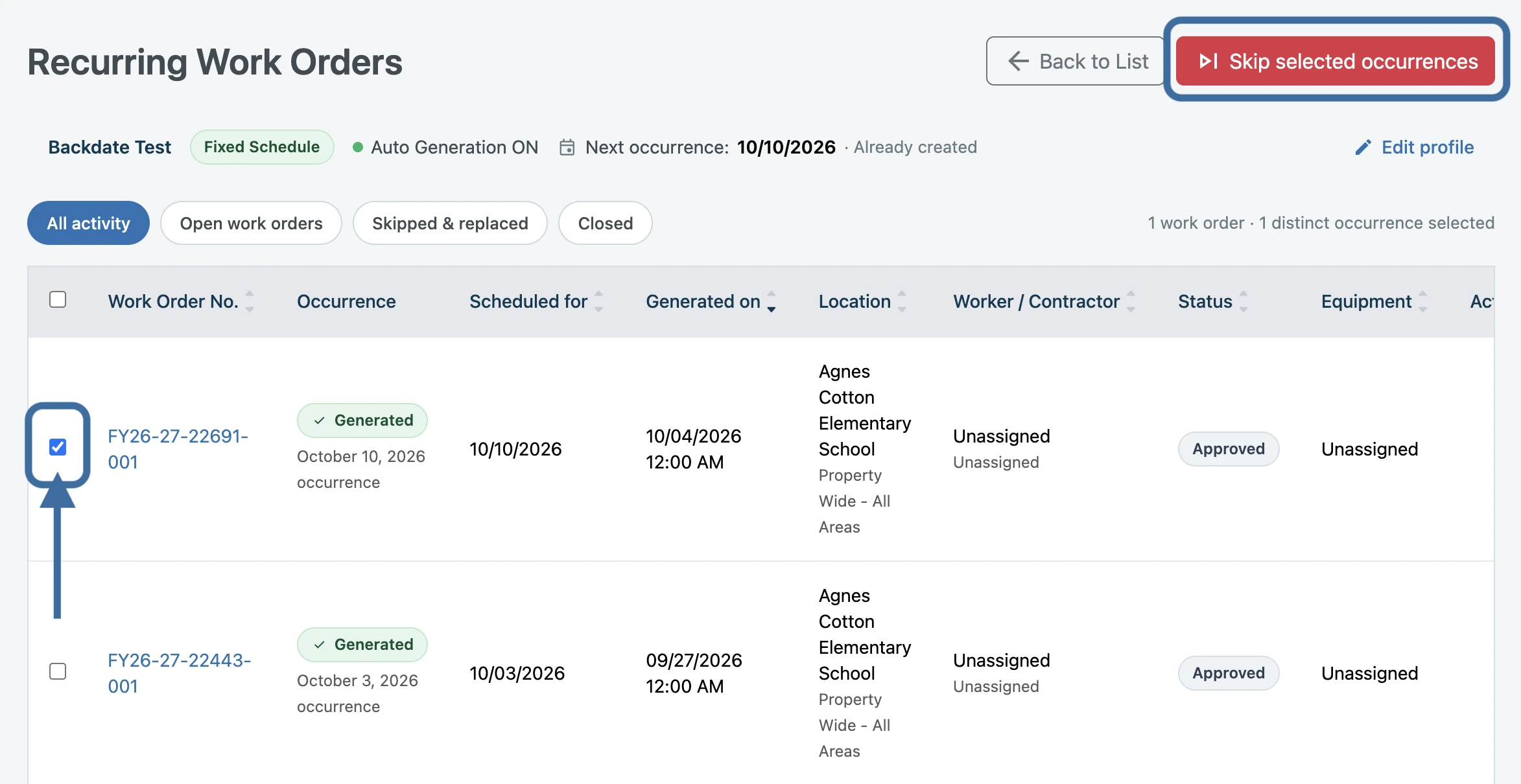
To skip a work order, select the checkbox next to the work order you wish to skip, then press Skip selected occurrences. The entire occurrence will be skipped, including other work orders generated as part of the same occurrence.
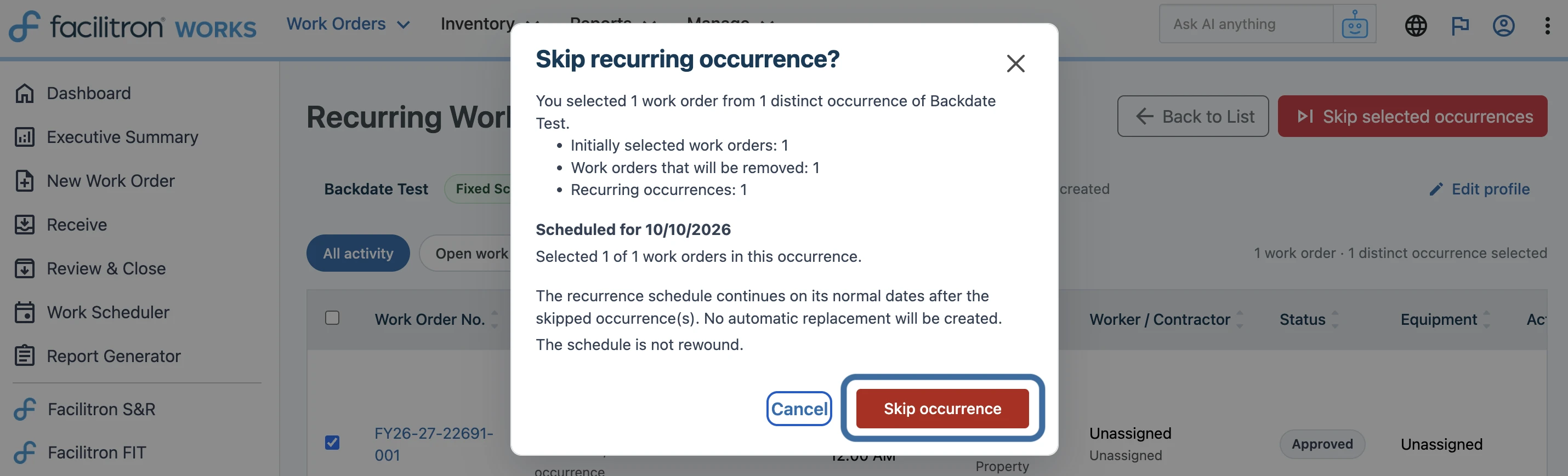
Next, a modal will open, displaying:
- The number of work orders initially selected
- The total number of work orders that will be removed
- The number of recurring occurrences being skipped
- The date of the occurrence
- Any additional work orders that will be removed as part of the same occurrence
Review the information, then press Skip occurrence.
Note: Skipping the occurrence does not change the recurring profile's schedule. Future occurrences will continue to generate according to the existing schedule, and an additional automatic occurrence will not be created to replace the skipped occurrence.
Viewing Skipped Occurrences
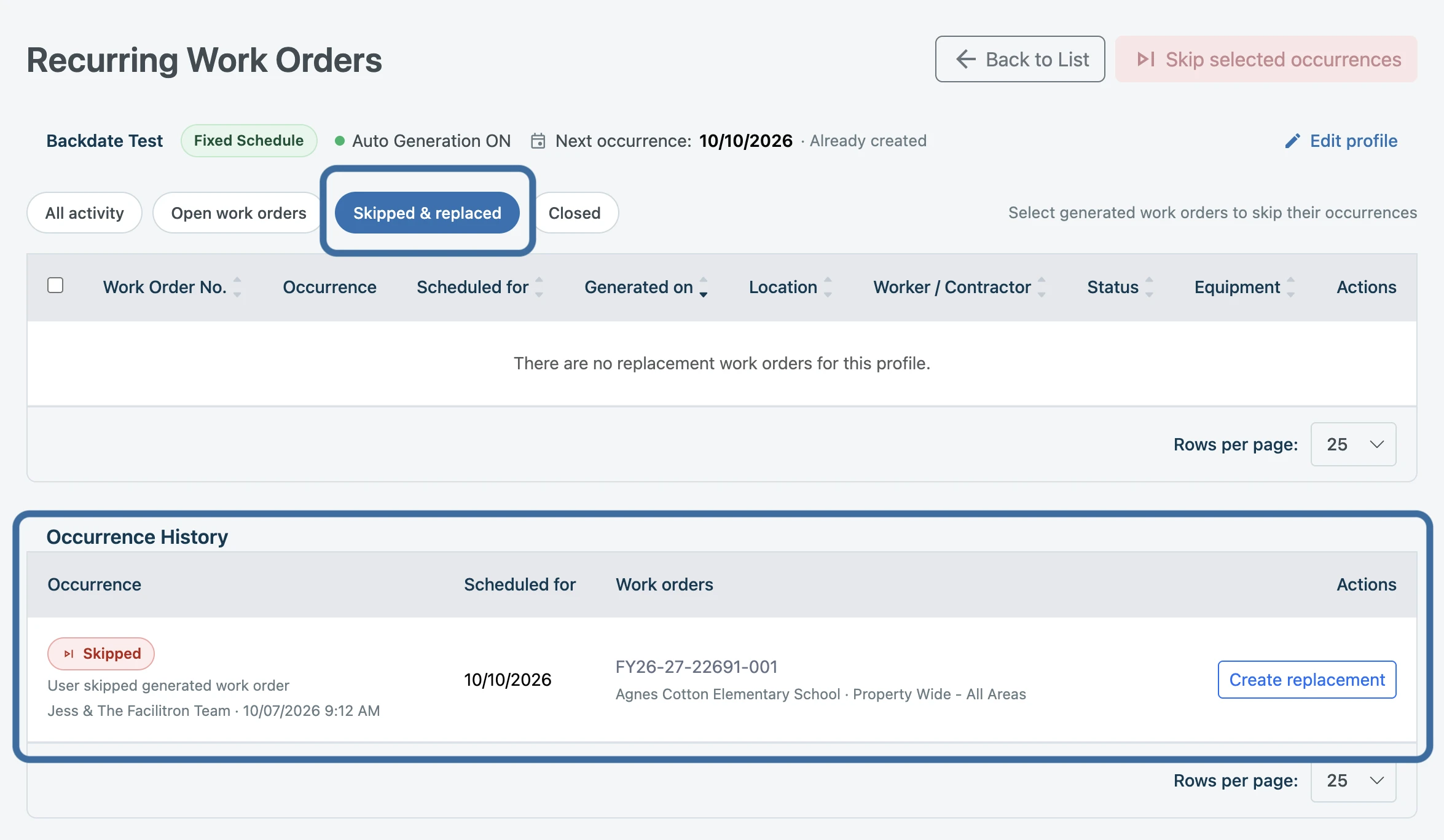
To view a skipped occurrence, click the Skipped & Replaced status filter. The skipped occurrence is marked Skipped and displays the date and work orders that were removed.
Creating Replacement Work Orders
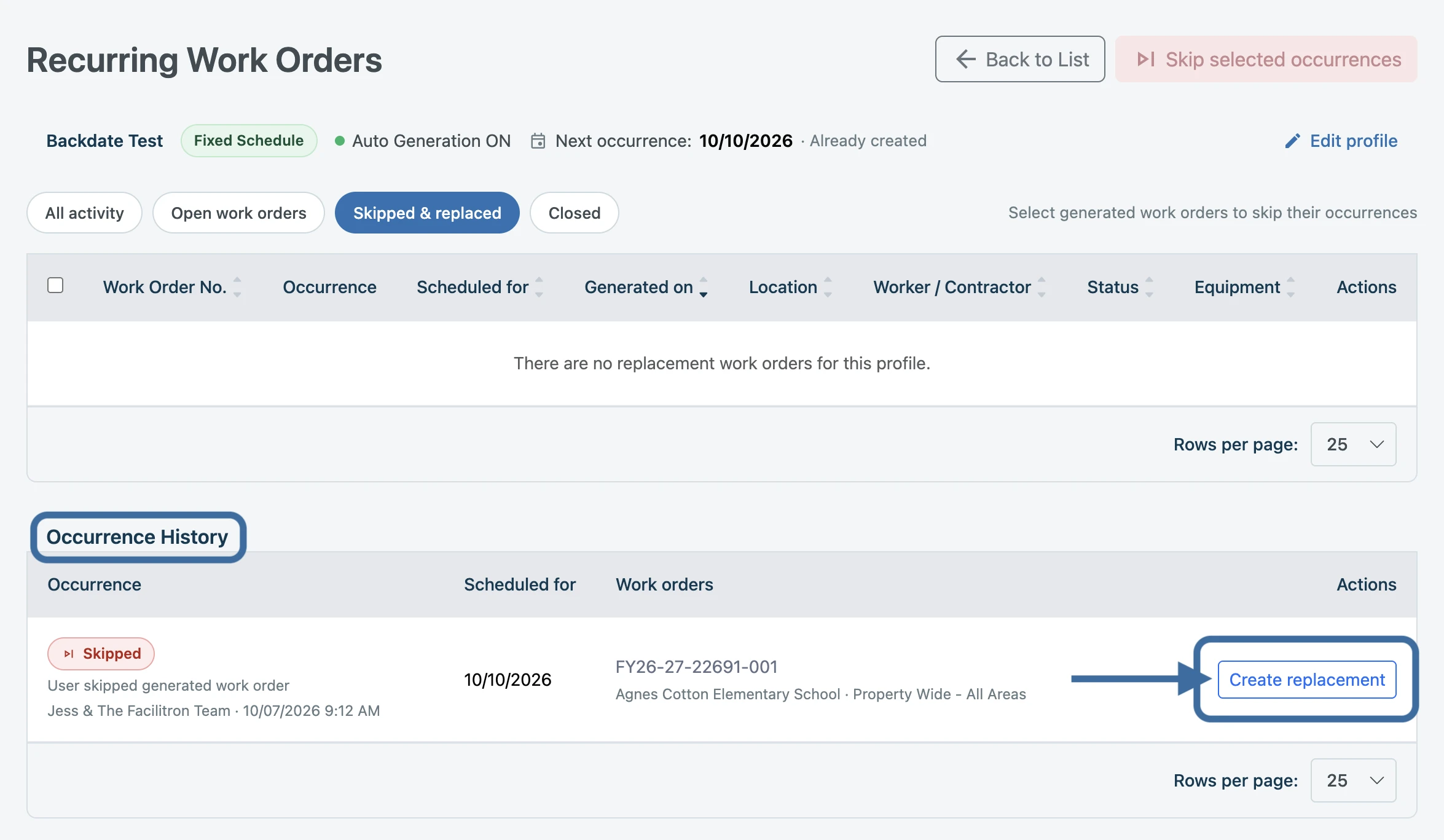
If the work from a skipped occurrence still needs to be completed, you can create replacement work orders without changing the recurring schedule. In the Occurrence History section, locate the skipped occurrence and press Create replacement.
The Create replacement? modal lists the work orders that are eligible to be replaced. Review the work orders listed, the press Create replacement. New work orders will be created for the skipped occurrence, and the replacement work orders will retain the information from the original occurrence, however will receive new work order numbers.
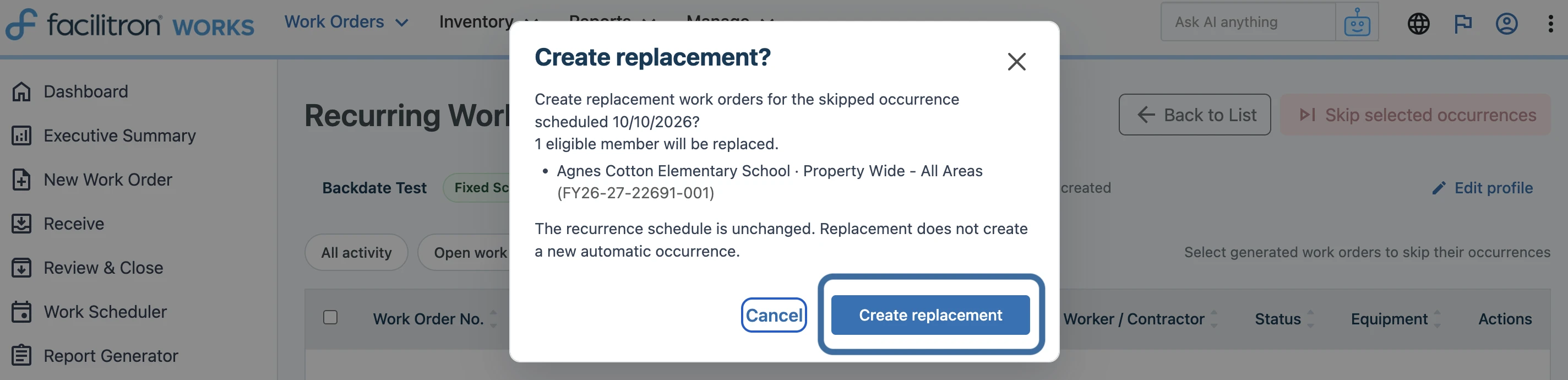
Note: Creating replacements does not create a new automatic occurrence or change the recurring profile's schedule.
Viewing Replacement Work Orders
After creating the replacements, the occurrence is marked as Replaced in the Occurrence History section. To open the new work order, click the work order number.
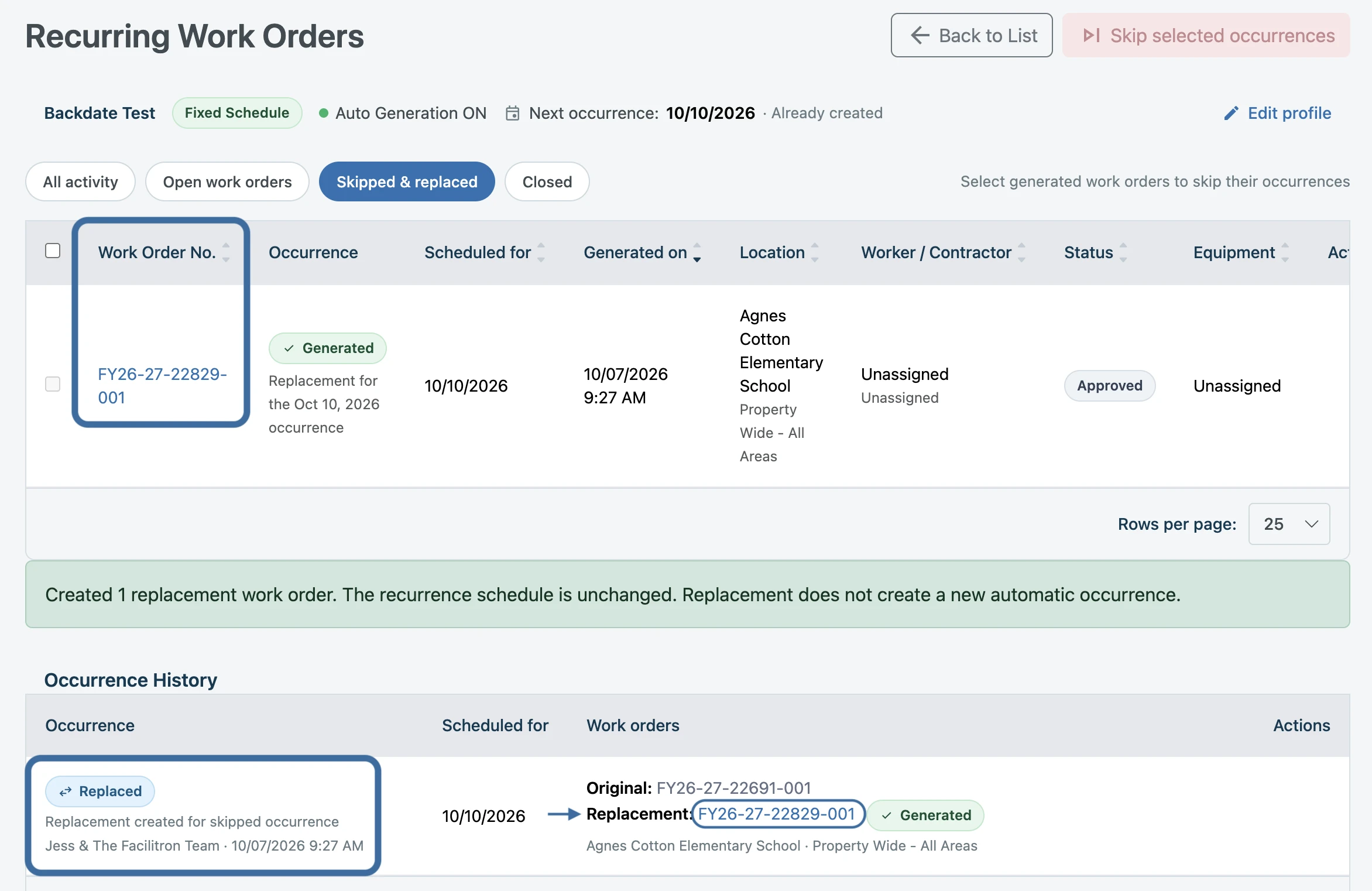
Replacement work orders are managed the same as other work orders. If a replacement work order is completed, its status is updated accordingly while the other replacement work orders remain available for processing.
What Happens to the Recurring Schedule if I Skip or Replace a Work Order?
Skipping or replacing an occurrence does not move or restart the recurring schedule. The profile's next occurrence continues according to its existing recurrence settings. Replacement work orders apply only to the skipped occurrence and do not count as an additional automatic occurrence.
For additional assistance, please reach out to Facilitron Support at (800) 272-2962, or email us at support@facilitron.com.
Was this article helpful?
That’s Great!
Thank you for your feedback
Sorry! We couldn't be helpful
Thank you for your feedback
Feedback sent
We appreciate your effort and will try to fix the article