This article shows Order Administrators and Order Processors how to use the integrated project management tools on the Work Order Detail page. To jump to a specific section, click the corresponding link below:
- How to Add a New Work Order to an Existing Project
- How to Add a New Work Order to a New Project
- How to Add a New Project on an Existing Work Order
- How to Add Existing Work Orders to a New Project
How to Add a New Work Order to an Existing Project
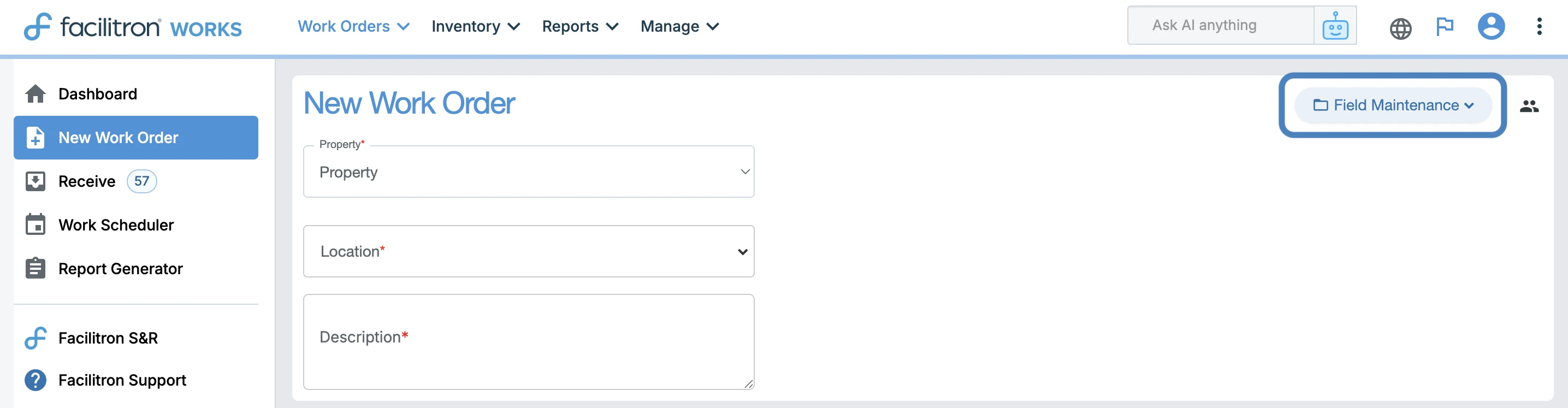
During work order creation, click the + Add to Project button in the top-right header of the New Work Order page.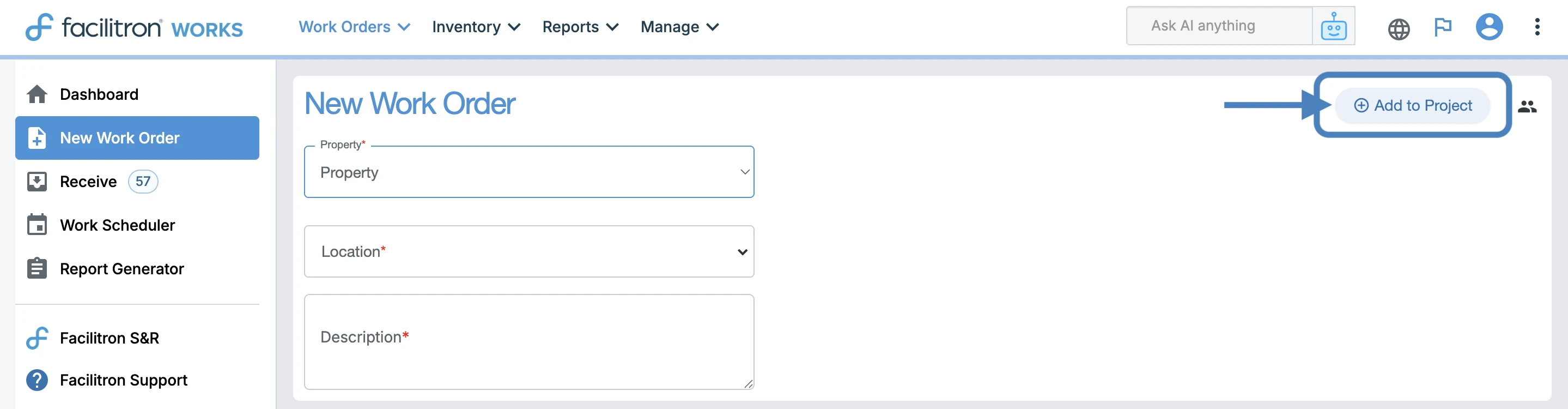
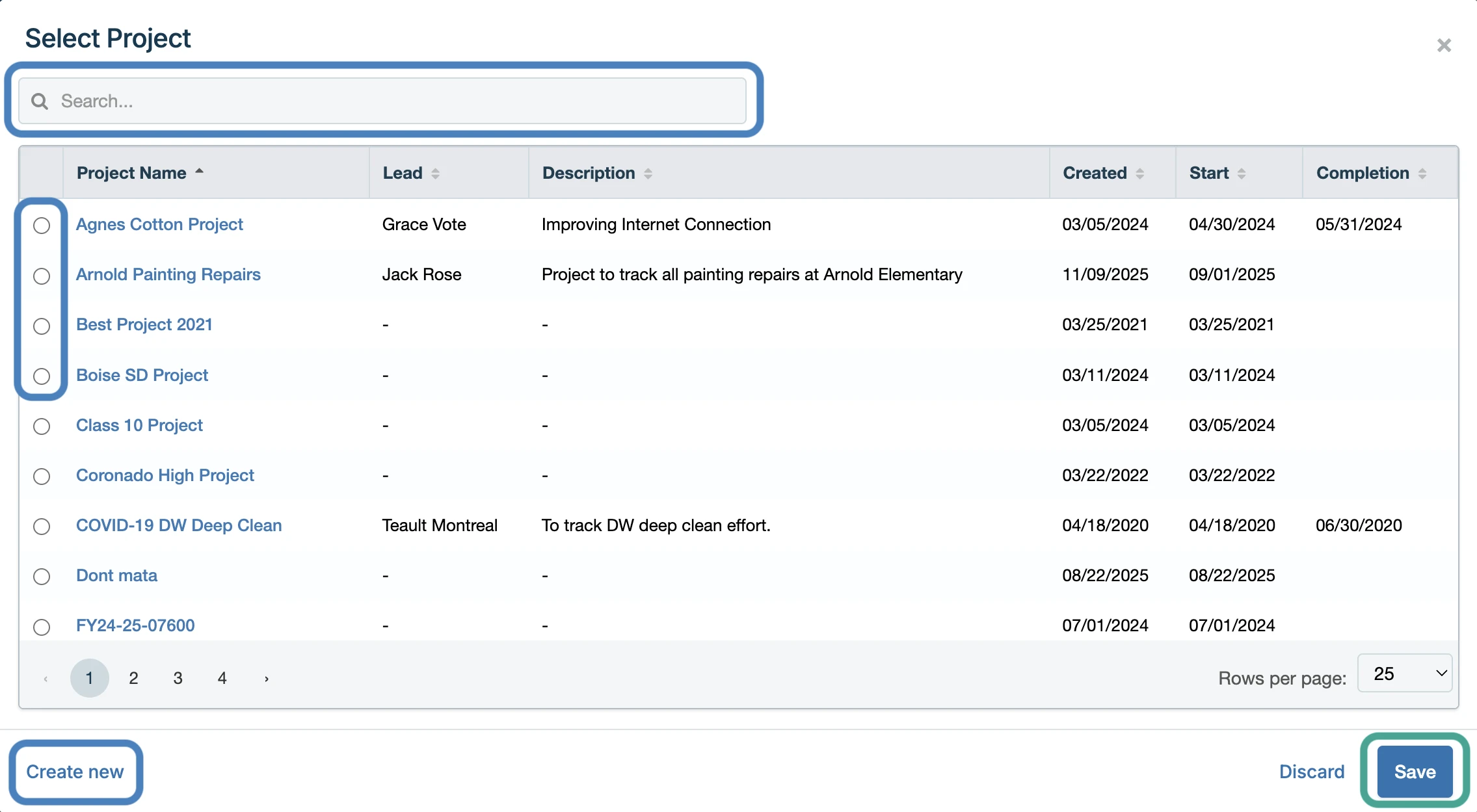
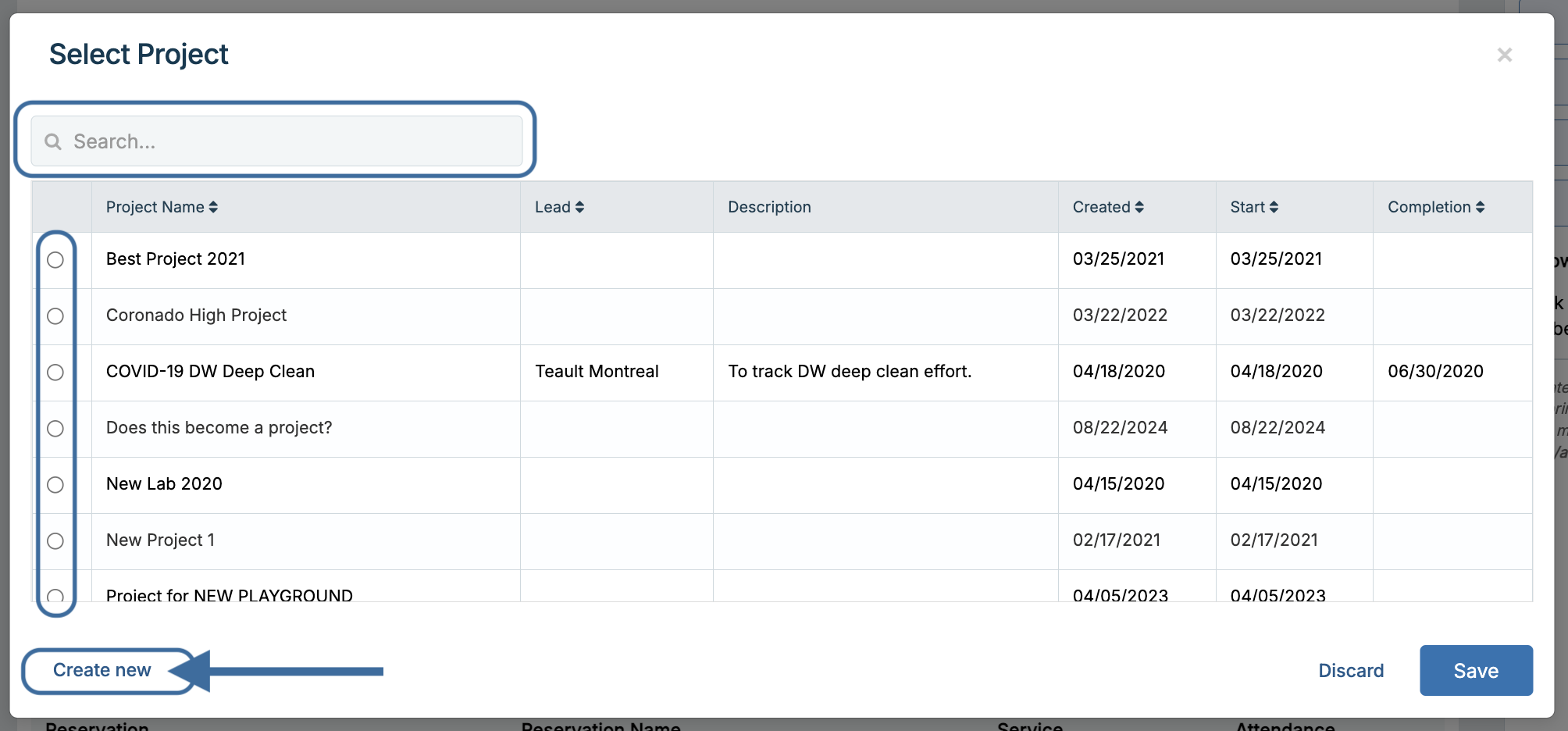
The following modal will open. Here you can search for an existing project or create a new project to add the work order to. To add the work order to an existing project, simply click the toggle to the left of the project name. You can select more than one project if needed. Once you’ve added the work order to the projects needed, press Save.
How to Add a New Work Order to a New Project
To add the work order to a new project, click Create new.
A project name is the only information required to create a project. You can also add other details, such as a project lead, start/completion dates, and a description of the project. If you don’t have this information at the time of creation or if it changes later, the project information can be updated by going to Manage > Website Configuration > Projects.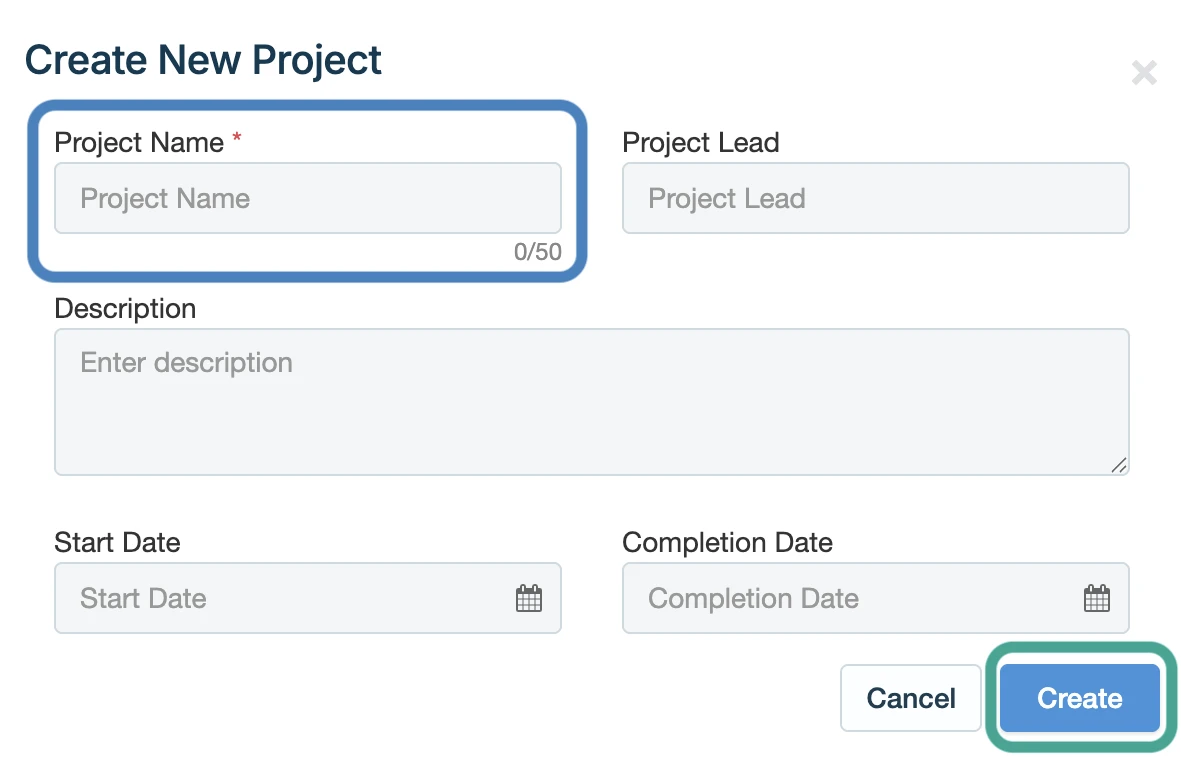
After entering the project name and any relevant details, click Create to create the project. Once the project has been created, you’ll be taken back to the previous modal, and you will see the new project at the top of the Projects list.
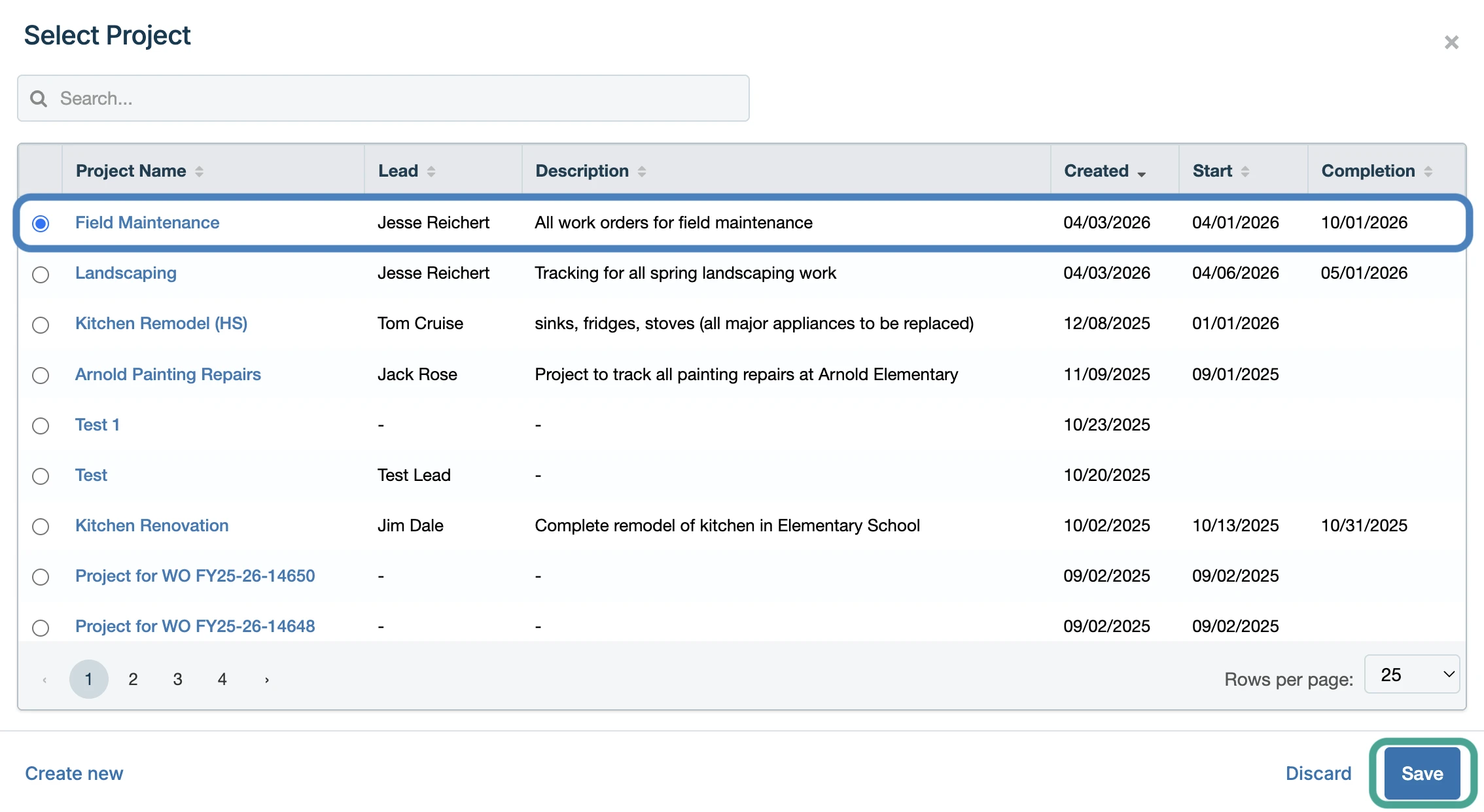
Press Save to add the work order to the selected projects.
Changing or Removing a Project During Work Order Creation
If you need to change or unlink the project, simply click the name of the project to view these options.

Clicking Change project allows you to select a different project or add the work order to additional projects, while Unlink project removes the work order from the associated project.
How to Add a New Project on an Existing Work Order
To add or manage projects, go to a work order that you would like to add to a project to. Click Add Project.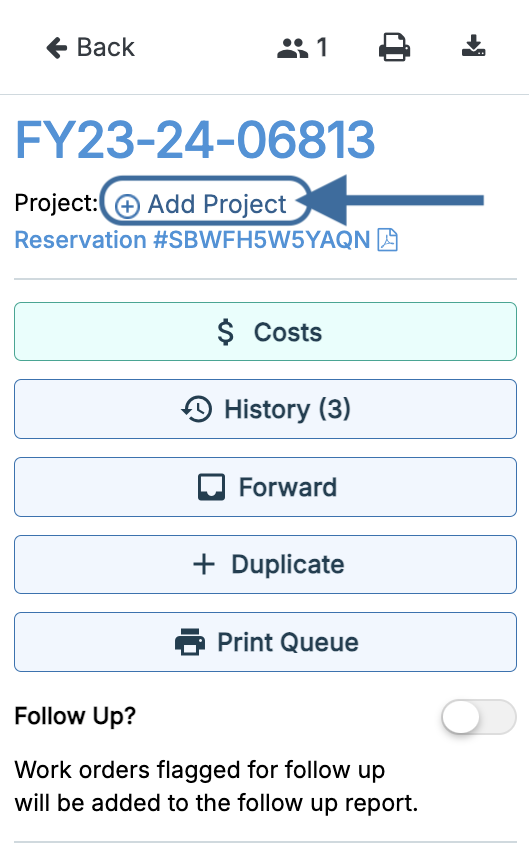
The following popup will open. Here, you can search for an existing project, select one or more projects using the toggle controls on the left, or create a new project. To create a new project, click Create New in the bottom left corner.
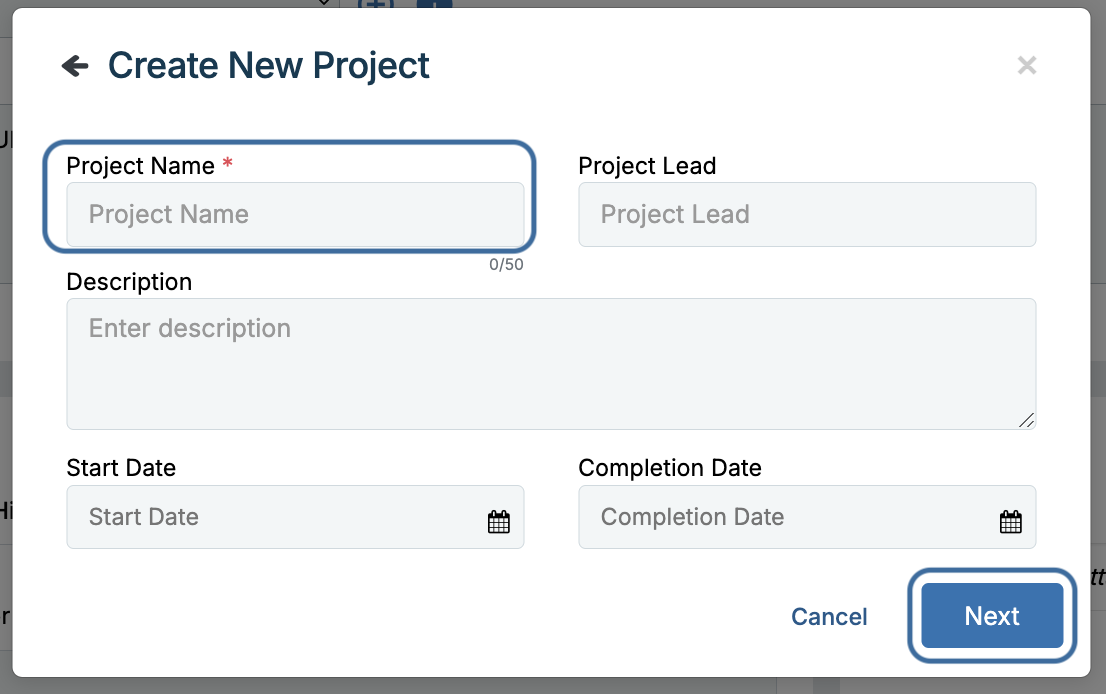
Next, you’ll be asked to fill out the fields below. The project name is the only detail required at creation. You can also designate the project lead, add a description of work that will be completed, and note the start and completion dates.
Click Next to move to the next step.
General Notes for Creating Projects:
Projects cannot have the same or repeating names. All projects must have a unique name.
- Start dates cannot be set in the past. Only today’s date and future dates can be selected as start dates.
- Completion dates must occur after the start date and cannot be the same date as the start date.
How to Add Existing Work Orders to a New Project
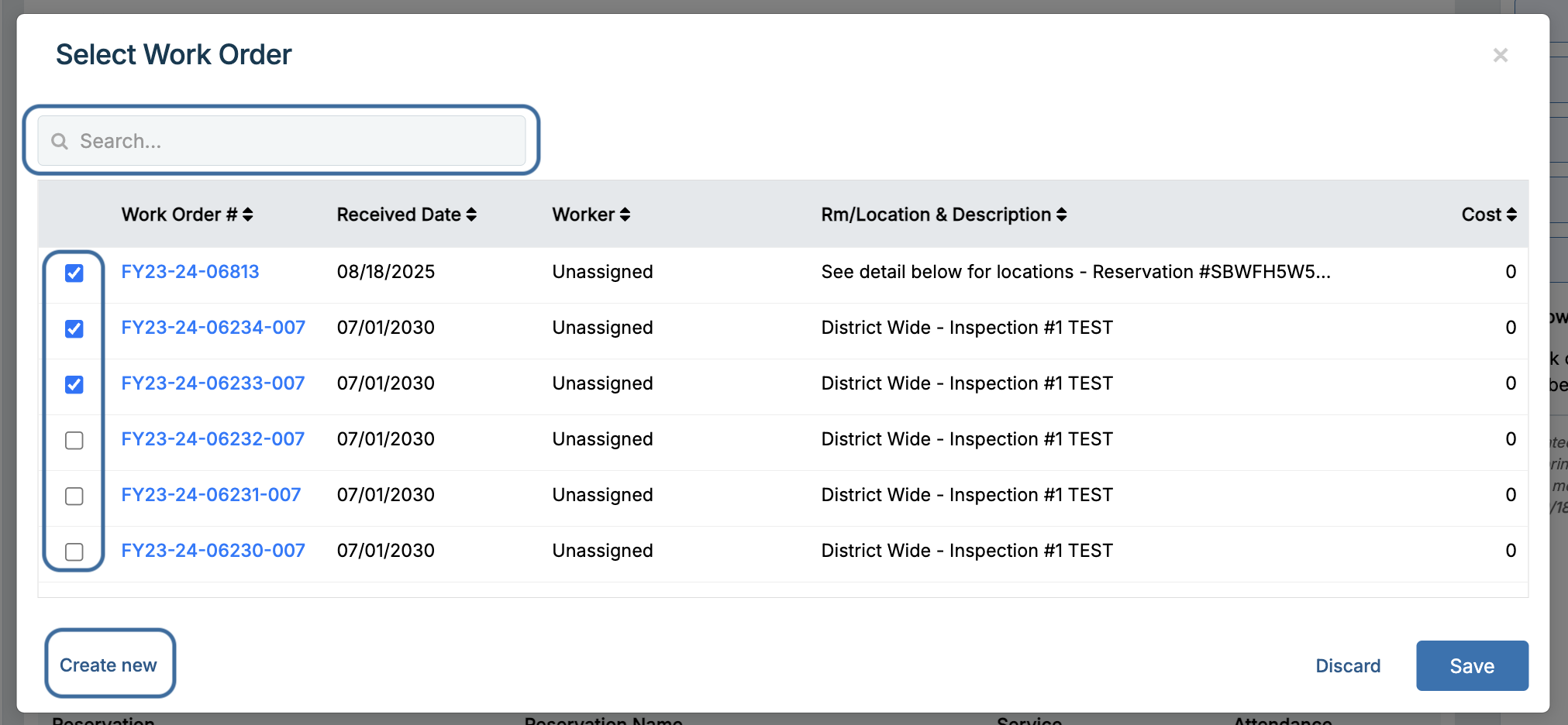
After creating the project, you’ll be asked to select any existing work orders to add to your project. Here, you can search for existing work orders by their work order number(s), confirm which work orders to add by checking the corresponding boxes on the left, or create new work orders for the project by clicking Create New in the bottom left corner.
General Notes for Adding Work Orders to Projects:
- The work order from which you created the project will be added by default.
- Projects must be associated with at least one work order and cannot be created without at least one work order attached.
For additional assistance, please reach out to Facilitron Support at (800) 272-2962, or email us at support@facilitron.com.
Was this article helpful?
That’s Great!
Thank you for your feedback
Sorry! We couldn't be helpful
Thank you for your feedback
Feedback sent
We appreciate your effort and will try to fix the article