This article shows inspectors how to record inspection violations in FIT.
When creating a violation, inspectors can enter the violation details manually or use an existing template to automatically populate commonly used information.
How to Record an Inspection Violation
1. Locate the Inspection
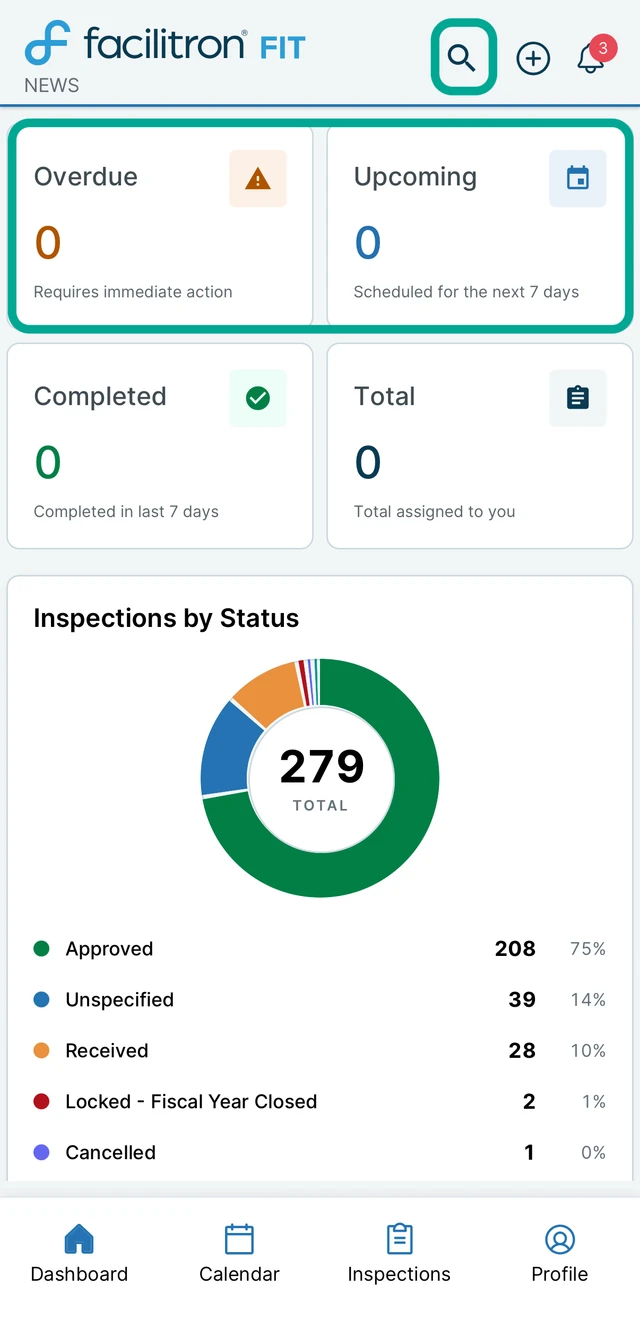
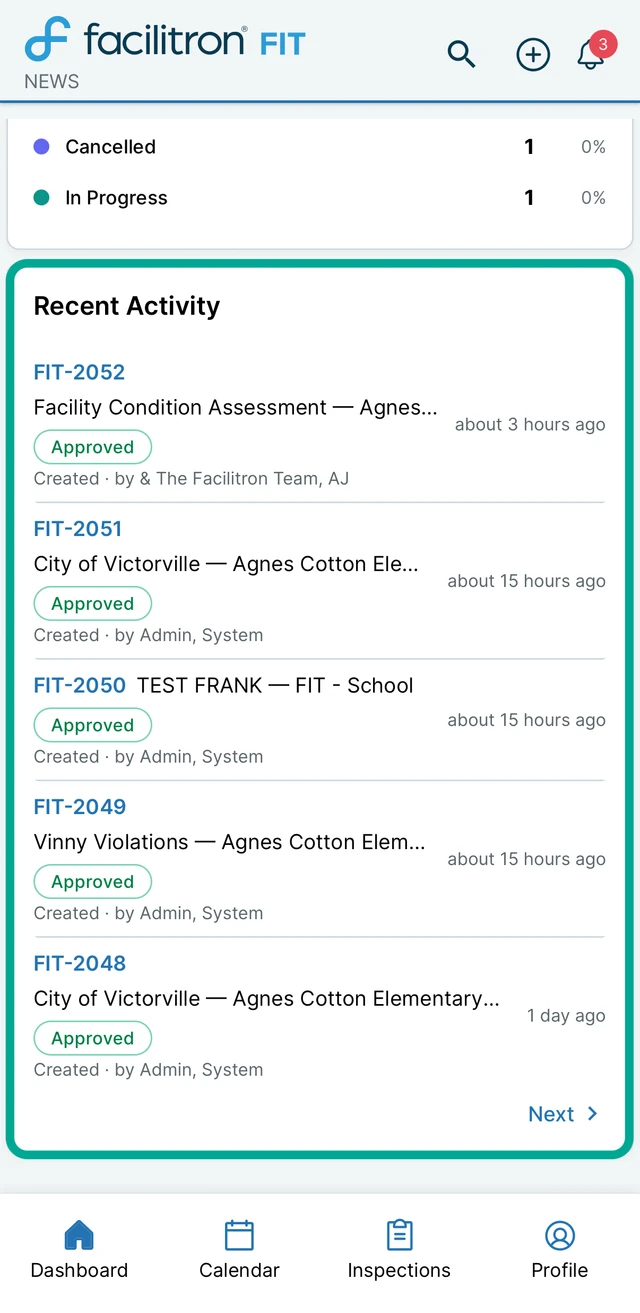
From the dashboard, select an inspection from the Overdue, Upcoming, or Recent Activities sections. You can also search for inspections by tapping the magnifying glass icon in the top right corner of the dashboard.
2. Record the Violation
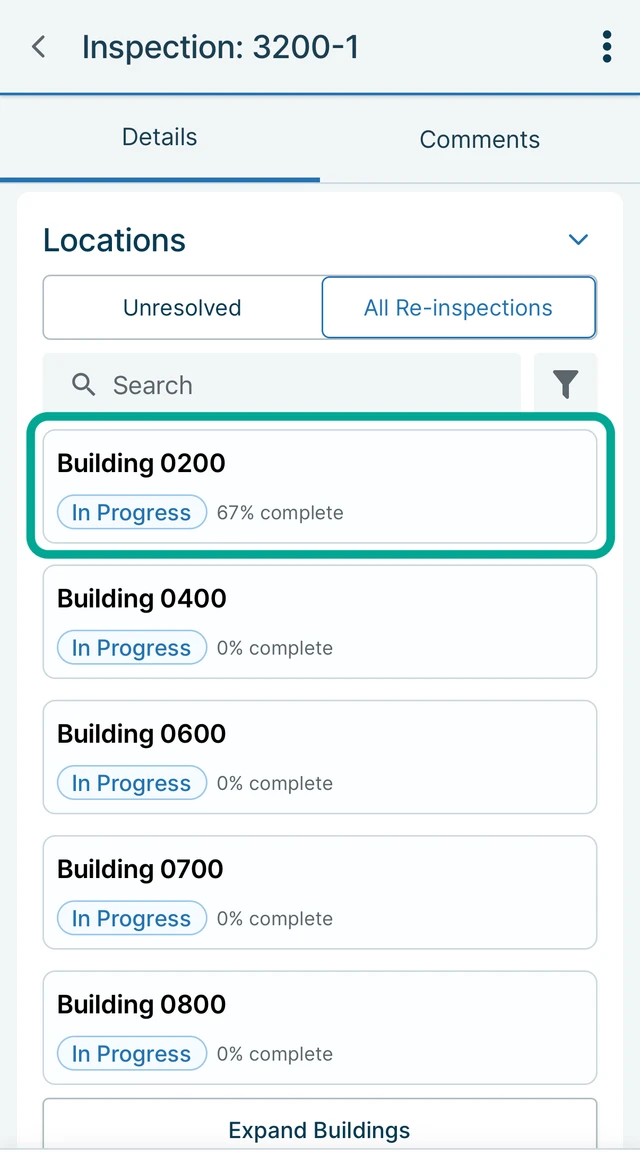
Once you’ve found the inspection, scroll to the Locations section and select the location where the violation needs to be documented.
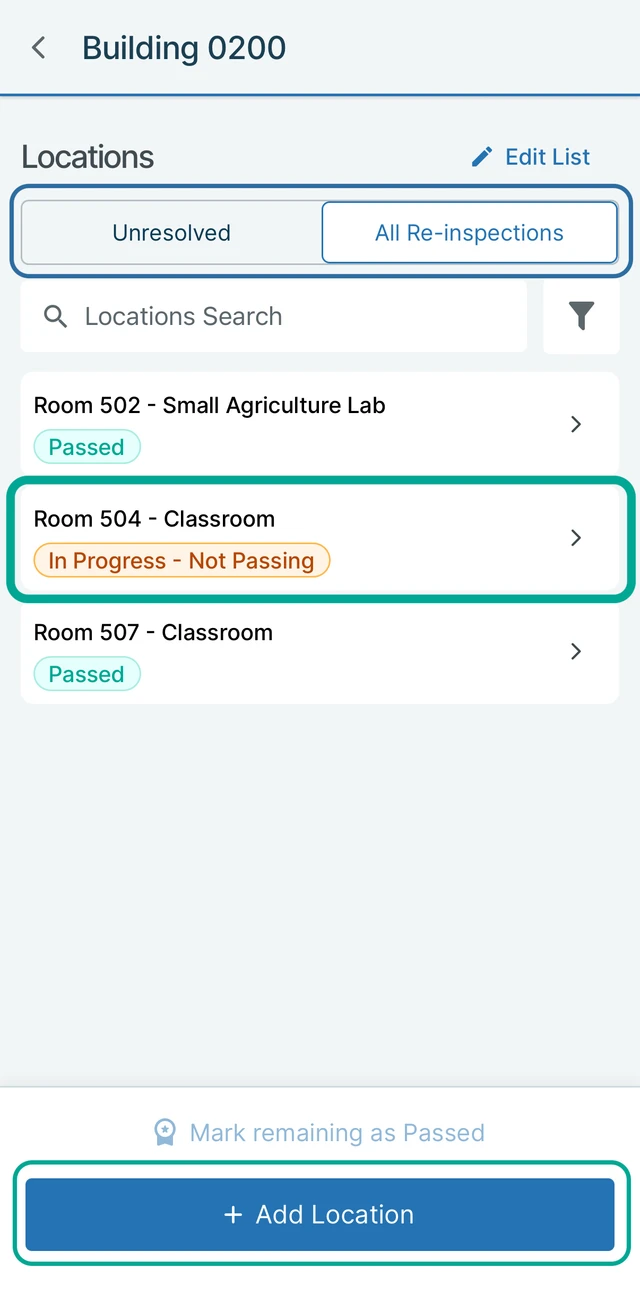
Use the Unresolved or All Re-inspections tab to find the specific location. If the location is not already included in the inspection, tap +Add Location at the bottom of the screen.
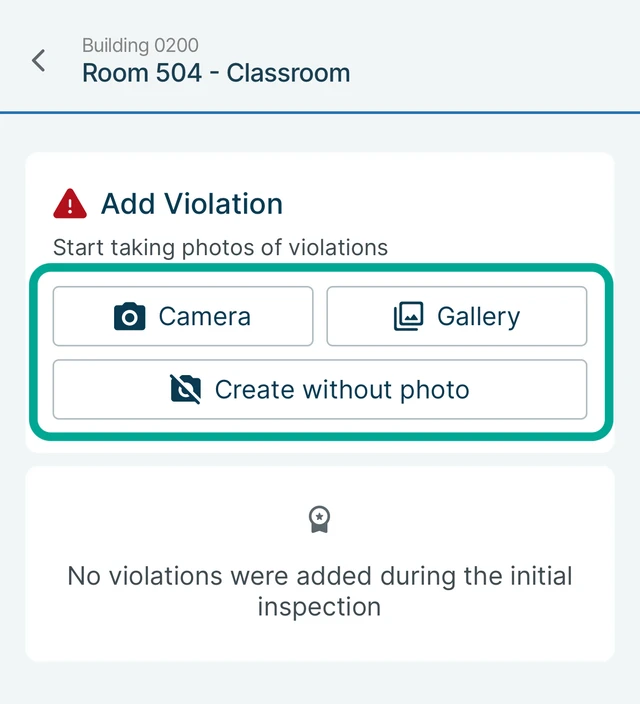
 Begin creating the violation by selecting Camera to take a photo, Gallery to upload one, or Create without photo to continue without including an image.
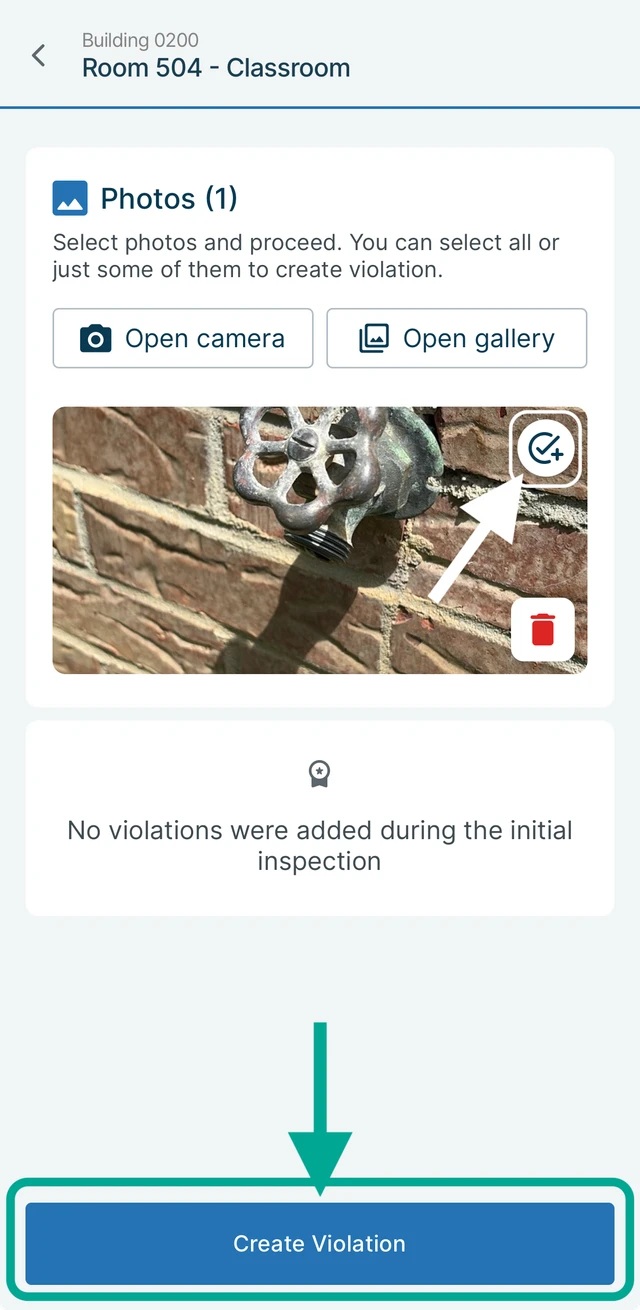
If you are including an image, select the photo you want to use for the violation by tapping the checkmark icon in the top-right corner, then press Create Violation.
3. Enter the Violation Details
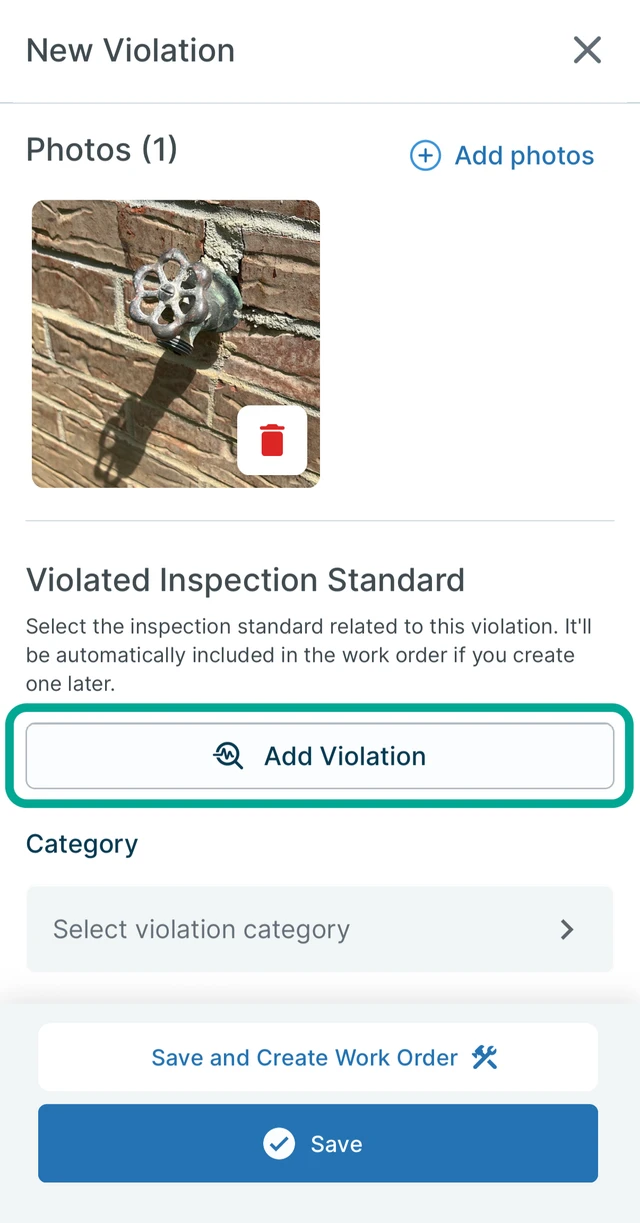
Tap Add Violation.
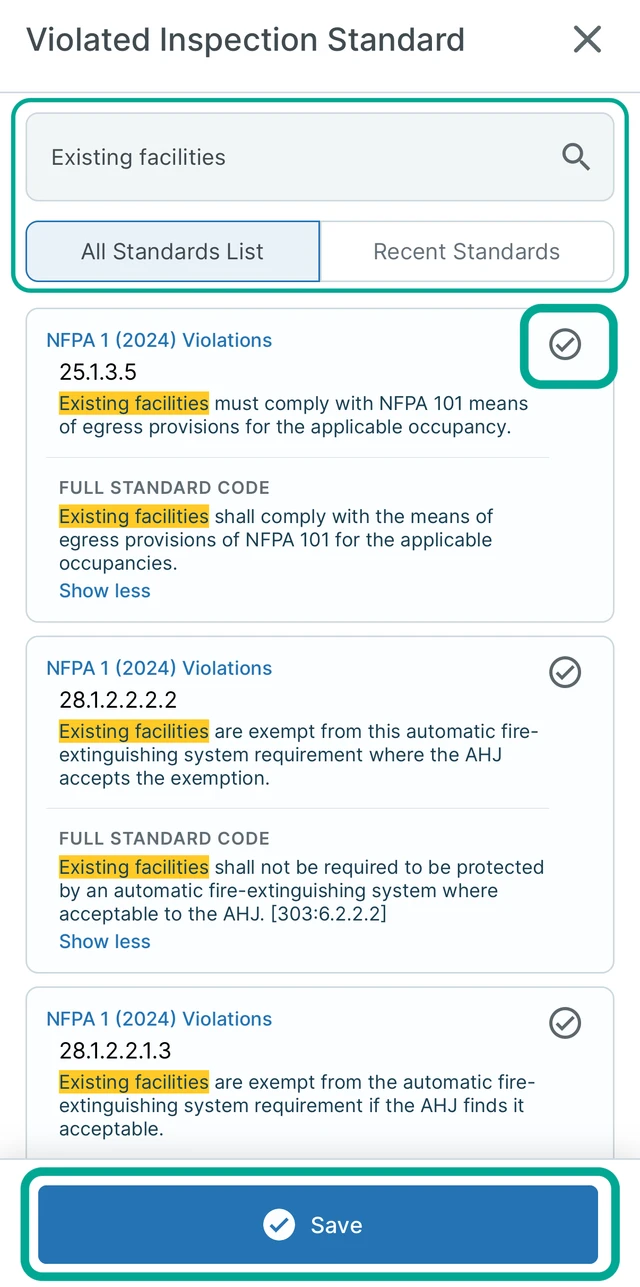
 Find the applicable violation using the All Standards List or Recent Standards tab. You can also search for a specific inspection standard using the search bar at the top of your screen. Once you’ve found your inspection standard, tap the circled checkmark to select the violation type. Then, press Save to continue.
Next, select the violation category using the Category dropdown.
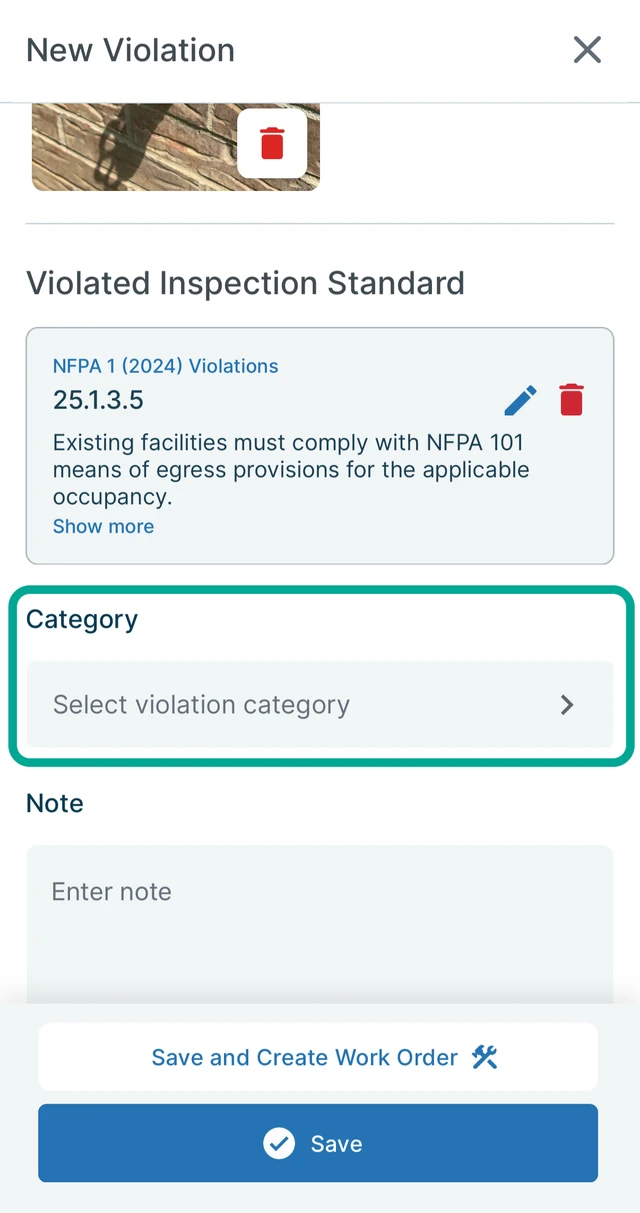
Enter additional information in the Note field, if needed.
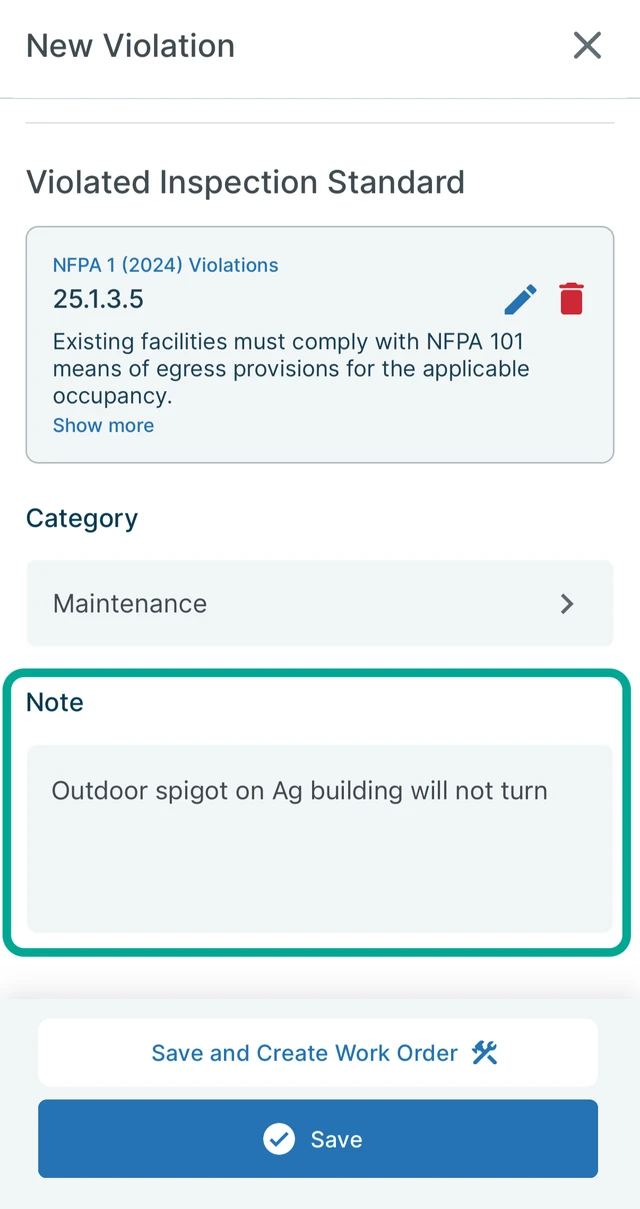
3. Review and Save the Violation
Review the information and make any changes if needed. Tap Save to record the violation without creating a work order, or Save and Create Work Order to fill out a work order form for the violation. The work order form will open automatically and includes the cited violation and any information entered in the Note field.
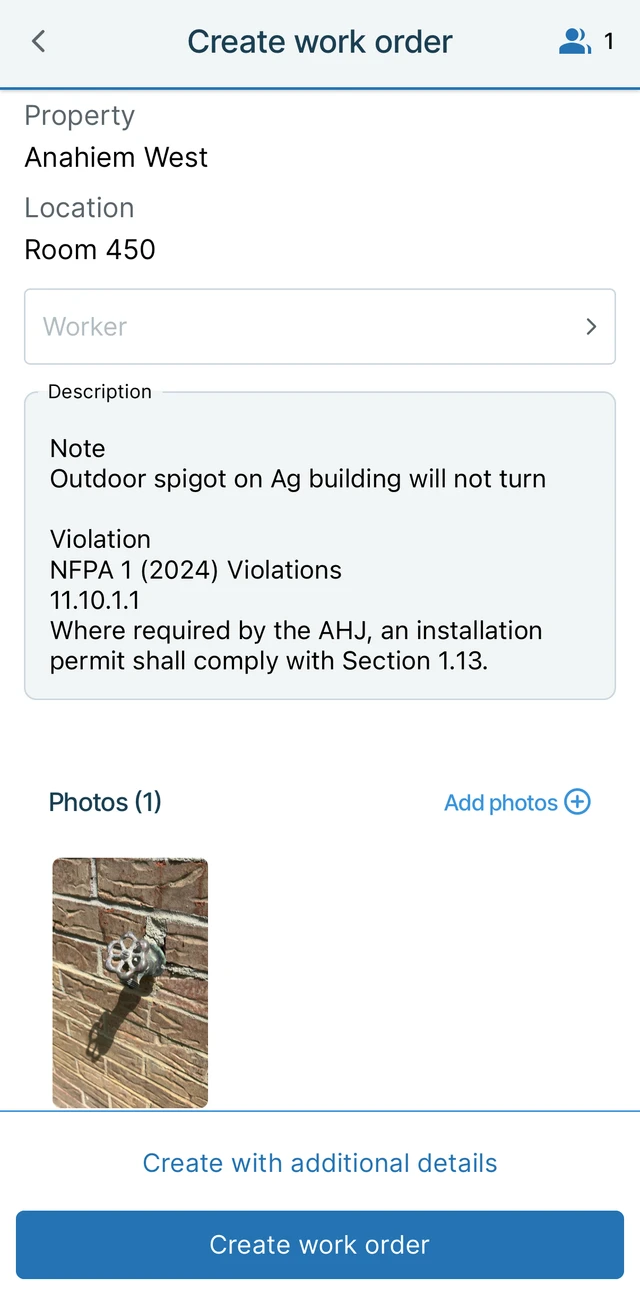
If you’re creating a work order, add any additional details if needed before tapping Create work order.
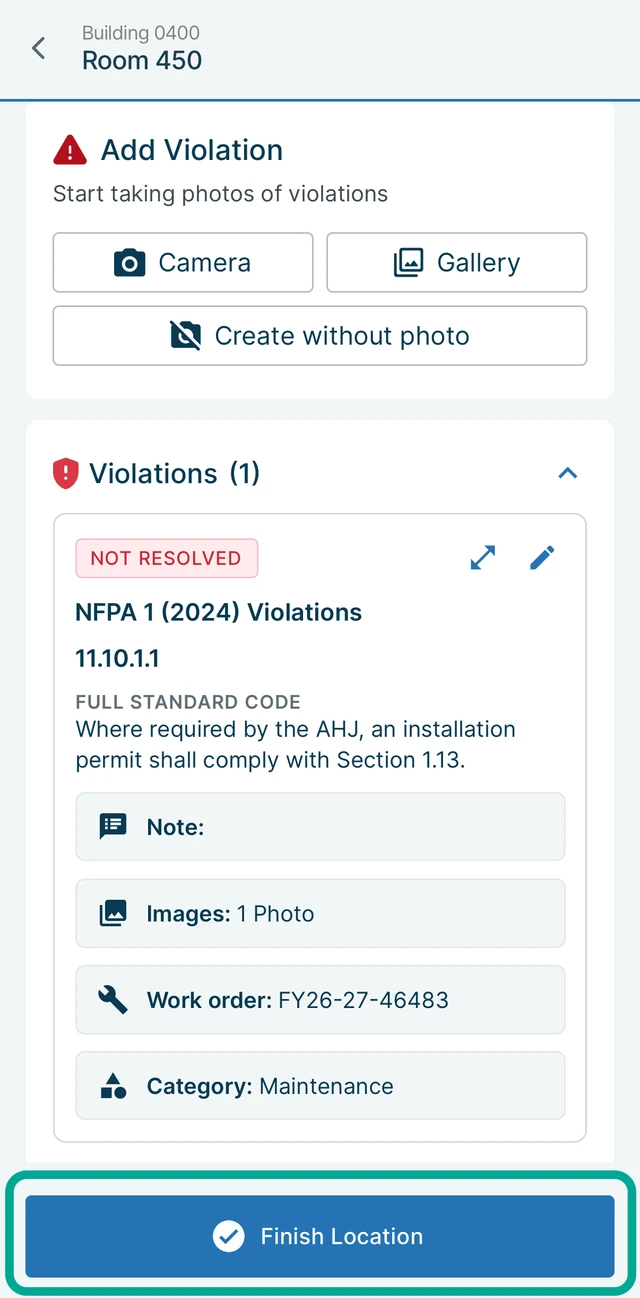
After the violation has been saved, a violation card is added to the location. Repeat the steps above to document any additional violations. After recording all violations for the location, tap Finish Location to complete.
 For additional assistance, please reach out to Facilitron Support at (800) 272-2962, or email us at support@facilitron.com.
Was this article helpful?
That’s Great!
Thank you for your feedback
Sorry! We couldn't be helpful
Thank you for your feedback
Feedback sent
We appreciate your effort and will try to fix the article