This article assists inspectors with creating as-needed inspections in Facilitron FIT.
An as-needed inspection is created manually when the need arises, rather than as part of the regularly scheduled inspection process. Using the Create Inspection workflow in the FIT mobile app, inspectors can quickly create and start a one-time inspection.
How to Create an Inspection
1. Add Properties
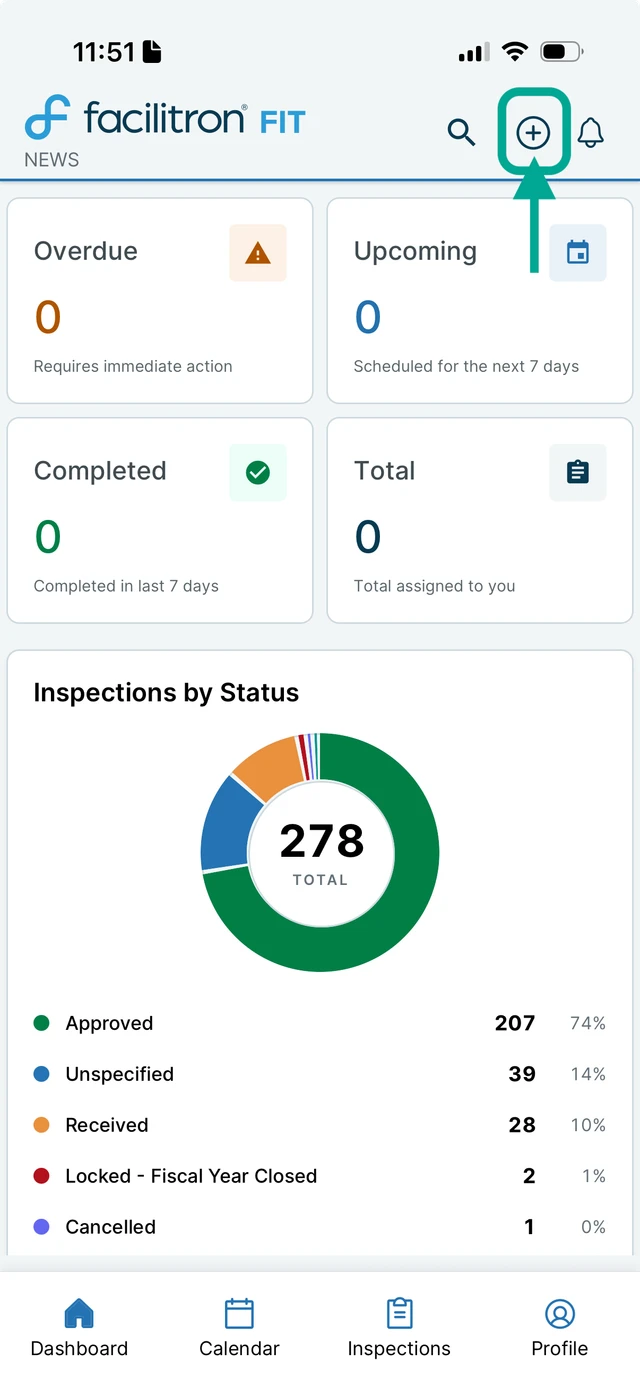
Open the FIT mobile app and tap the circled plus in the top right corner of your screen.
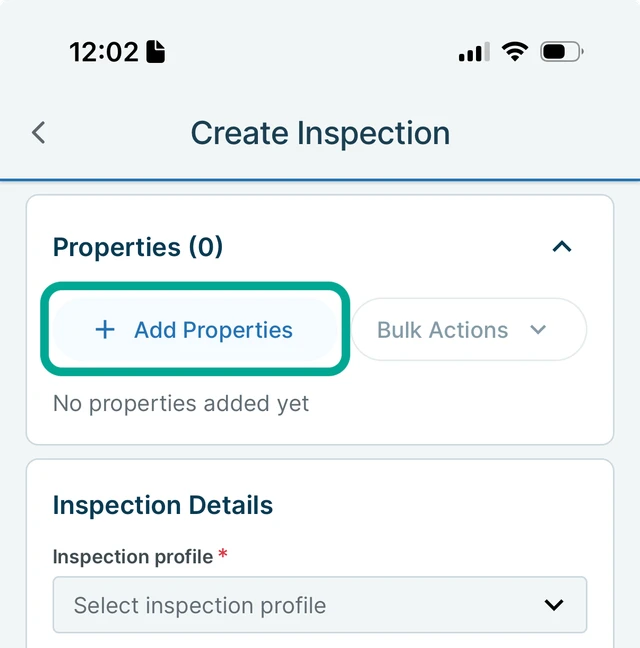
Tap +Add Properties and select the properties you want to include in the inspection. You can select one, multiple, or all properties.
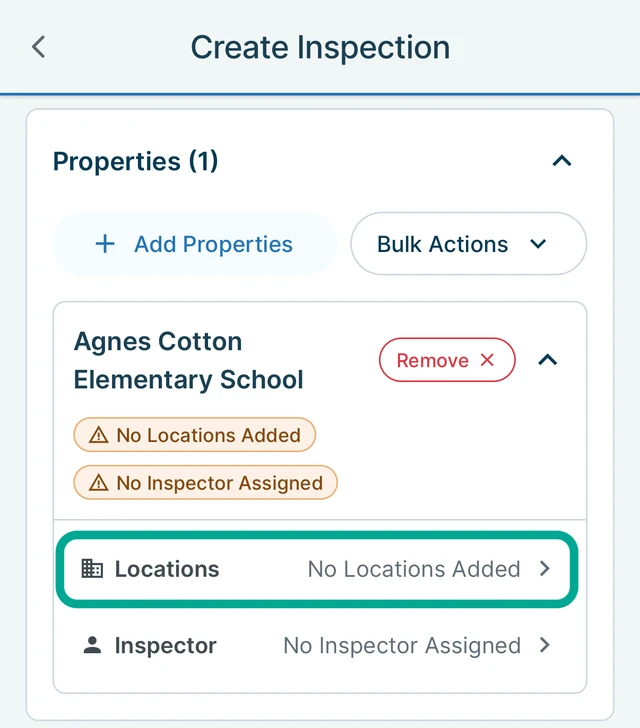
Next, tap Locations to select the specific areas within the selected properties where the inspection will take place, such as gyms or classrooms. Add as many locations as needed.
Note: Locations are not required to create an inspection. If you create the inspection without selecting locations, FIT will later ask you to confirm whether you want to continue or return to the inspection setup and add locations.
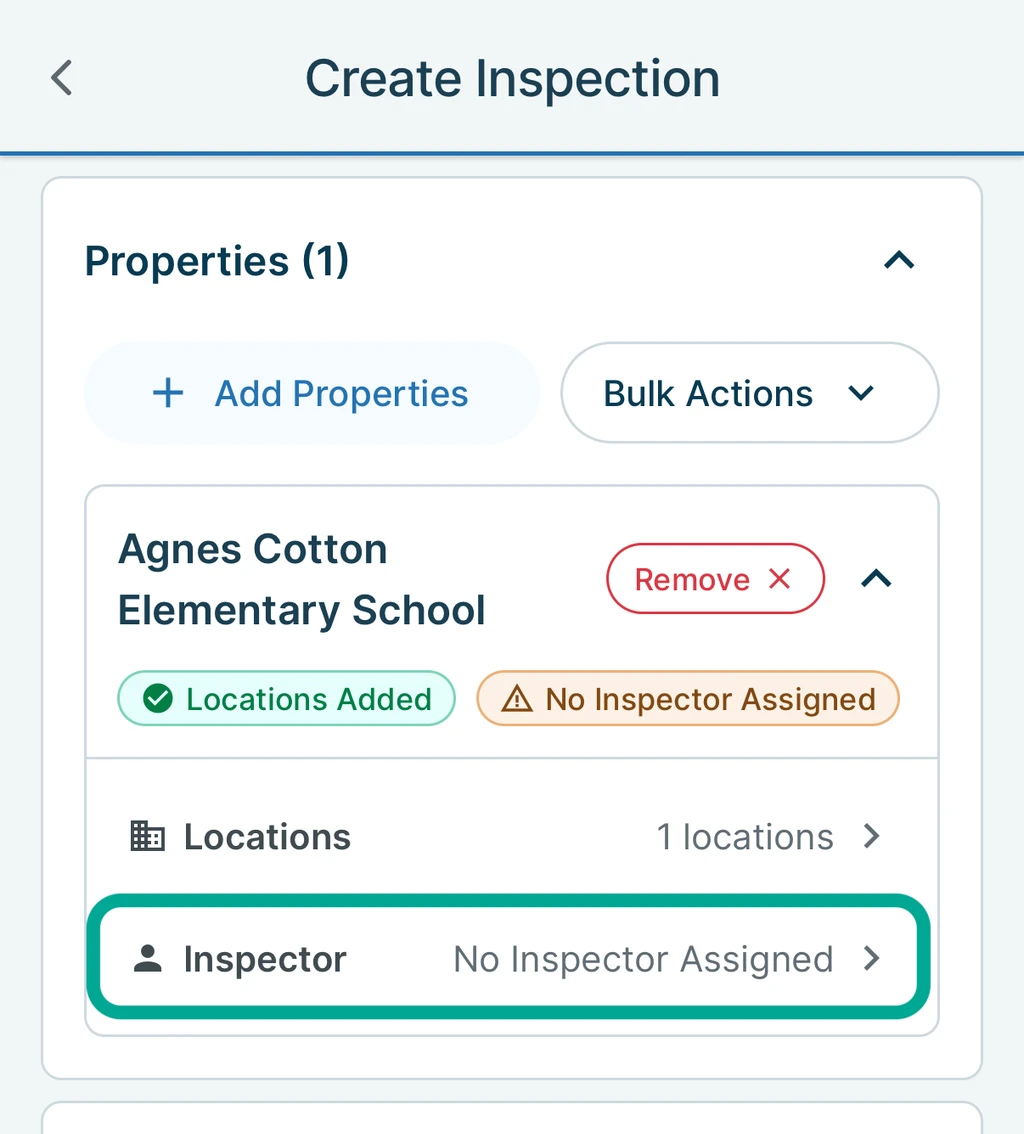
After adding locations, tap Inspector to assign an inspector to the selected properties.
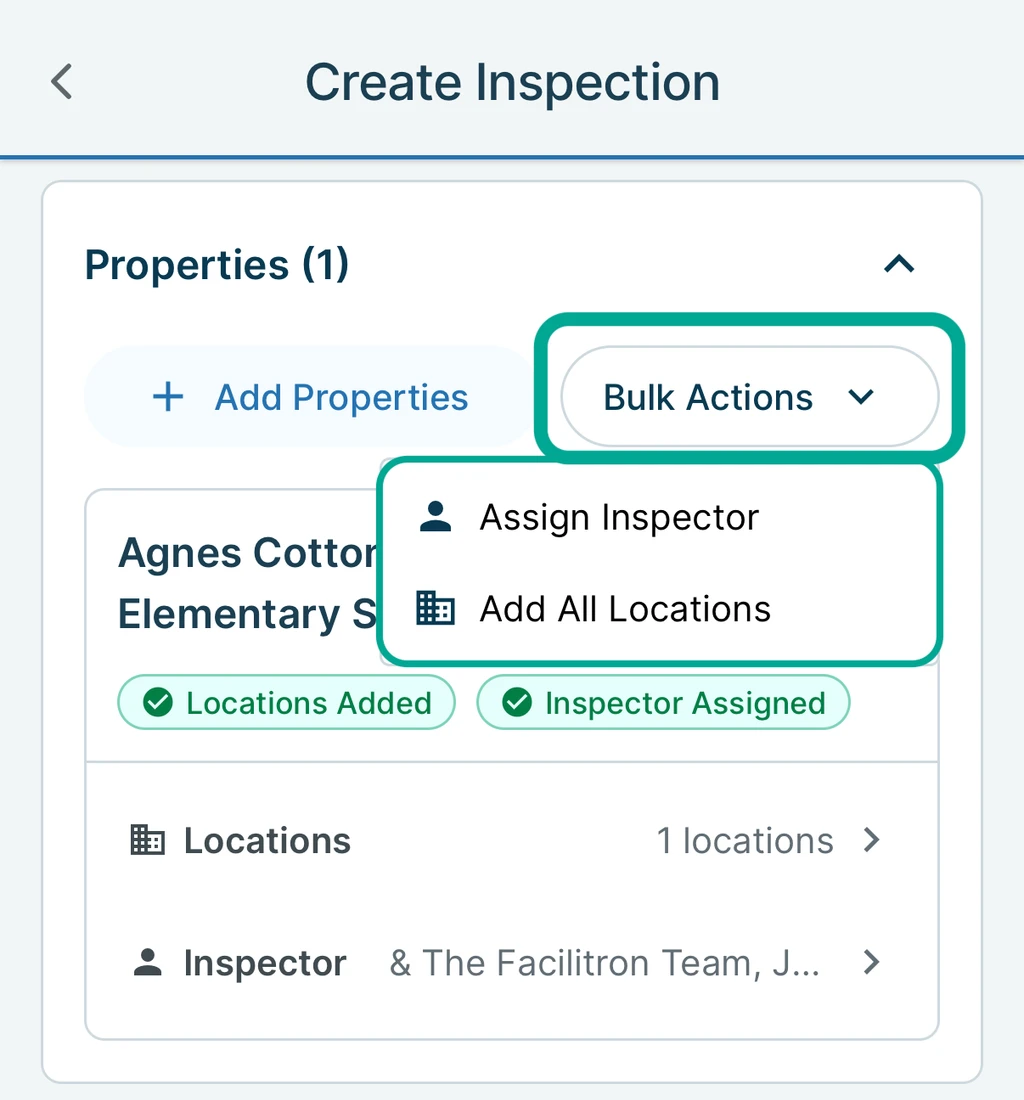
If you’re creating an inspection for multiple properties, tap Bulk Actions to assign the same inspector to each property and/or to add all locations to the selected properties at once.
2. Add Inspection Details
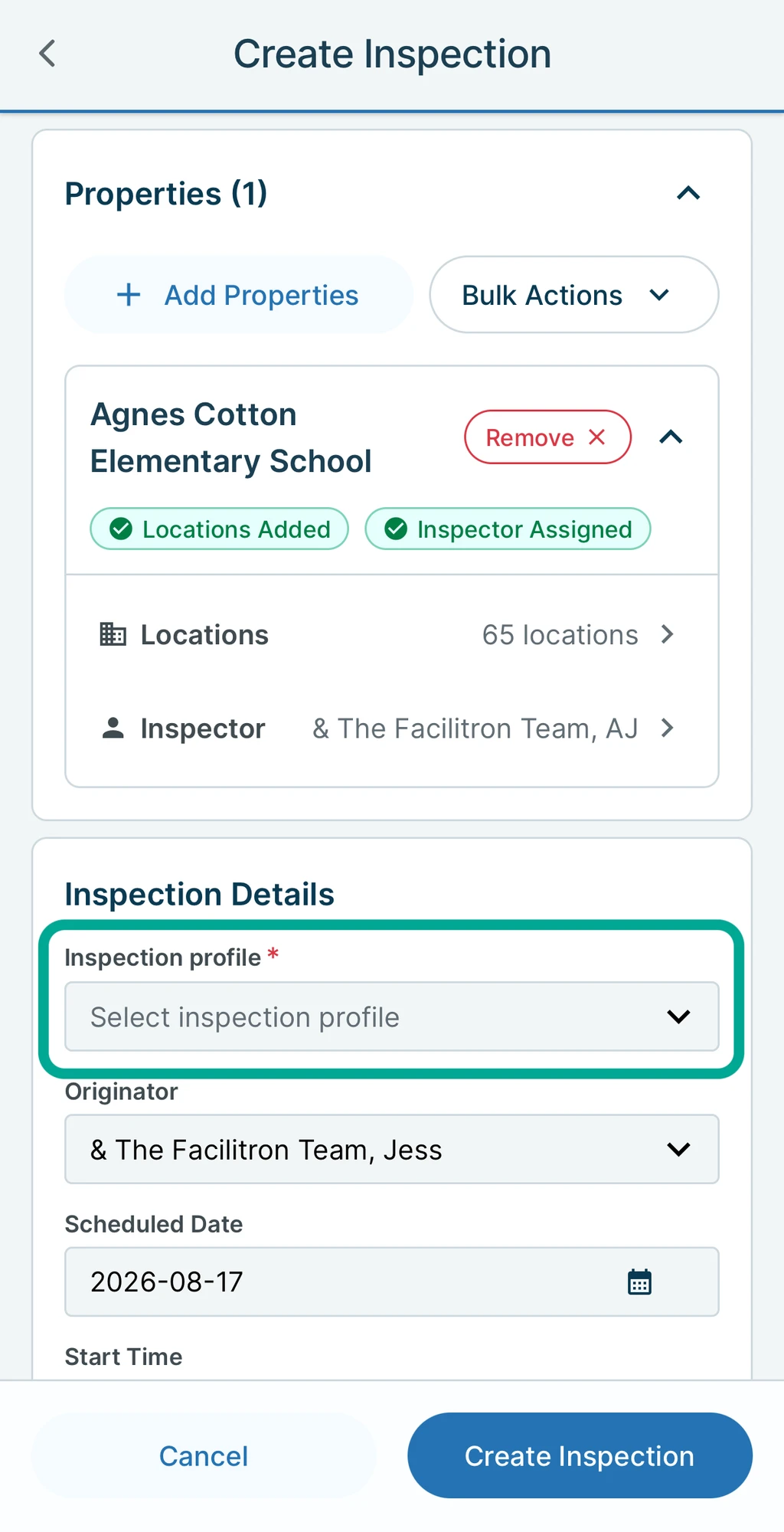
Tap Select inspection profile to choose the inspection profile you want to use.
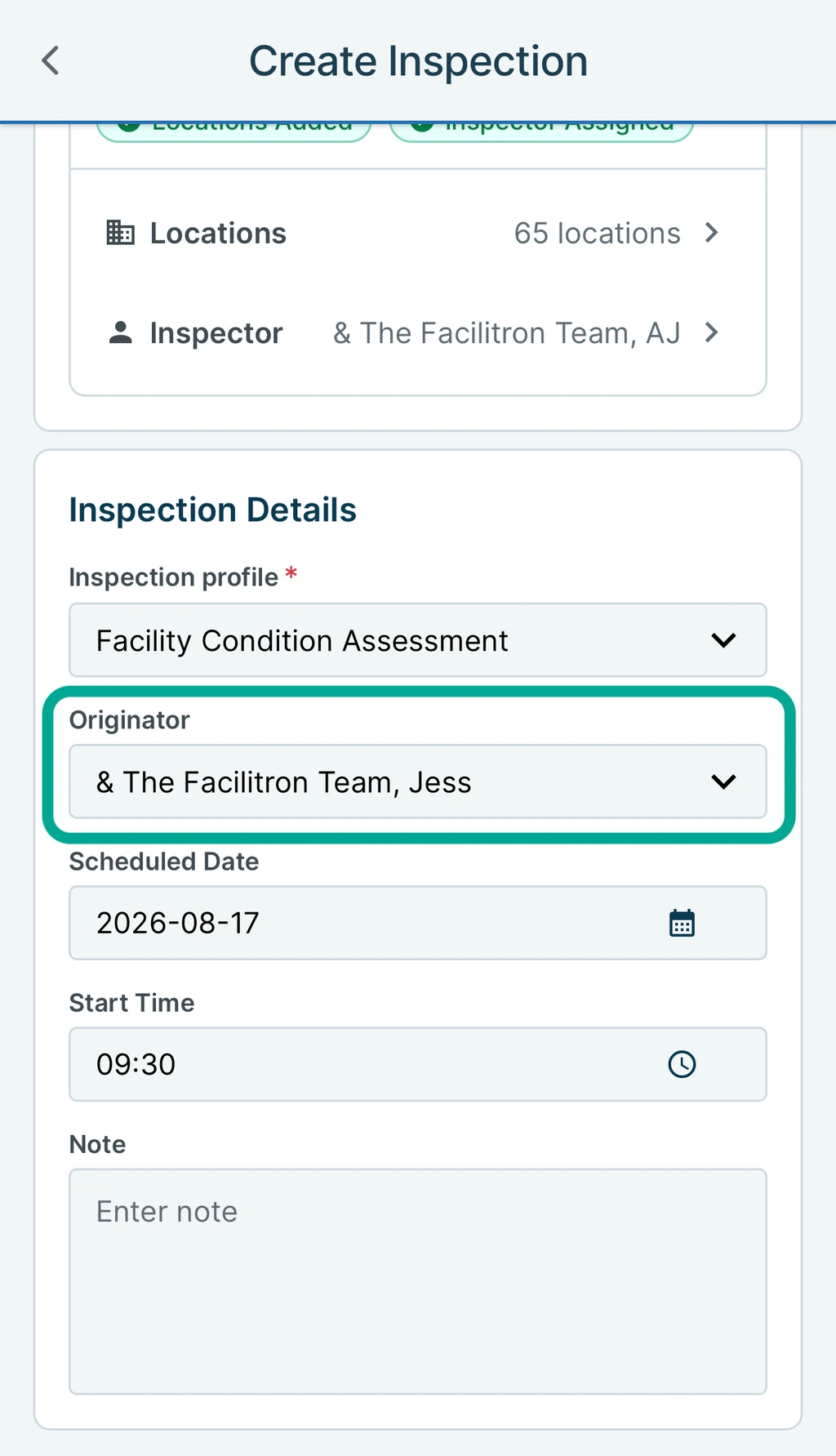
If needed, use the Originator dropdown to change the inspection originator.
Then, use the Schedule Date and Start Time fields to schedule the inspection. 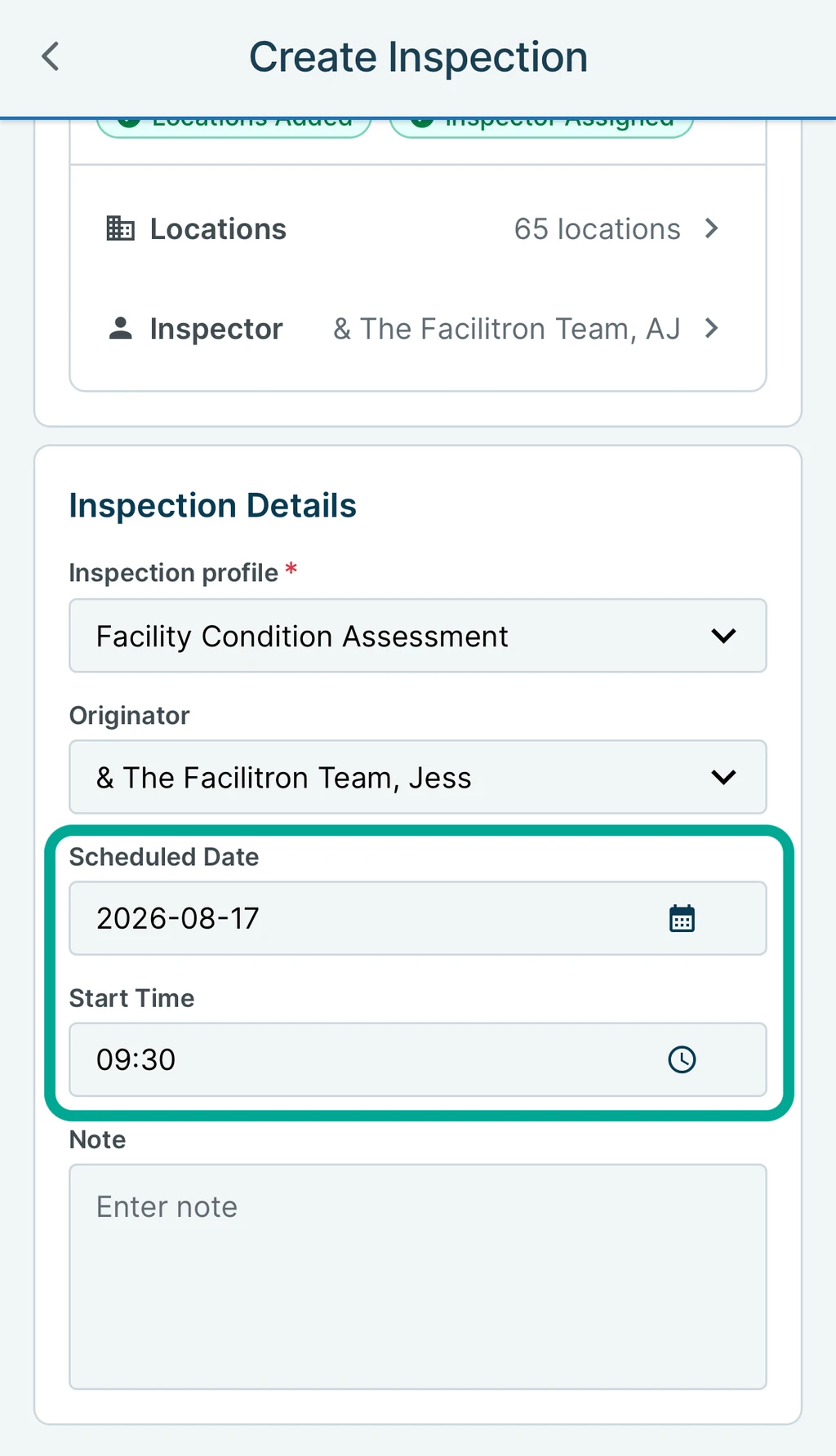
3. Save Inspection
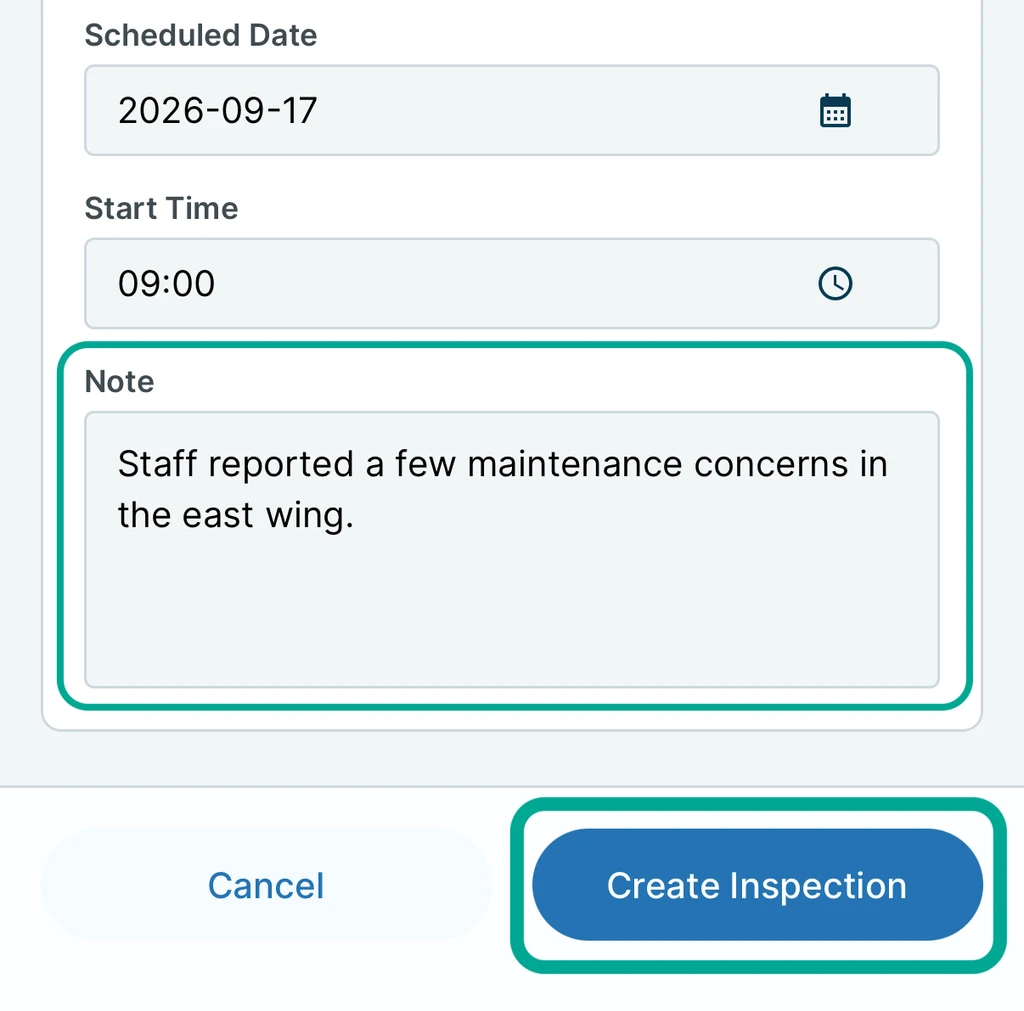
If you need to leave any special instructions or other notes, add them in the Note section before tapping Create Inspection.
4. Open the Inspection
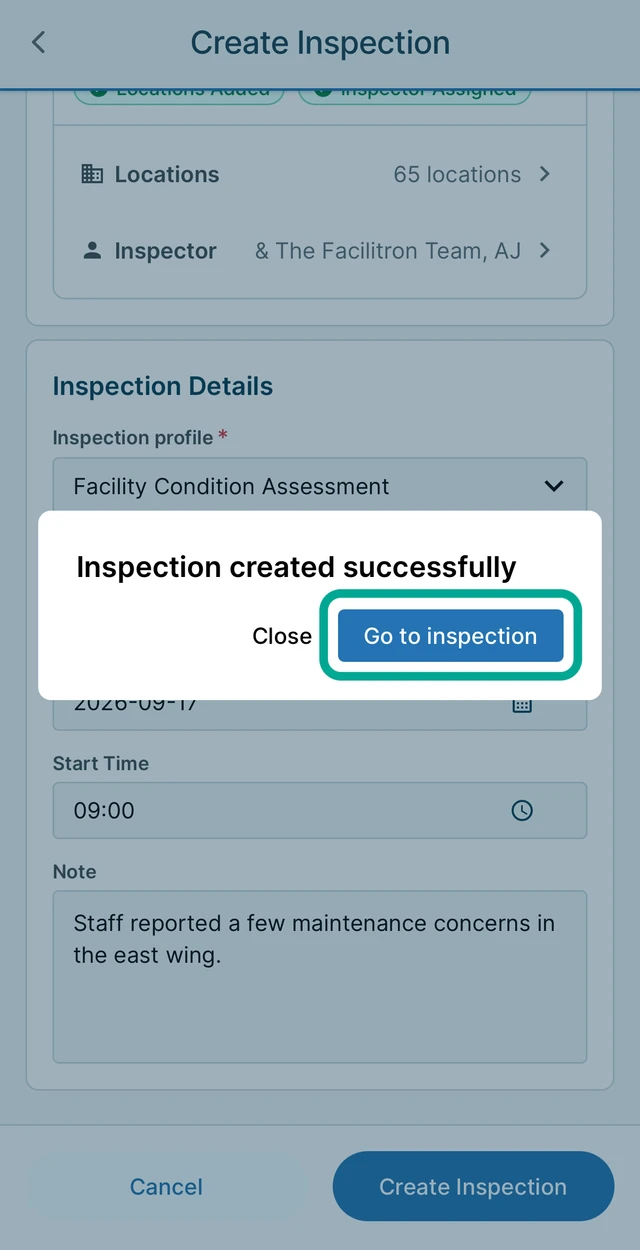
After creating the inspection, select Go to Inspection to open it and begin inspecting the selected locations.
For additional assistance, please reach out to Facilitron Support at (800) 272-2962, or email us at support@facilitron.com.
Was this article helpful?
That’s Great!
Thank you for your feedback
Sorry! We couldn't be helpful
Thank you for your feedback
Feedback sent
We appreciate your effort and will try to fix the article