The Inspection Report Builder allows Order Administrators to create custom inspection report templates in Facilitron Works. Once a template is created, it can be used to generate inspection reports from the Inspection List page. Completed reports are exported as PDFs and delivered by email with a downloadable link to the report.
Accessing the Inspection Report Builder
There are two ways to navigate to the Inspections Report Templates page.
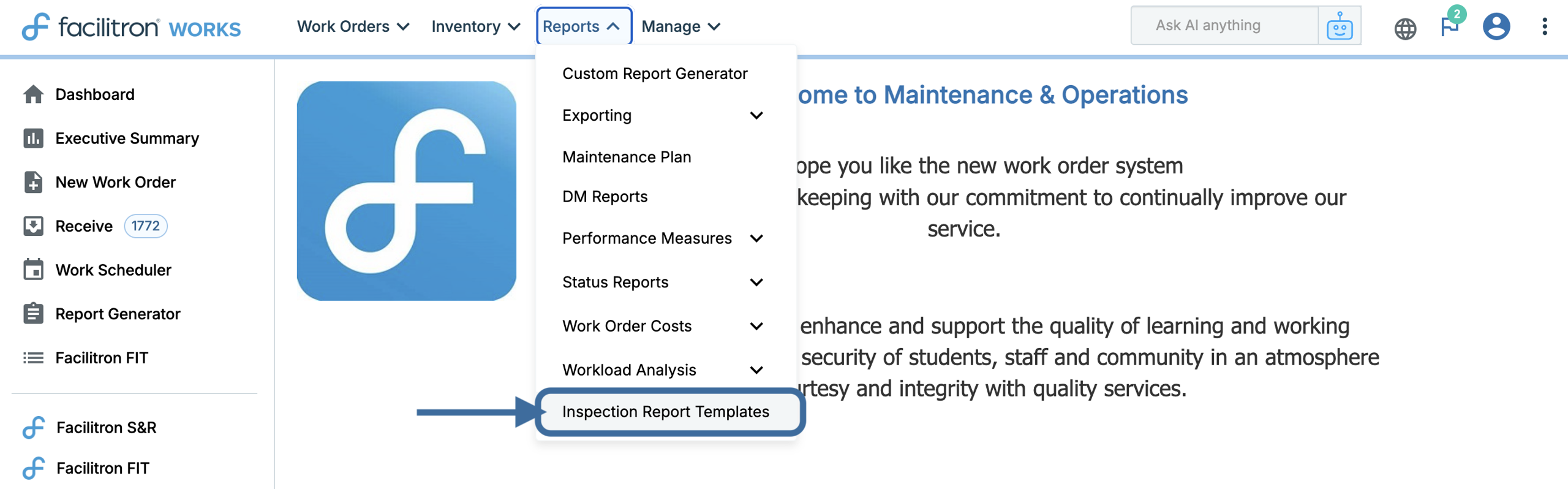
- From the top navigation, open the Reports dropdown and select Inspection Report Templates (listed at the bottom of the menu).
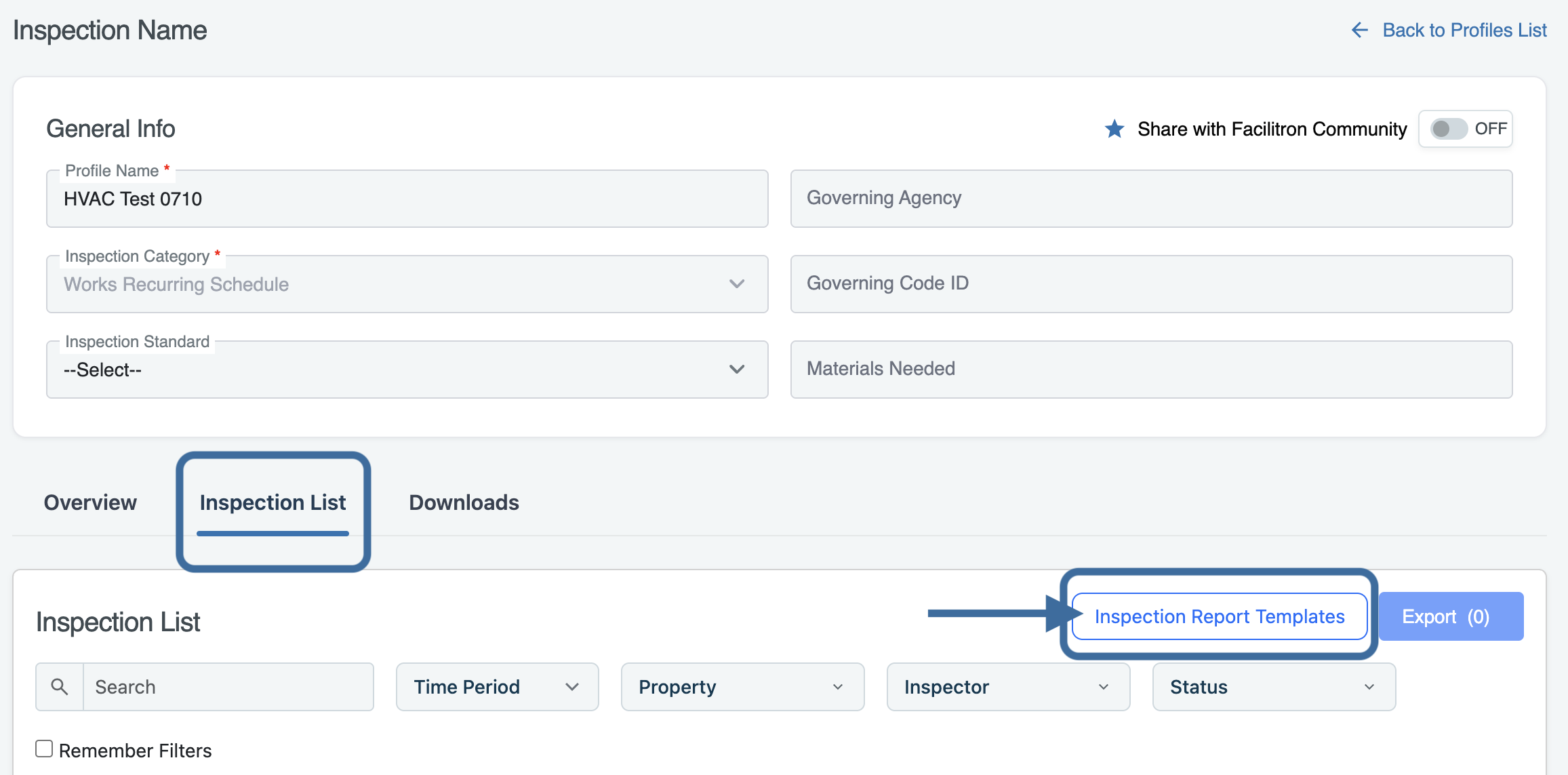
- From any Inspection Profile, navigate to the Inspection List tab and click the Inspection Report Templates button.
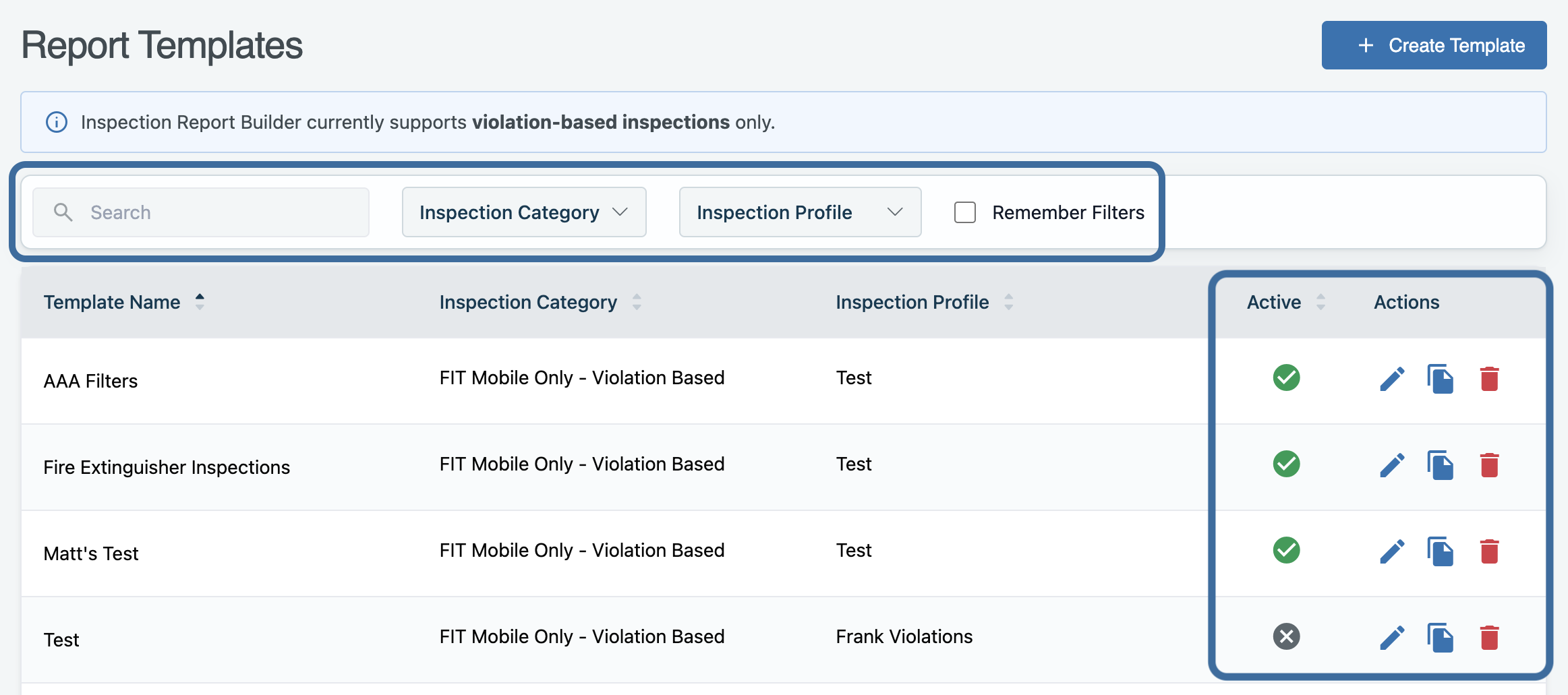
You'll land on the Report Templates page, where you can view all templates created by your organization and see whether each one is active or inactive, indicated by a green checkmark or gray X in the Active column.
To locate a specific template, use the search bar to search by template or inspection profile name. You can also filter templates by inspection profile or sort the list by template or inspection profile name.
To manage an existing template, use the Actions column to edit, duplicate, or delete it. If you delete a template, it is deleted permanently and cannot be recovered.
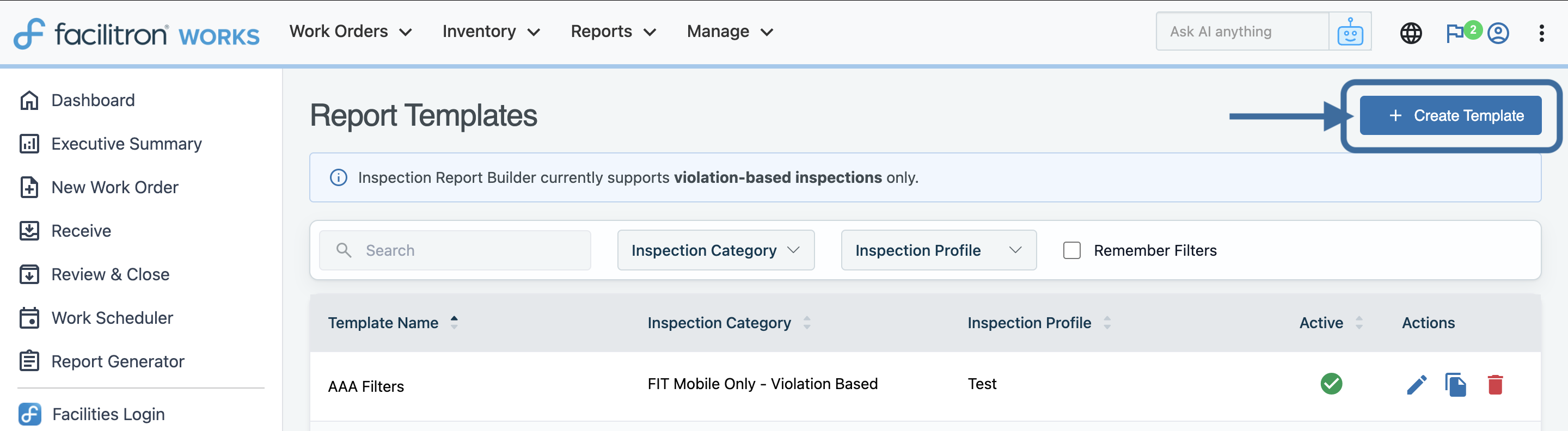
How to Create an Inspection Report Template
Click + Create Template in the upper right corner.
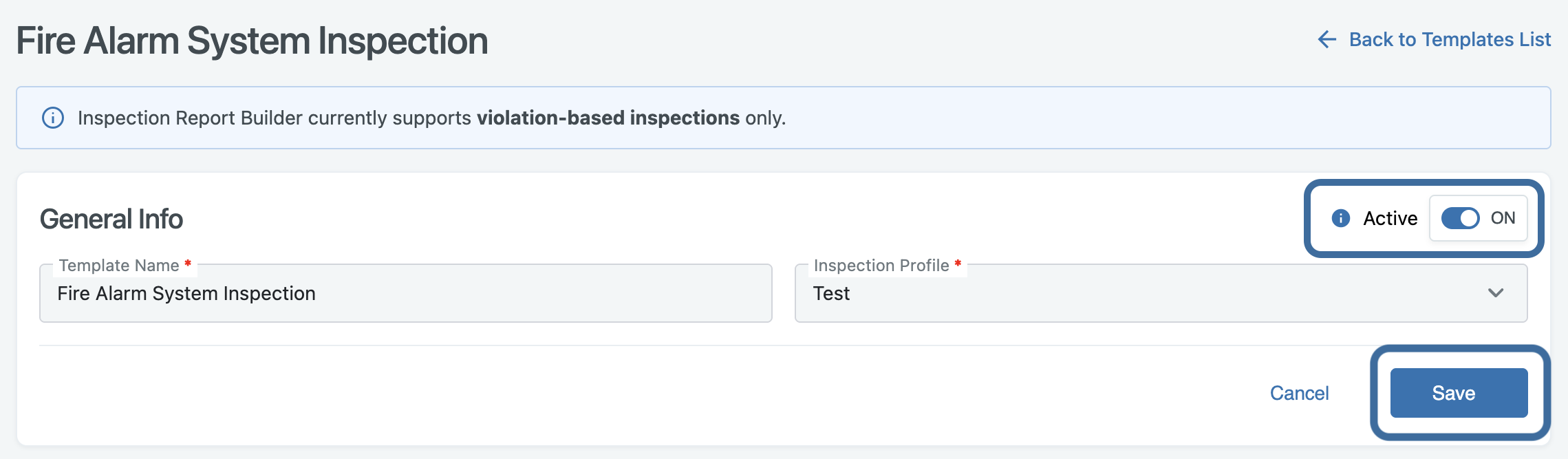
Complete and save the General Info section to unlock the remaining setup steps. If the template needs to be available immediately, keep the Active toggle set to ON. When toggled off, the template is not available for use.
Note: The inspection profile cannot be changed after the template is first saved.
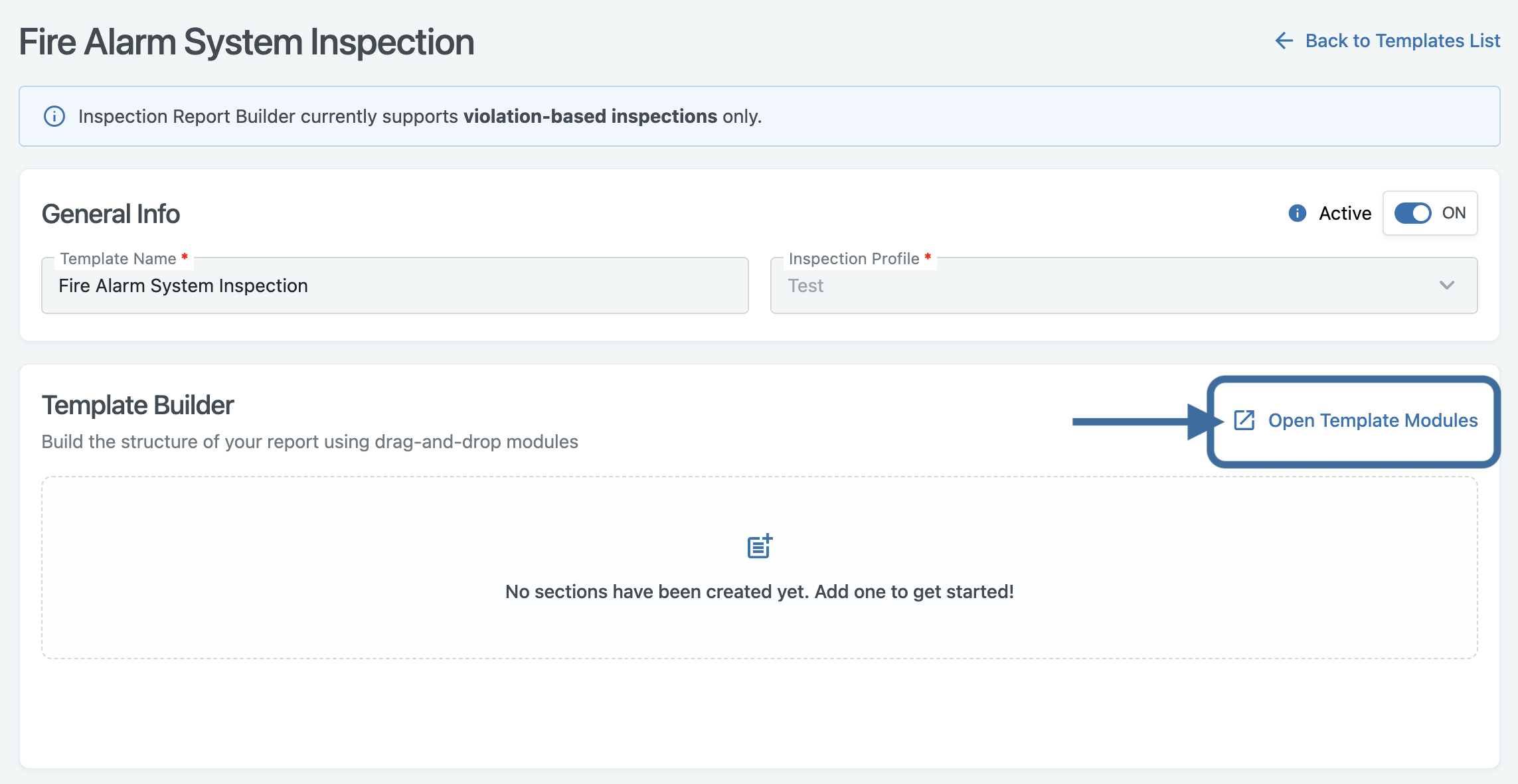
Then, in the Template Builder section, click Open Template Modules on the right to begin building your inspection report.
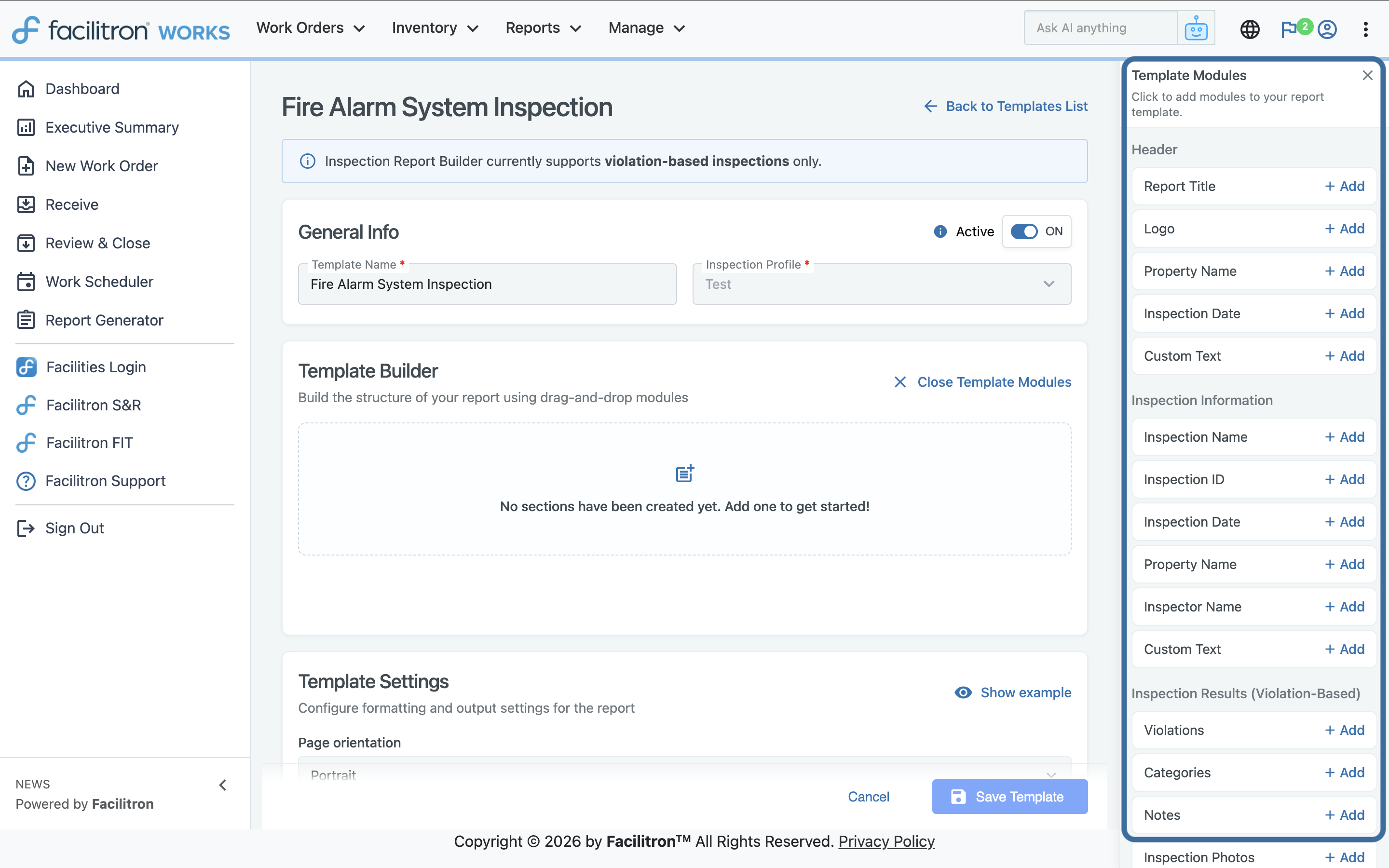
Select the modules needed in the report from the left of your screen.
Modules are grouped into four report sections:
- Header: Report title, logo, property name, inspection date, and custom text
- Inspection Information: Inspection name, inspection ID, inspection date, property name, inspector name, and custom text
- Inspection Results: Ratings, conditions, notes, photos, work orders, previous results, categories, and custom text
- Footer: Signature block, property name, inspection date, and custom text
Click + Add next to any module to add it to the canvas. The first module you add to a section creates that section automatically. Sections always appear in the following order: Header, Inspection Information, Inspection Results, and Footer.
Report templates can also use their own logo, allowing different reports to display different branding when needed. From the Header section, you can add a Logo module for the report template, allowing different reports to display different branding when needed.
Note: The Logo module pulls from the logo uploaded to your Works profile. For site specific branding, use a Custom text module with an inserted image instead.
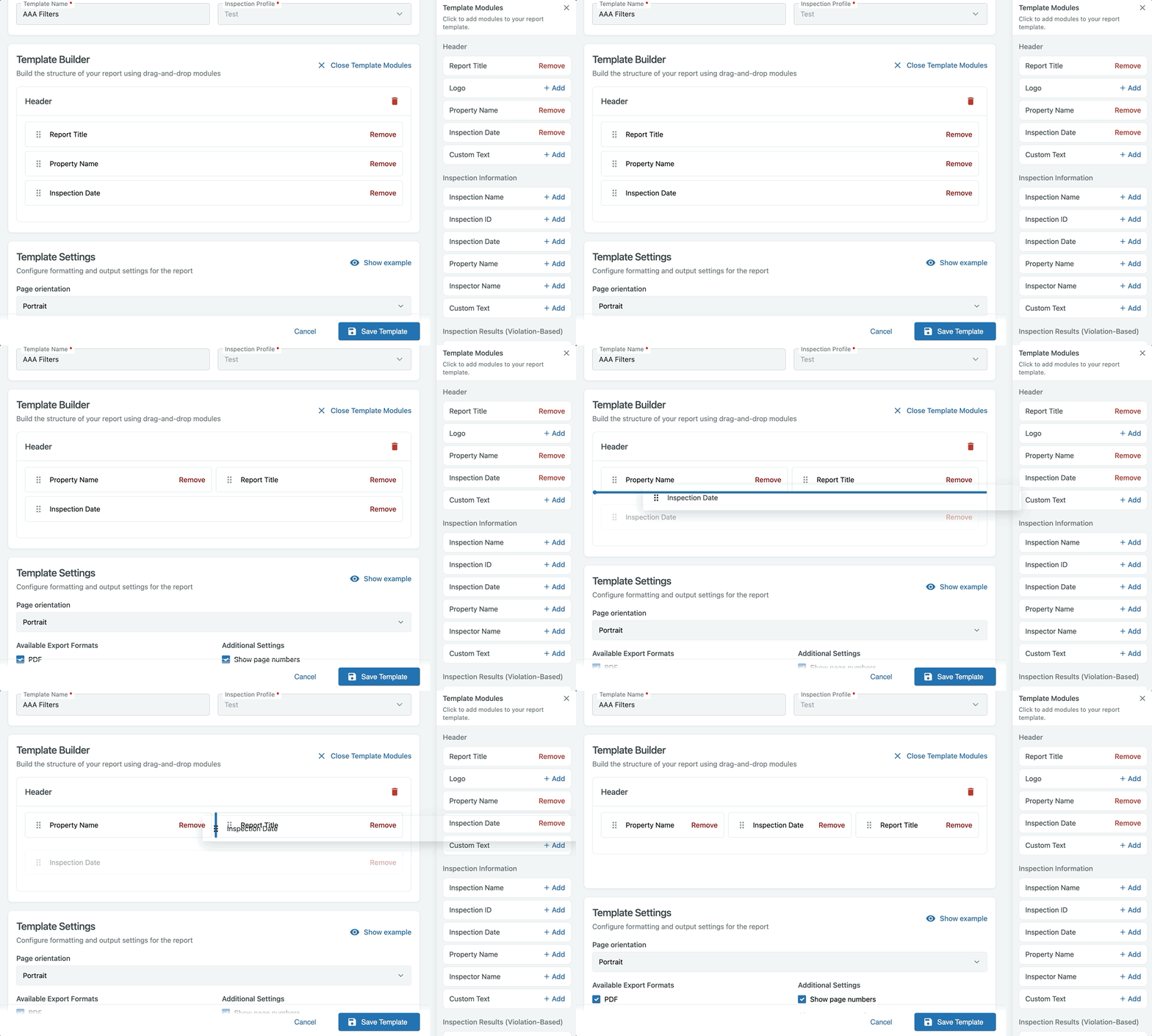
Within each section, you can drag and drop modules to rearrange their order or place them side by side in up to three columns. As you move a module, blue placement indicators show where it will be positioned when dropped.
Note: Modules must remain within their assigned section and cannot be moved to a different section. For example, a module in the Header section cannot be moved to the Inspection Information section.
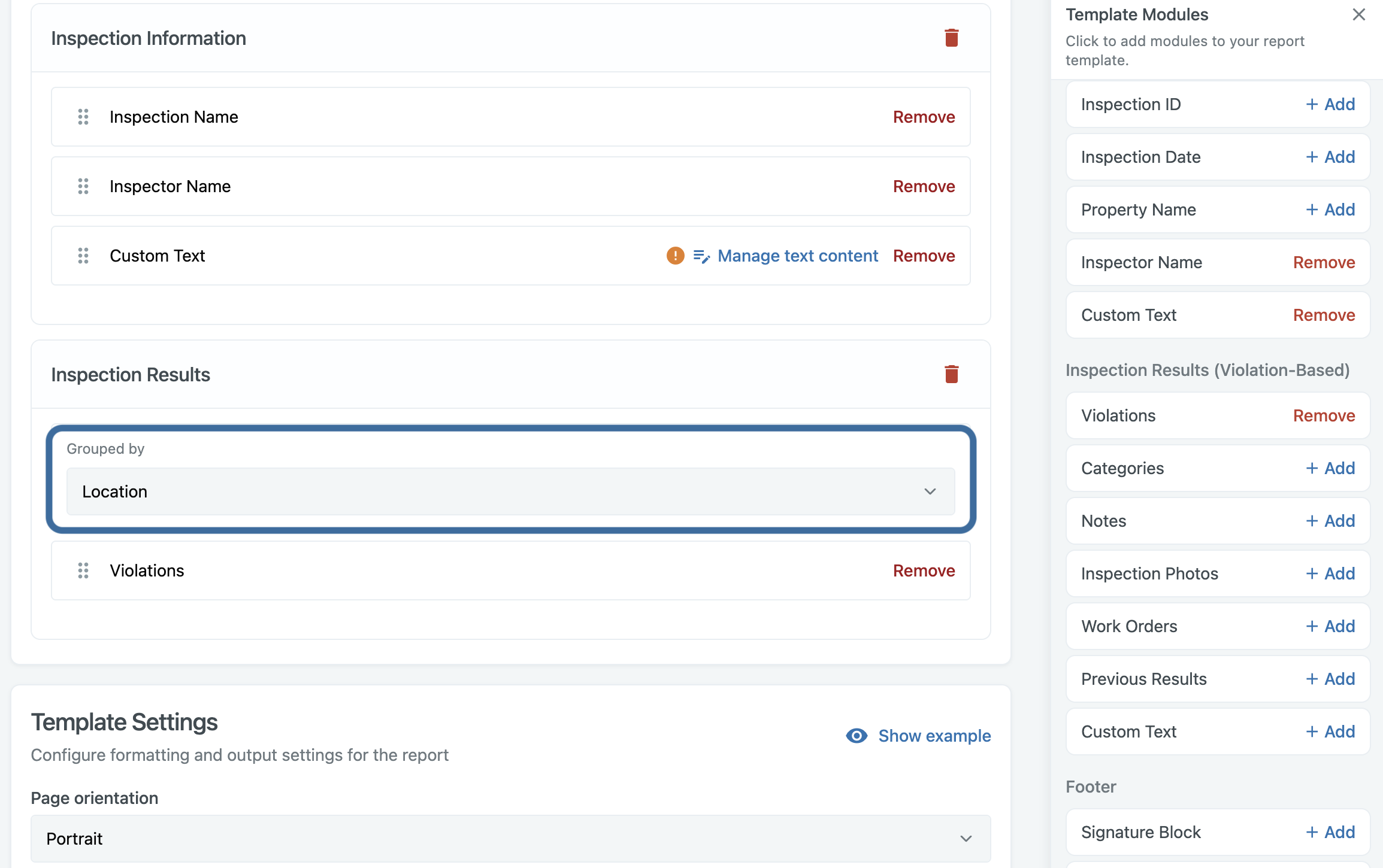
After adding the first Inspection Results module, a Grouped by dropdown will appear at the top of the section. Grouped by organizes violation-based inspection results by location, violations, or categories.
Report Signatures
Report templates can include multiple Signature Block modules, meaning a report can include separate signature areas for an inspector, principal, and any other required signers when needed.
Custom Text Modules
Click Manage Text Content on any Custom Text module to open the text editor. You can add formatted text, headings, bullet lists, images, and links.
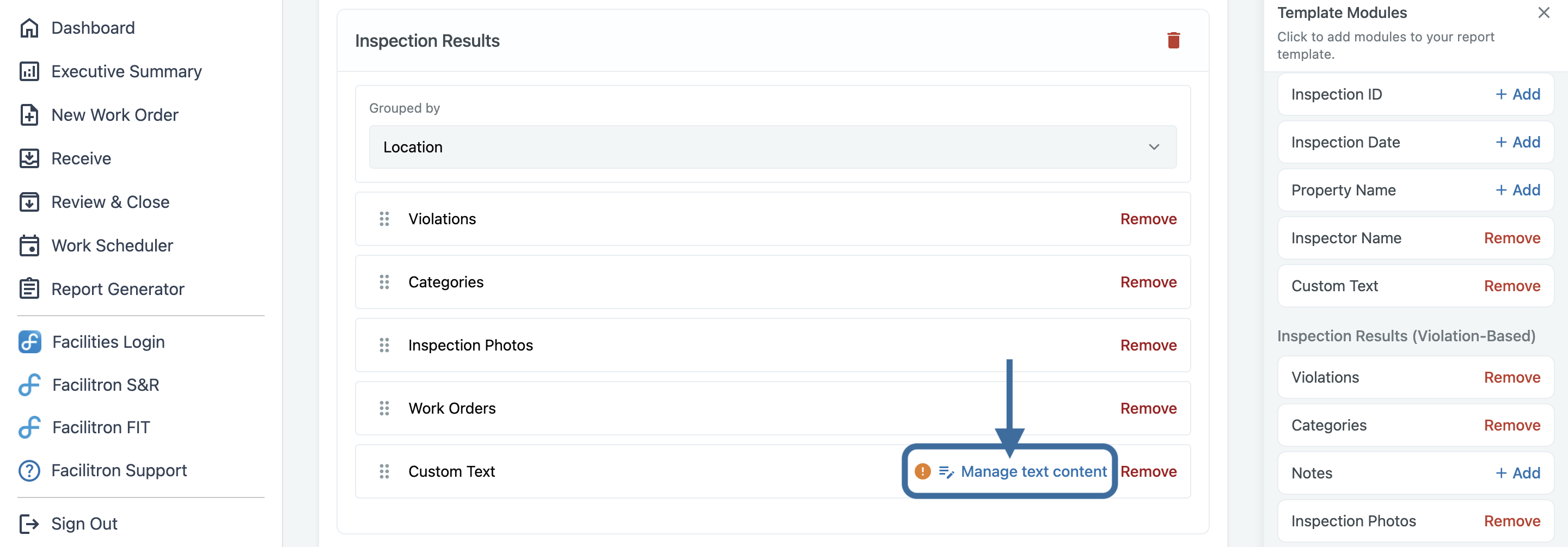
Note: If a Custom Text module is empty, a warning icon will appear. This won't prevent you from saving the template.
Template Settings
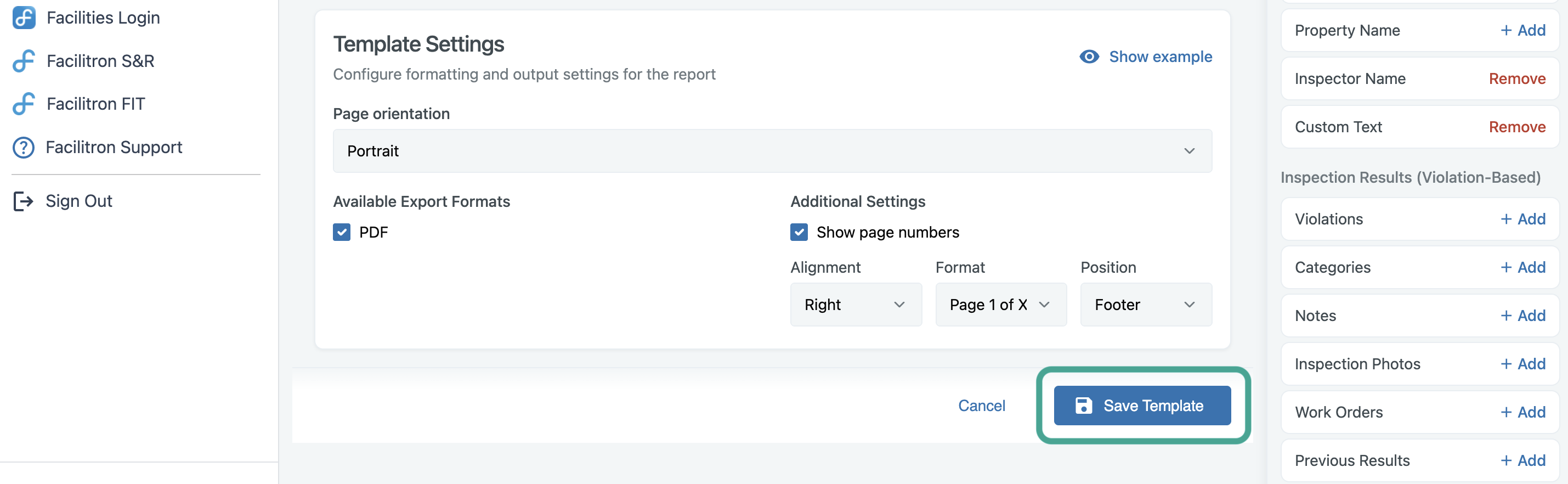
Use the Template Settings section to choose how your inspection report will look when exported. You can change the page orientation and other settings and confirm if the report can be exported in PDF format.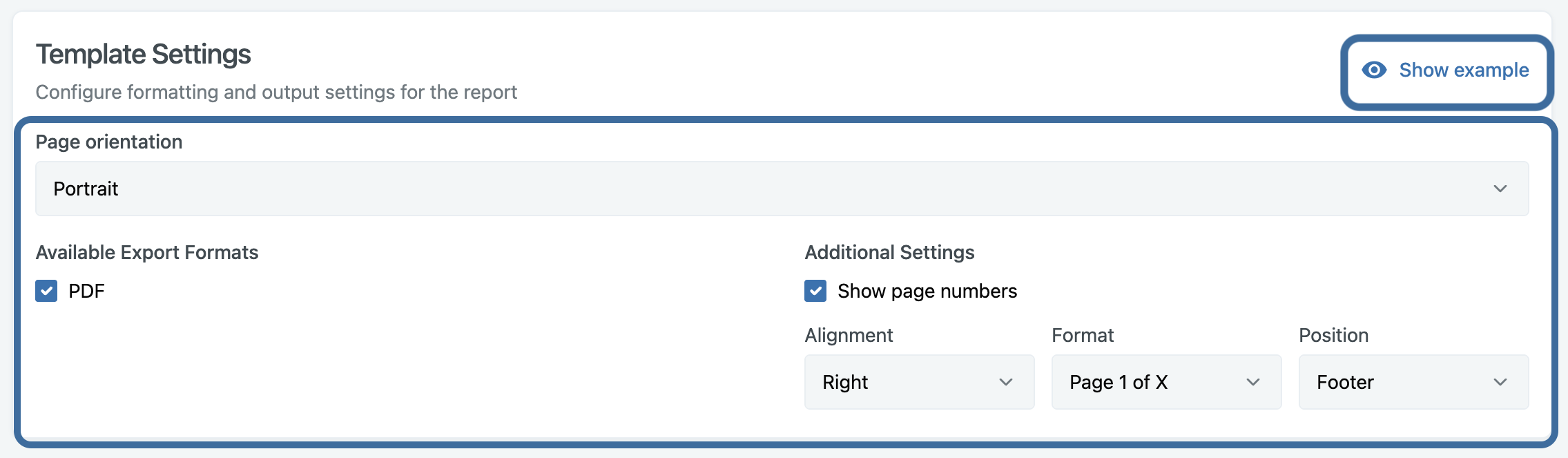
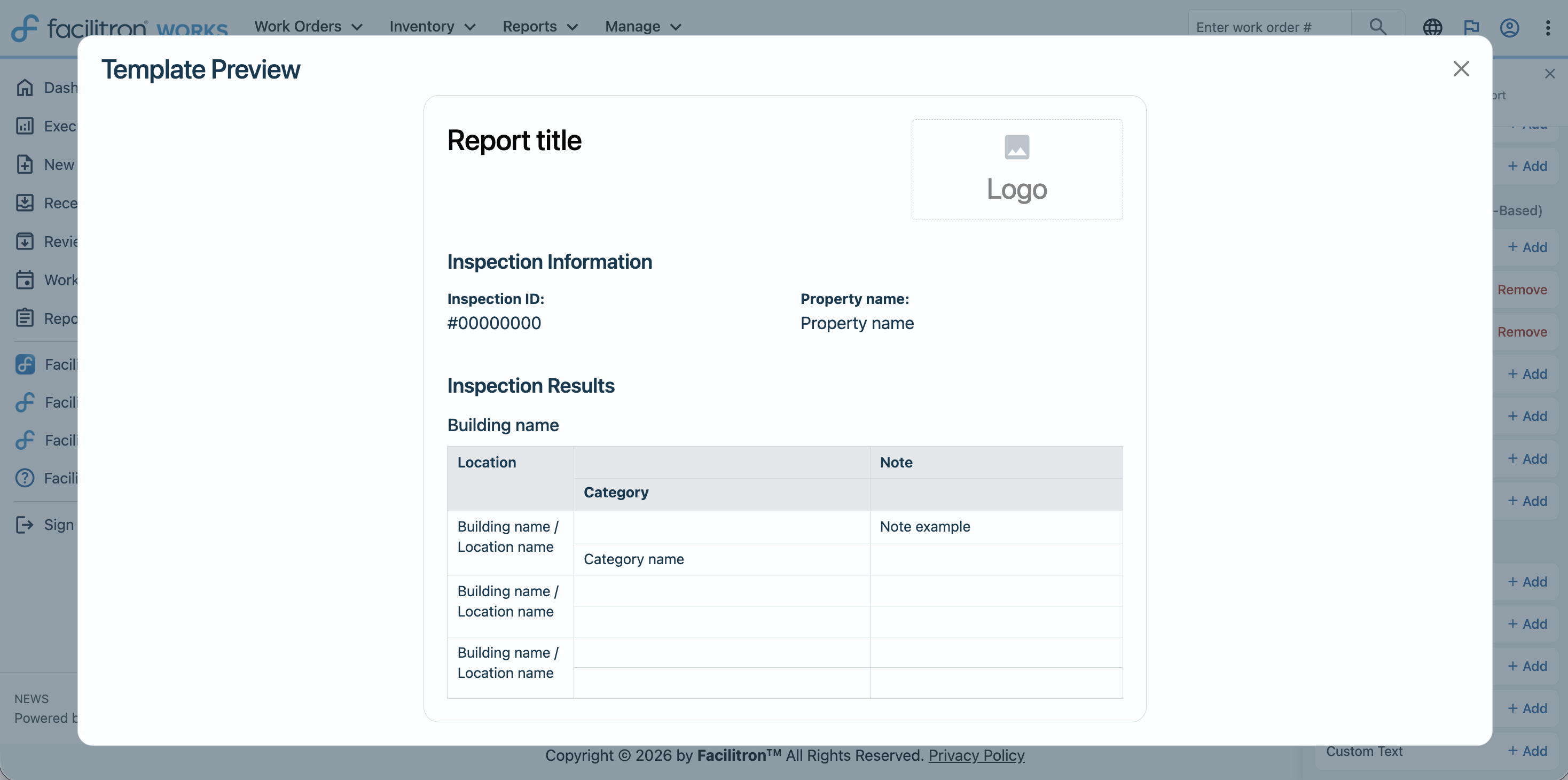
To view a preview of how the report will look, click Show example. A pop up window will open, allowing you to see how the finished inspection report will look.
After reviewing the template, press Save Template. Please note that your template must include at least one module before it can be saved.
Generating a Report
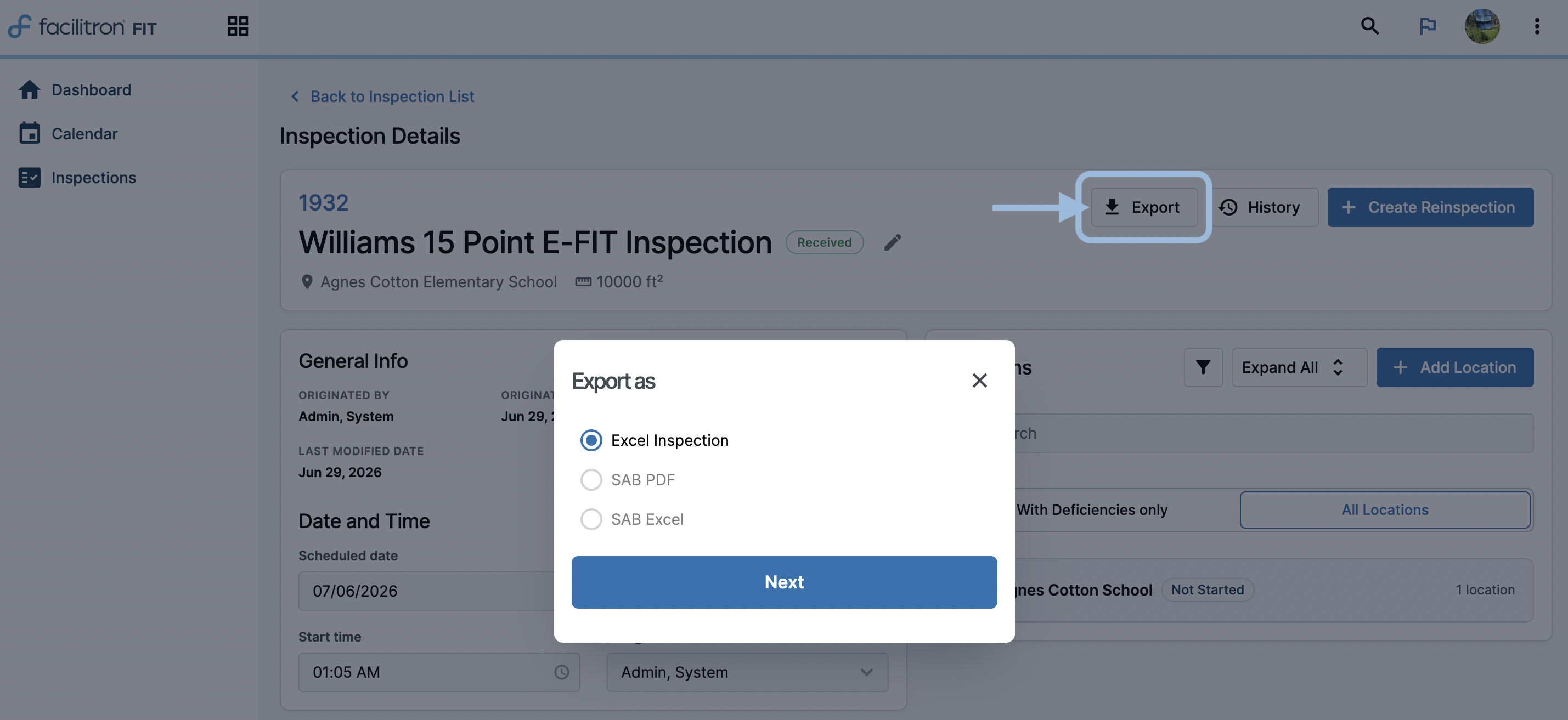
Inspection reports are generated from the Inspection List page, not the template builder. Select an inspection, choose a template, and submit it to generate the report. Reports are typically ready within 30 seconds to 1 minute. When the report is ready, you'll receive an email notification containing a download link. Download links are used instead of email attachments due to the report's file size.
Previously generated reports are also available from the Downloads tab on the Inspection Profile page. This page displays each report's name, template used, generation date, status, and a link for downloading the report.
For additional assistance, please reach out to Facilitron Support at (800) 272-2962, or email us at support@facilitron.com.
Was this article helpful?
That’s Great!
Thank you for your feedback
Sorry! We couldn't be helpful
Thank you for your feedback
Feedback sent
We appreciate your effort and will try to fix the article