This article shows Order Administrators how to use the Projects page in Facilitron Works to create and manage projects, configure project types and Deferred Maintenance (DM) years, and create new or link existing work orders to projects.
Use the links below to jump to a specific section:
Getting Started
To begin setting up a project, go to Work Orders > Projects. Before creating your first project, configure the project types your organization will use and, if your organization tracks Deferred Maintenance projects, add the appropriate Deferred Maintenance (DM) years. Adding DM years is optional and only needed for Deferred Maintenance projects.
Adding Project Types
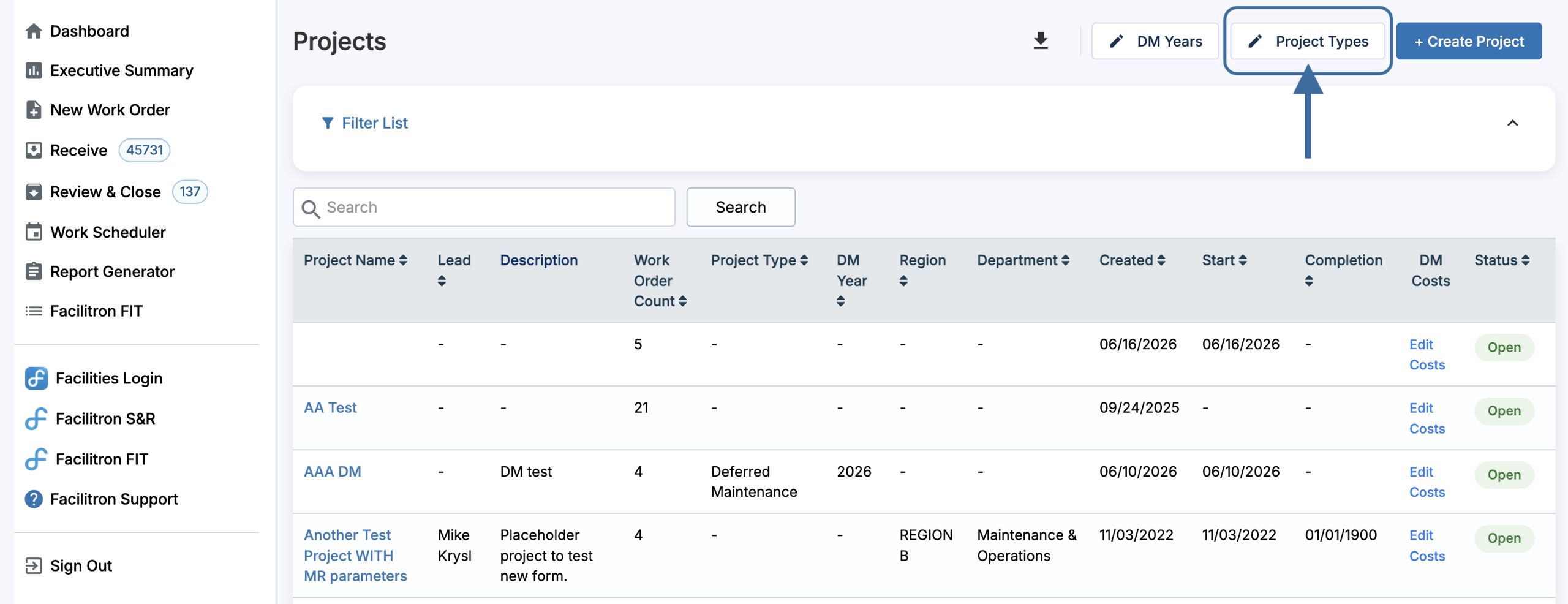
To begin adding project types, click Project Types in the top right corner.
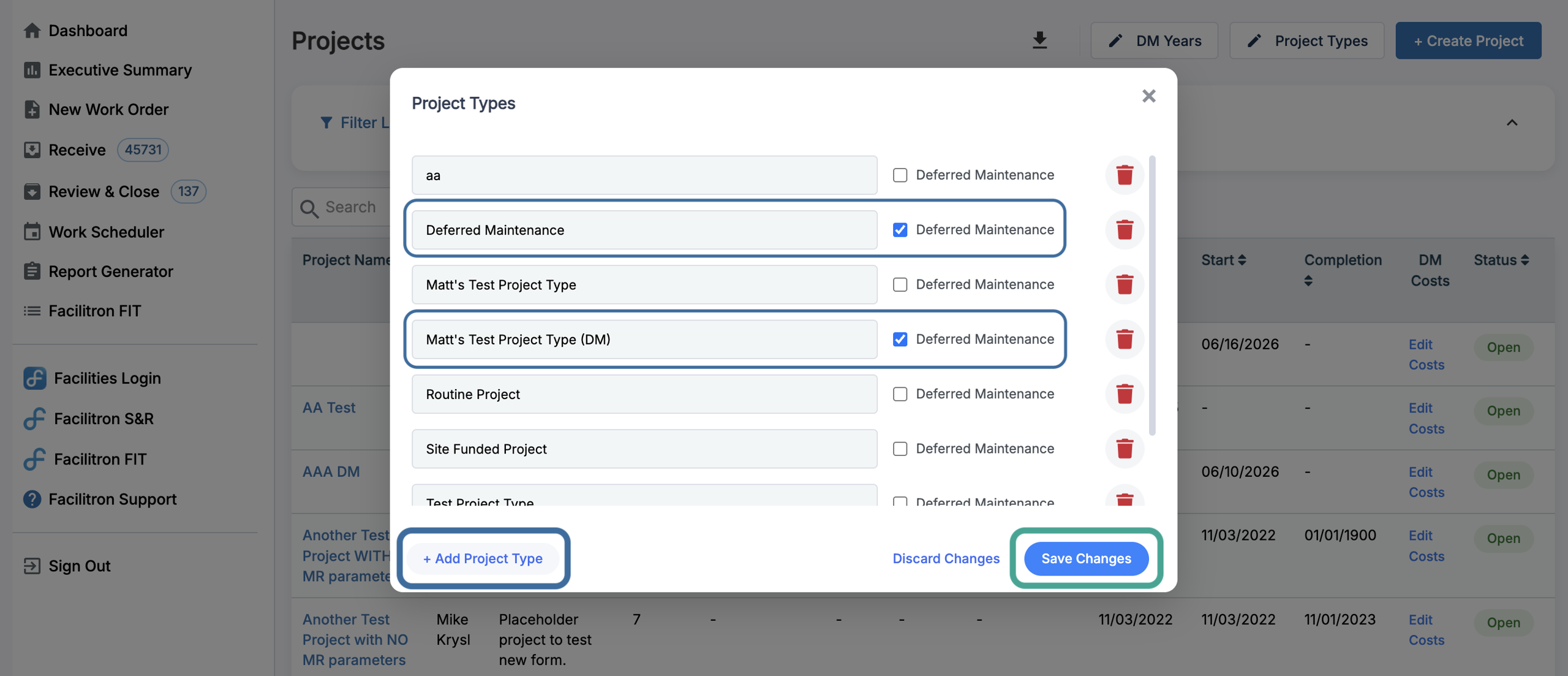
Click +Add Project Type to add a new type, such as deferred maintenance, capital improvements, modernization, safety projects, etc. You can also edit existing project types as needed. Check the Deferred Maintenance box if the project is a DM project.
The new type is available immediately after pressing Save Changes.
Adding DM Years
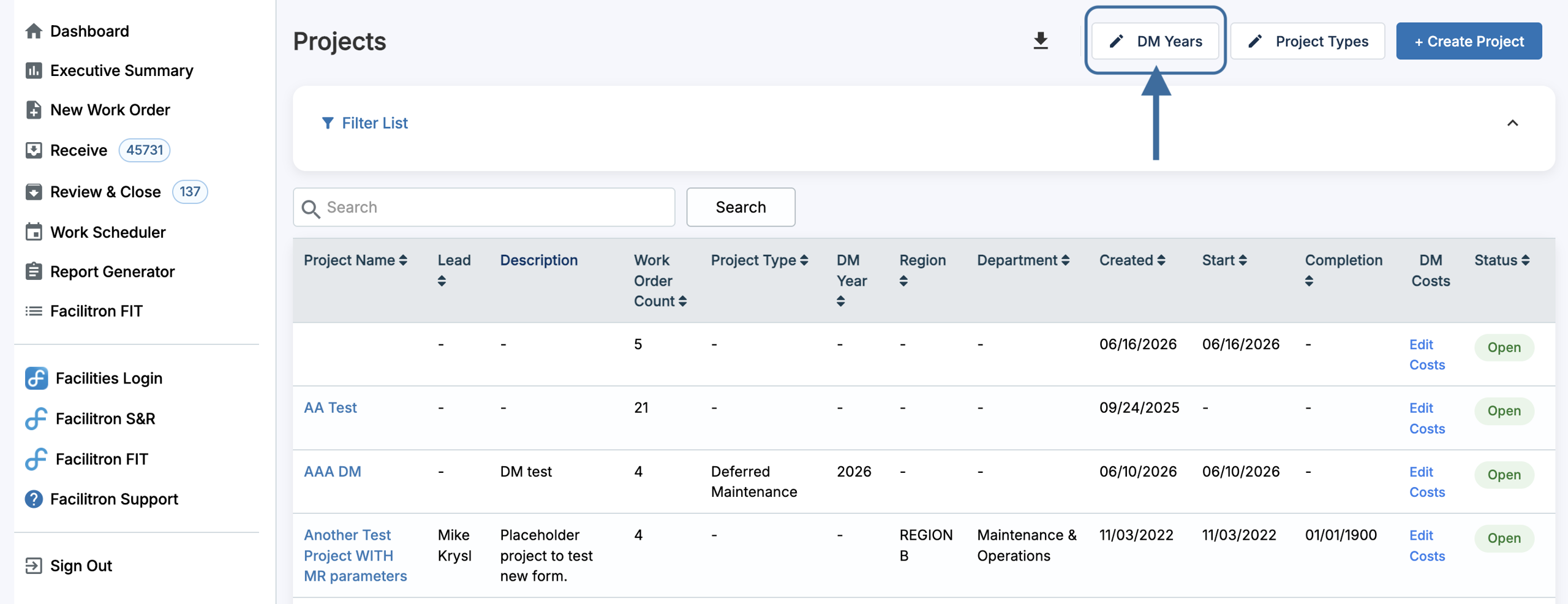
To add DM years, click DM Years in the upper right corner of the Projects page. DM years are optional and only need to be configured as applicable.
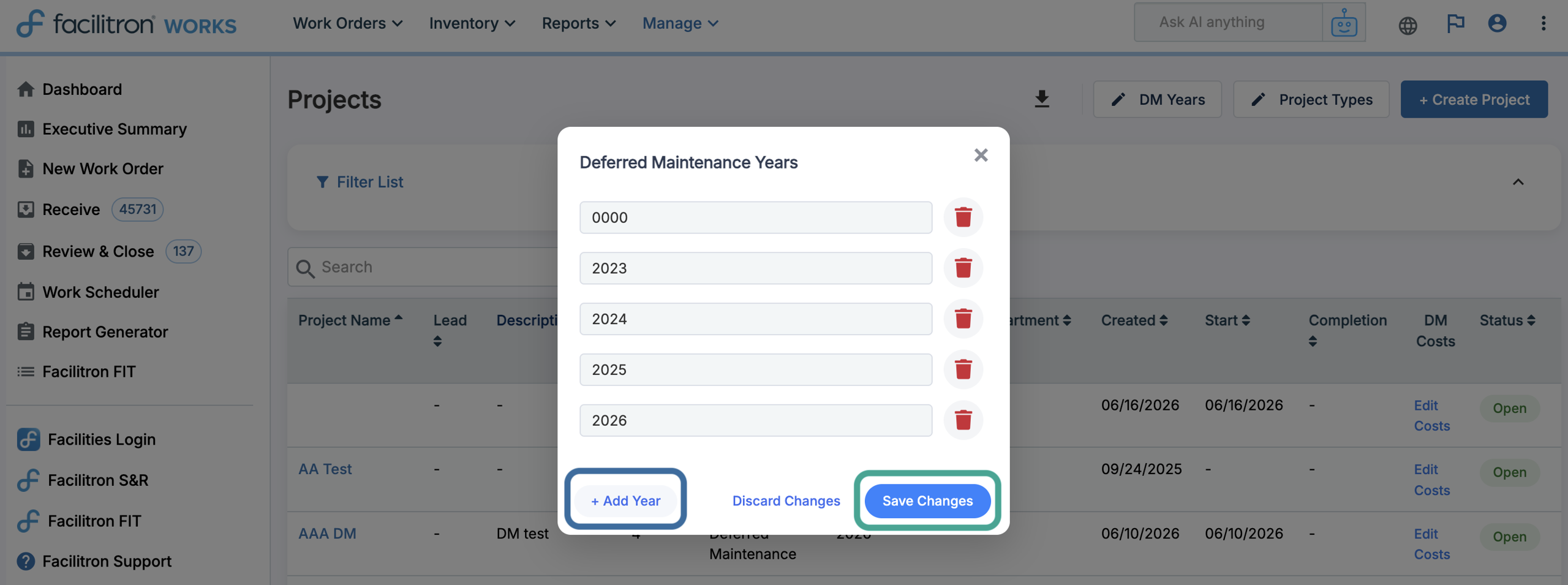
Select + Add Year to add a DM year. After adding the funding/reporting year(s) your organization uses, press Save Changes.
For more information on using DM years and project data for reporting, see Deferred Maintenance Reporting in Works.
How to Create a Project
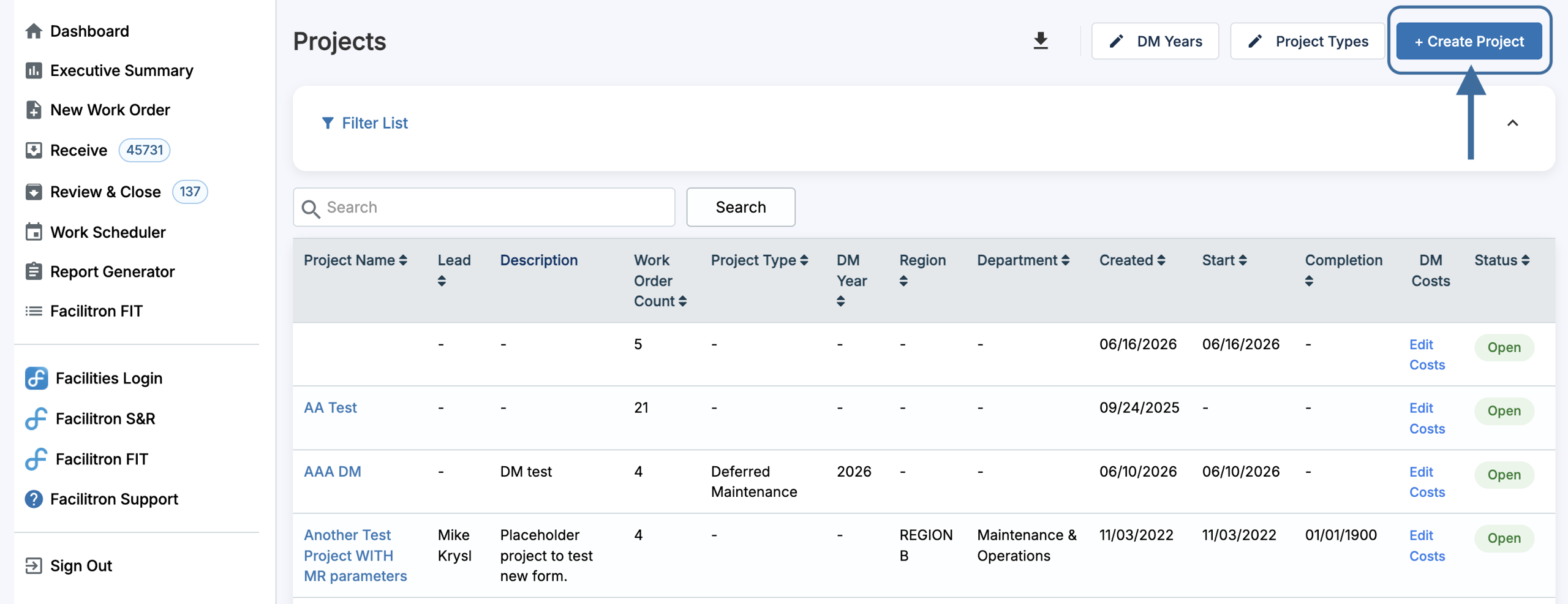
Click Create New Project at the top right of the Projects page to begin setting up the project.
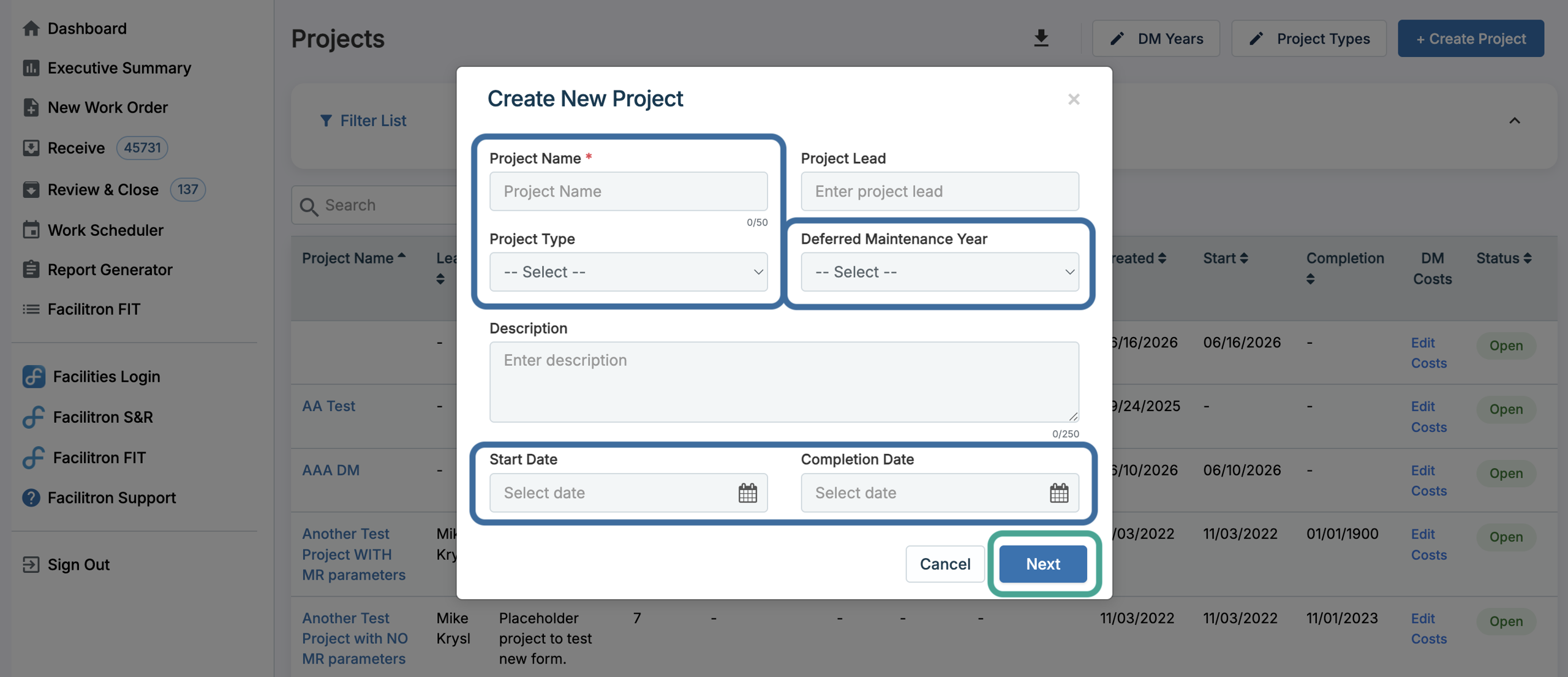
Enter the project name, select a project type, and a DM year if needed. If you don’t see the project type or DM year needed for your project, you can add these using the steps in Adding Project Types or Adding DM Years.
Set a start and completion date for the project, and a description and project lead if needed. Click Next after filling out the project details.
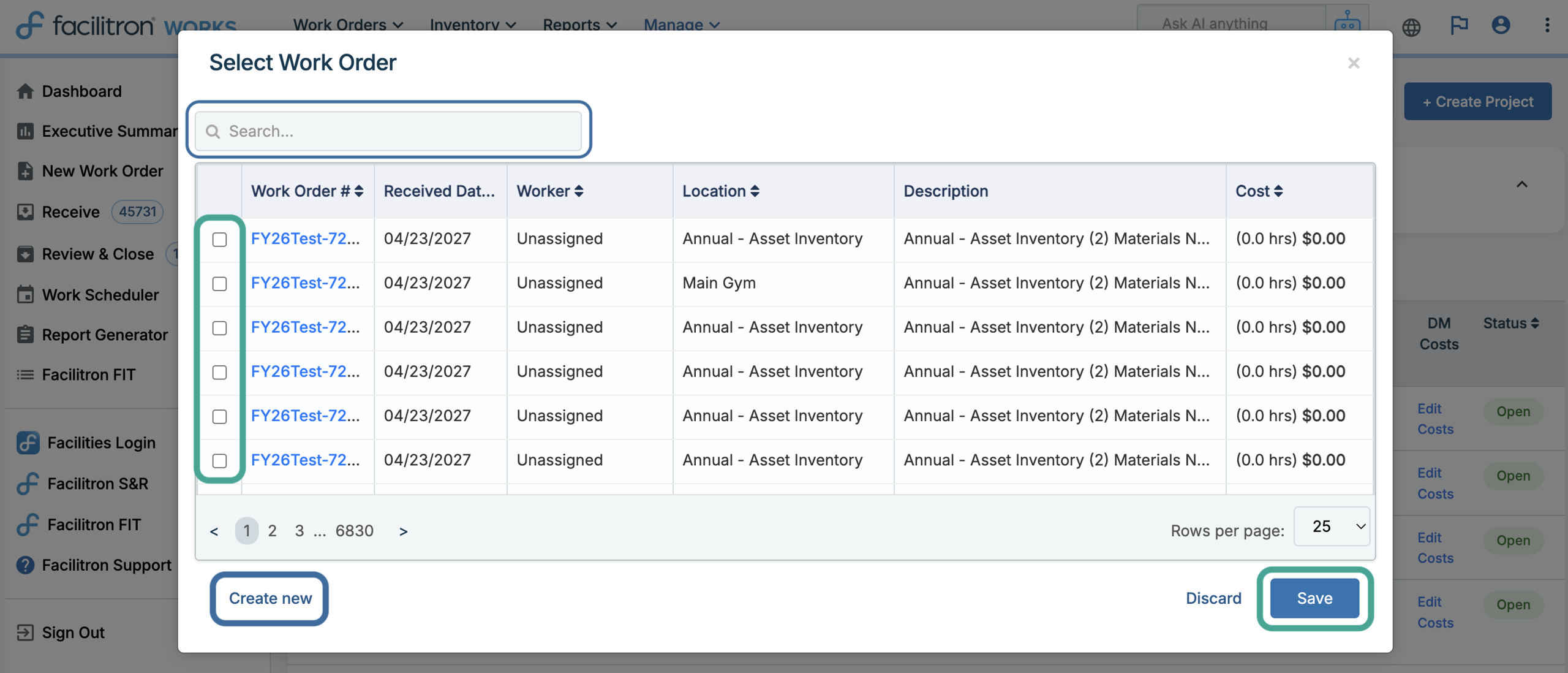
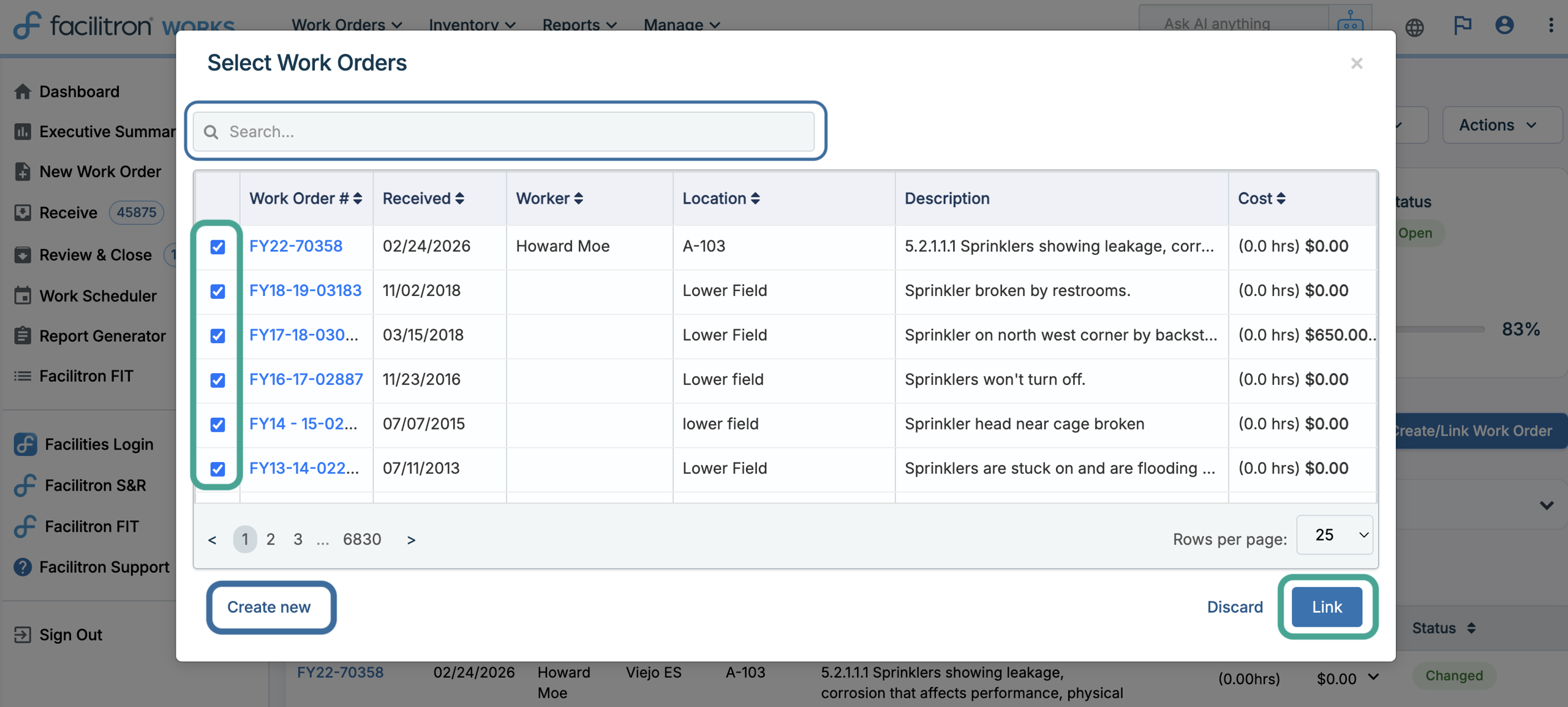
Select any existing work order(s) that need to be attached to the project by checking the box to the left of the work order number. Use the Search feature to quickly find work orders, or click Create New if the work orders don't already exist.
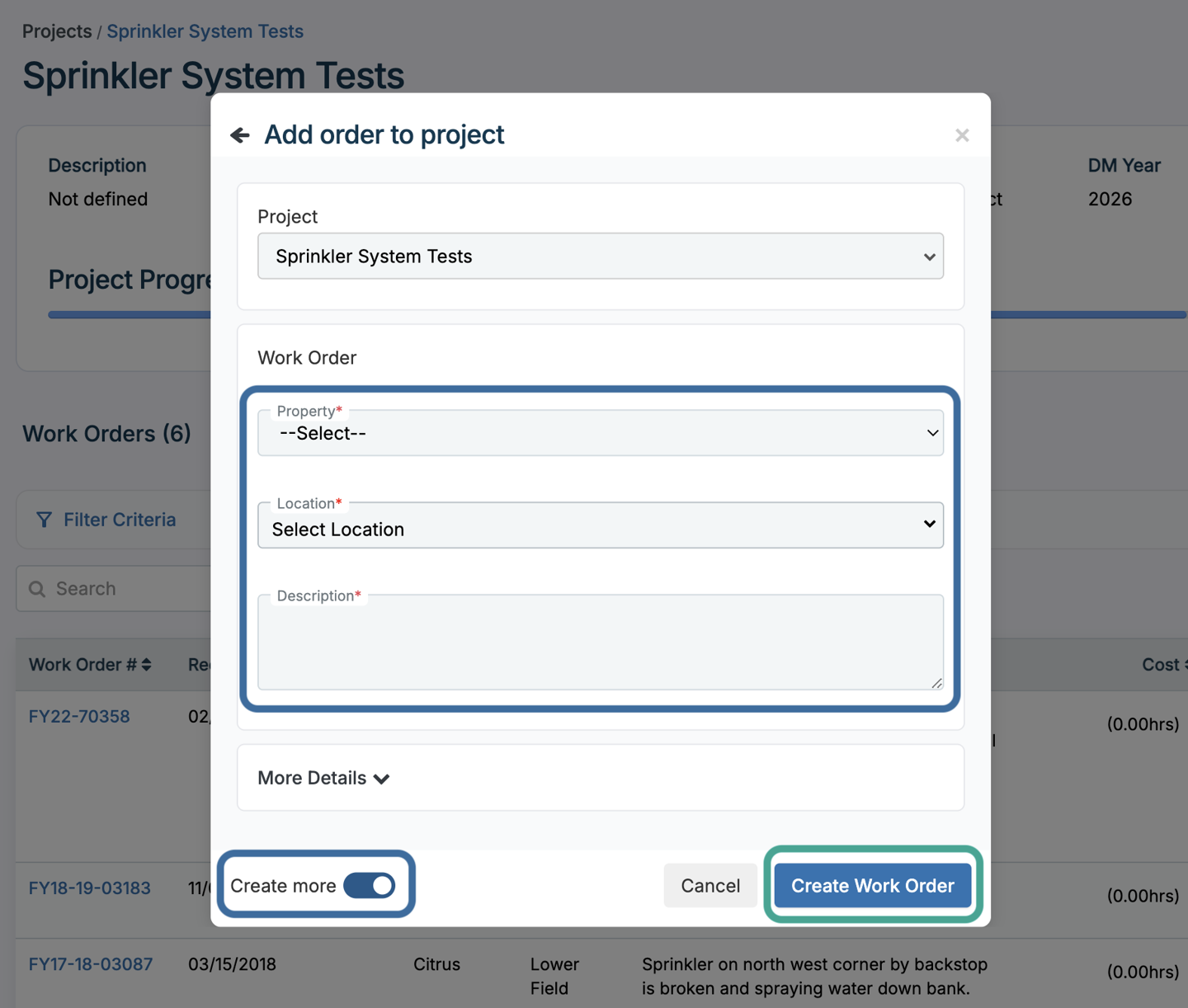
If you’re creating multiple new work orders, toggle on Create More before saving to keep adding work orders without leaving the page.
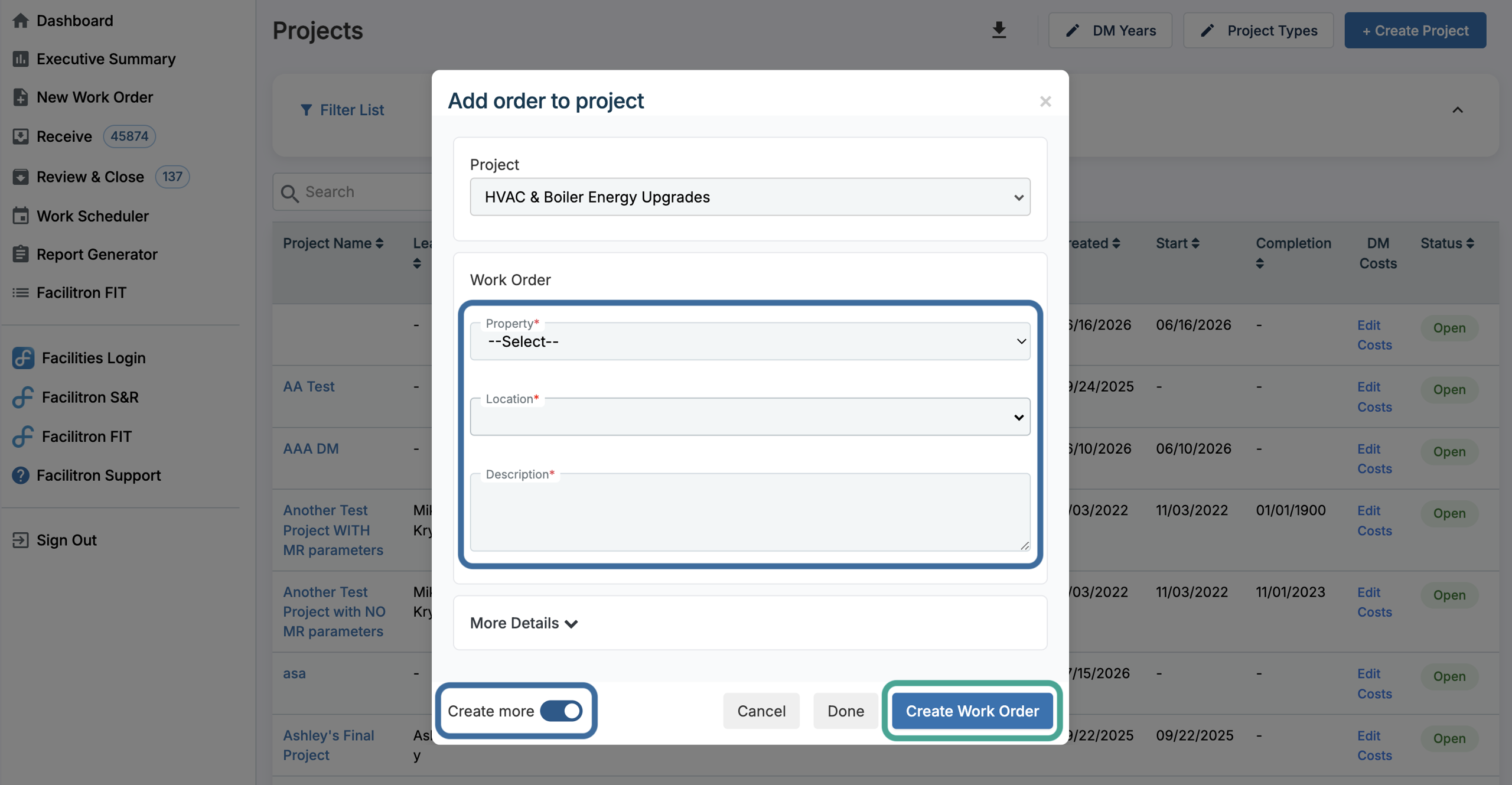
A property, location, and a description are required to create the work order. Fill in any additional fields as needed, then click Create Work Order. After adding work orders to the project, press Save to continue.
The Project Details Page
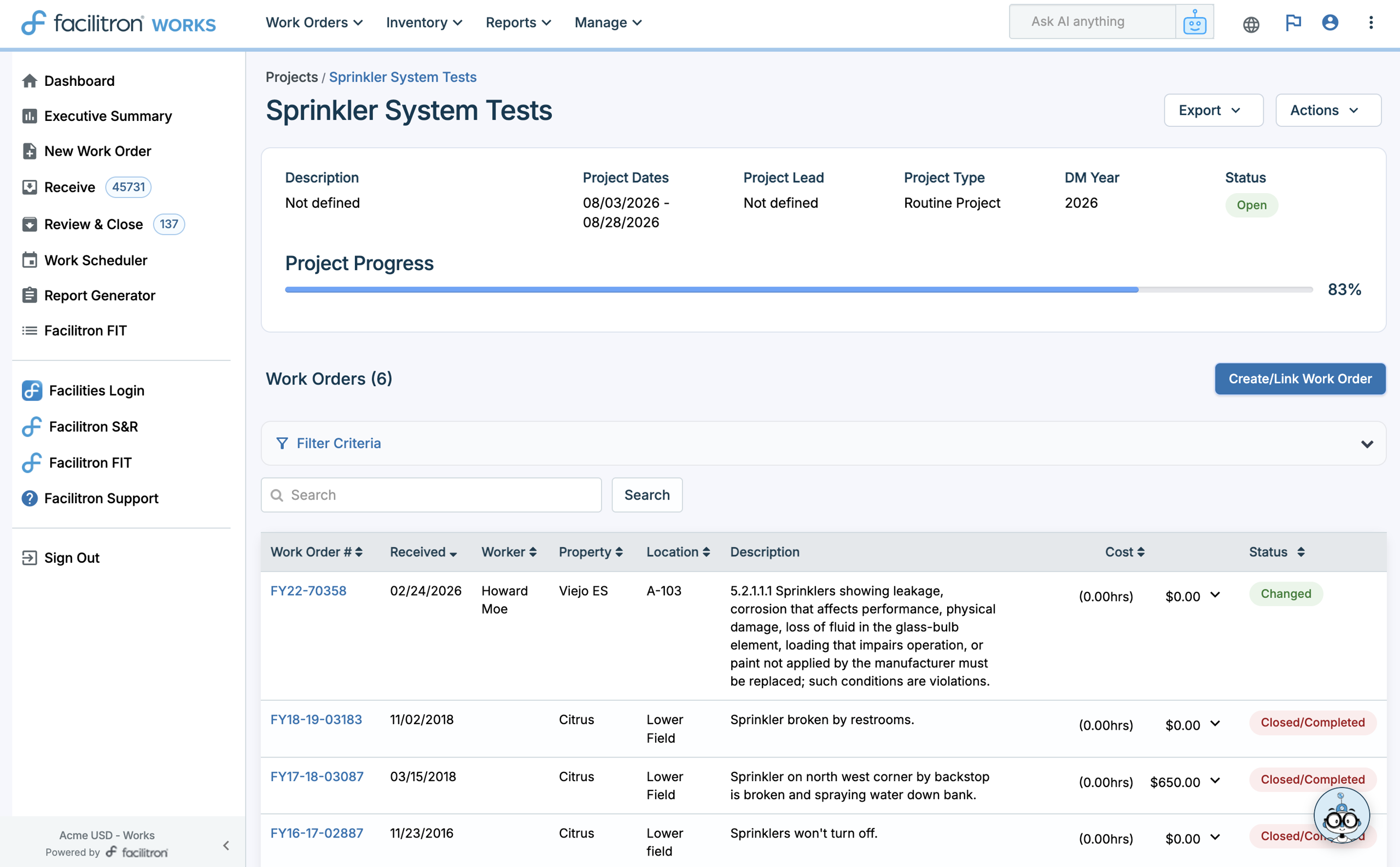
After saving the project, you will be taken to the Project Details page. This page serves as the central location for managing the project and displays project information, associated work orders, total costs, and the current project status. As labor, materials, and other expenses are recorded on the project's work orders, those costs are automatically rolled up into the project's total.
Each project has a status of Active or Closed, which is visible from both the Projects list and the Project Details page. When all work associated with the project has been completed, you can close the project. Closing a project marks it as complete while preserving all associated work orders, project history, costs, and reporting data.
You can also return to the Project Details page at any time to create new work orders for the project or link existing work orders as needed.
Creating and Linking Work Orders from the Project Details Page
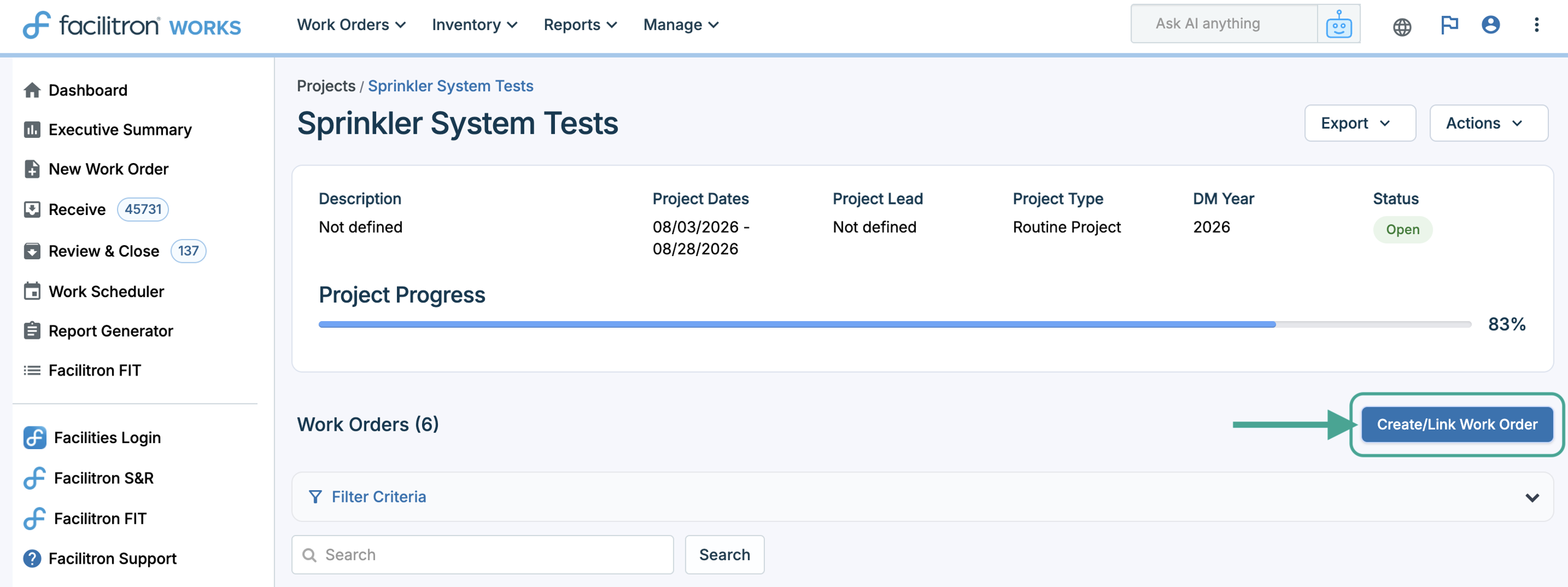
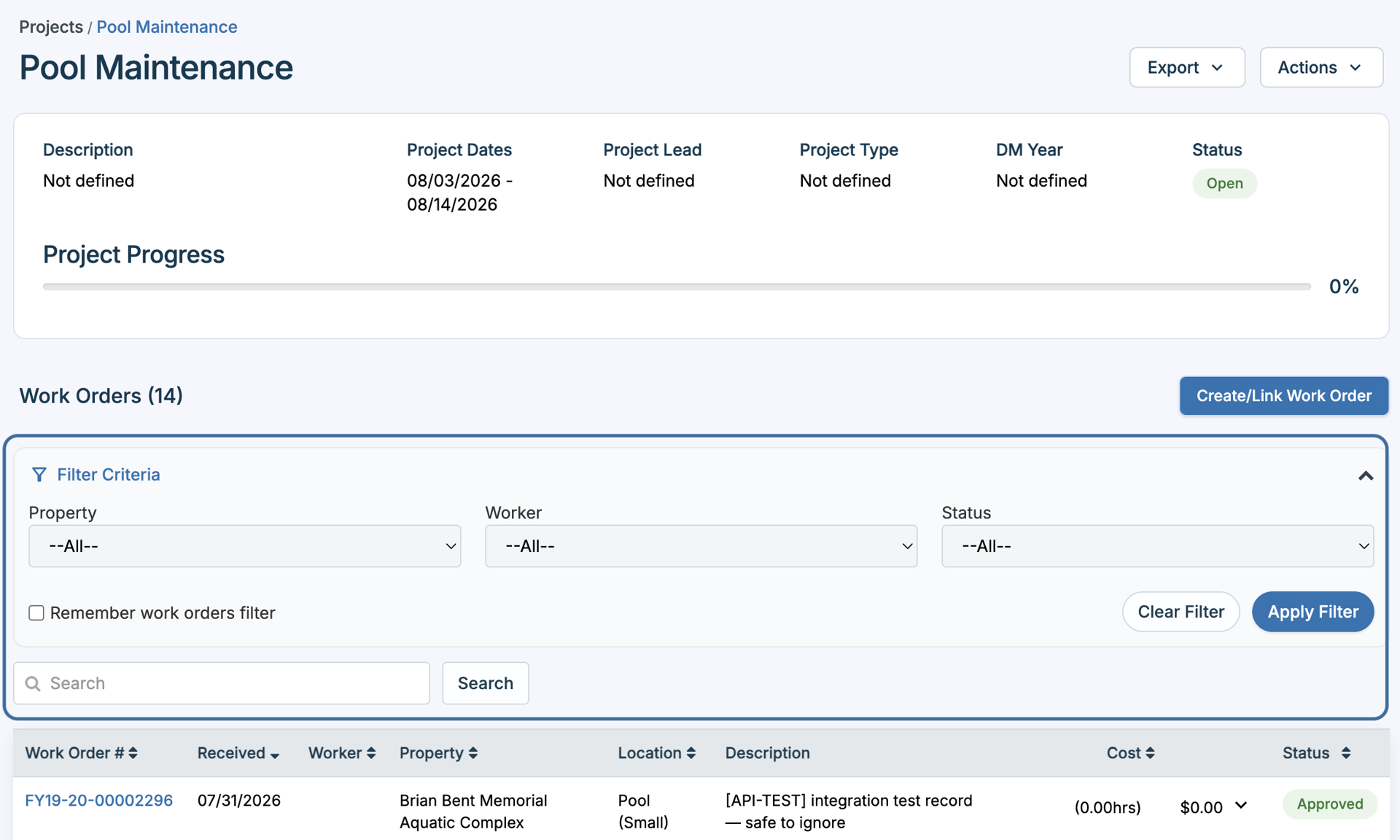
To create or link a work order, start by clicking Create/Link Work Order.
The following modal will open, where you can search for existing work orders or create new ones. To link or unlink work orders, check or uncheck the box to the left of each work order number, then press Link to add the work orders to the project.
Clicking Create New will take you to a New Work Order screen. If you’re creating multiple new work orders, toggle on Create More before saving to keep adding work orders without leaving the page.
To quickly find work orders within the project, open the Filter Criteria dropdown to filter according to property, worker, or status. You can also use the Searchfield to search for a specific work order.
Printing or Exporting Project Details
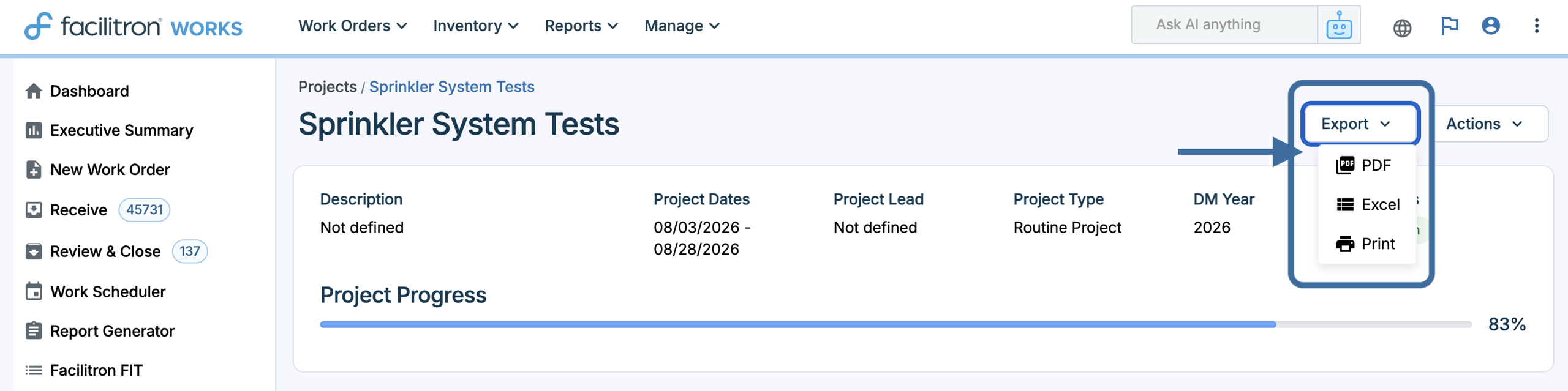
To print or export project information, press Export in the upper-right corner of the Project Details page. From here, you can print the project details or export them as a PDF or Excel file.
Editing a Project
To edit the project details, go to Actions > Edit Project in the upper-right corner of the page.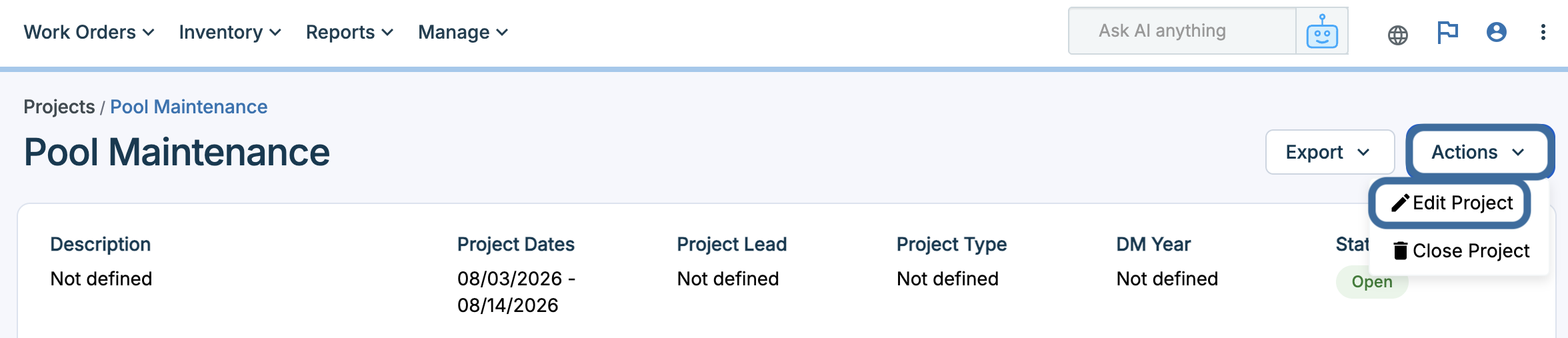
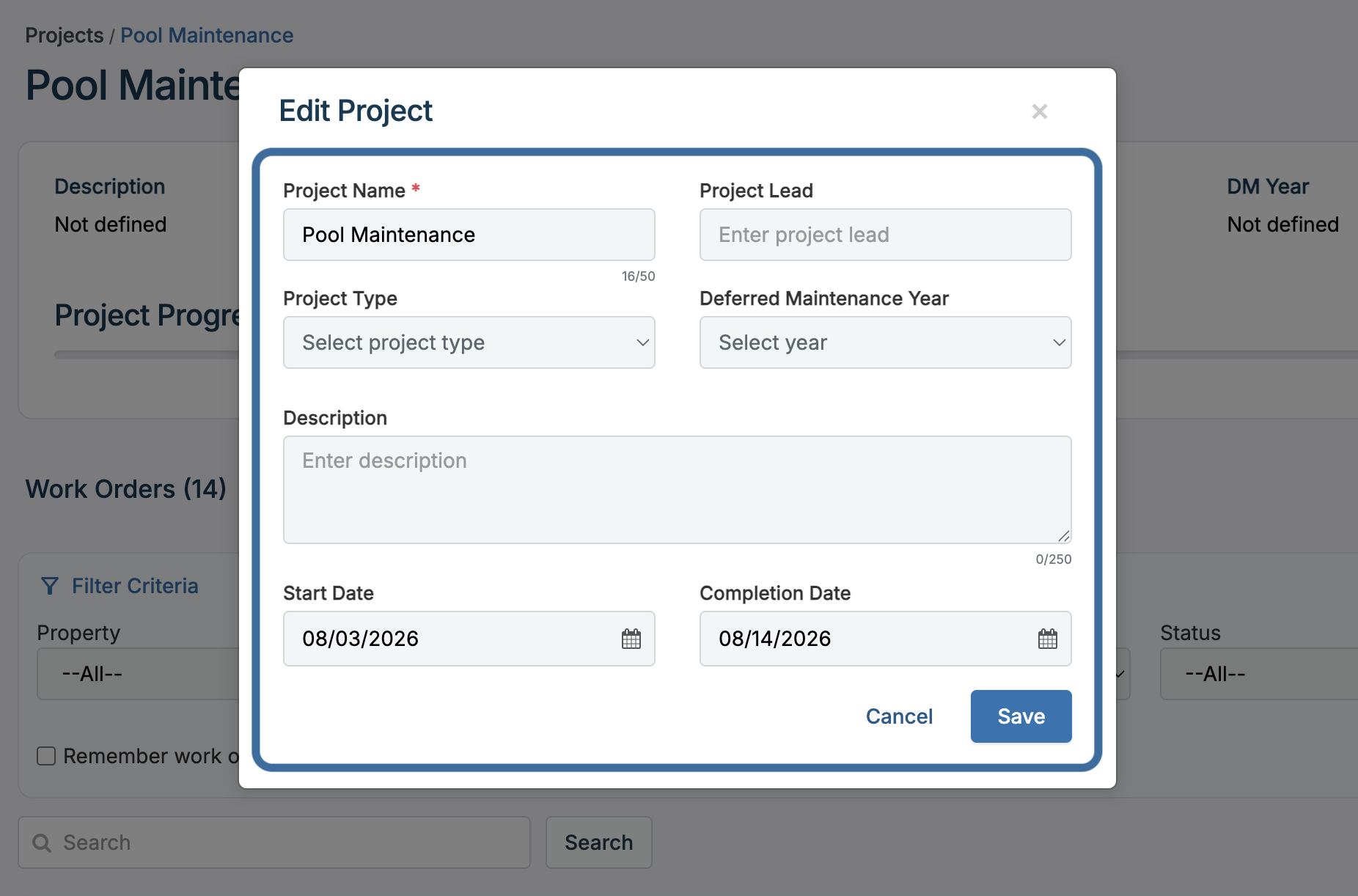
A modal with the project's details will open. Here, you can update the project's start and completion dates, edit the description, and modify other project details as needed. Press Save to apply your changes.
Closing a Project
When a project is completed, close the project in Works by going to Actions > Close Project on the Project Details page.

If there are still open work orders that need action before closing the project, you will be asked to take one of the following actions before closing: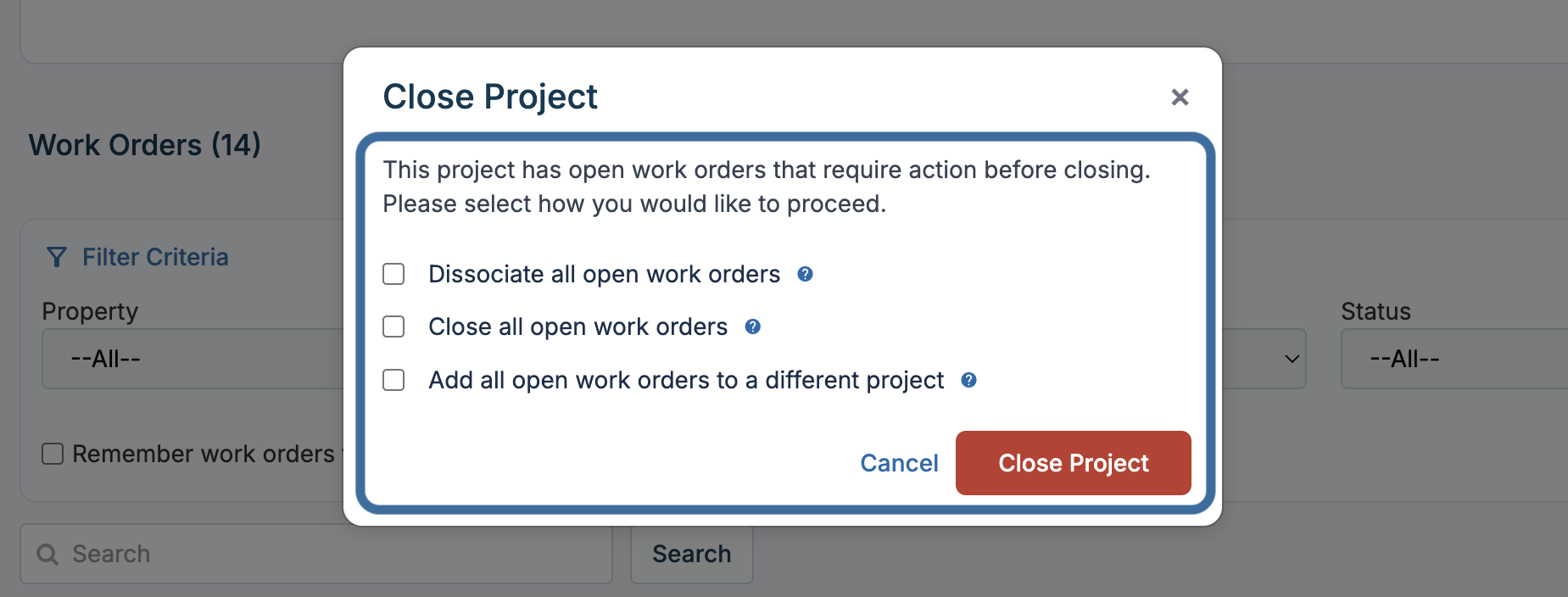
- Dissociate all open work orders removes all open work orders from the project, and the work orders will not be tied to any project.
- Close all open work orders will close any remaining work orders linked to the project
- Add all open work orders to a different project will give you the option to roll the open work orders into a different project. If, for example, you are creating a new project for a new year, use this option to roll open work orders from the previous year into the new project.
Any work orders closed when closing the project will update to the default Closed status configured by your organization.
Note: Closing a project marks it as completed but does not delete it or its records. All associated work orders, project history, costs, and reporting data are preserved and remain available for future reference and reporting.
Reopening a Project
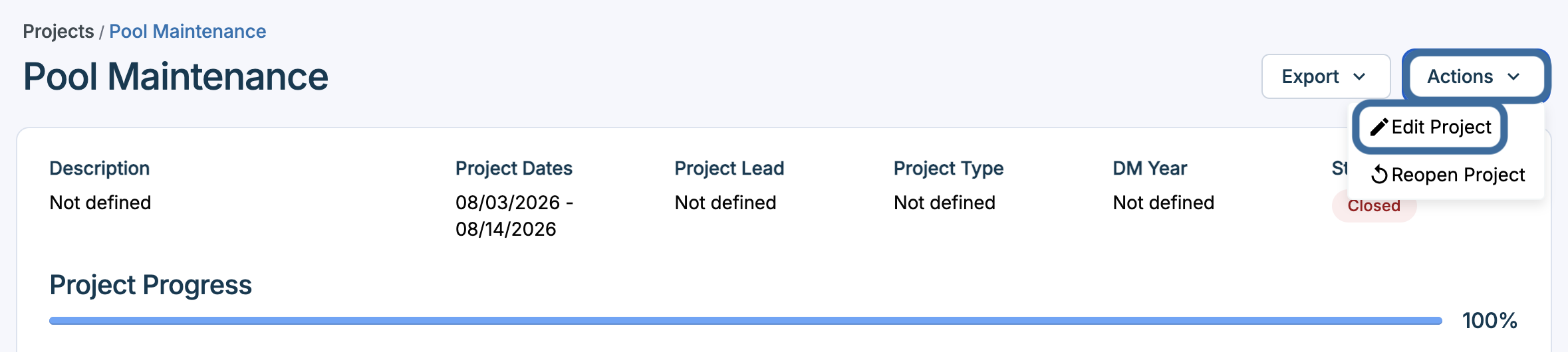
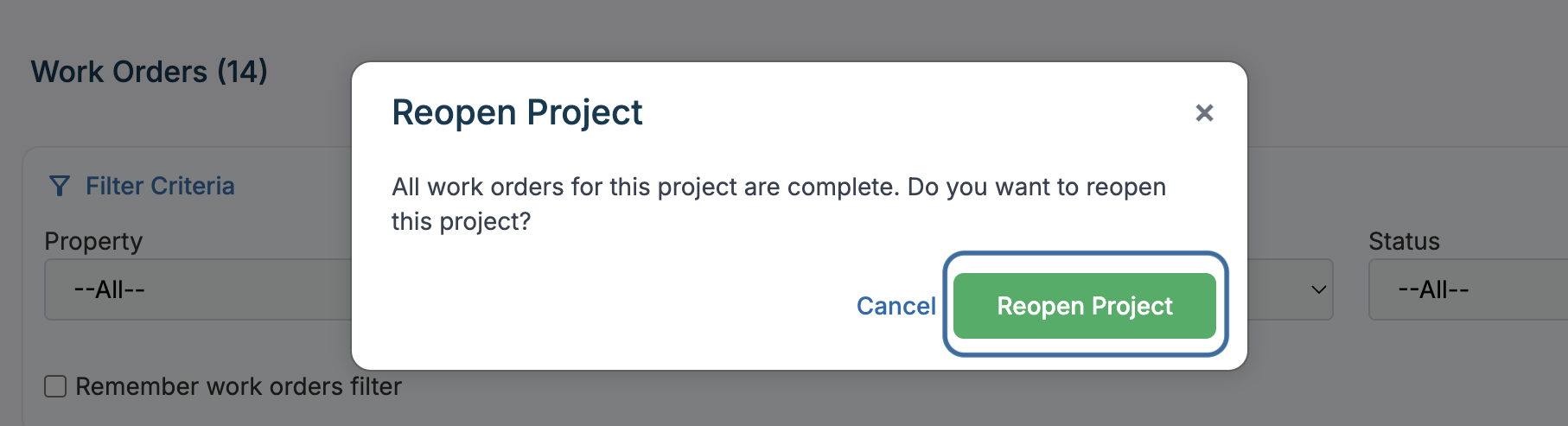
To reopen a project to to Actions > Reopen Project on the Project Details page for the closed project. Next, you will be asked to confirm if you want to reopen the project. To do so, click Reopen Project.
Reopening a project will not reopen any closed work orders associated to the project. To reopen any closed work orders, click the work order number and update the status accordingly on the work order form.
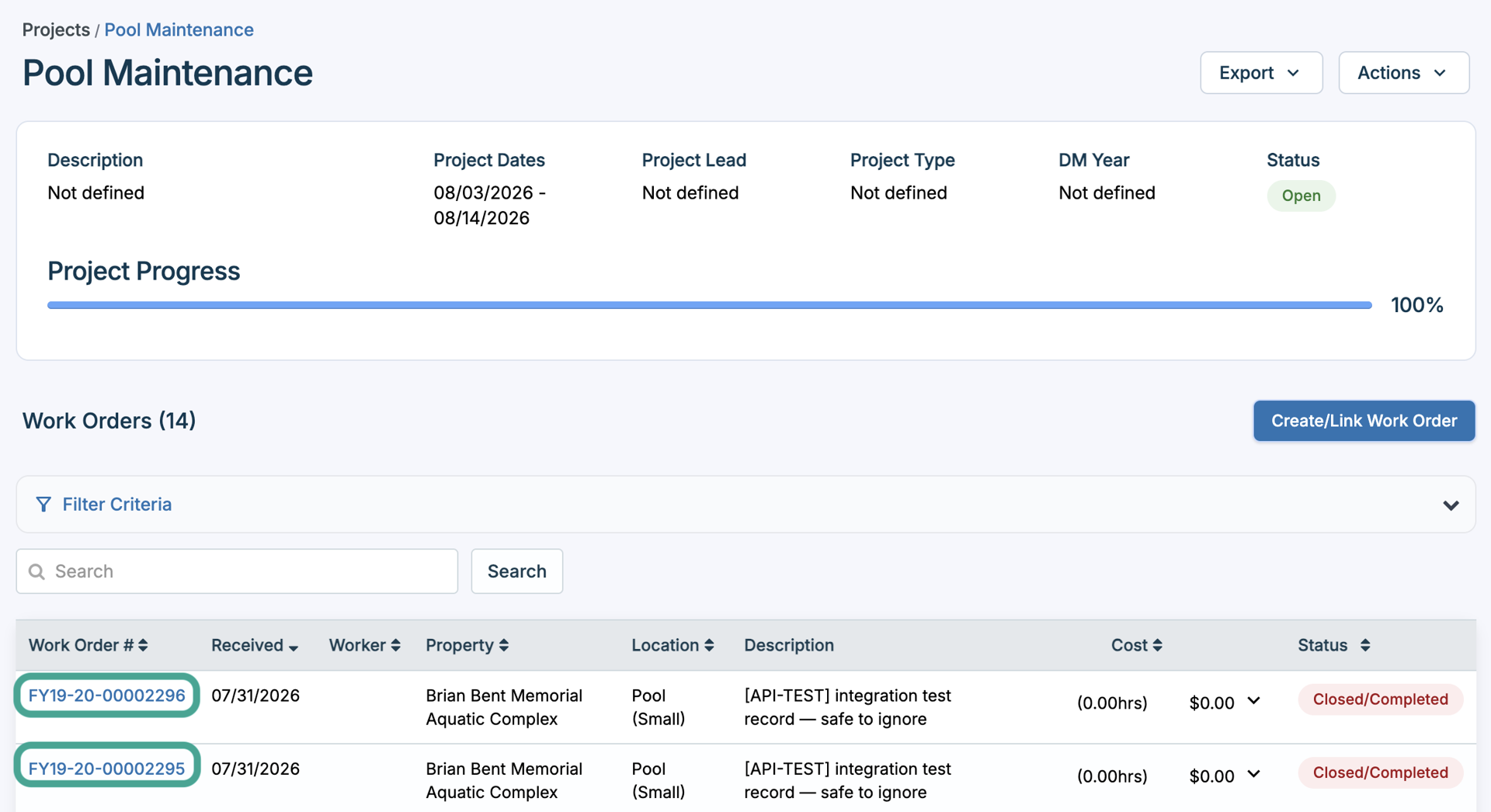
After reopening a project, you can link and create additional work orders by clicking Create/Link Work Order. For detailed instructions, see the Creating and Linking Work Orders from the Project Details Page section earlier in this article.
For additional assistance, please reach out to Facilitron Support at (800) 272-2962, or email us at support@facilitron.com.
Was this article helpful?
That’s Great!
Thank you for your feedback
Sorry! We couldn't be helpful
Thank you for your feedback
Feedback sent
We appreciate your effort and will try to fix the article