This article will assist Works users with creating multi-asset work orders when enabled by your organization. For assistance with creating a general work order, please see How to Create a Work Order.
When Should I Create a Multi Asset Work Order?
A multi-asset work order should be created anytime multiple pieces of equipment are being serviced or used to complete a task. Some common real-life examples include:
- Servicing multiple HVAC units during routine maintenance
- Replacing filters across several air handling units
- Inspecting multiple fire extinguishers or emergency lights
- Servicing several pieces of kitchen equipment during one visit
- Completing the same repair on multiple assets within a property
For example, instead of creating three separate work orders to service three HVAC units across a property, you can simply create one work order and associate all three assets (in this case, the HVAC units) to the same work order. This makes it easier to manage tasks involving more than one asset by keeping equipment-related tasks together instead of being spread across multiple work orders.
Adding Multiple Assets to a Work Order
To add multiple assets to a work order, open the Assets/Equipment dropdown and select each asset that you would like to add to the work order. This option is available on new and existing work orders, the Receive screen, and RWO’s. The example below shows what adding multiple assets looks like on a new work order.
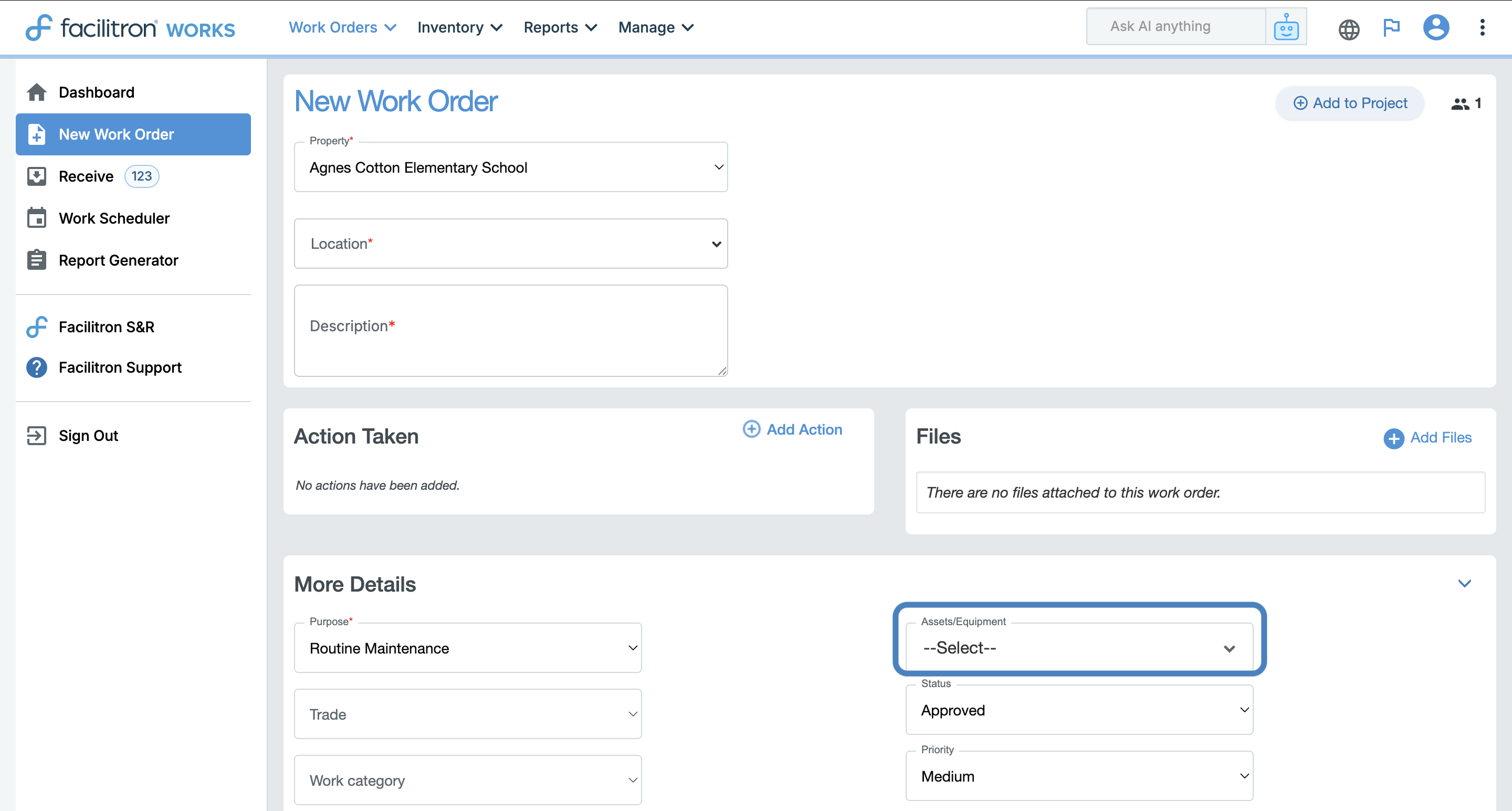
You can search for a specific asset, or scroll through the list to find the assets you need to associate to the work order.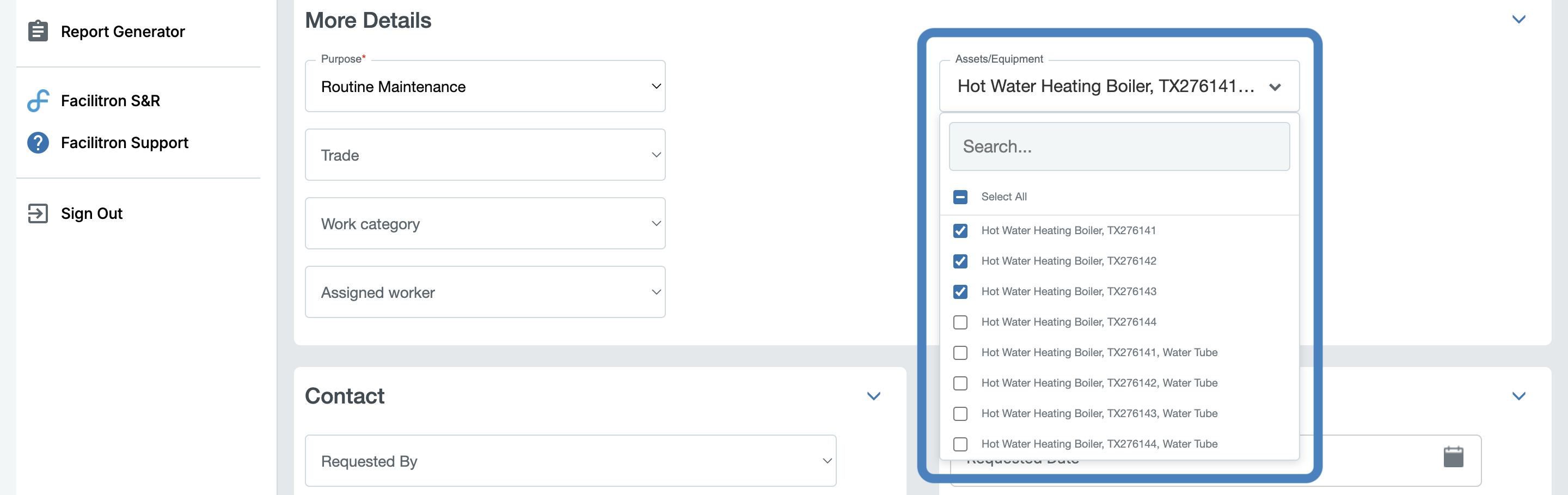
After adding the assets needed, continue filling out the work order form as you normally would. For additional support with creating a work order, please see How to Create a Work Order.
Adding Multiple Assets to an RWO
At the end of the Elective Settings section of the RWO form, you’ll see an option to create one work order per selected asset. This setting controls how RWOs are generated when multiple assets are associated with the profile.
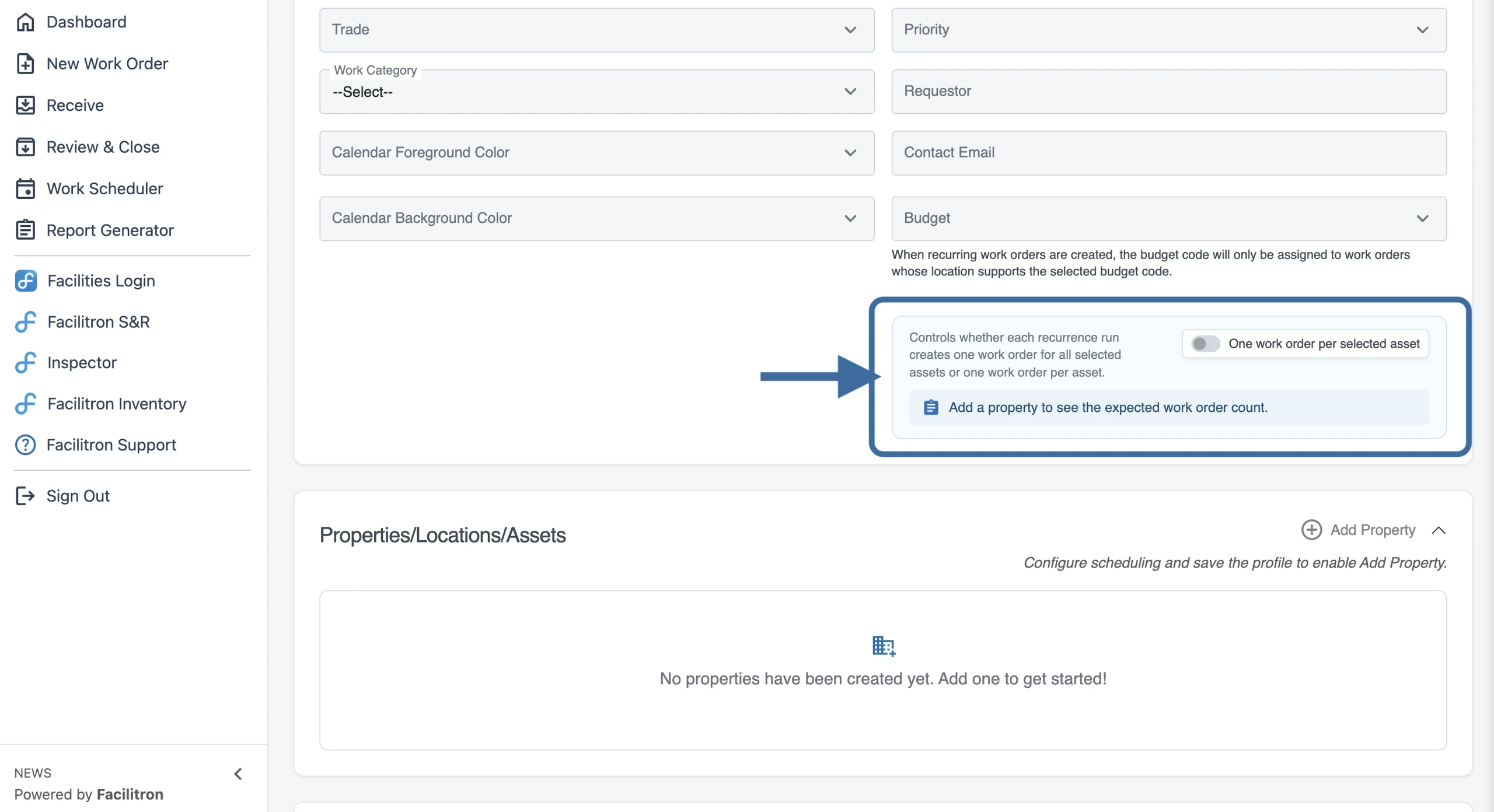
When toggled on, One work order per selected asset will generate a separate work order for each selected asset. For example, if five assets are selected, the system will create five individual work orders (one for each asset) each time the profile runs.
By default, this option is toggled off. When toggled off, the system will generate one work order that includes all selected assets together into one multi-asset work order.
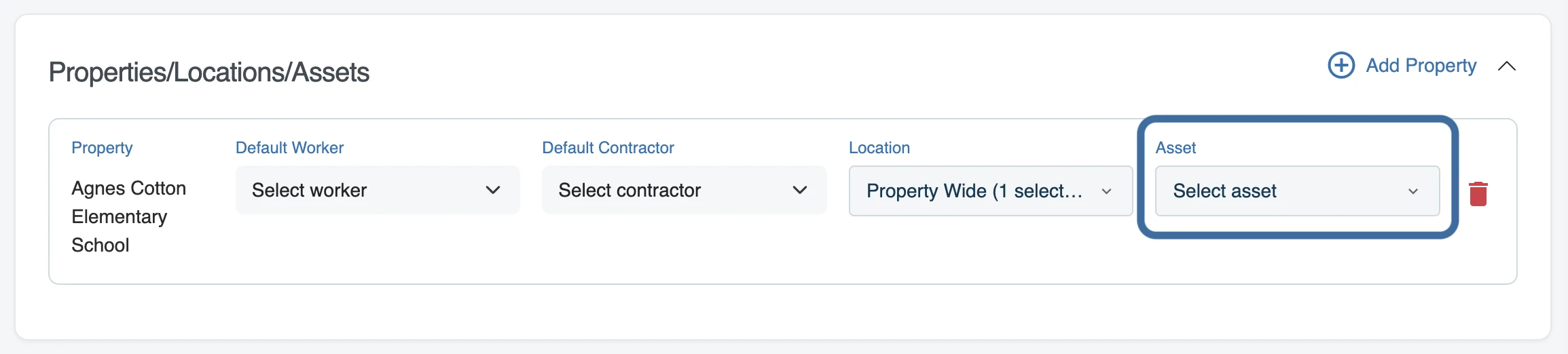
To begin adding assets, first add a property by clicking + Add Property in the Properties/Locations/Assets section of the RWO form.
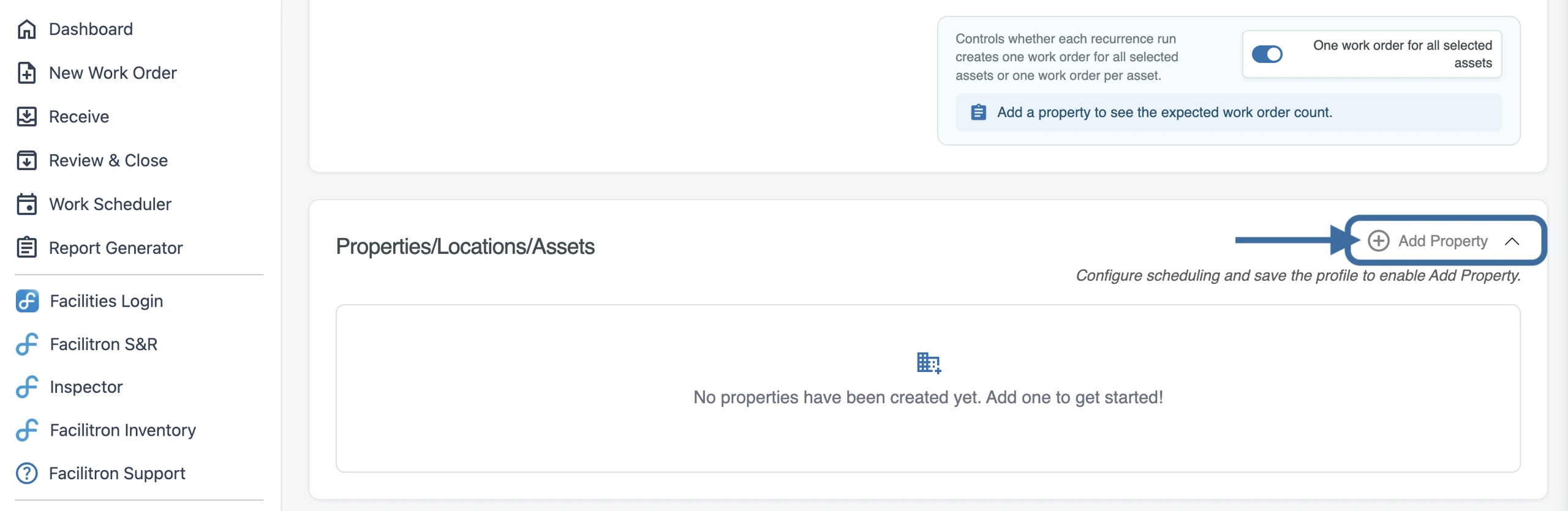
After adding a property, select the assets needed for the RWO using the Asset dropdown.
For more information about creating RWO’s please see Creating Recurring Work Orders (RWO's) in Facilitron Works.
Adding Multiple Assets When Receiving a Work Order
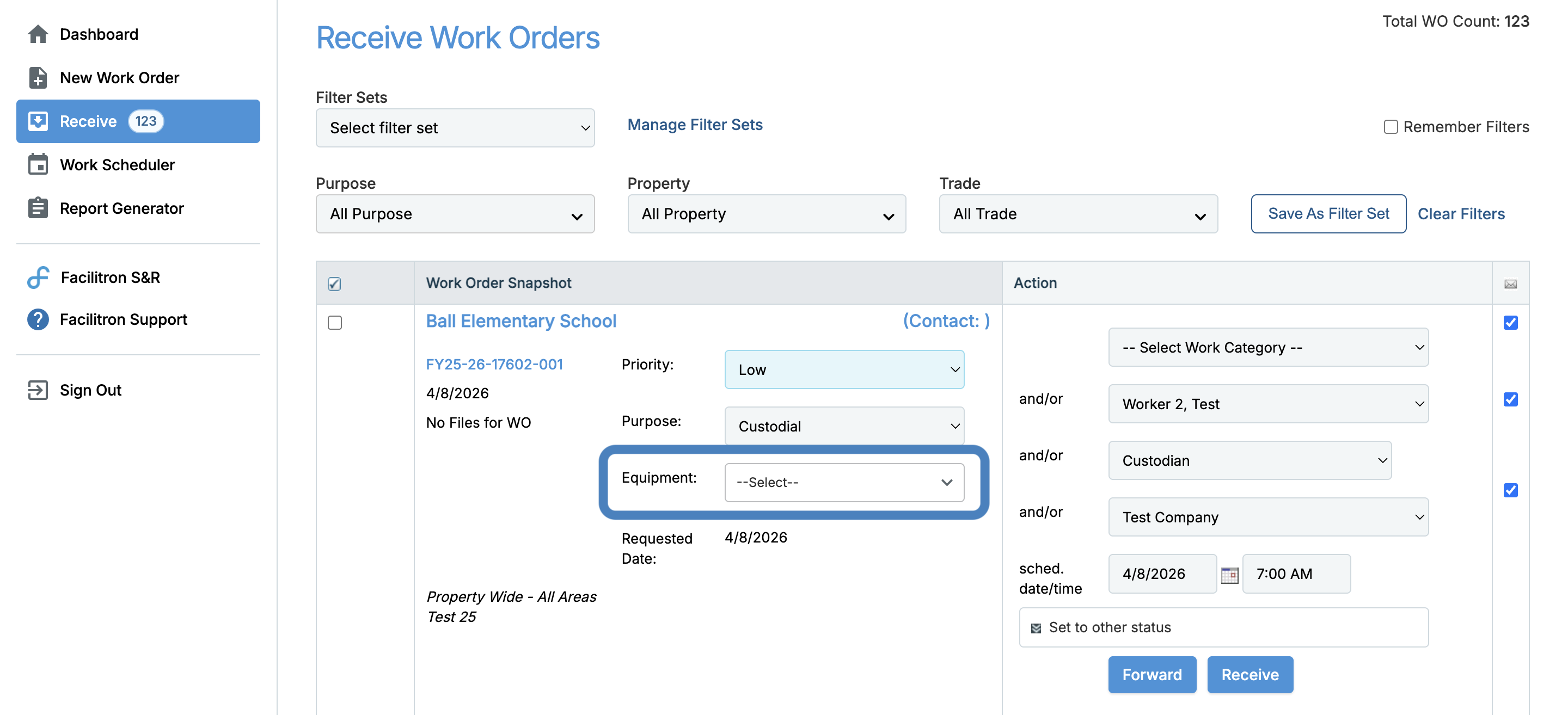
Assets can also be added to work orders from the Receive screen. When receiving a work order, you can add one or more assets upon opening the Equipment dropdown and selecting from the list that populates.
For additional assistance, please reach out to Facilitron Support at (800) 272-2962, or email us at support@facilitron.com.
Was this article helpful?
That’s Great!
Thank you for your feedback
Sorry! We couldn't be helpful
Thank you for your feedback
Feedback sent
We appreciate your effort and will try to fix the article