This article will assist you with logging into Facilitron WORKS and with password resets. Please note that this article is for users who have already been to their organization’s account in WORKS. If you have not been added or are unsure, please reach out to your site or district, or to Facilitron Support.
Logging In
Go to maintenance.facilitron.com and enter your school email address and the temporary password provided to you. Once you've logged in for the first time, reset your password to your own secure, unique password.
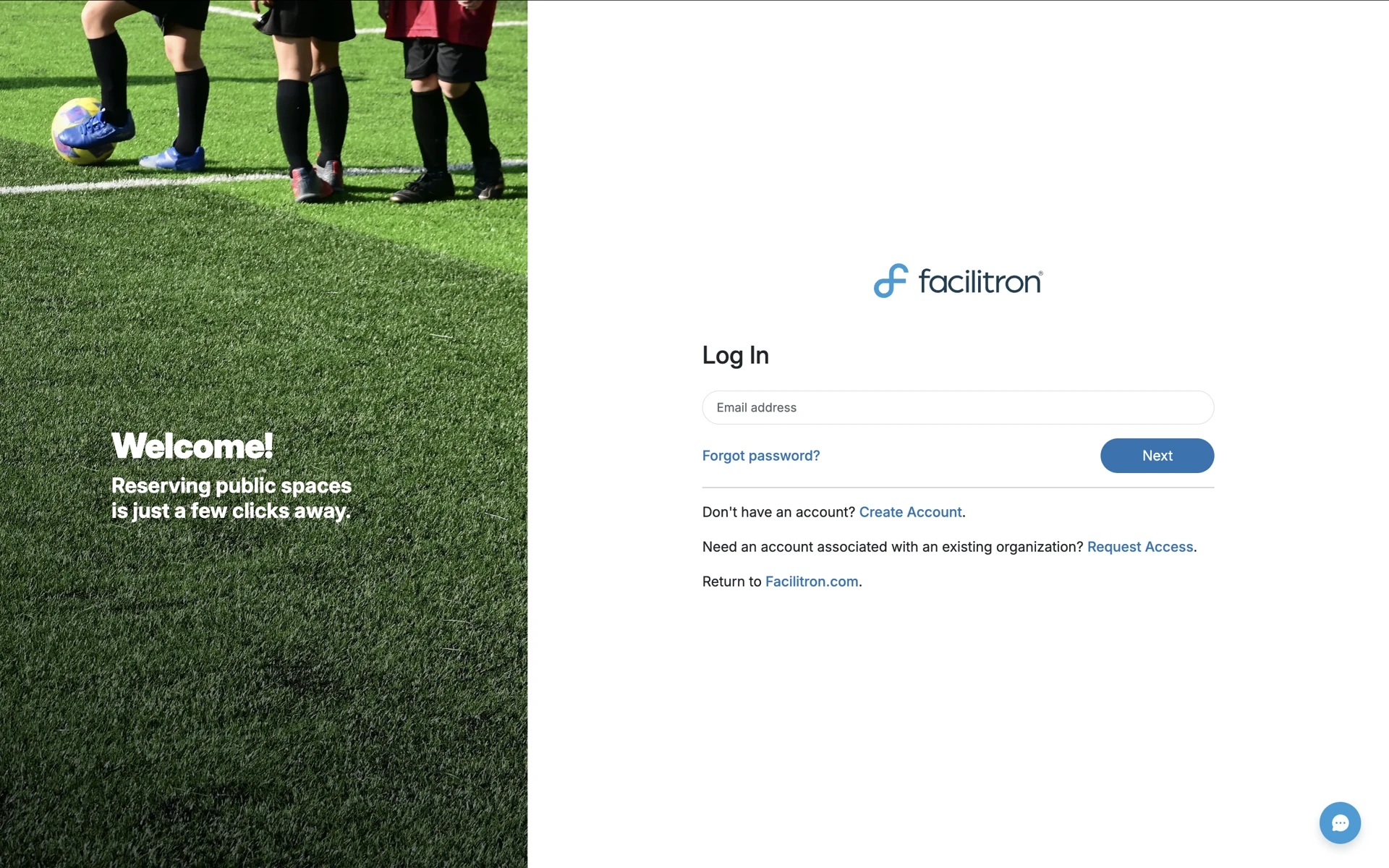
If you aren’t sure what your temporary password is, go ahead and reset using the instructions below.
Resetting Your Password
To reset your password, click Forgot Password? and enter your school email address to receive the instructions for resetting your password.
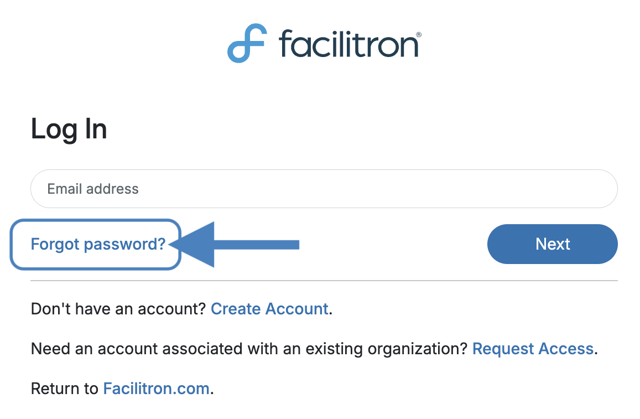 Once you’ve received the email, follow the instructions to reset your password. Once reset, go back to maintenance.facilitron.com and use your new password to log in to WORKS.
Accessing Works from S&R
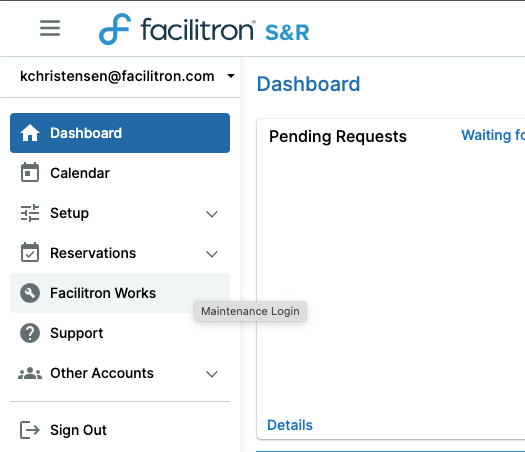
If your organization also uses Facilitron S&R, you can also access WORKS from your S&R dashboard by clicking Facilitron Works. If needed, please see Using the Dashboard - Administrators for assistance with finding your S&R dashboard.
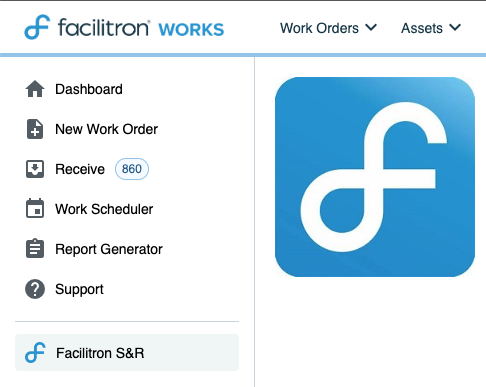
If you navigate to WORKS from your S&R dashboard, you can jump back to your S&R dashboard as needed by clicking Facilitron S&R.
For additional assistance, please reach out to Facilitron Support at (800) 272-2962, or email us at support@facilitron.com.
This article will assist you with logging into Facilitron WORKS and with password resets. Please note that this article is for users who have already been to their organization’s account in WORKS. If you have not been added or are unsure, please reach out to your site or district, or to Facilitron Support.
Logging In
Go to maintenance.facilitron.com and enter your school email address and the temporary password provided to you. Once you've logged in for the first time, reset your password to your own secure, unique password.
If you aren’t sure what your temporary password is, go ahead and reset using the instructions below.
Resetting Your Password
To reset your password, click Forgot Password? and enter your school email address to receive the instructions for resetting your password.Once you’ve received the email, follow the instructions to reset your password. Once reset, go back to maintenance.facilitron.com and use your new password to log in to WORKS.
Accessing Works from S&R
If your organization also uses Facilitron S&R, you can also access WORKS from your S&R dashboard by clicking Facilitron Works. If needed, please see Using the Dashboard - Administrators for assistance with finding your S&R dashboard.
If you navigate to WORKS from your S&R dashboard, you can jump back to your S&R dashboard as needed by clicking Facilitron S&R.
For additional assistance, please reach out to Facilitron Support at (800) 272-2962, or email us at support@facilitron.com.
Was this article helpful?
That’s Great!
Thank you for your feedback
Sorry! We couldn't be helpful
Thank you for your feedback
Feedback sent
We appreciate your effort and will try to fix the article