This article will assist Maintenance Technicians in Facilitron WORKS with common tasks in the Facilitron WORKS app. To jump to a specific section, click the corresponding link below.
- Getting Started
- Filtering Work Orders
- Viewing Shared Work Orders
- Updating a Work Order Status
- Logging Actions
- Uploading Files
- Logging Costs
- Tracking Your Time in a Work Order
- Commenting on a Work Order
- Adding Followers to a Work Order
- App Shortcuts
- Closing a Work Order
- Viewing Closed Work Orders
- Accessing Tron AI
Getting Started
For assistance with logging in to the WORKS app, please see Downloading the Facilitron Works or Facilitron FIT App. Login instructions can be found in Logging In to the Facilitron Works and FIT Apps.
In order to access the WORKS app, you must first have a WORKS account with your organization. If you have not been added or are unsure, please reach out to your site or district, or to Facilitron Support.
Upon logging in to the WORKS app, you will automatically land on the Work Orders tab. All work orders assigned to you will be listed on this screen. At the top of the page, you will see a header labeled Work Orders (#). The number shown reflects the total quantity of work orders currently assigned to you.
Example:
Work Orders (4) indicates that three work orders are assigned to you. If the number of work orders doesn’t look correct, tap the filter icon in the upper right corner of the screen to review or adjust your filter settings. Active filters may be limiting the work orders displayed.
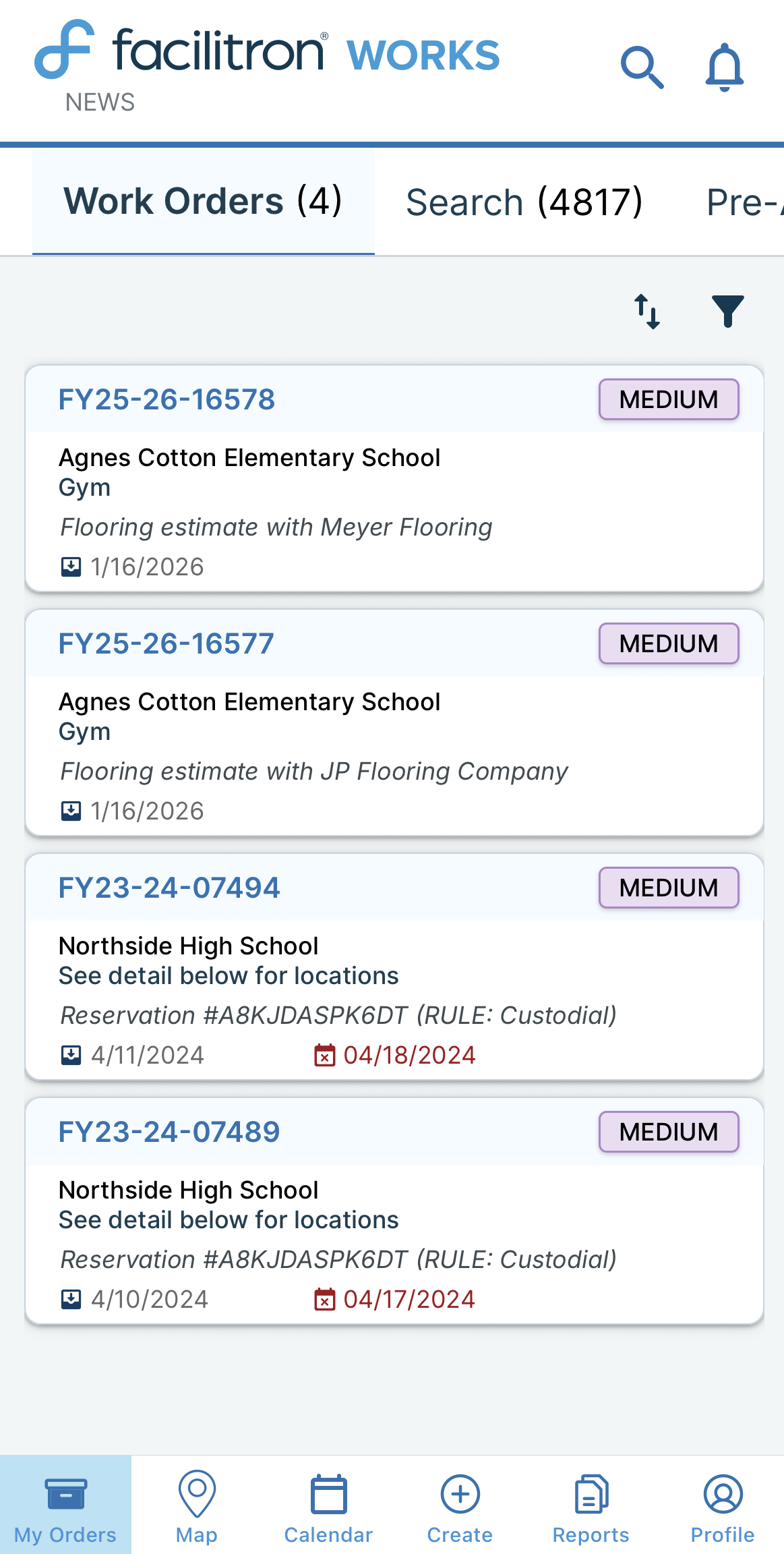
Each work order provides key information so you can quickly assess the task.
- You will see:
- Property
- Building
- Location
- Description
- Priority
- Requested Date (displayed on the left)
- Scheduled Date (displayed on the right)
To organize work orders by date or priority, simply tap the corresponding up and down arrow icons.
Filtering Work Orders
The Filters menu allows you to control which work orders to see in your list.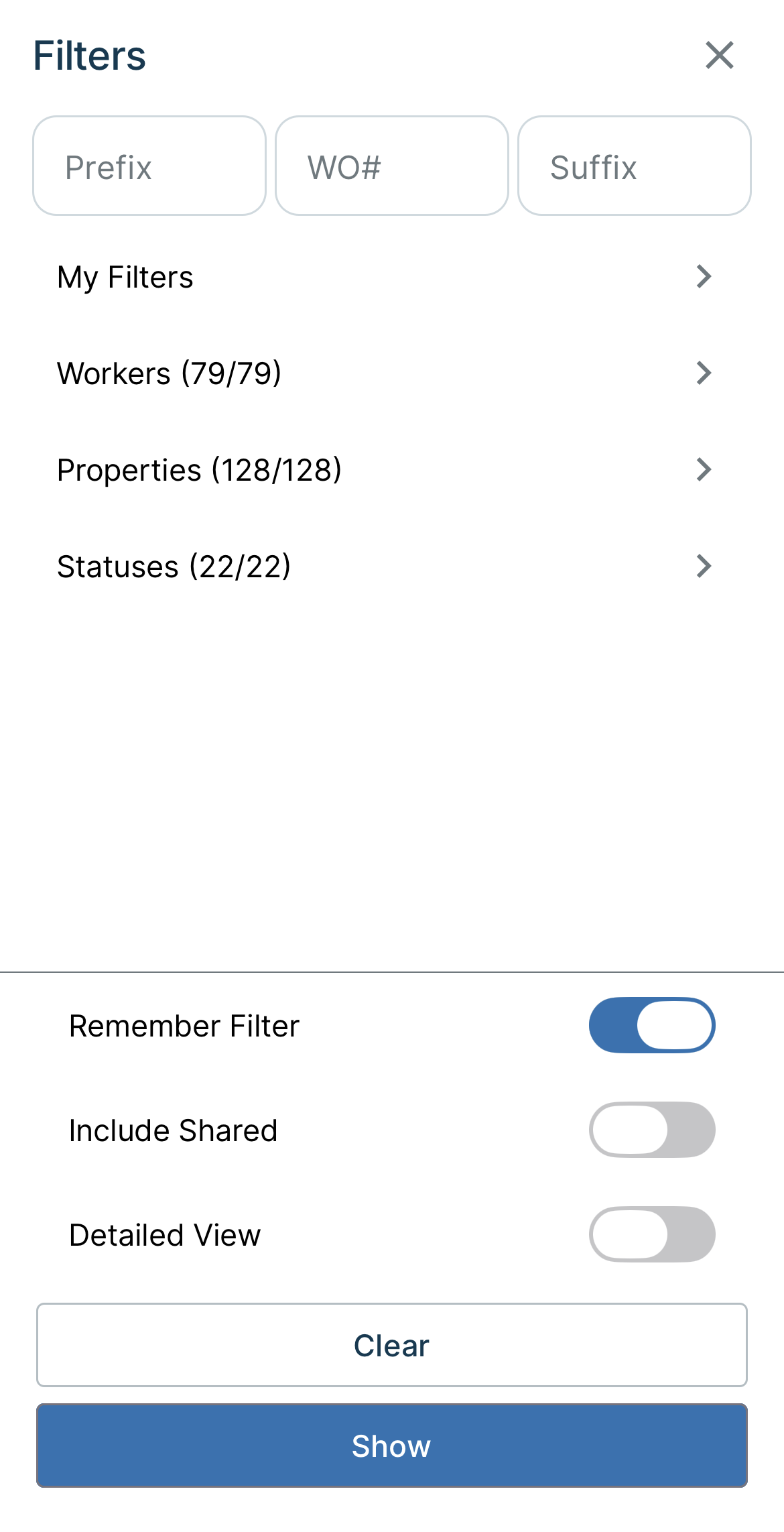
You can filter work orders by:
- Workers
- Properties
- Statuses
- Previously Saved Filters
This helps you narrow down results and quickly find the work orders you need.
Viewing Shared Work Orders
By default, you may only see work orders directly assigned to you. To view all work orders across your trade or crew, you’ll need to enable shared work orders.
To view shared work orders:
- Tap the Filter icon in the upper right corner.
- Scroll toward the bottom of the Filters menu.
- Locate Include Shared Work Orders.
- Toggle the setting ON.
- Tap Show to apply the filter.
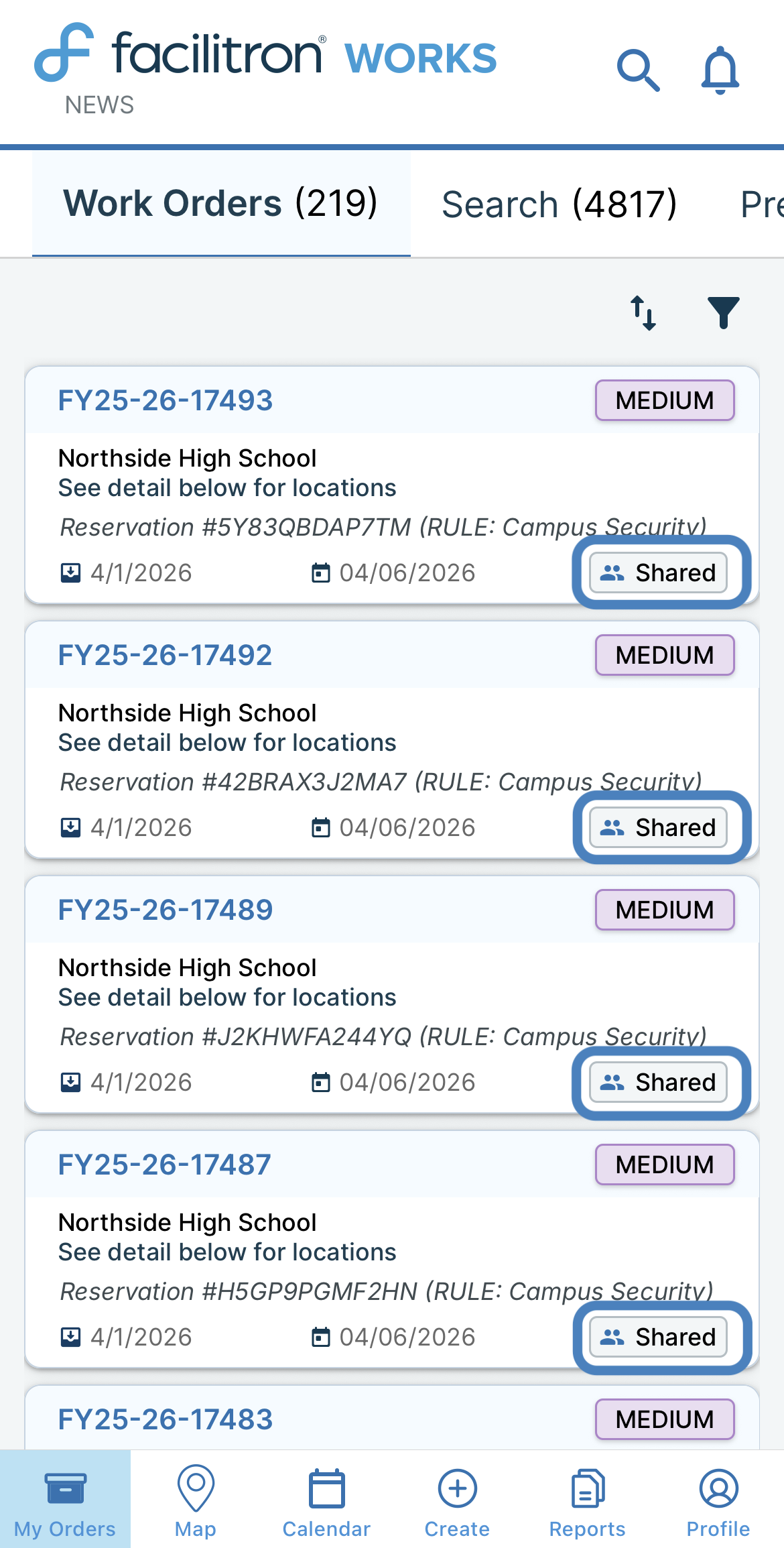
When shared work orders are enabled, you will see additional work orders on the Work Orders tab, and the number in the Work Orders header will increase. All shared work orders will display a Shared tag.
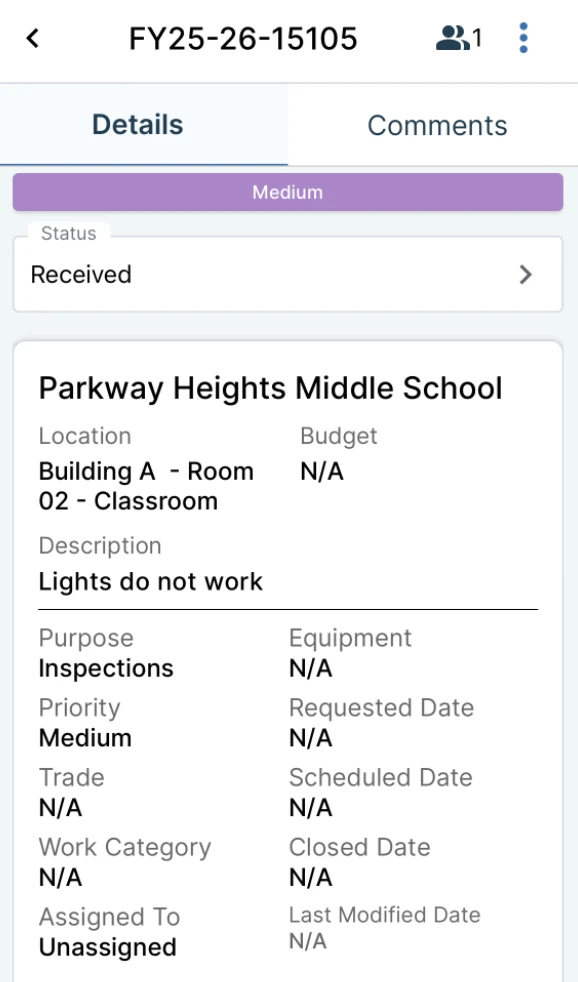
When you tap a work order tile, the full work order details will open. At the top of the screen, you'll see the priority and status displayed above the detailed information.
Updating a Work Order Status
To update a work order status:
- Go to My Orders and select the work order you want to update.
- Locate the Status field at the top of the work order.
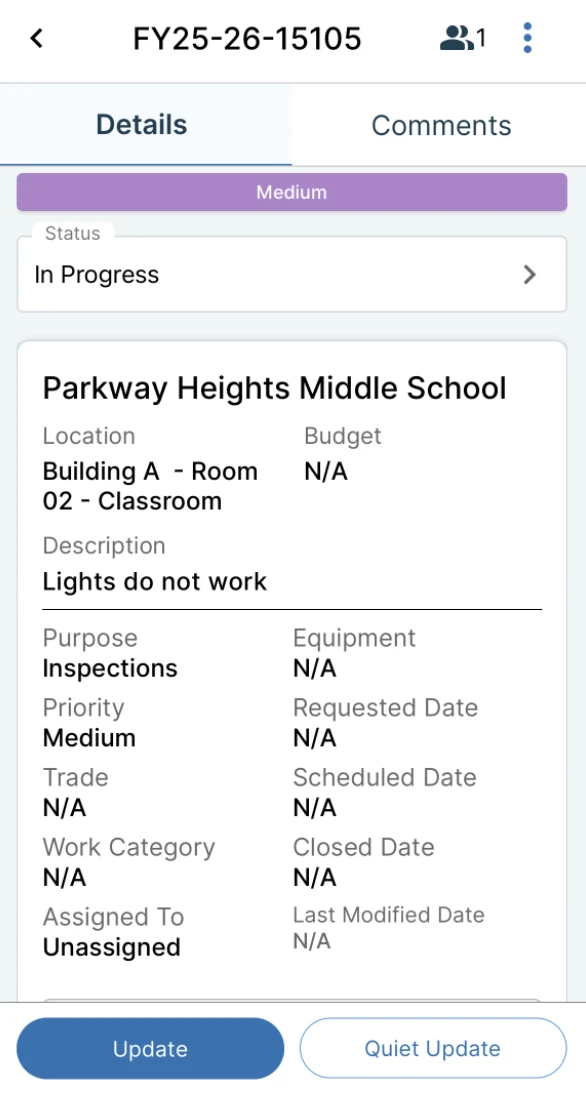
- Tap the Status dropdown, scroll through the list, and select the new status.
- Tap Update (sends notifications) or Silent Update (does not send notifications) to apply the status change.
After updating, a confirmation will appear at the bottom of the screen indicating the update was successful.
Logging Actions
To log an action taken:
- Go to My Orders and select the work order you want to update.
- Scroll to the Actions section.
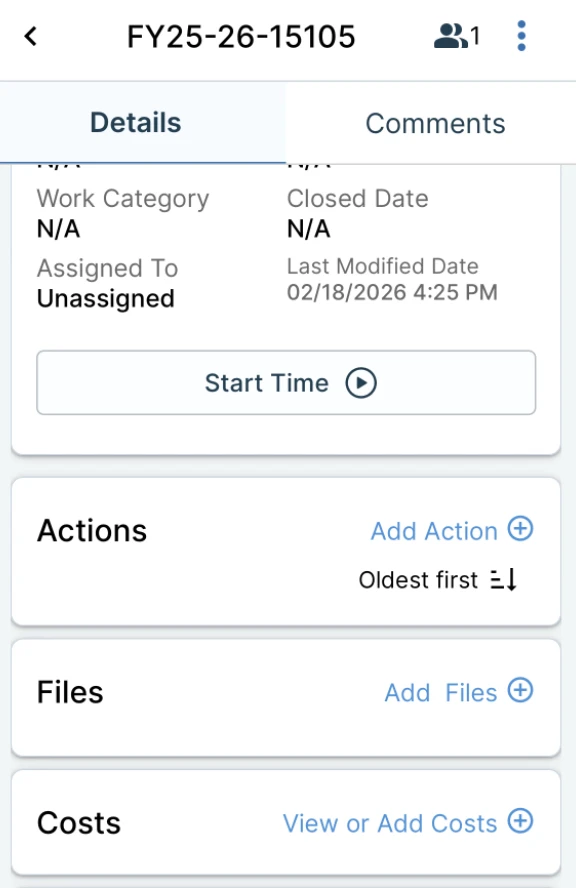
- Tap the blue Add Action Taken icon. Enter the details of the action taken.
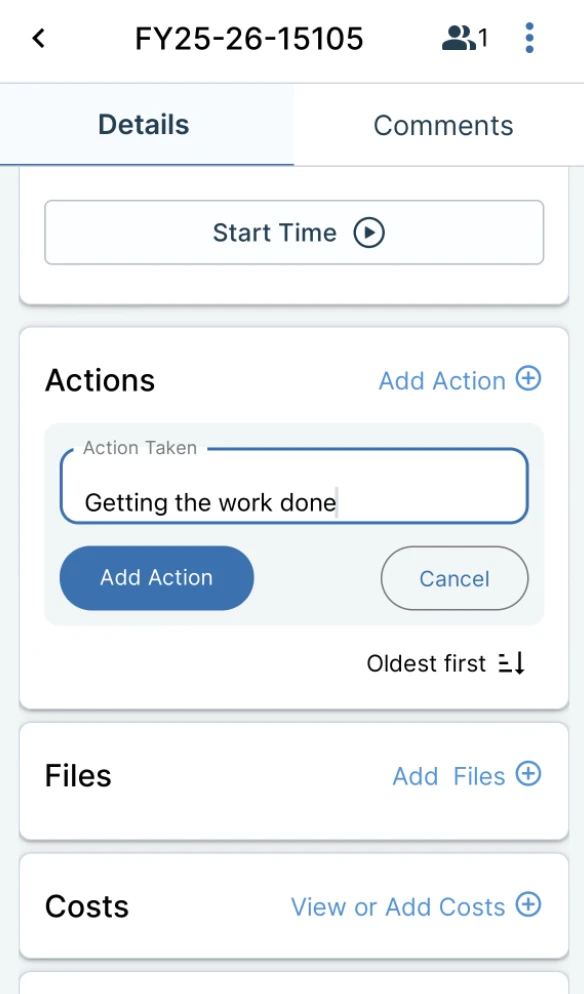
- Tap Add Action Taken to save your entry. A confirmation message will appear indicating the work order has been updated.
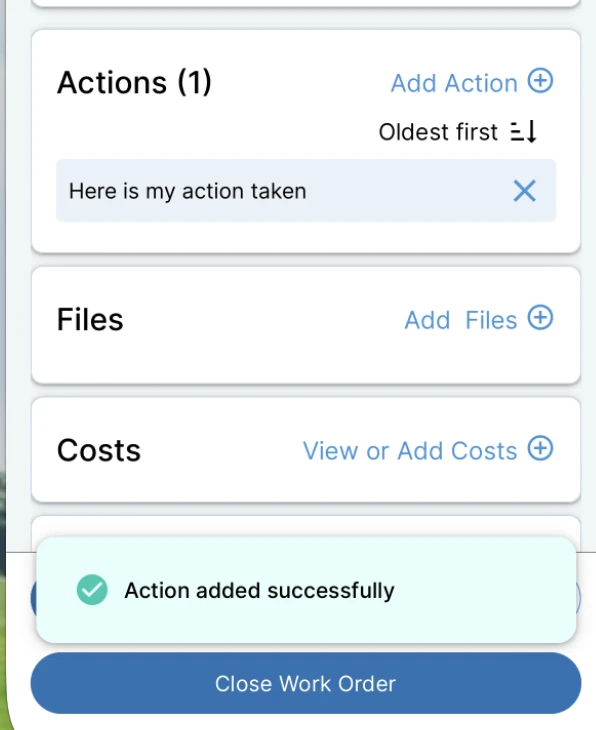
Once added, the Actions section will display a count (for example, Actions (1)). If needed, you can remove an action by tapping the X next to the entry.
Uploading Files
To upload files:
- Tap Add Files.
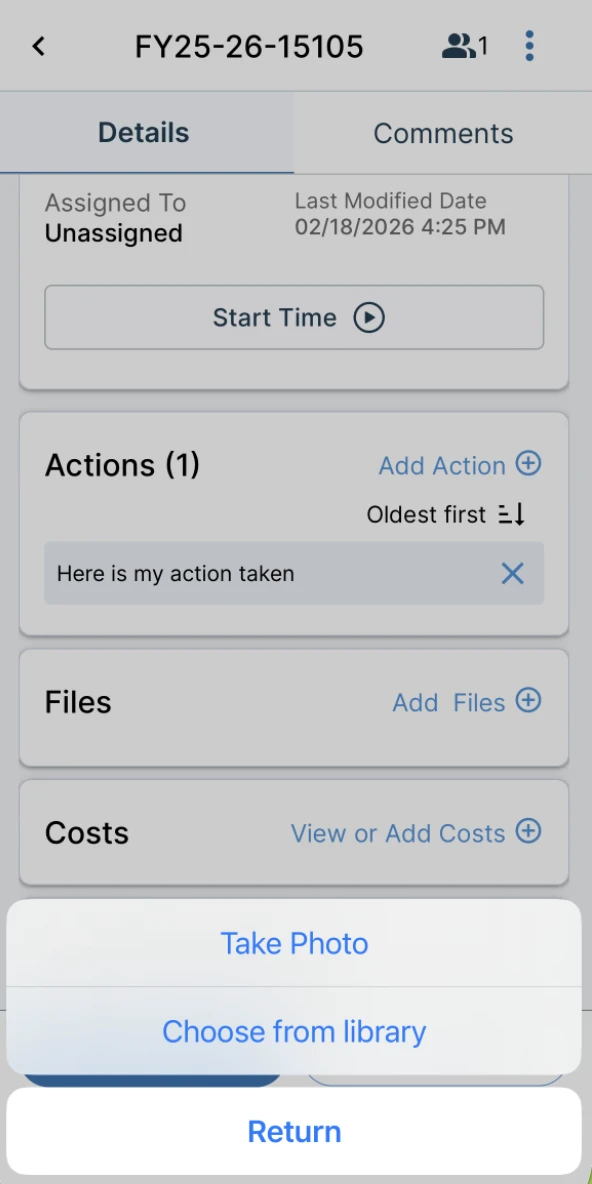
- Select either:
- Take a Photo, or
- Choose from Library.
- When the file viewer appears, review the file and tap Save.
After saving, a confirmation will appear indicating the work order has been updated.
If you scroll down to the Files section, you will see thumbnail previews of the uploaded files. Each file includes a removal icon if you need to delete it.
Logging Costs
The Costs section allows you to track expenses associated with the work order. To add costs, scroll to the Costs section and tap View or Add Costs + to add and review the work order costs.
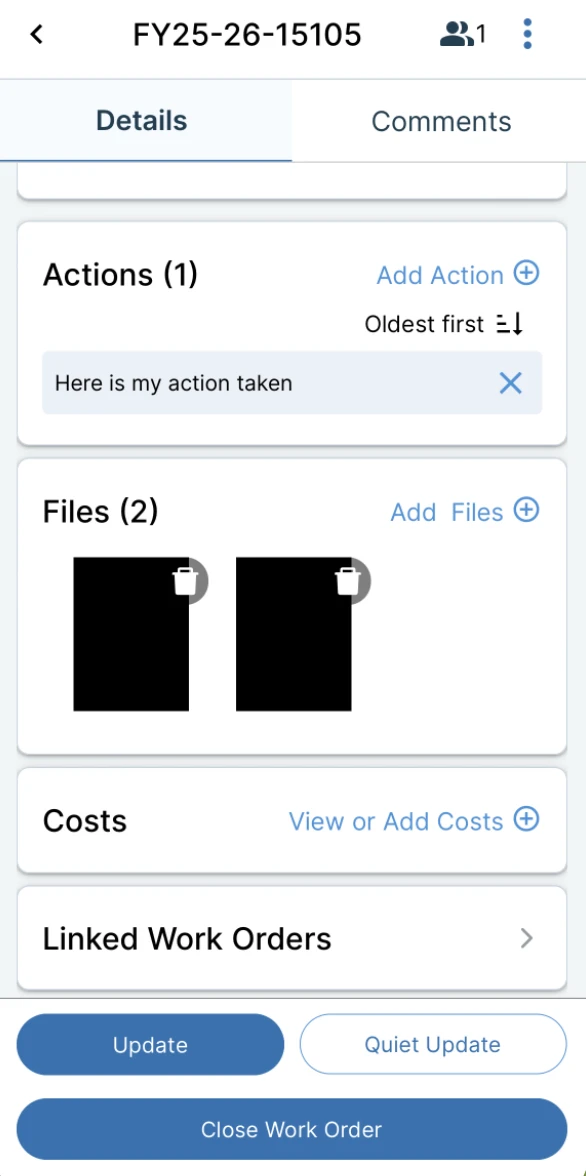
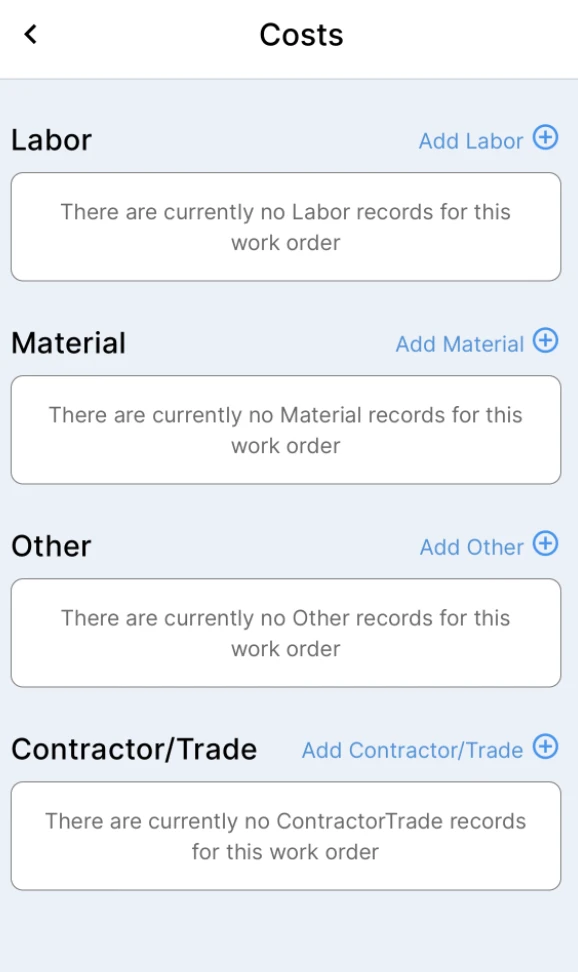
Tap the corresponding blue text for each field to log labor, material, and other costs. For this example, we’ll add labor costs by tapping Add Labor +.
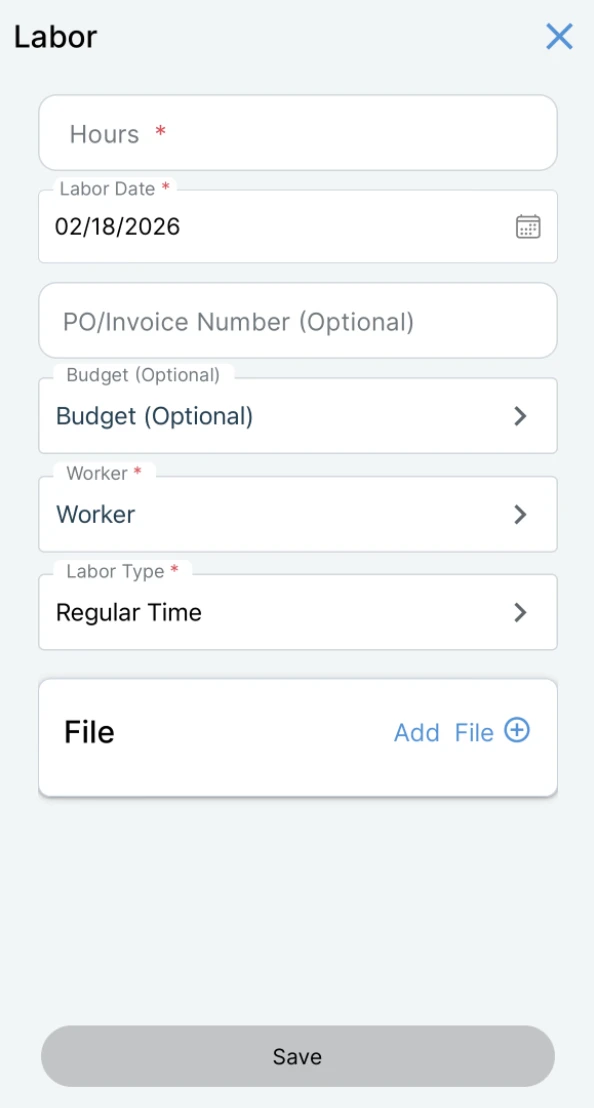
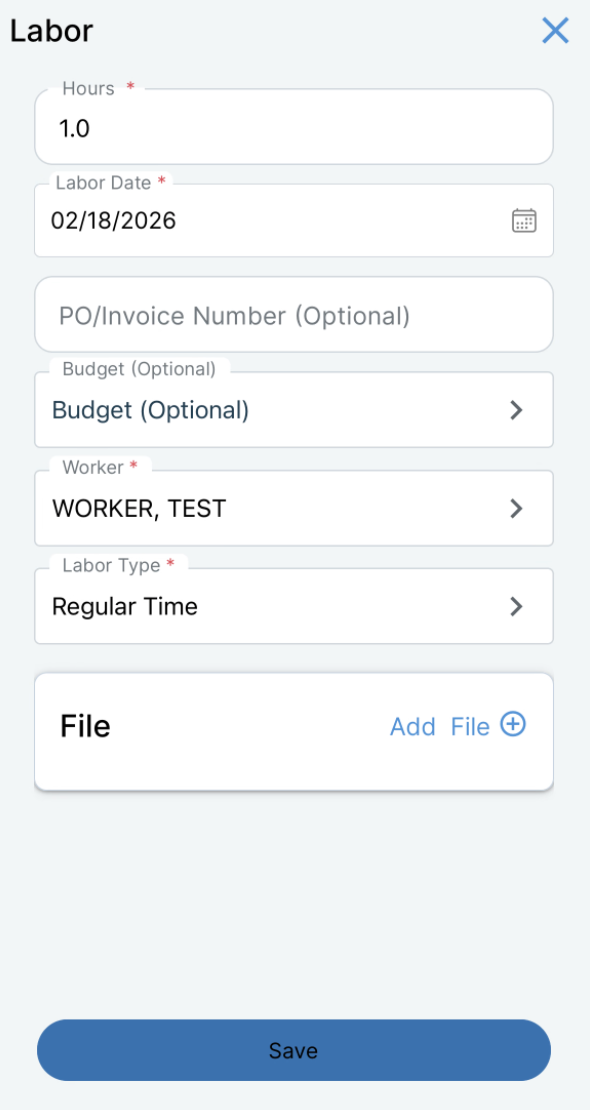
 Any fields marked with a red asterisk are required. You can enter labor costs for yourself and other workers as needed. After entering the information for the cost, tap Save to add the cost to the work order.
Tracking Your Time in a Work Order
You can manually add your hours worked by going to Costs and clicking Add Labor + and enter your hours worked, or you can use the stopwatch to track and log your hours in the actual work order. To do this, go to My Orders and select the work order you wish to update.
Click Start time to begin tracking your hours.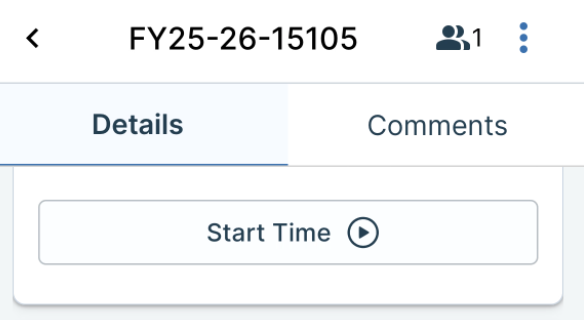
Once started, the timer will begin to count. When you’re done, click the green check to stop the timer and log labor. You can also pause or cancel the timer.
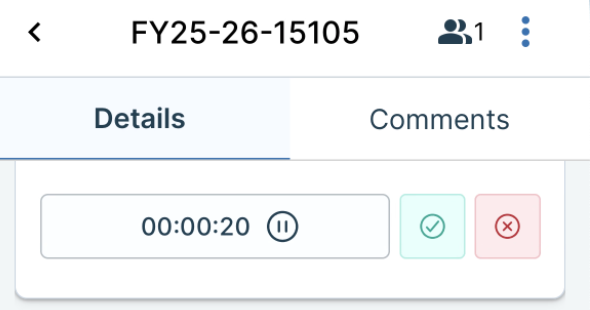
Clicking the red X to cancel the timer will pop up a prompt to confirm to avoid accidental cancellation.
After clicking the green check to stop the timer, log your information in the pop up (Note: your hours and the date will already be populated). Click Save when you’re done.
Commenting on a Work Order
- Go to My Orders and select the work order you wish to update.
- Tap the Comments tab.
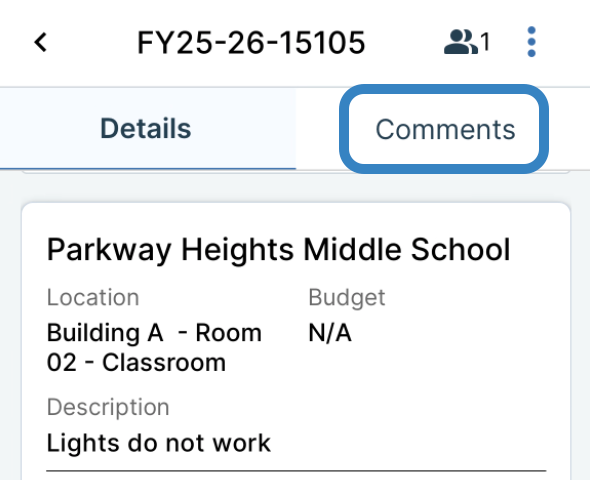
- Tap in the comment box (located at the bottom of the screen) to begin typing. Press the blue arrow to post your comment to the work order. To notify other staff by email, tap the person icon, select your recipients, and tap Save Recipients.
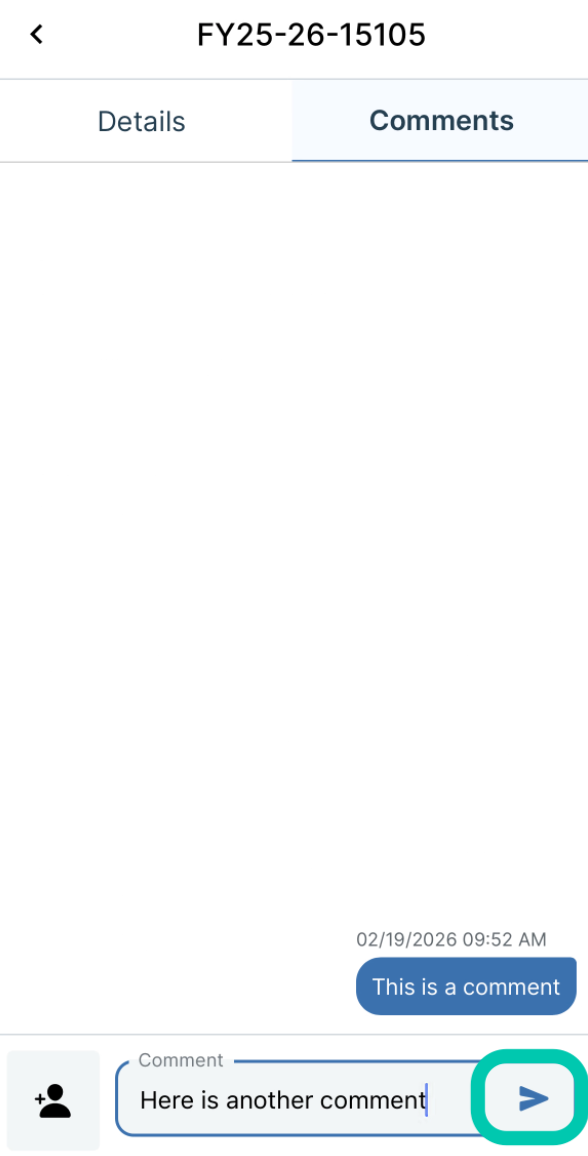
Note: If you leave a comment on another worker’s work order, you automatically become a follower of that work order and will receive email updates on that work order’s progress. If you do not wish to follow a work order after commenting, simply unfollow it.
Adding Followers to a Work Order
- Open the work order you would like to add followers to.
- On the work order details page, tap the Followers icon in the upper right corner.
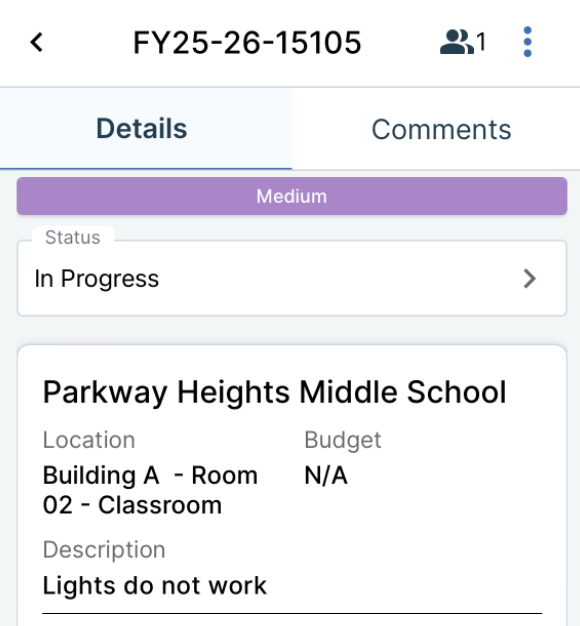
- The icon will display a number (for example, (1)) because you are automatically added as a follower.
From here you can:
Stop following the work order
Add yourself as a follower to other work orders
Add additional users as followers
Adding followers is recommended when multiple workers need to stay informed about updates to a specific work order.
App Shortcuts
- On the work order details page, tap the three-dot icon in the upper right corner (next to the Followers icon).
- This menu provides four shortcut options:
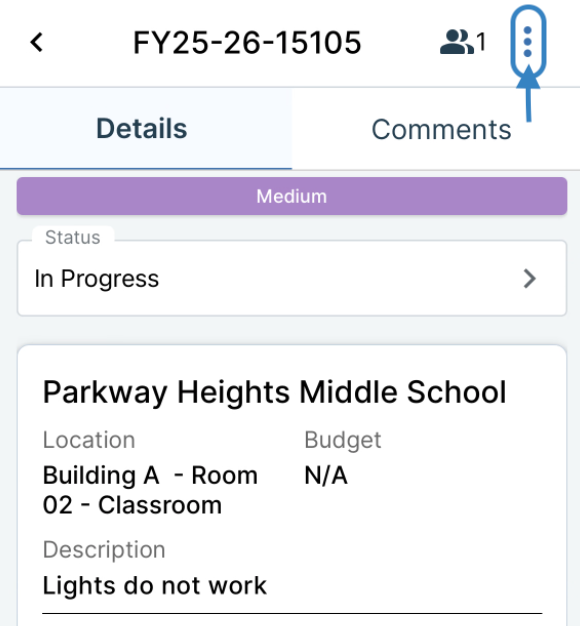
- Edit Work Order – Update the details of the work order.
Cost – Navigate to the cost page to add labor, materials, other costs, or contractors.
Forward – Send the work order details to a user via email.
History – View the work order’s activity log and status updates.
Closing a Work Order
- Open the work order you would like to close.
- Tap the Close Work Order button at the bottom of the screen.
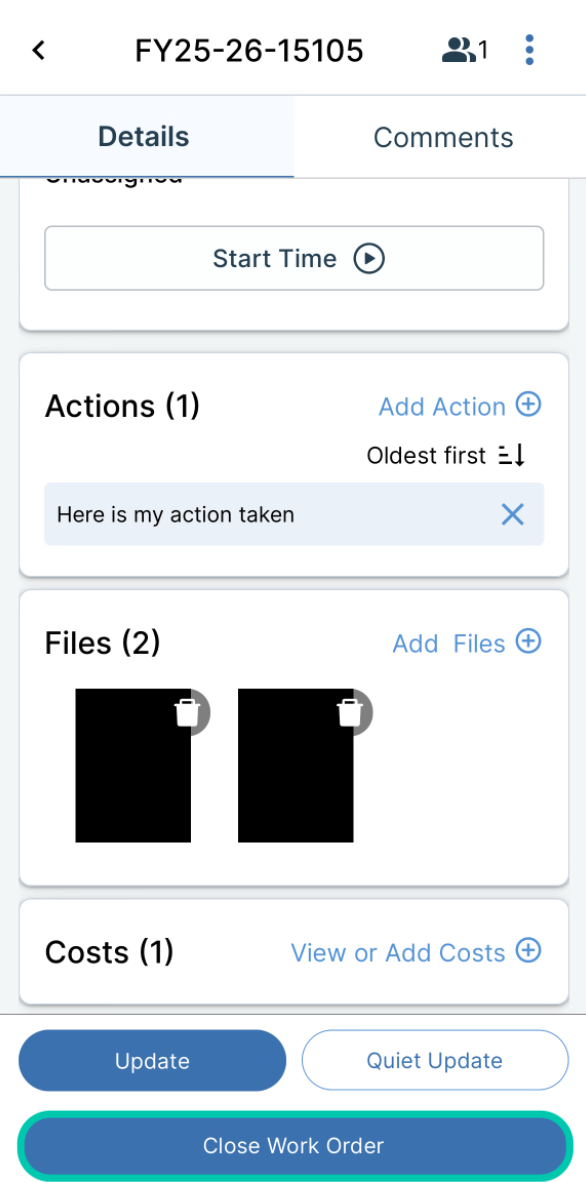
- A confirmation will appear indicating the work order has been successfully closed.
Viewing Closed Work Orders
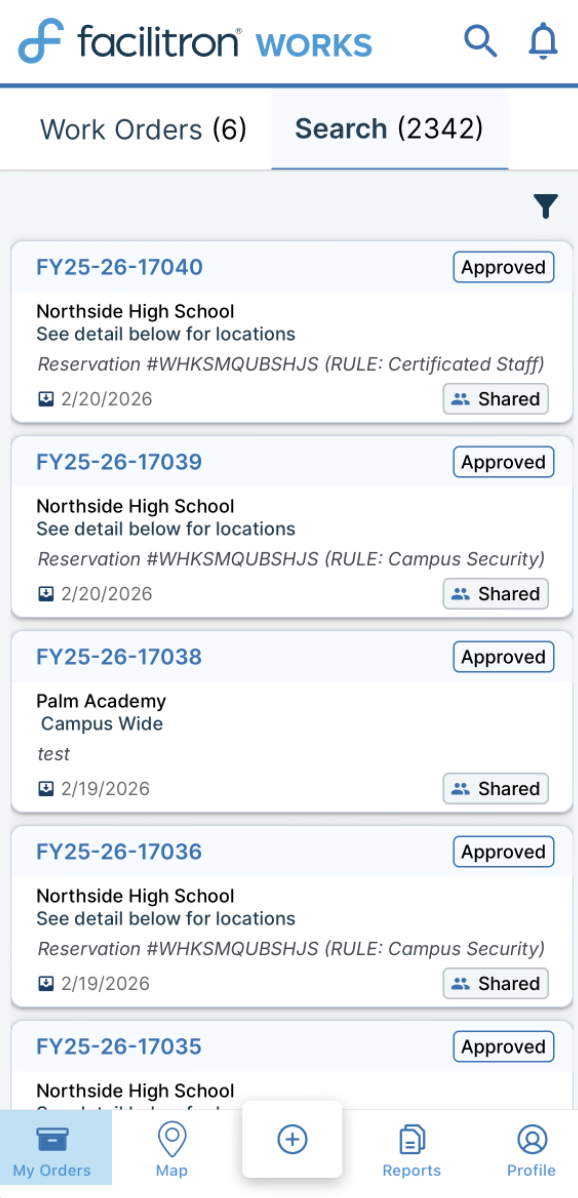
The Work Orders tab displays only active work orders. Once a work order has been closed, it will no longer appear in this list. To find a closed or completed work order, tap the Search tab. Here, you to look up past work orders by date, including those that are closed or completed. Click the filter icon to apply any filters needed for your search.
Accessing Tron AI
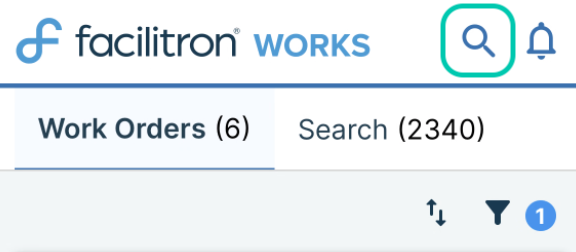
Tron AI is a built-in chatbot that provides step-by-step guidance for common questions about using WORKS. Simply click the magnifying glass in the top right corner of your screen to ask a question.
Once you start typing, you’ll see Tron begin to provide suggestions. To open a new chat with Tron AI, tap Ask Tron to ask a custom question, or tap one of the suggested questions in Other Suggestions if one of the suggestions matches your inquiry.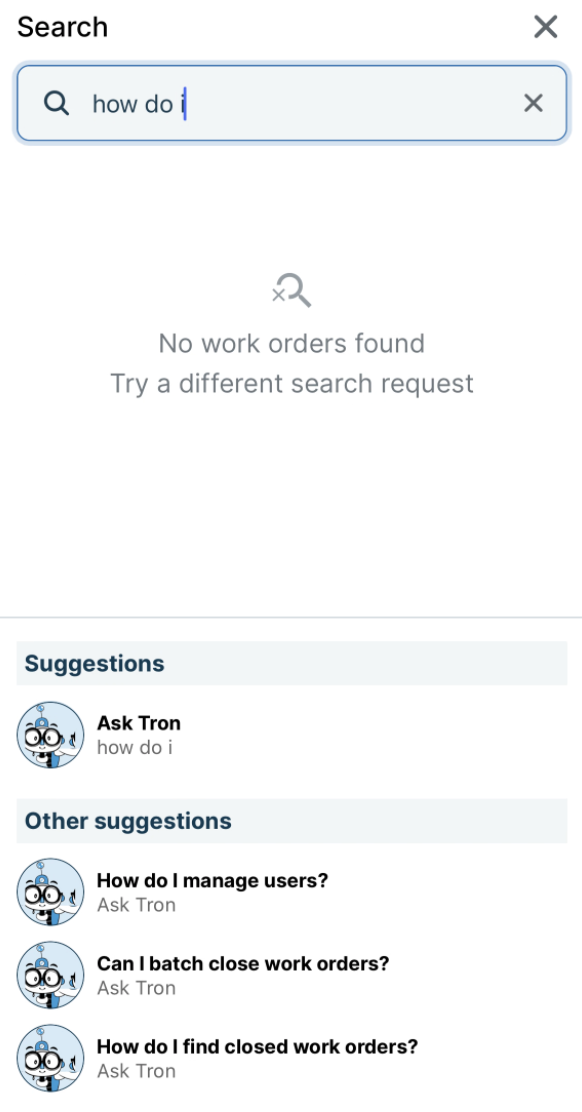
Note: Tron AI offers instructions and helpful resources, but it does not perform actions within the system or make changes to work orders.
By following the steps outlined above, you can confidently navigate, update, and close work orders in Facilitron WORKS. For additional assistance, please reach out to Facilitron Support at (800) 272-2962, or email us at support@facilitron.com.
Was this article helpful?
That’s Great!
Thank you for your feedback
Sorry! We couldn't be helpful
Thank you for your feedback
Feedback sent
We appreciate your effort and will try to fix the article